 PDF Tools
Organize pages

How to merge PDF files into one document
Combine several PDFs into one document, in the order you choose.

How to split a PDF into separate files
Split one PDF into several files, by page or by range.

How to remove pages from a PDF
Delete the pages you do not need from a PDF.

How to extract pages from a PDF
Copy chosen pages from a PDF into one new file.
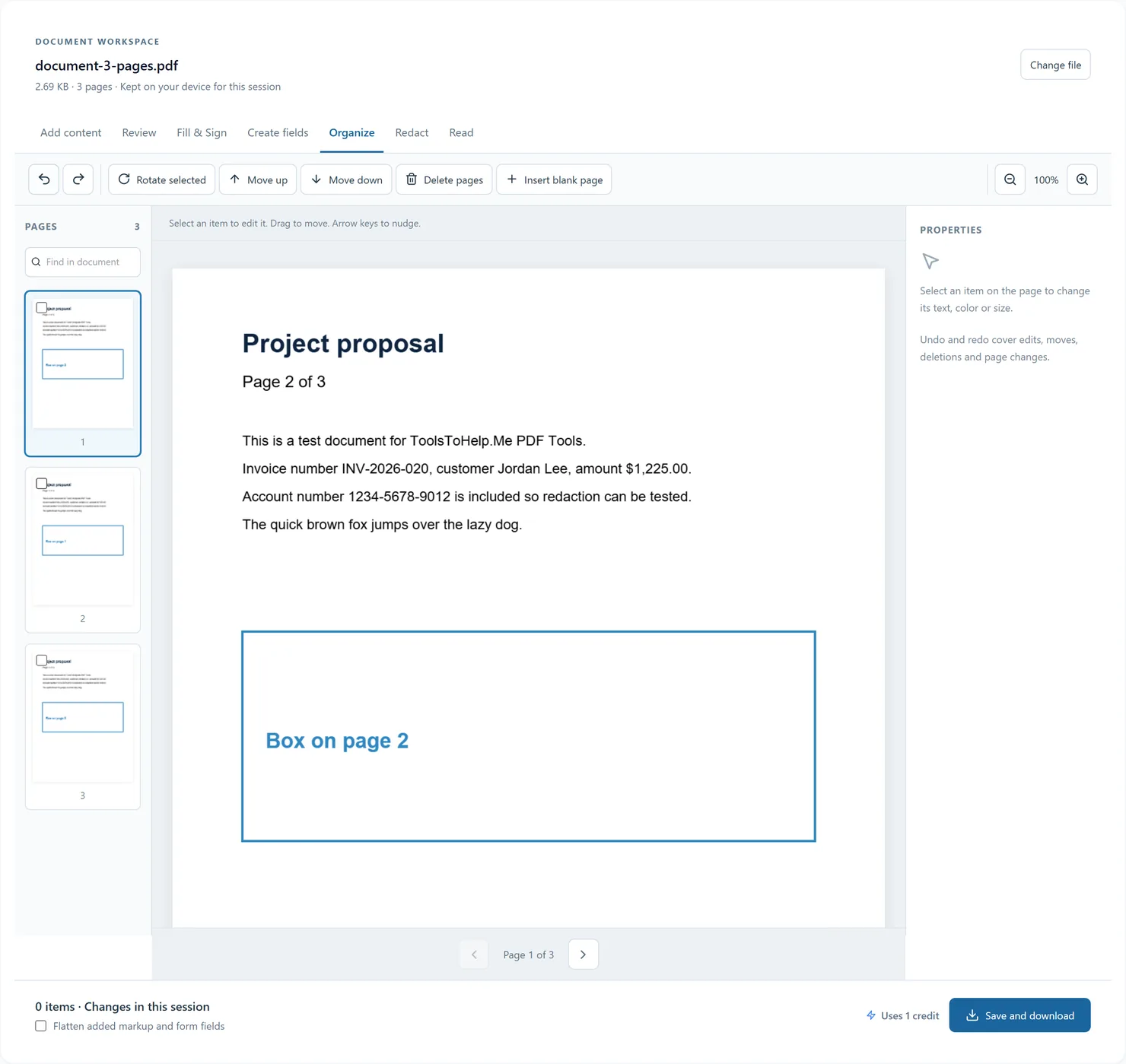
How to reorder the pages of a PDF
Organize PDF pages visually: reorder thumbnails, rotate or delete selected pages, insert a blank page, and undo page changes before exporting.

How to rotate the pages of a PDF
Turn PDF pages by 90, 180 or 270 degrees.

How to fit several PDF pages on one sheet
Fit 2, 4, 6 or 9 PDF pages on each printed sheet.

How to cut PDF pages in half
Cut every page of a PDF in half, doubling the page count.

How to resize the pages of a PDF
Resize PDF pages to a standard, custom or scaled size.

How to crop the margins off a PDF
Trim margins or unwanted edges off every page of a PDF.
Edit and sign
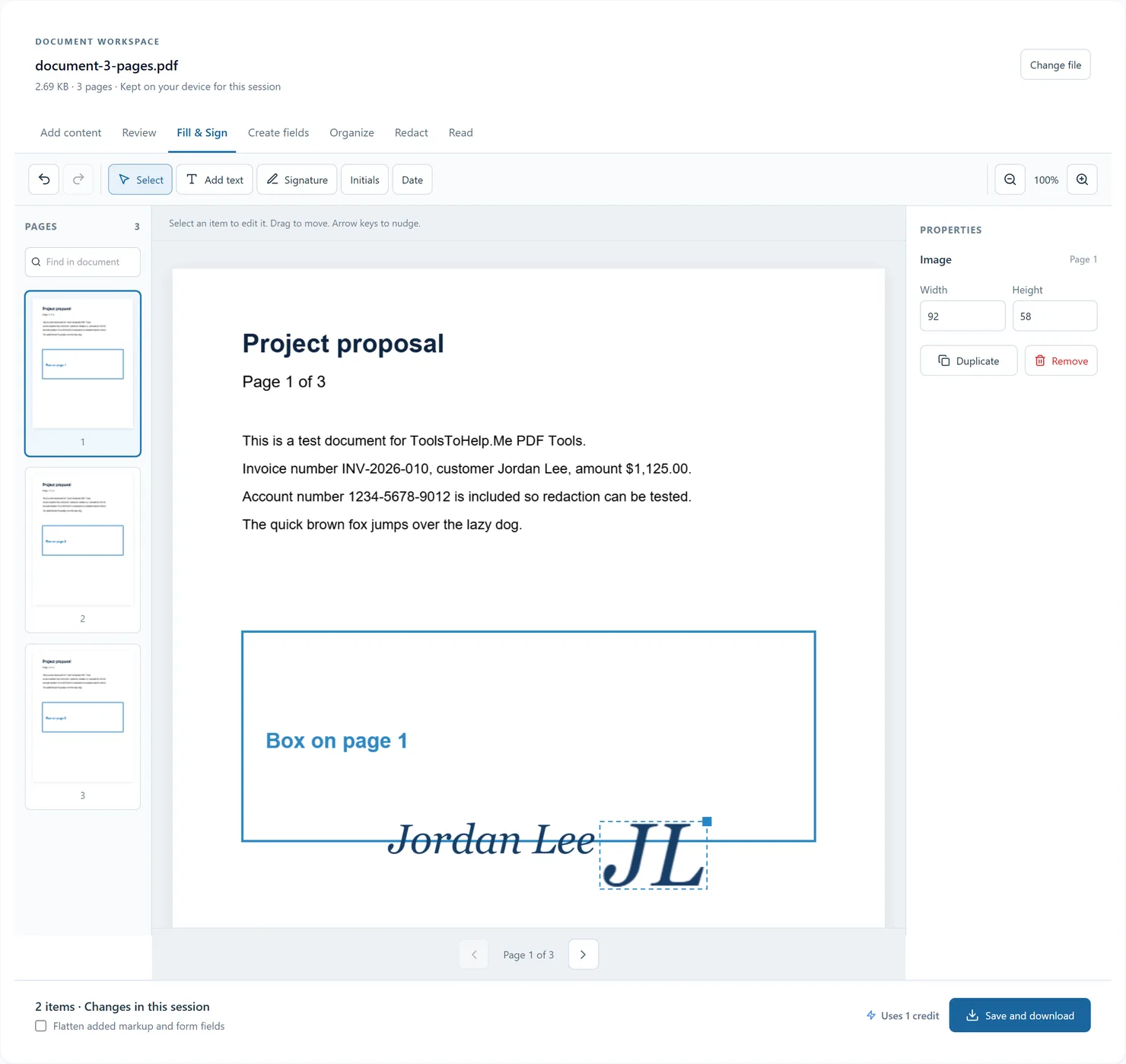
How to sign a PDF
Draw, type or upload a signature, place initials and dates, and fill existing form fields in one PDF workspace. Resize each placement and save your copy.
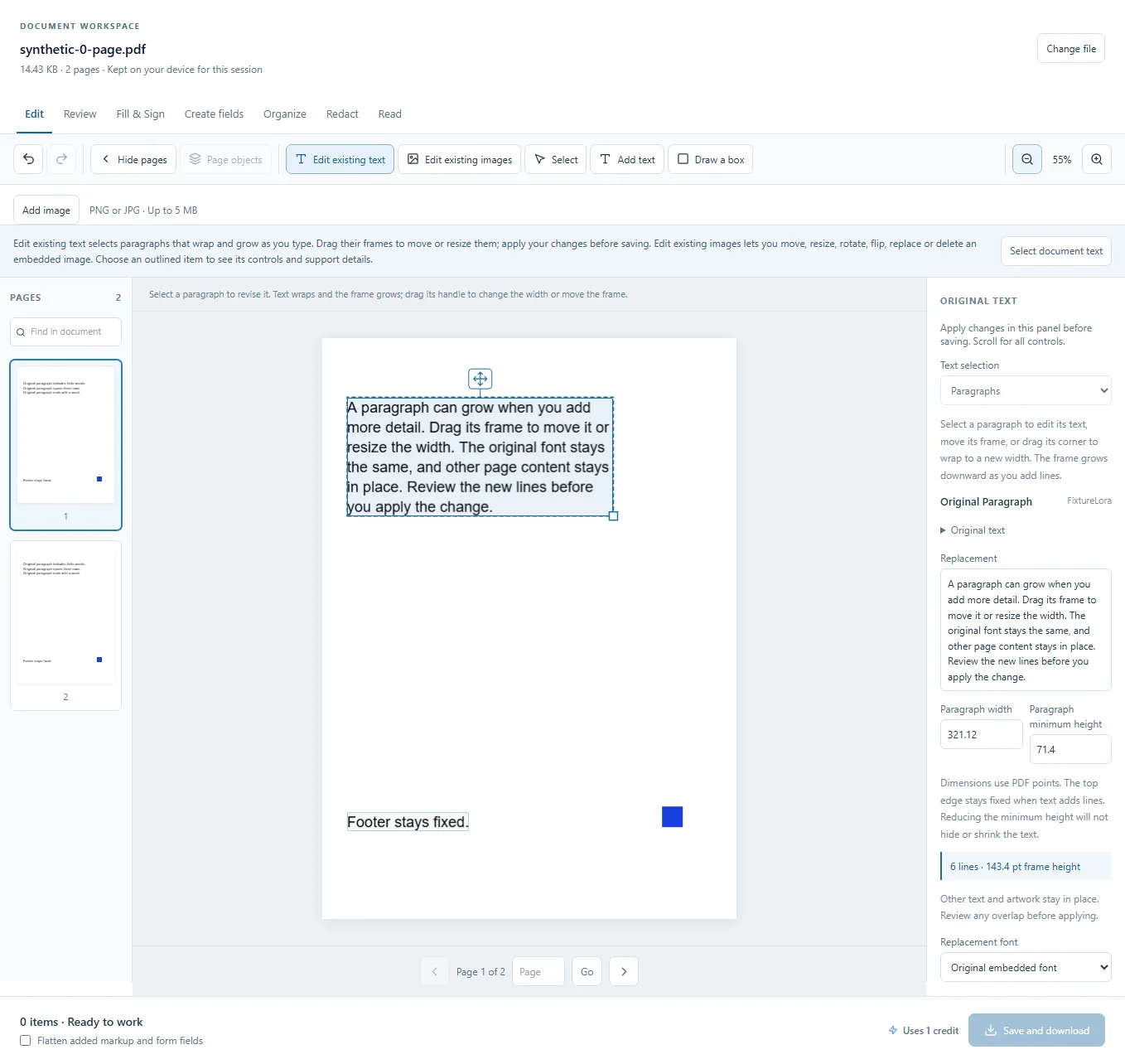
How to edit a PDF
Add words and lines to supported paragraphs, resize their frames, and adjust images or added page objects.
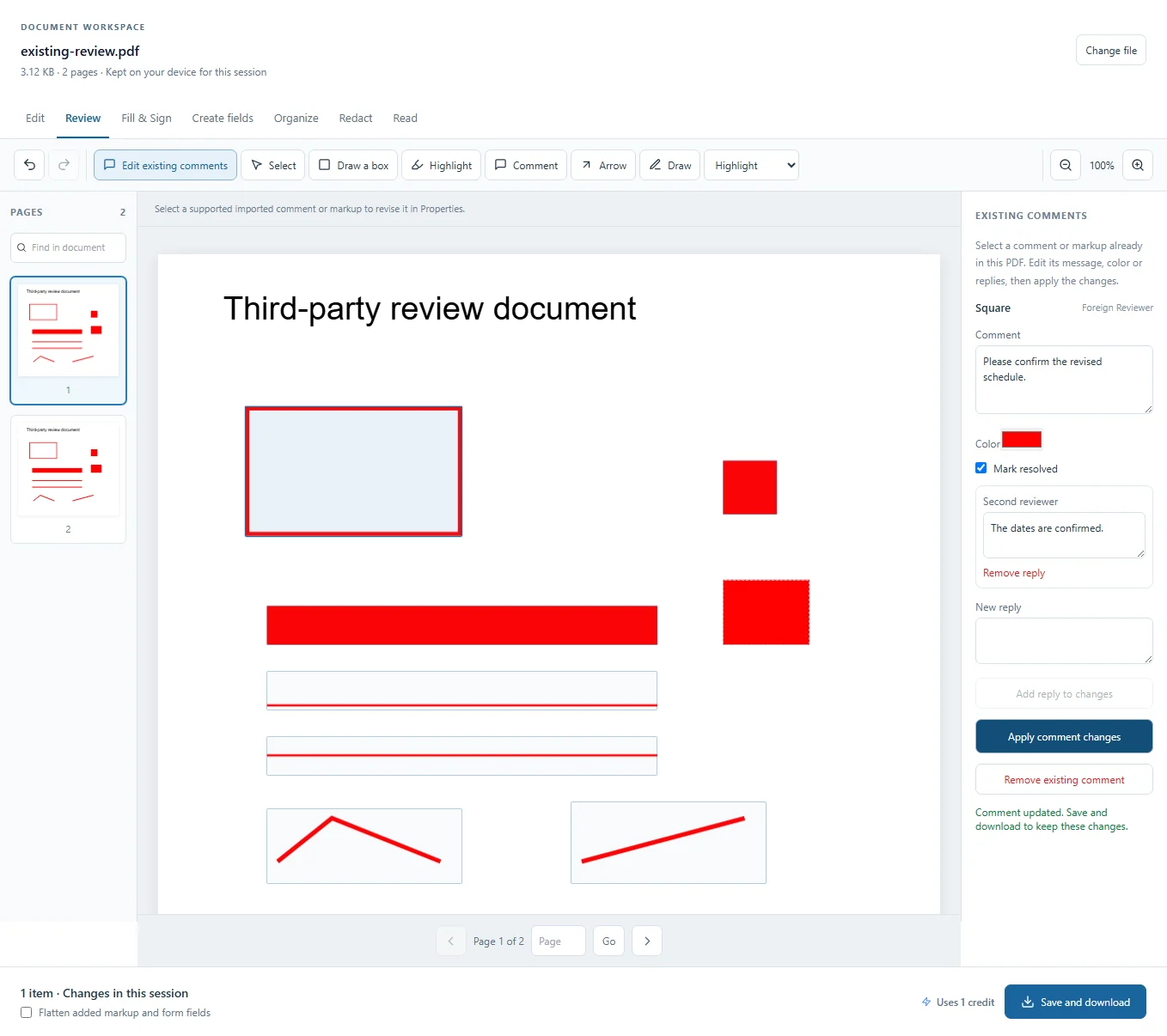
How to annotate a PDF
Add markup or edit supported existing annotations, including their messages, colors, replies and resolved state.
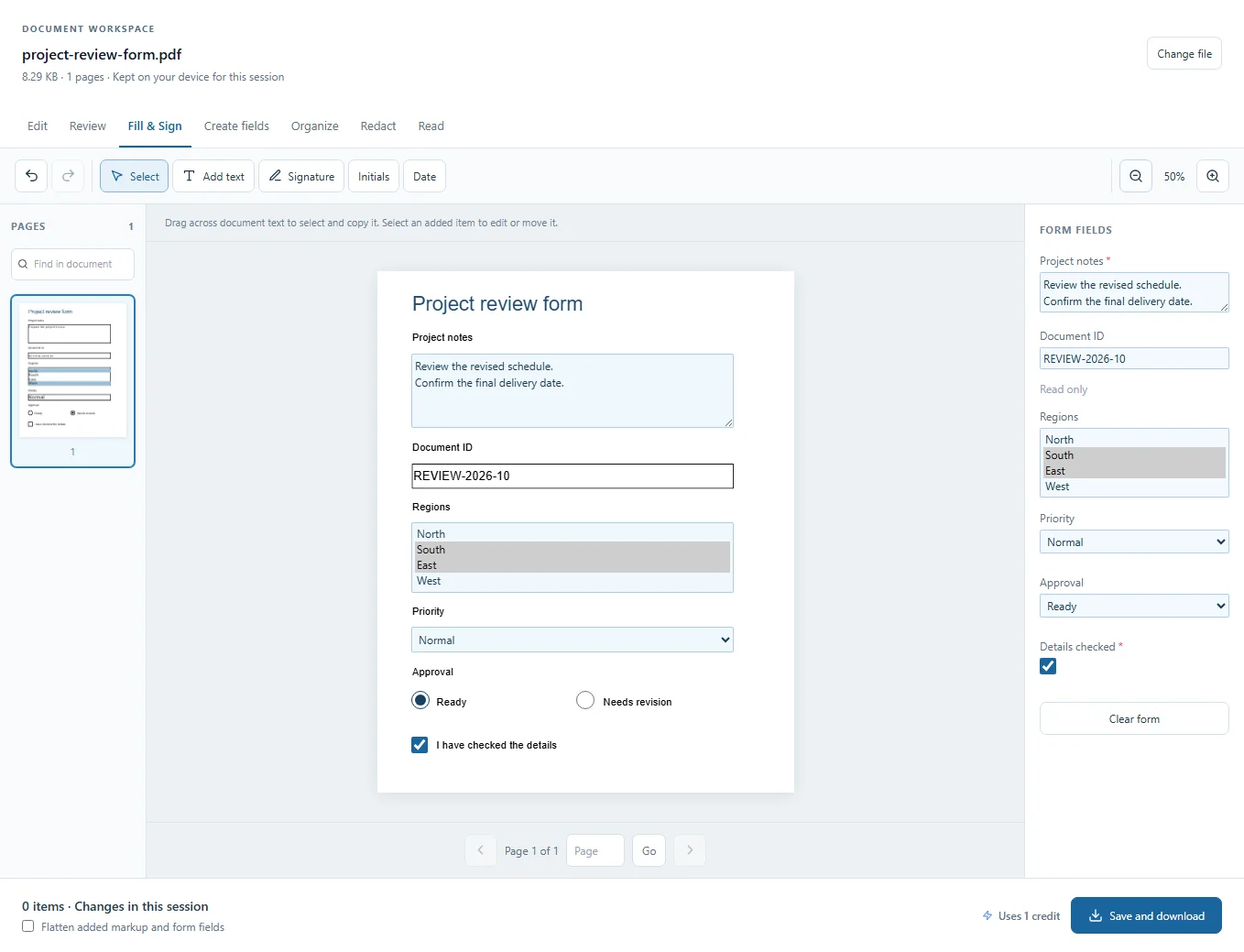
How to fill out a PDF form
Complete multiline answers, checkboxes, radio groups and multi-select choices, then save editable fields or a flattened copy.
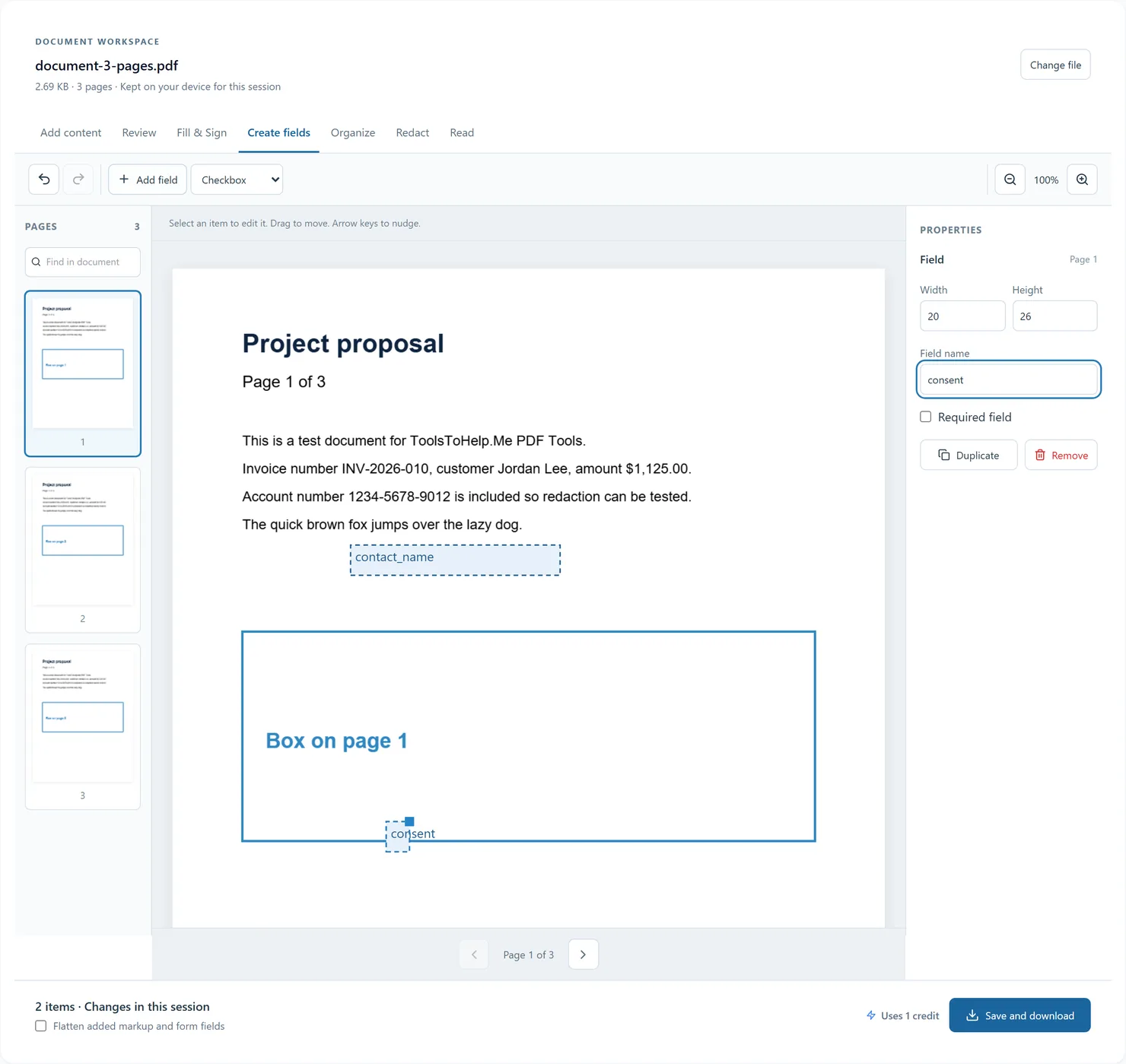
How to create a fillable PDF form
Draw native text fields, checkboxes, dropdowns and radio buttons onto PDF pages. Give controls names and options, then export a PDF others can fill.
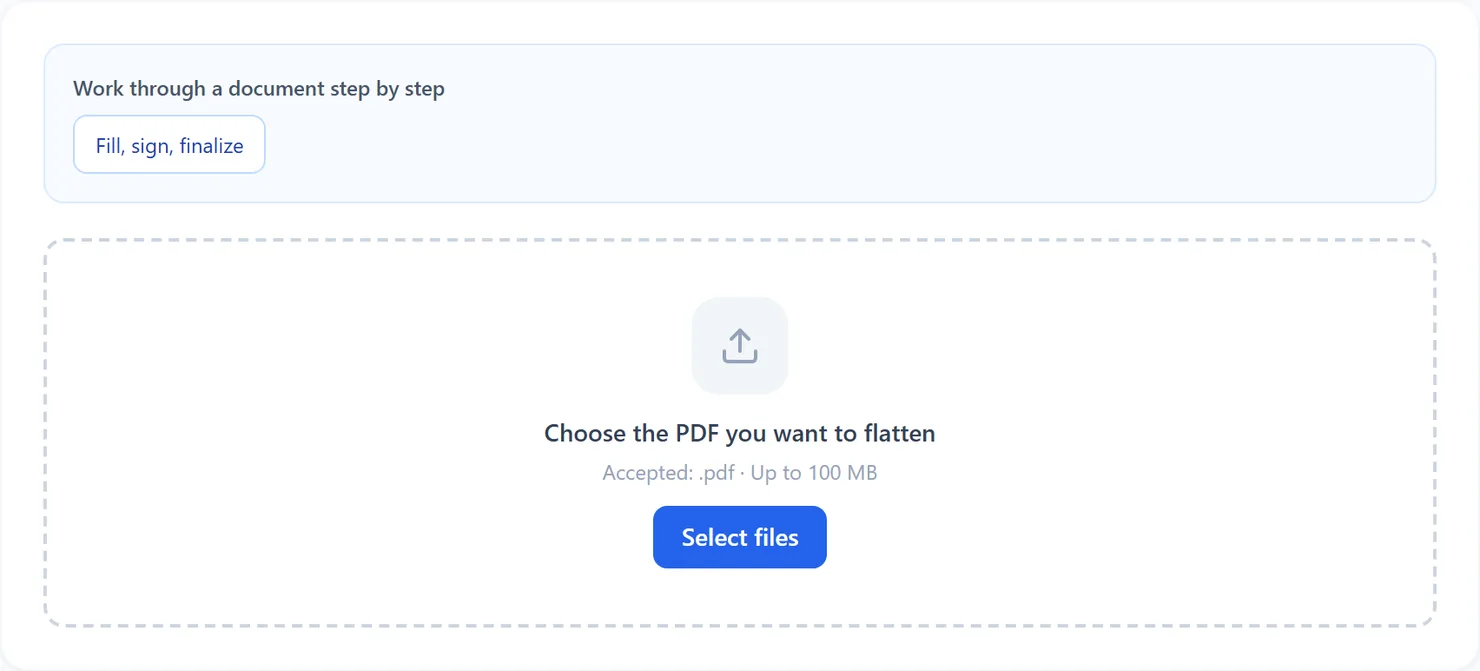
How to flatten a PDF form
Merge form fields into the page so the answers cannot be changed.

How to add a watermark to a PDF
Stamp a text watermark across every page.

How to add page numbers to a PDF
Number every page, with the position and starting number you choose.
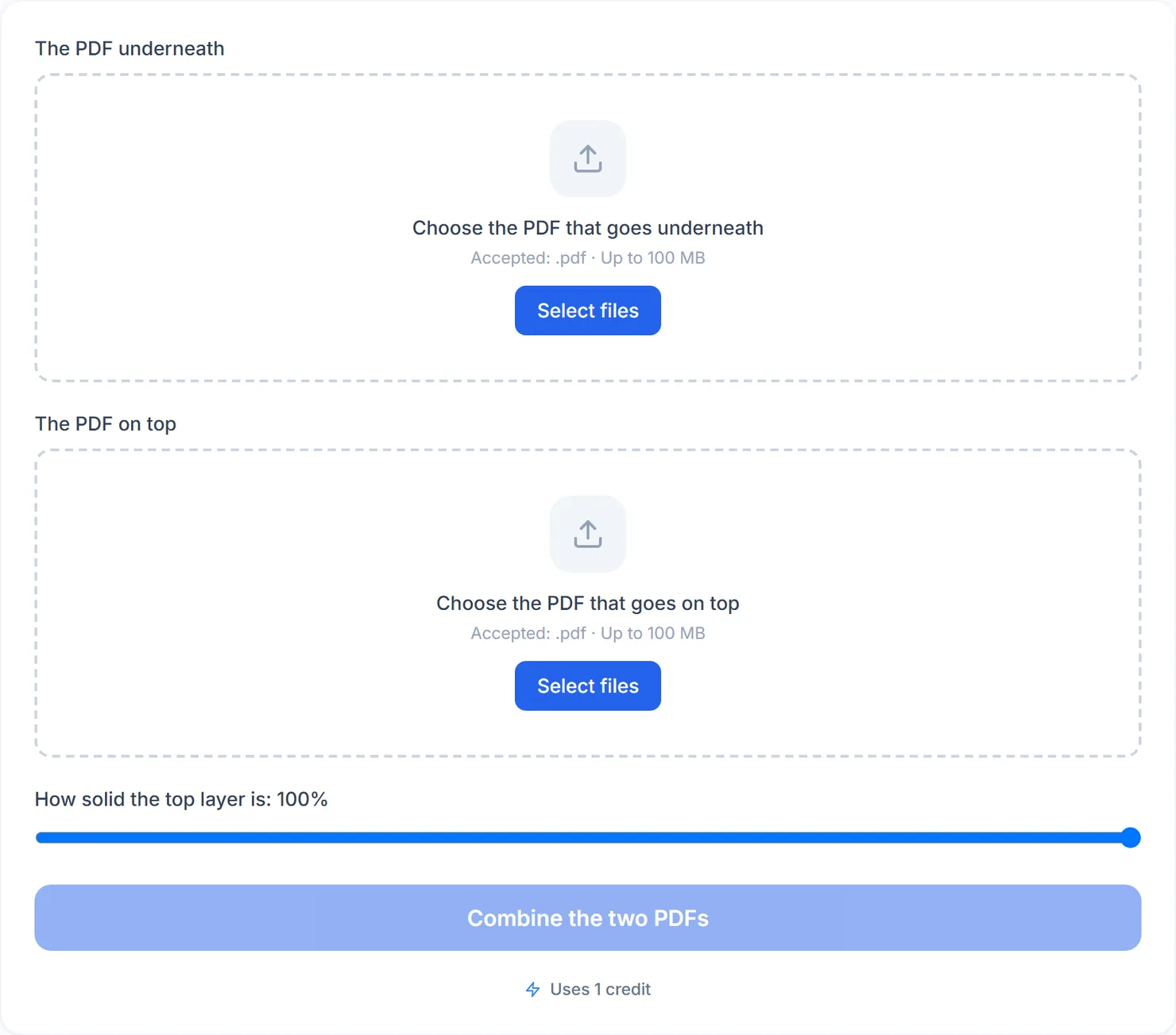
How to overlay one PDF on another
Lay one PDF on top of another, at the opacity you choose.
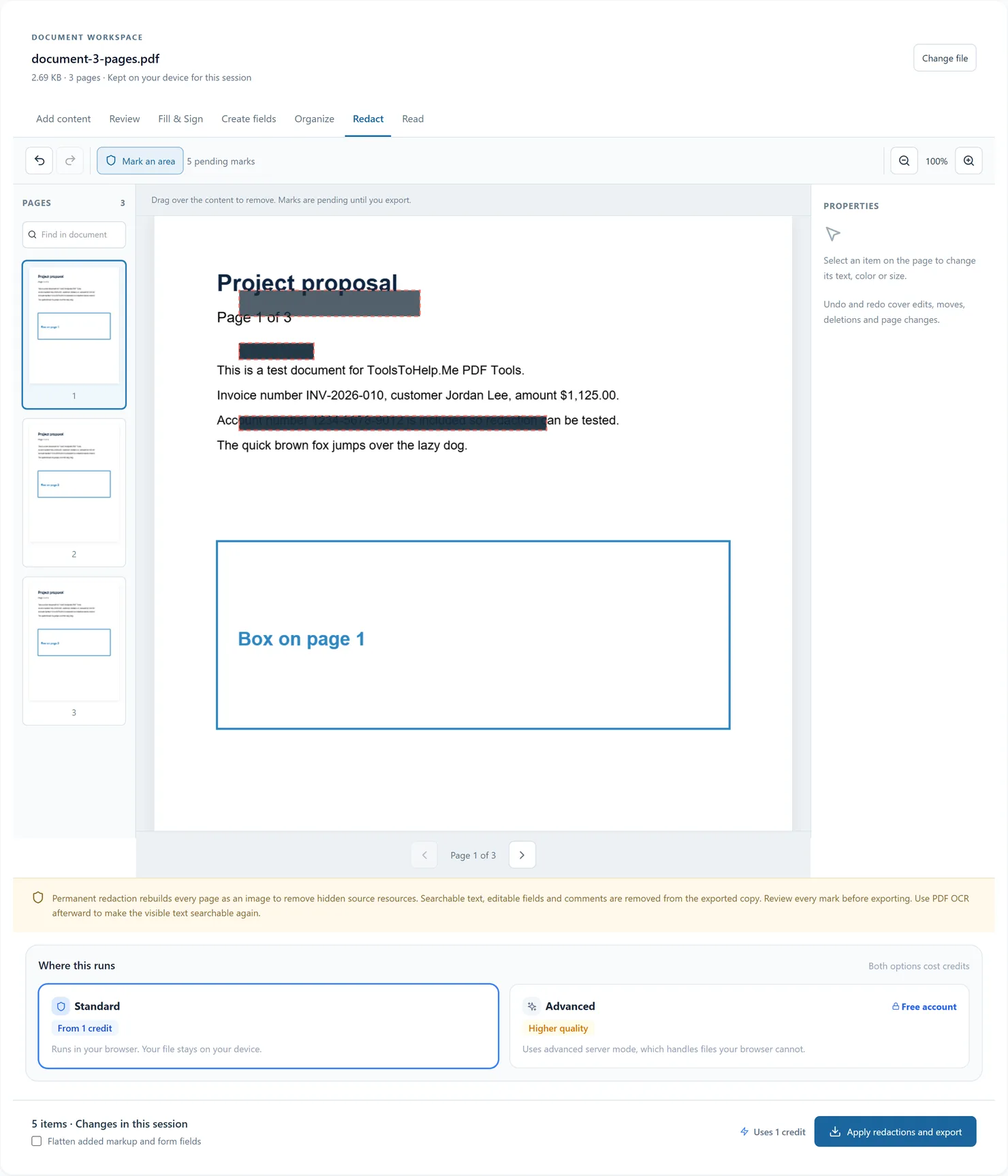
How to redact a PDF
Mark sensitive areas directly on PDF pages and apply permanent redaction. Review pending marks, choose browser or server processing, and export a fresh PDF.
Optimize and secure

How to compress a PDF and reduce its file size
Shrink a large PDF so it is easier to email, upload or store.

How to optimize a PDF for the web
Prepare a PDF so it starts showing before the whole file has downloaded.

How to repair a damaged or corrupted PDF
Try to fix a PDF that will not open properly.

How to remove metadata from a PDF
Strip the title, author and other hidden details out of a PDF.

How to change a PDF's title, author and other details
Edit a PDF's title, author, subject and other document properties.
How to set how a PDF opens in a viewer
Decide the zoom, page layout and sidebar a PDF opens with.

How to add bookmarks to a PDF
Add bookmarks so a reader can jump straight to the page they need.
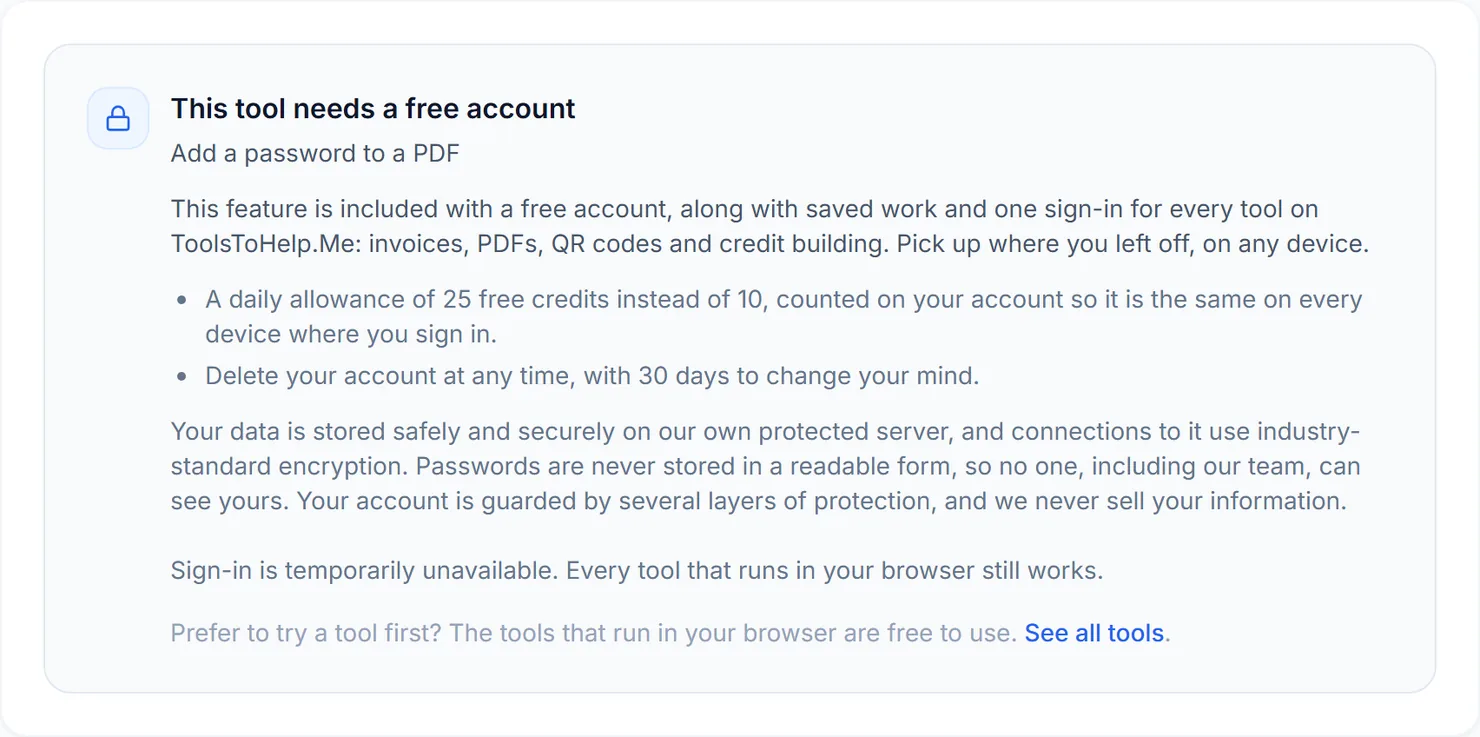
How to password protect a PDF
Add a password so only someone with it can open your PDF.
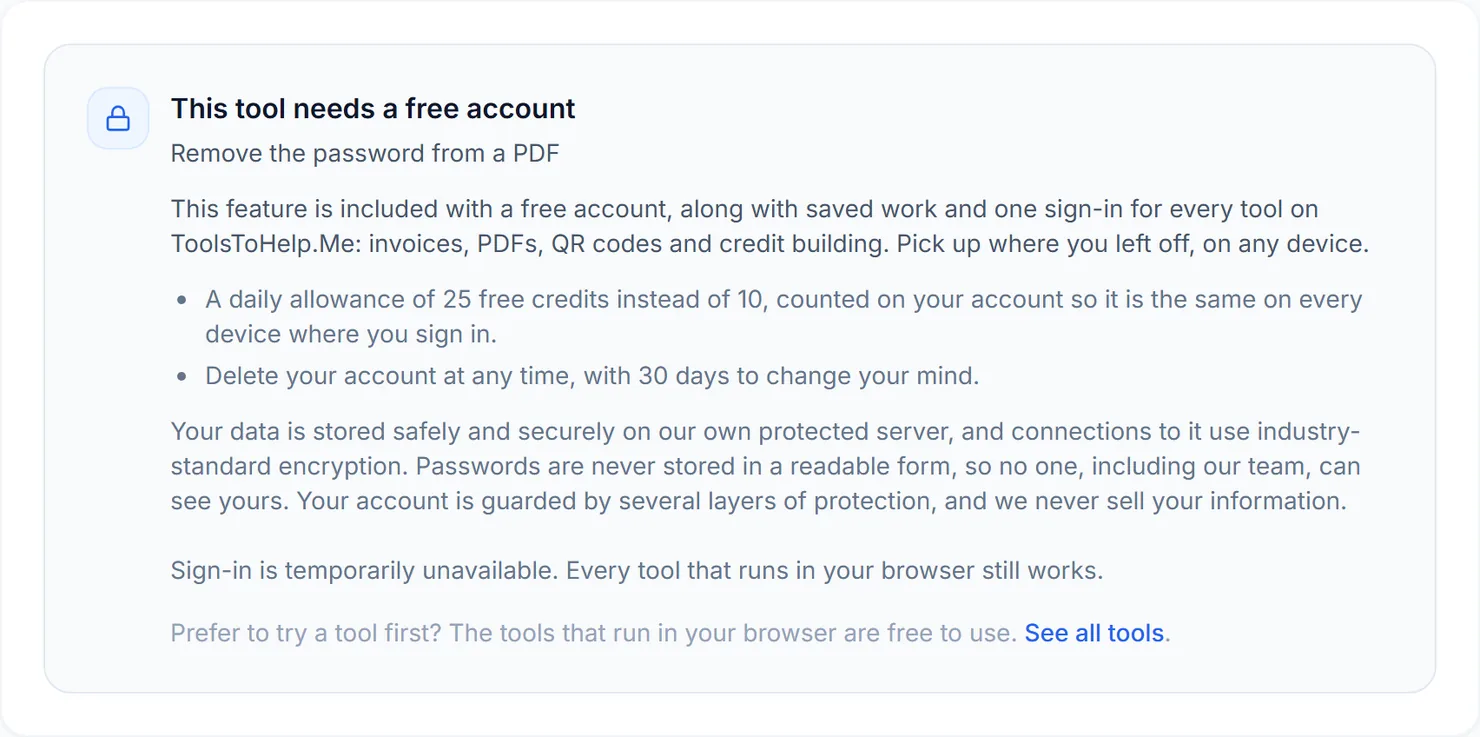
How to remove a password from a PDF
Remove a password from a PDF you have permission to open.
Convert images

How to turn images into a PDF
Combine JPG, PNG, WEBP and other images into one PDF, in the order you choose.

How to convert JPG to PDF
Turn one or more JPG photos into a PDF, quickly, with no extra settings.

How to convert PNG to PDF
Turn one or more PNG images into a PDF, quickly, with no extra settings.

How to convert a PDF to images
Turn every page of a PDF into a JPG or PNG image, with a choice of resolution.

How to convert a PDF to JPG
Turn every page of a PDF into a JPG image, ready to download.

How to convert a PDF to PNG
Turn every page of a PDF into a sharp PNG image, ready to download.

How to extract images from a PDF
Pull the embedded photos and graphics out of a PDF, as separate files or a ZIP.

How to convert WEBP to JPG
Convert WEBP images to JPG, with a quality slider, in your browser.

How to convert WEBP to PNG
Convert WEBP images to PNG, keeping transparency, in your browser.
How to convert HEIC to JPG
Convert iPhone HEIC photos to JPG. Needs a free account, since browsers cannot open HEIC.
Convert documents
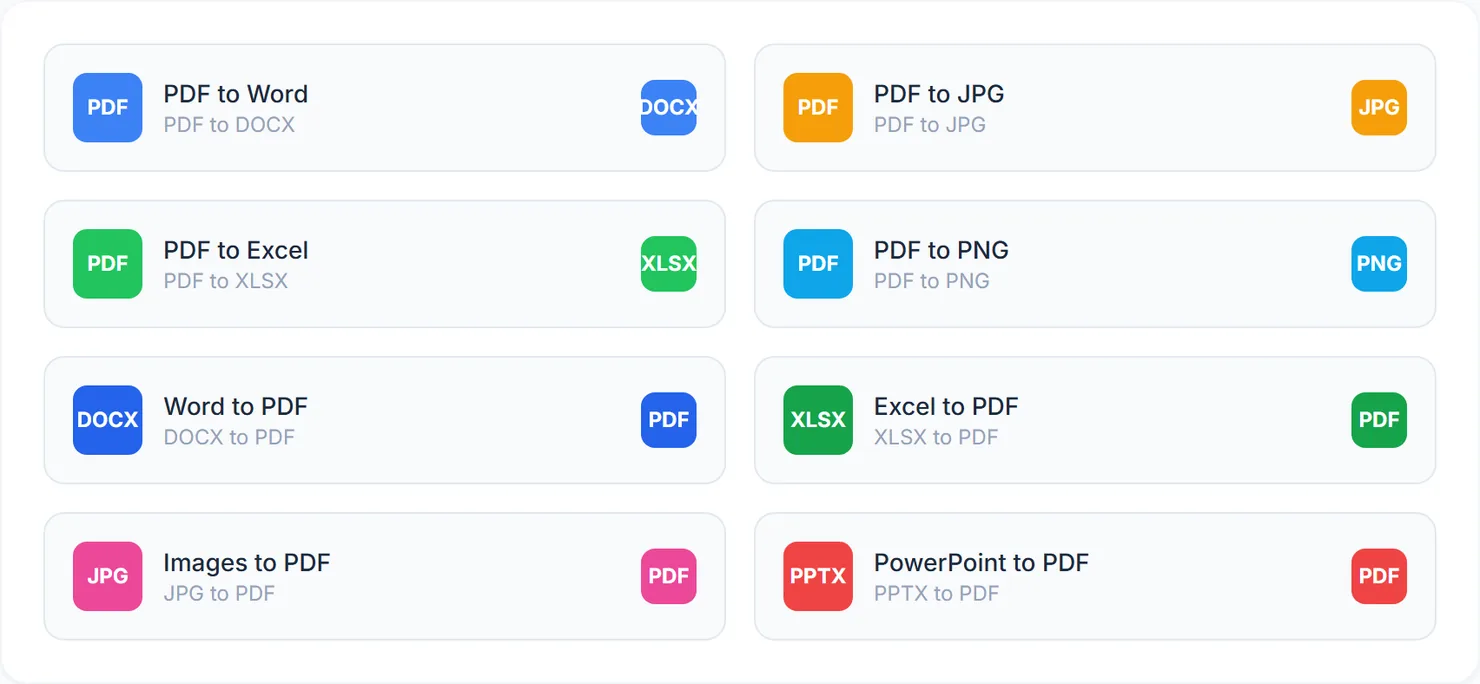
How to use PDF Converter to find the right conversion
Find the right PDF conversion fast: eight tools in one place.
How to convert Word to PDF
Convert a Word document to PDF, layout kept close to the original.
How to convert Excel to PDF
Convert an Excel spreadsheet to PDF.
How to convert PowerPoint to PDF
Convert a PowerPoint presentation to PDF.
How to convert PDF to Word
Convert a PDF into an editable Word document.
How to convert PDF to Excel
Convert a PDF into an Excel workbook.
How to convert PDF to PowerPoint
Convert a PDF into an editable PowerPoint deck.
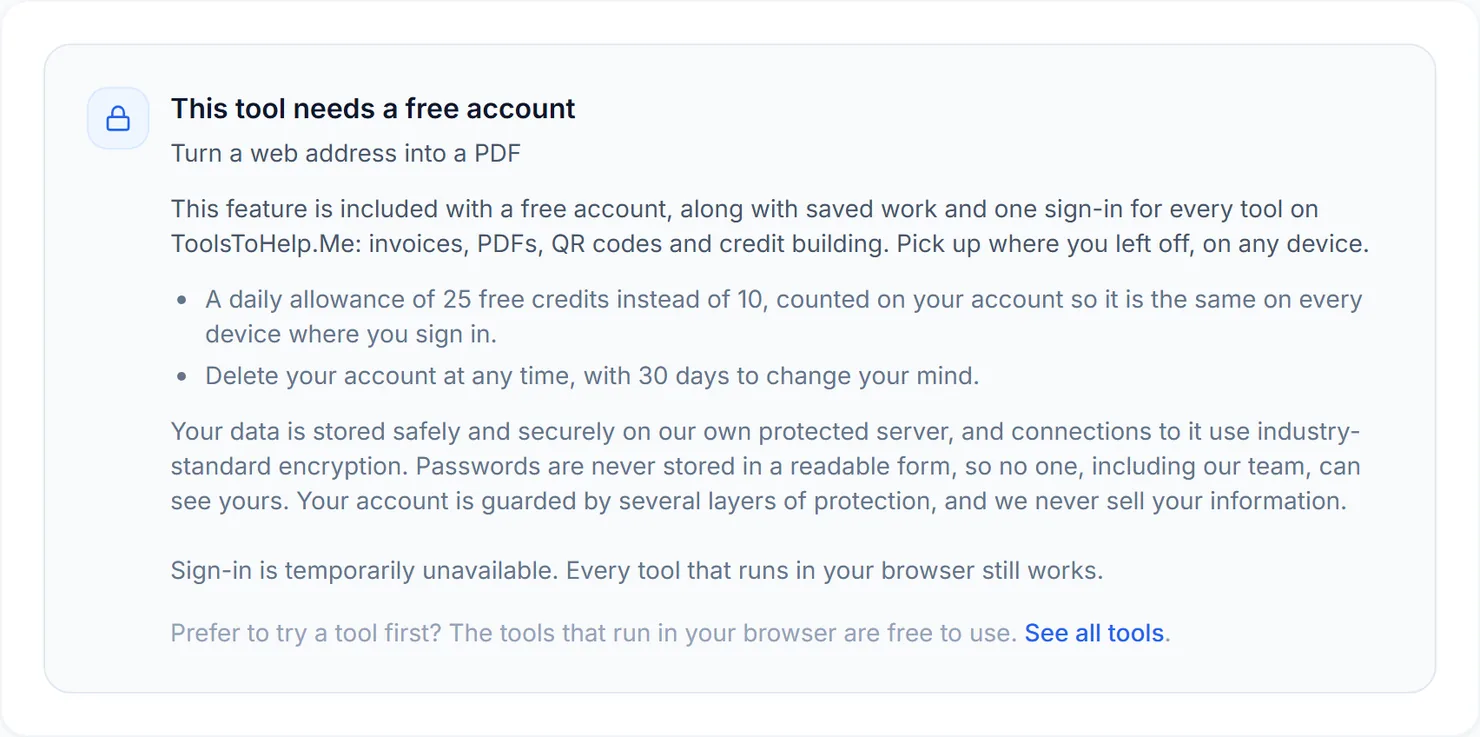
How to turn a webpage into a PDF
Turn a public web address into a PDF.
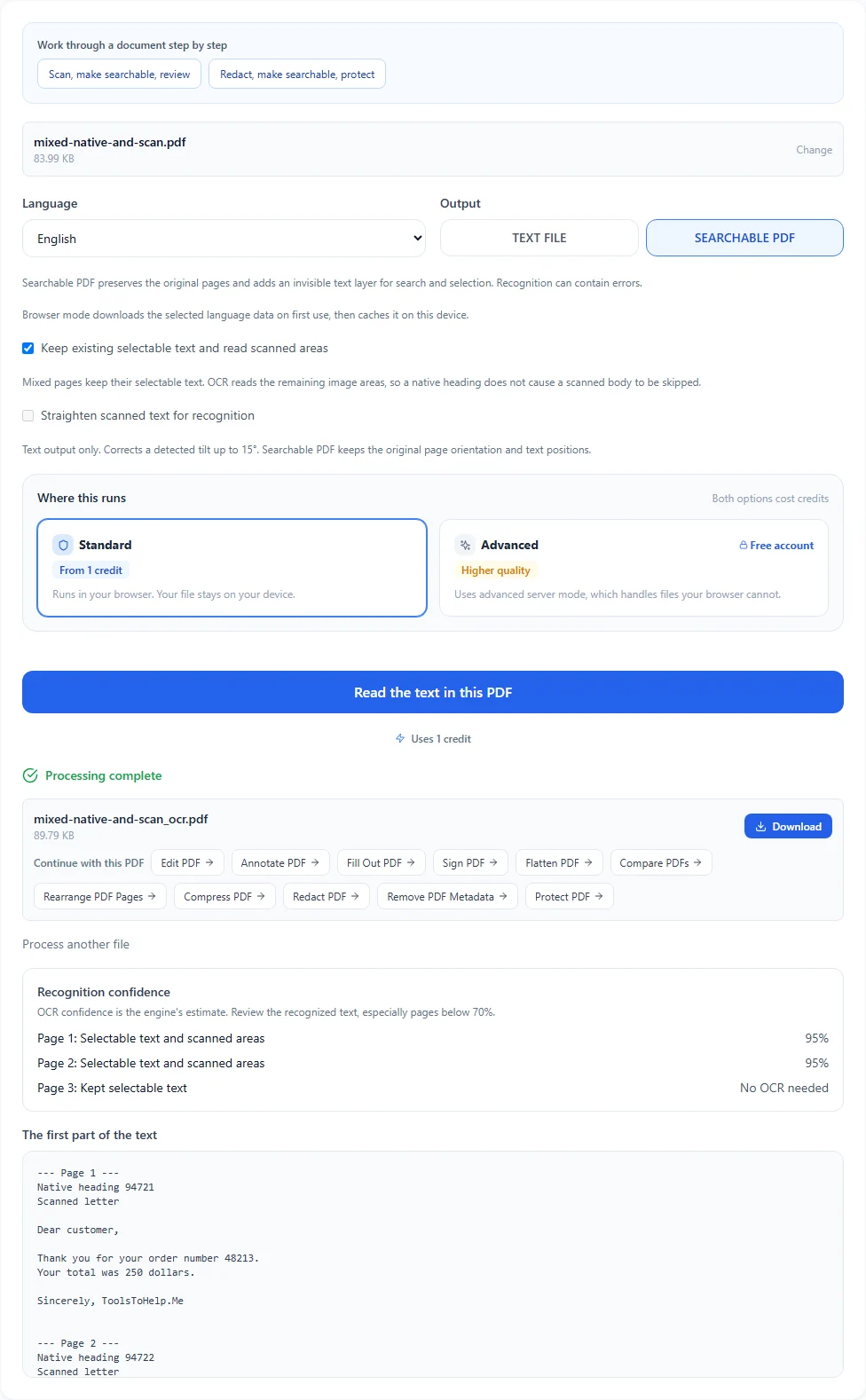
How to read the text in a scanned PDF (OCR)
Add searchable text to scans, preserve native text on mixed pages, and review browser recognition confidence.
Create and more
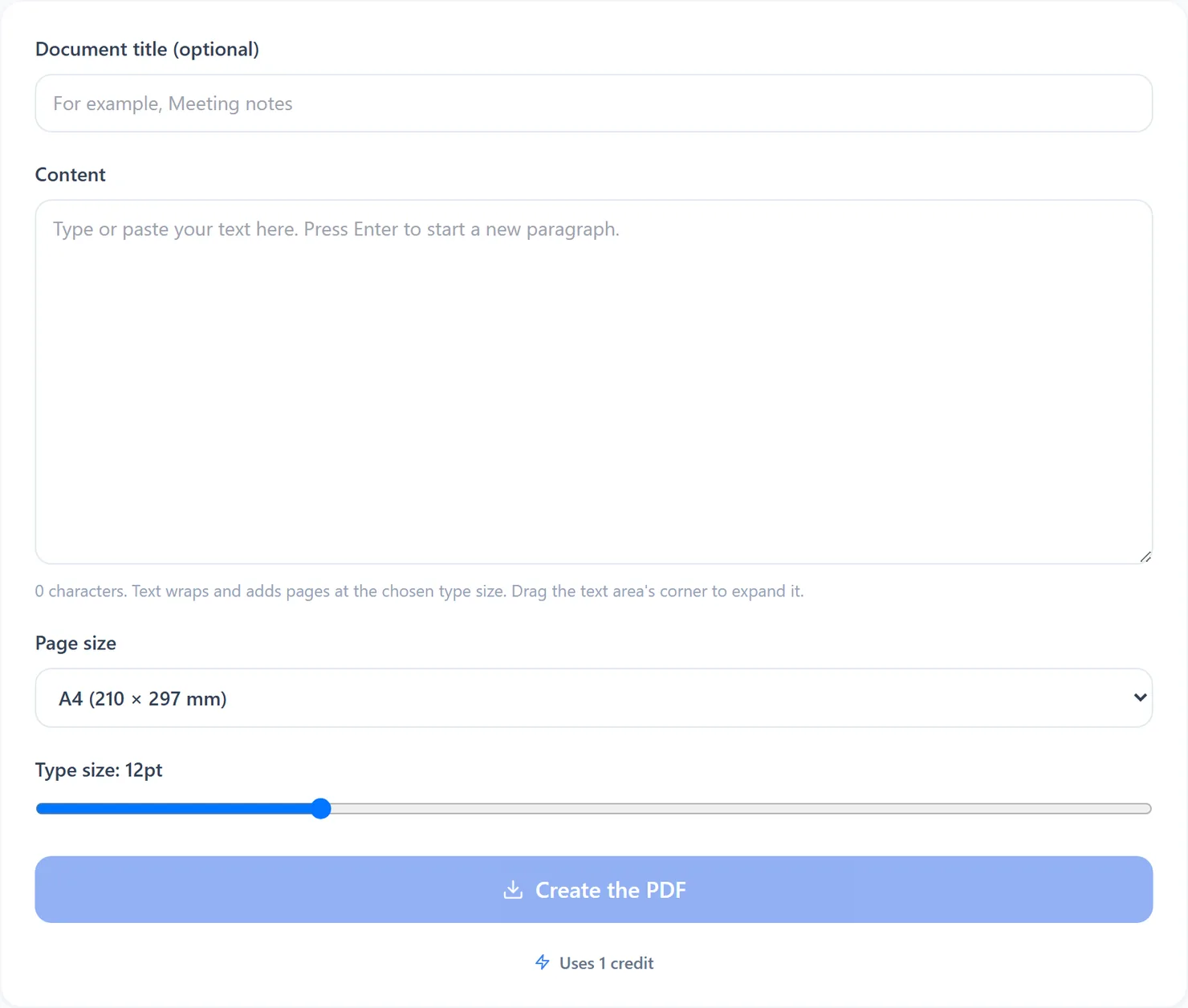
How to create a PDF from scratch
Type or paste text and download it as a plain PDF.
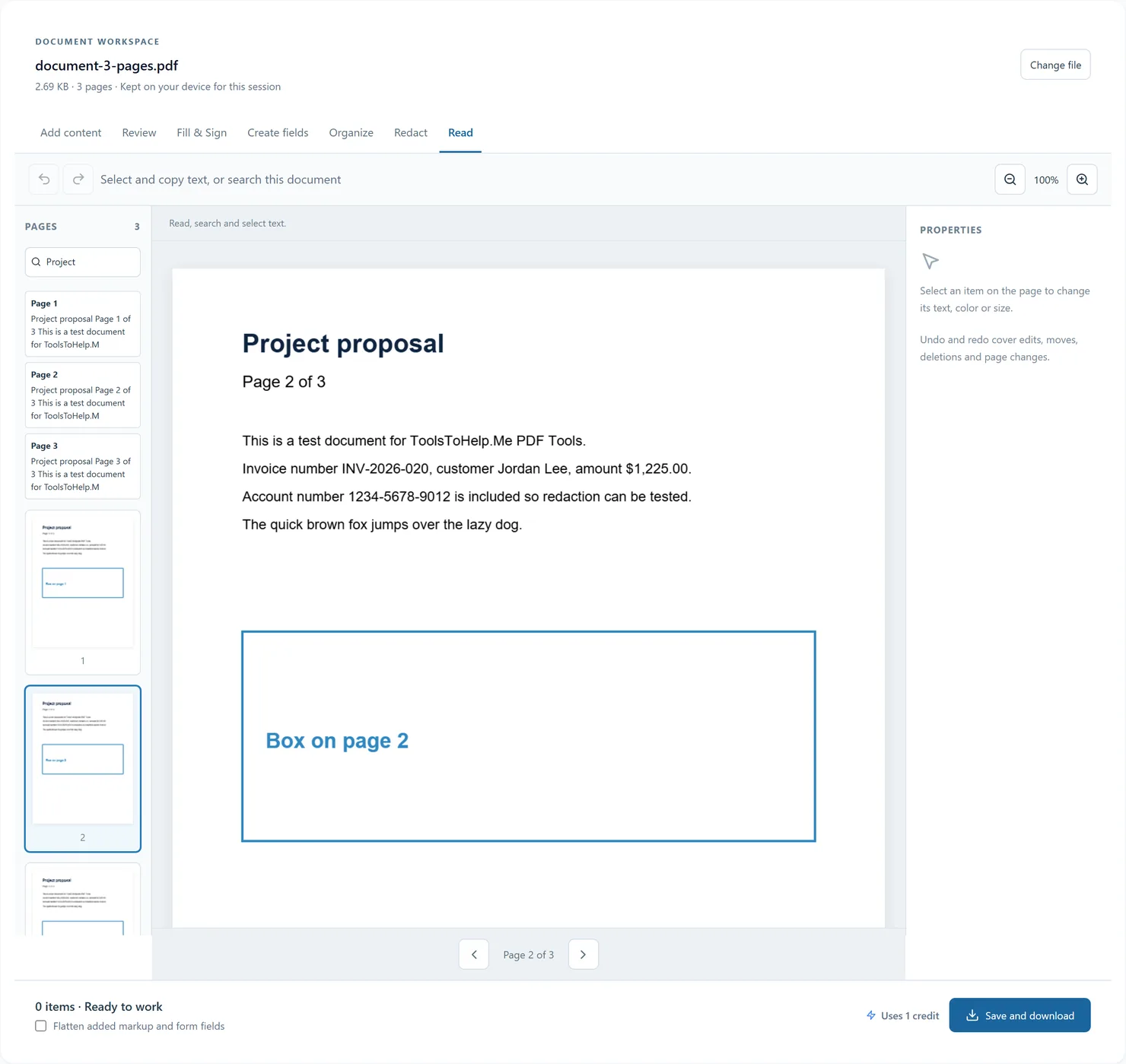
How to view a PDF in your browser
Read and search a PDF, select text, zoom and use page thumbnails. Continue into review, forms, signing or organization without reopening the document.
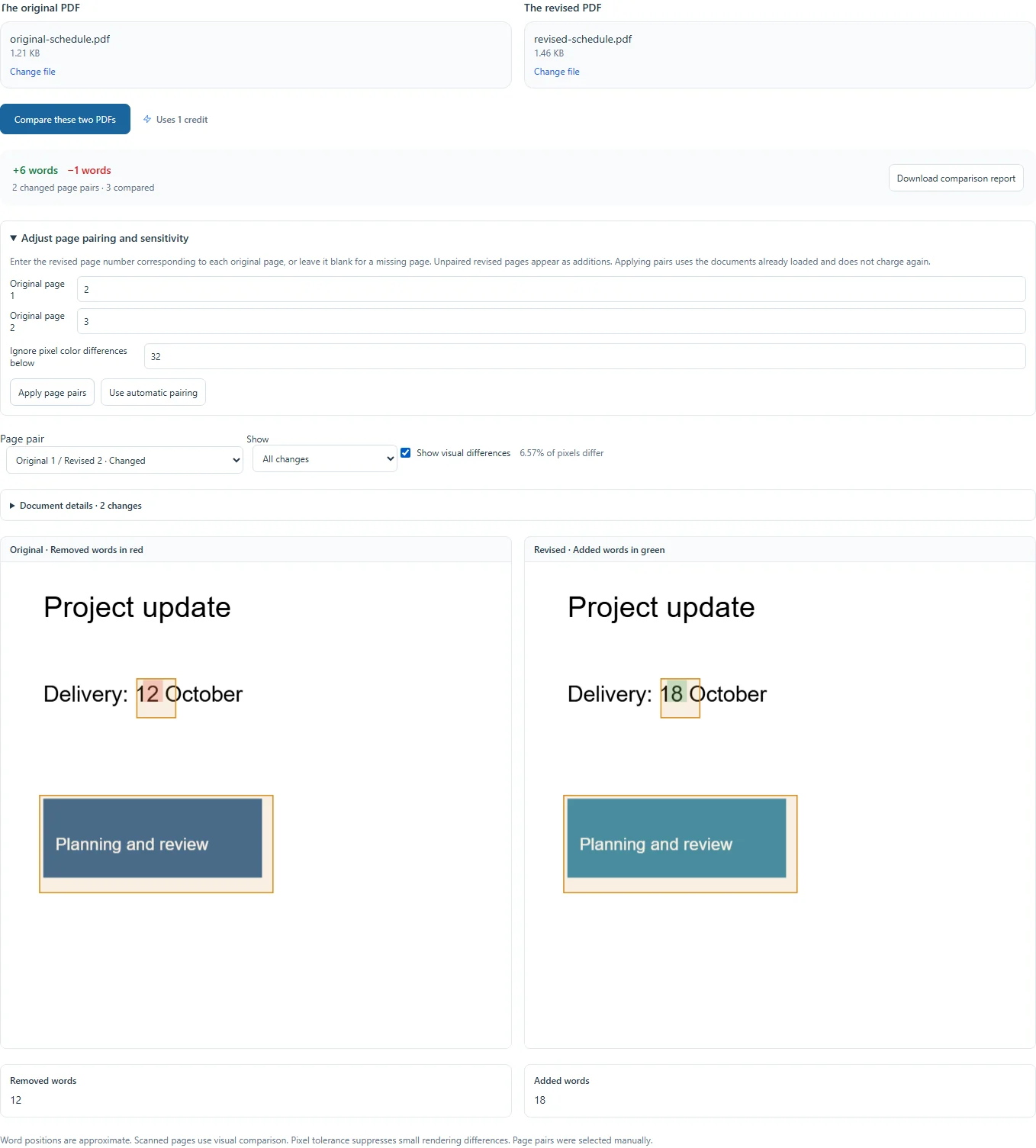
How to compare two PDF files
Compare wording, text position and visual differences, with adjustable page pairing and pixel sensitivity.

How to scan a document into a PDF with your camera
Photograph a document with your camera and turn it into a PDF.
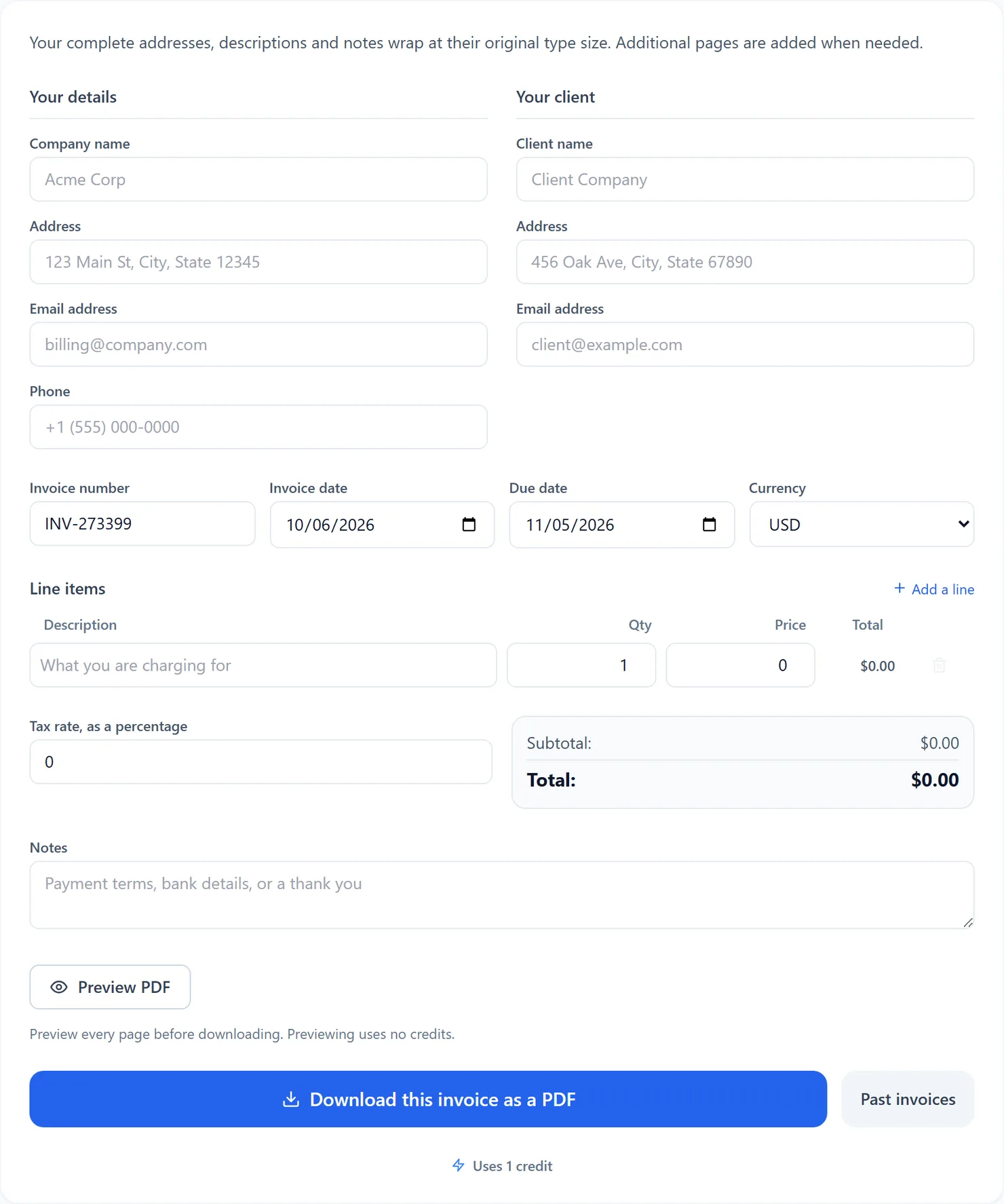
How to create an invoice as a PDF
Fill in your details and line items, then download an invoice PDF.
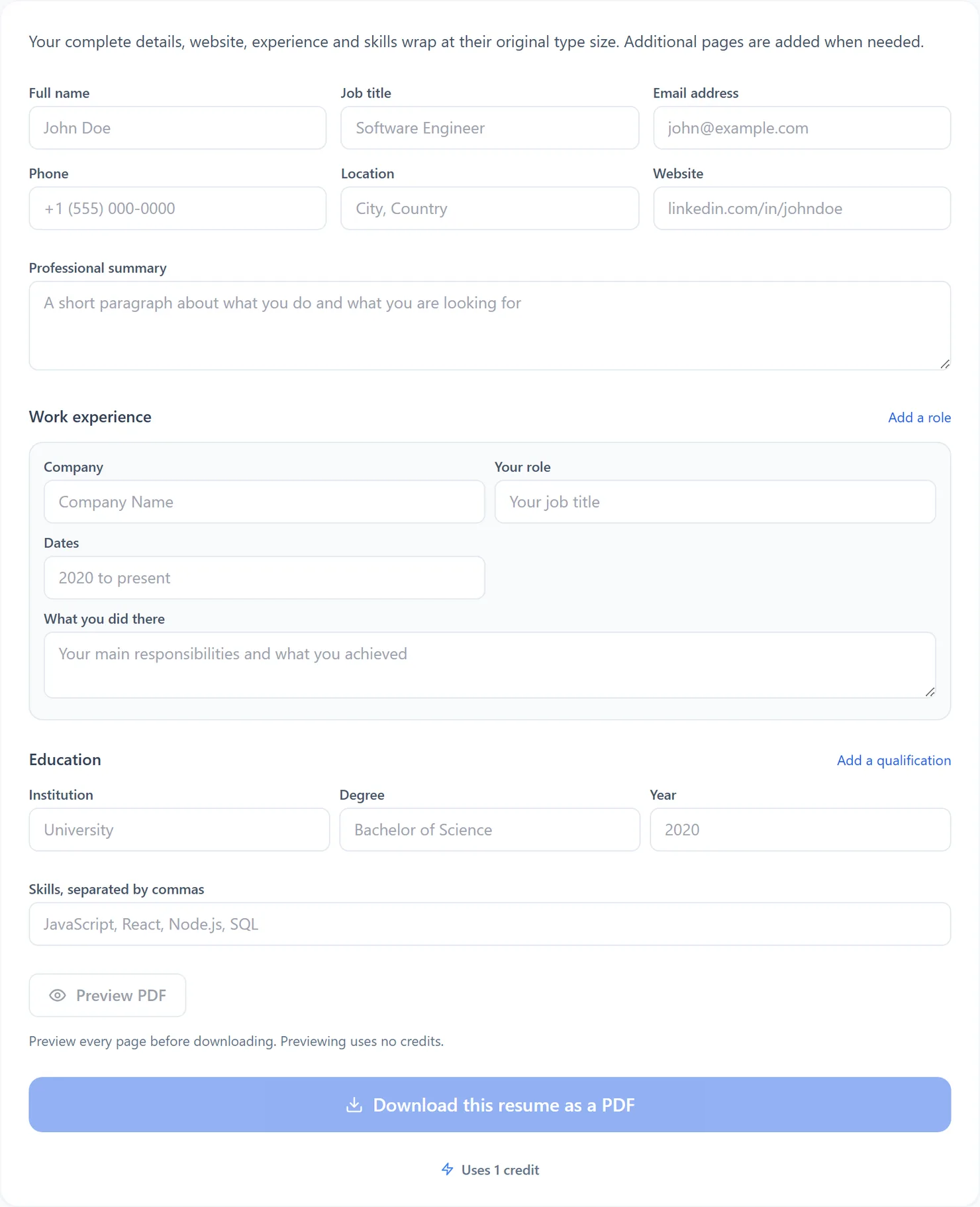
How to create a resume as a PDF
Fill in your details and experience, then download a resume PDF.
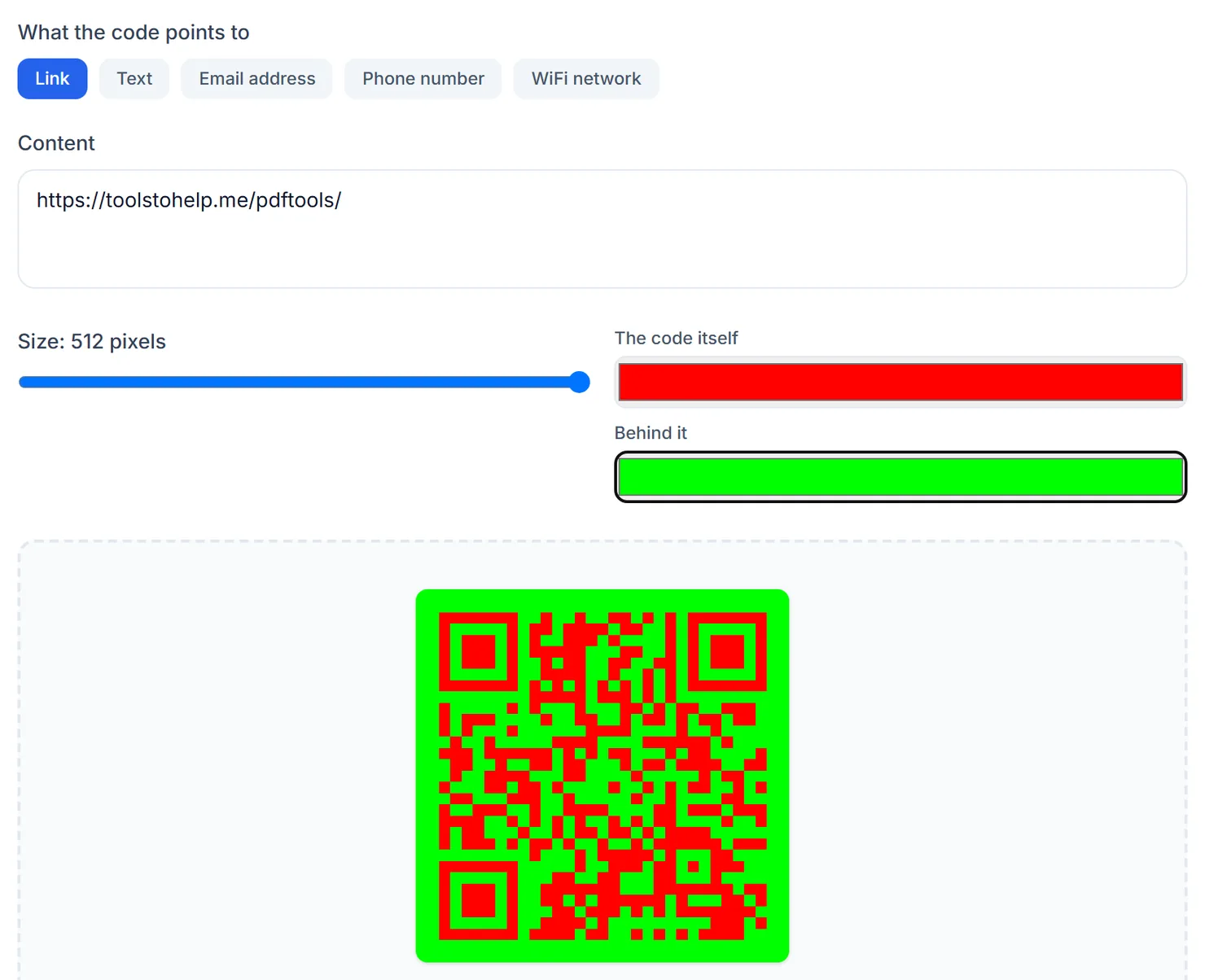
How to make a QR code
Create a custom QR code and download it as a PNG or PDF.
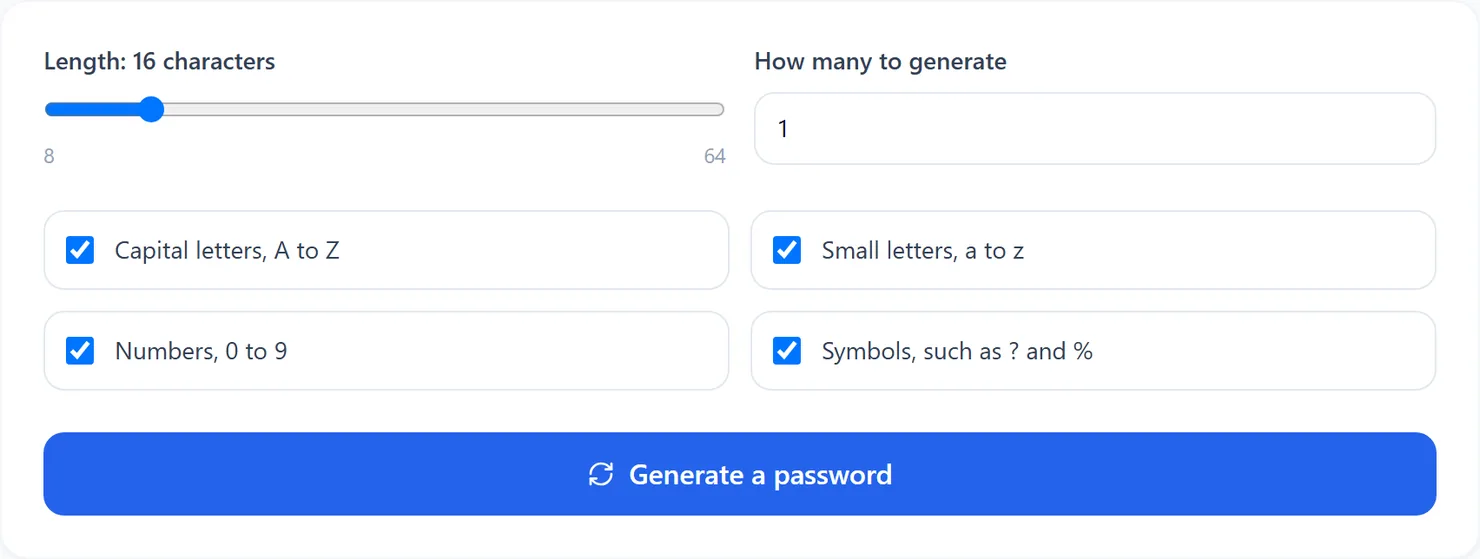
How to generate a strong password
Generate a strong password with the length and characters you choose.