PDF Tools
How to use Compare PDFs
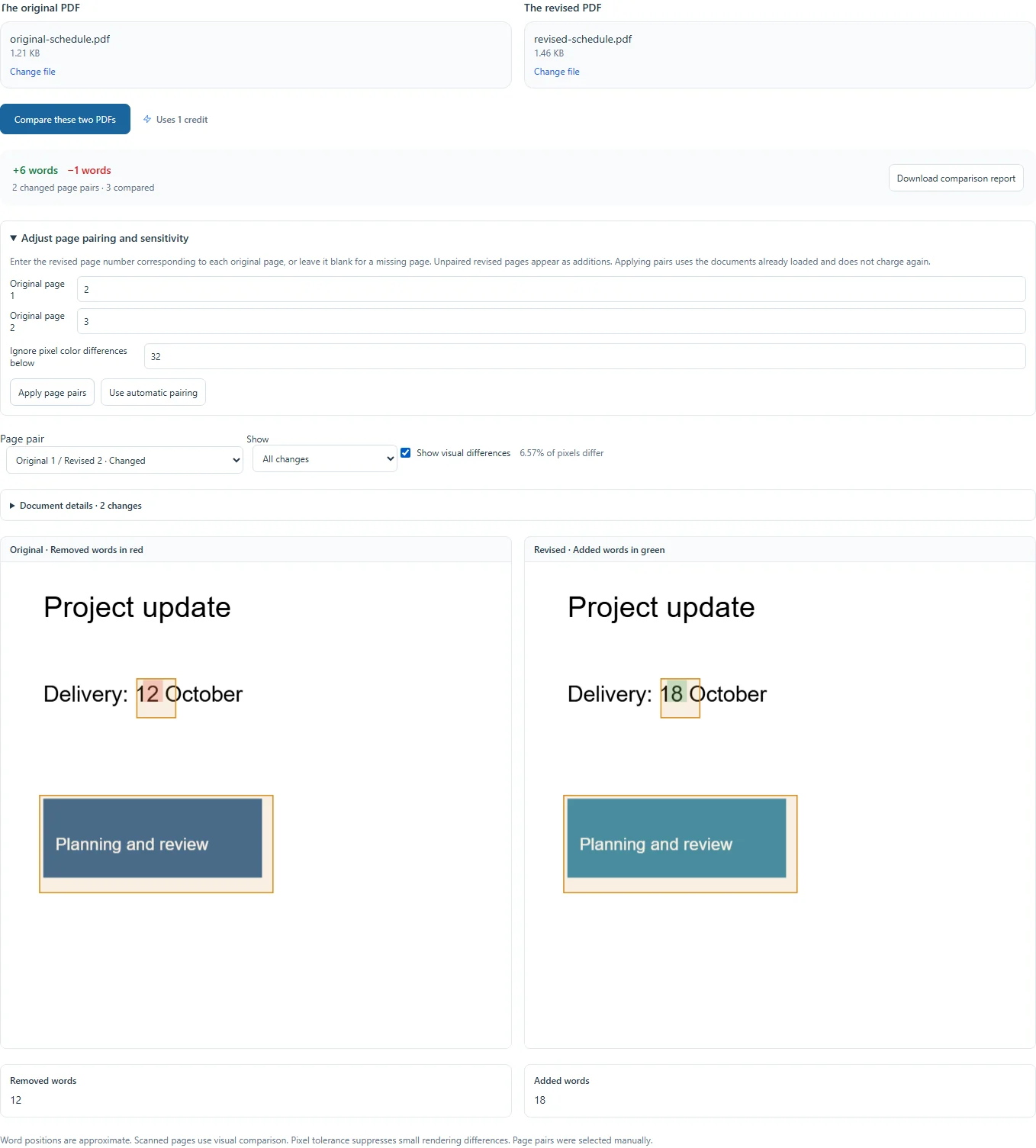
- Choose the original PDF and the revised PDF, then select Compare these two PDFs.
- Use Page pair to move through aligned pages. Added words appear in green and removed words in red, with the wording listed below each preview.
- Use Show to filter All changes, Text changes, Text position changes or Visual changes. Show visual differences adds pixel regions to the All changes view. Scanned pages can be compared visually.
- If pages do not match, open Adjust page pairing and sensitivity. Enter each corresponding revised page number, leaving missing pages blank. Set the pixel tolerance, then choose Apply page pairs. Use automatic pairing returns to the automatic alignment.
- Open Document details to compare page counts, file sizes and metadata such as title and author.
- Choose Download comparison report to save a summary and marked side-by-side previews of changed page pairs.
Before you export
Word boxes are approximate. Automatic alignment uses extracted text; fully rewritten pages pair by order, and scans may need manual pairing. Text position changes identify unchanged words moved or resized by more than 2 PDF points. Large rewrites may appear as a replaced span rather than individual edits. Pixel sensitivity can reduce rendering noise, but comparison is still a review aid rather than proof that two files are equivalent.
Cancel comparison stops a running comparison or pairing update. If a pairing update is canceled, the previous result stays available. Cancel report stops a report being prepared. The report uses the current page pairing and identifies whether pairing was automatic or manual.