PDF Tools
A PDF's title, author and subject do not appear on the printed page, but a reader application, a search index or a file preview can show them. Change PDF Info lets you set these document properties directly.
What you need
- One PDF file, up to 100 MB.
- The details you want it to carry: a title, an author name, a subject, keywords, or a producer and creator.
How to change a PDF's info, step by step
- Open Change PDF Info and choose your file.
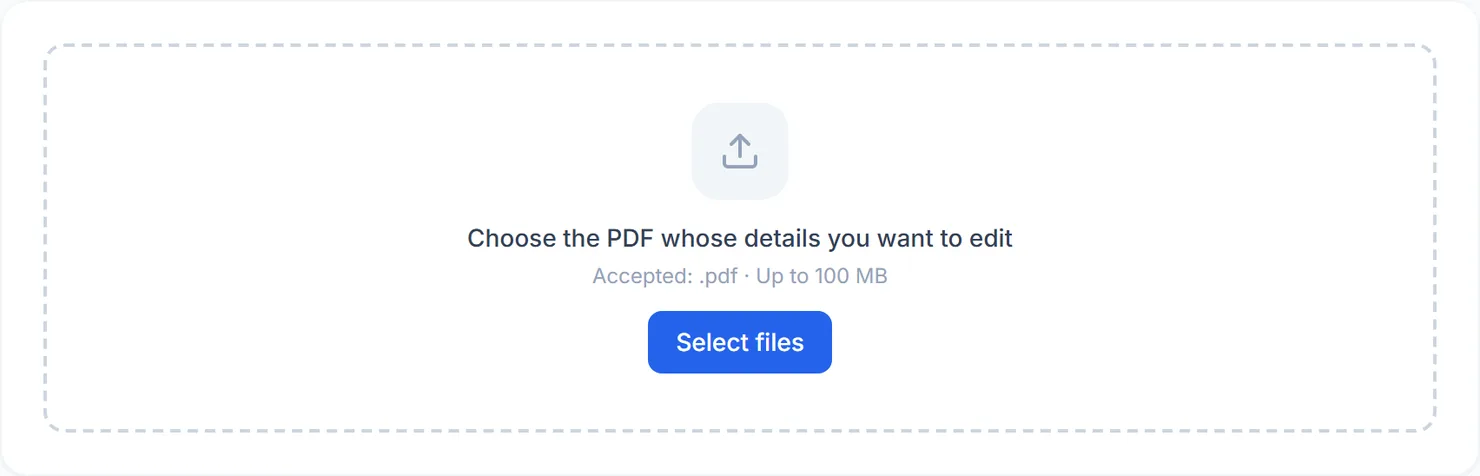
The Change PDF Info tool, ready for a file. - Check the pre-filled fields. Whatever title, author, subject, keywords, producer or creator the file already has is filled in for you.
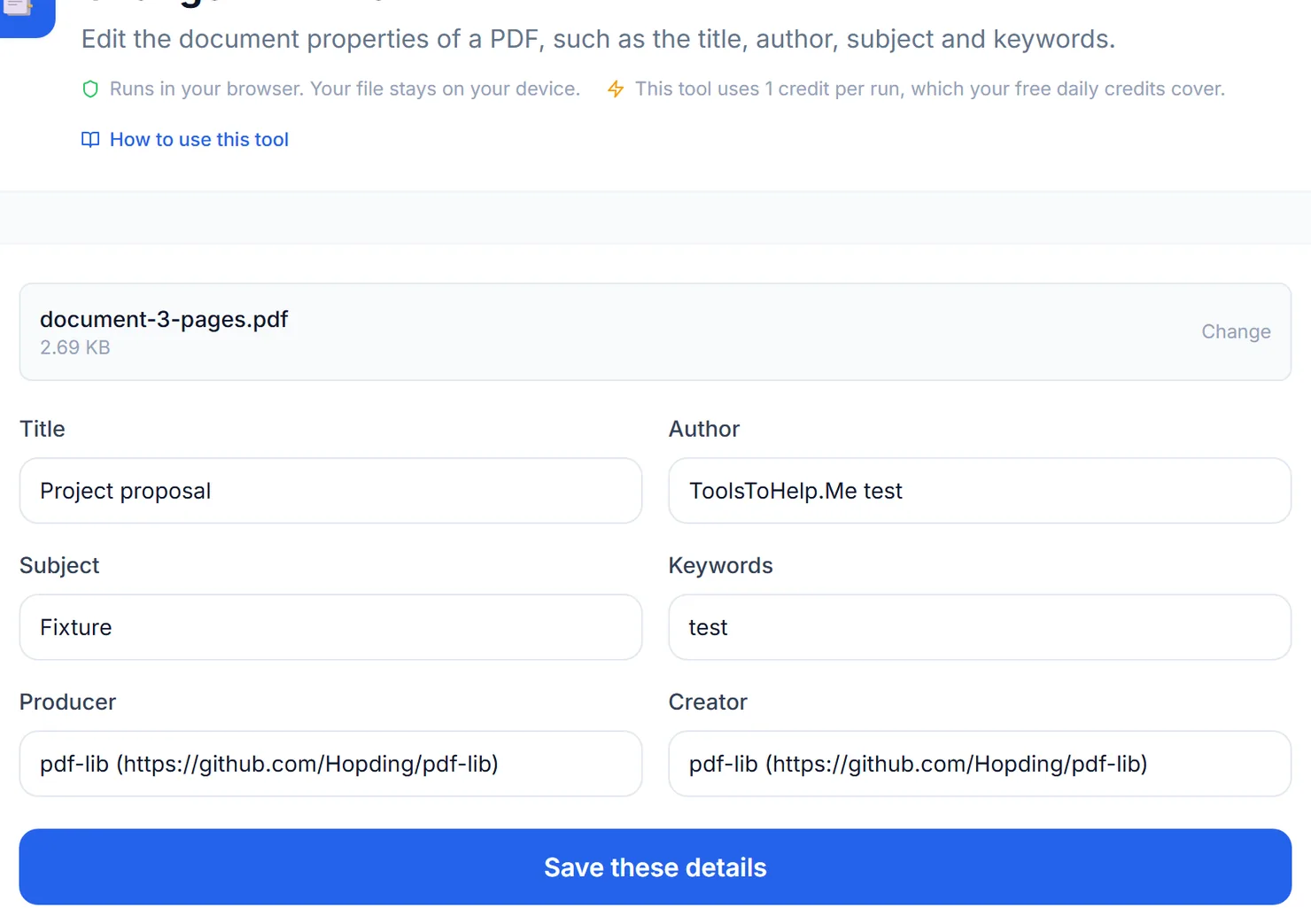
Fields start pre-filled with the details already in the file. - Type the details you want. Leave a field as it is to keep its current value, or clear it to save it empty.
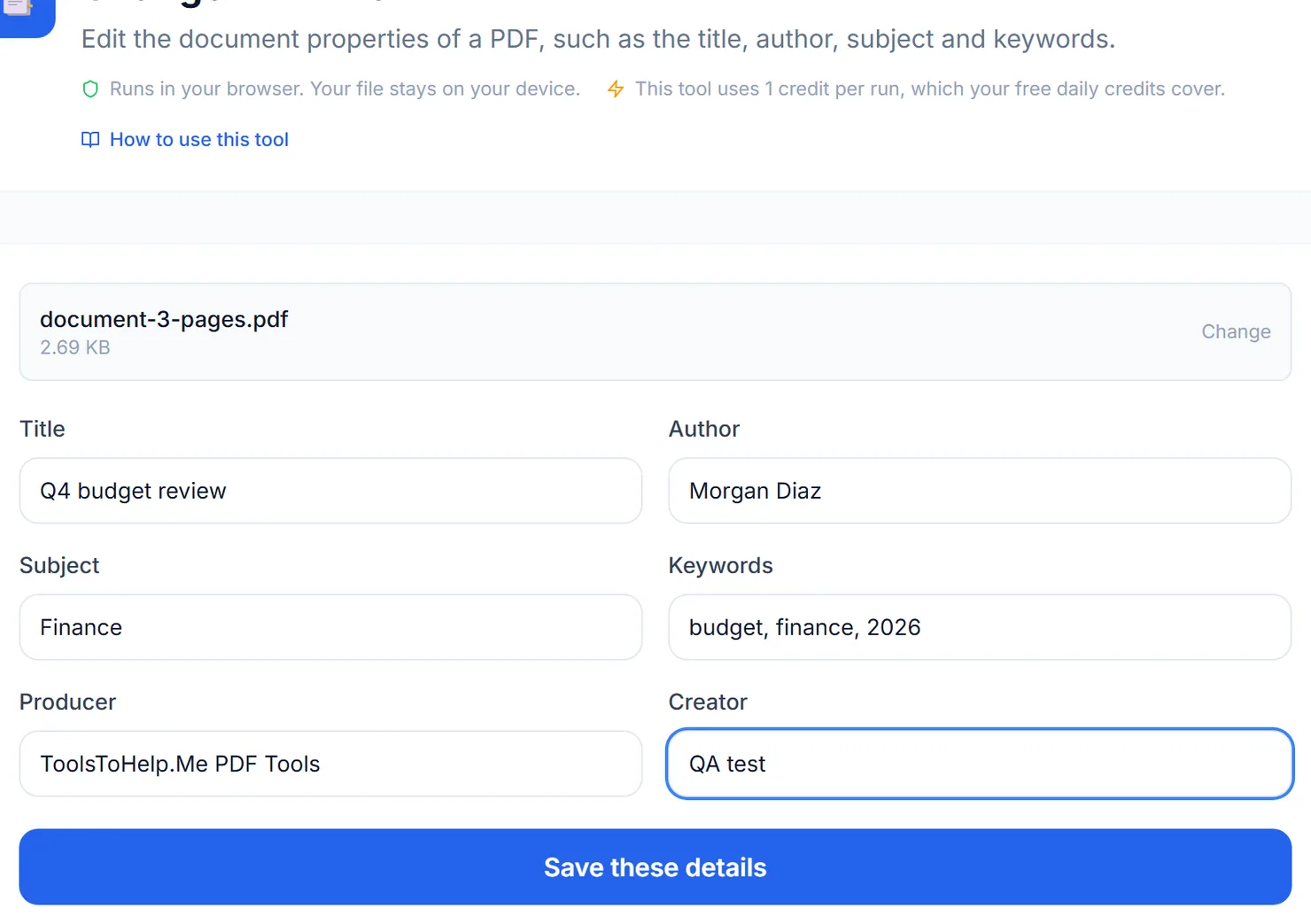
New details typed into every field. - Select "Save these details" and download the result.
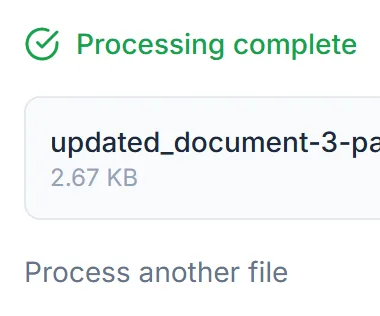
The details are saved. Select Download to save the updated file.
Credits: this tool runs in your browser and uses 1 credit per run, which your free daily credits cover. You get 10 free credits a day, or 25 with a free account.
What we checked
In testing, every field worked as expected both ways: typing a new title, author, subject, keyword list, producer and creator saved exactly those values, and a field left untouched, such as an author already on the file, kept its original value rather than being cleared or overwritten. Clearing the title field and saving produced a file with no title at all, confirming that a blank field really does mean blank, not "leave unchanged."
Why set a PDF's info
- Give a document a clear title. Many PDF readers show the title, not the file name, in the window or tab.
- Credit the right author. Useful when a document was drafted by one person but should be attributed to a company or team name instead.
- Add keywords for search. Some document management systems index the keywords field.
Tips
- Want to clear everything instead? Use Remove PDF Metadata to strip every document property in one step.
- Combine with bookmarks. A clear title plus bookmarks makes a long document much easier to navigate in a PDF reader.
- Separate keywords with commas. Each one becomes a distinct keyword in the saved file.