PDF Tools
A PDF's document properties, its metadata, do not appear on the page, but they travel with the file. A title, an author name or the name of the software that created it can reveal more than you intend before you share a document outside your organization.
What you need
- One PDF file, up to 100 MB.
How to remove metadata from a PDF, step by step
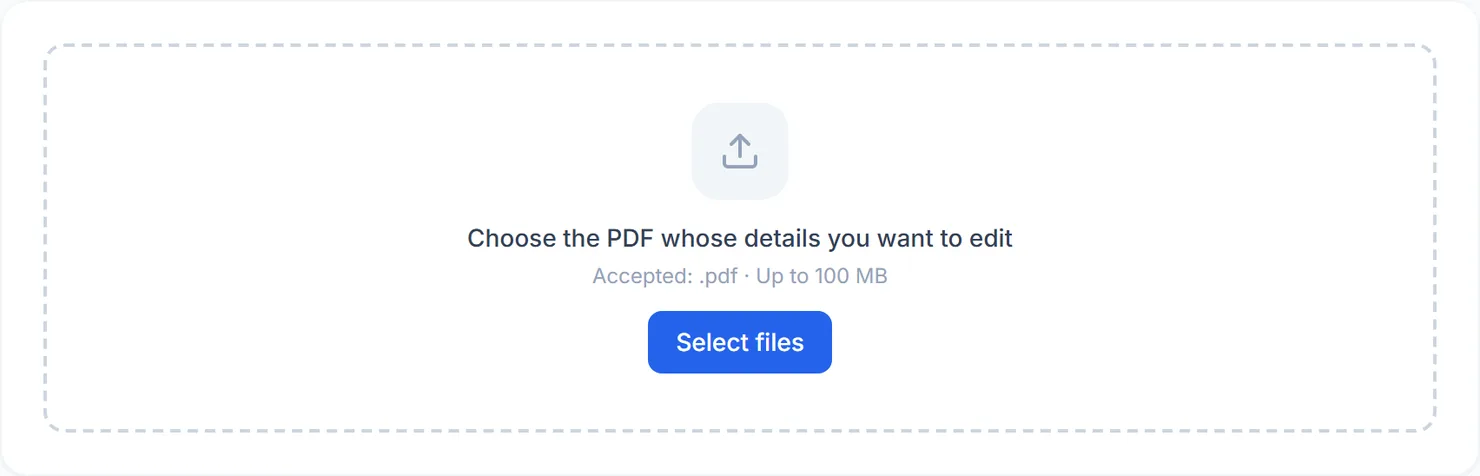
- Open Remove PDF Metadata and choose your file. The tool reads and lists what it already carries.

The Remove PDF Metadata tool, ready for a file. - Check what the file carries now. Title, author, subject, creator, producer and page count are shown for whichever ones the file actually has.
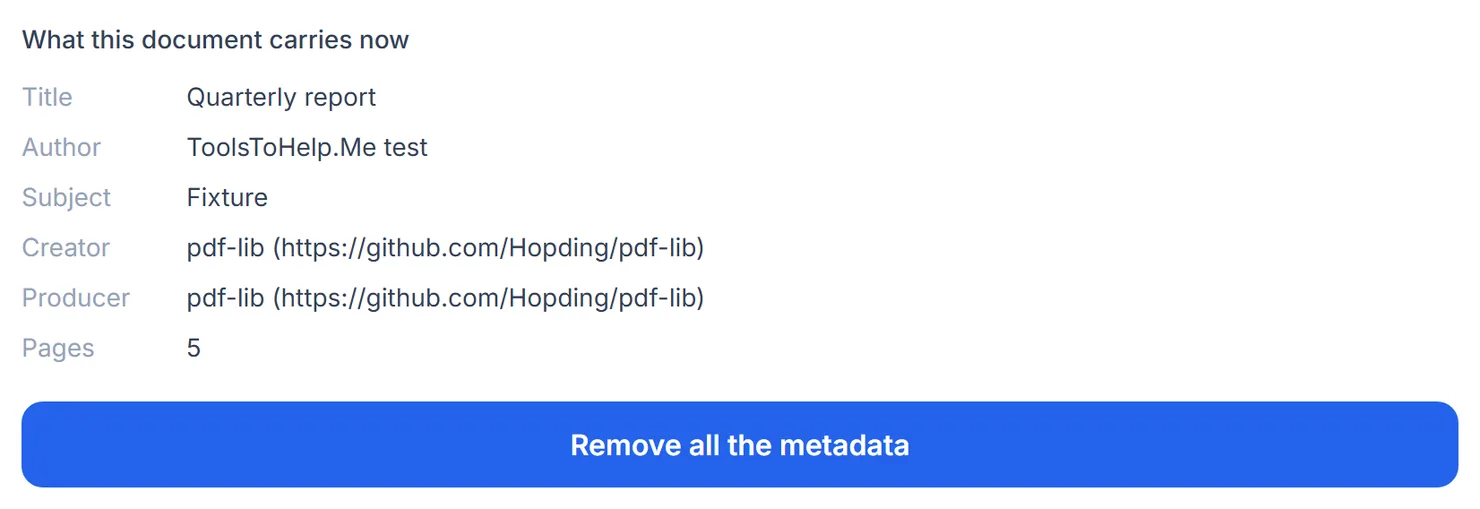
The tool shows the metadata already on the file before you remove it. - Select "Remove all the metadata." The document properties are cleared and the pages are re-saved.
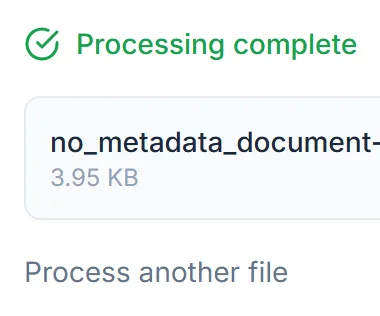
Metadata removed. Select Download to save the cleaned file. - Download the result. In testing, the title, author, subject, keywords, producer and creator were all gone from the saved file, and all pages survived.
Credits: this tool runs in your browser and uses 1 credit per run, which your free daily credits cover. You get 10 free credits a day, or 25 with a free account.
If there is nothing to remove
Not every PDF carries metadata. When a file has no title, author or subject to begin with, the tool says so directly instead of showing empty fields.

Why clear a PDF's metadata
- Before sharing outside your organization. An author field can carry a full name or a username you did not mean to include.
- Before publishing a template. A document meant to be reused by others reads more cleanly without a specific person's name attached to it.
- After combining files. A merged document sometimes keeps the metadata from just one of its sources, which may no longer be accurate.
Tips
- Check the file first. The tool shows you what is there before you commit to clearing it, so you know if there is anything to remove.
- Want to set new details instead of clearing them? Use Change PDF Info to write your own title, author or subject.
- This does not touch page content. If sensitive information is visible on the page itself, use Redact PDF instead.