PDF Tools
How to use Redact PDF
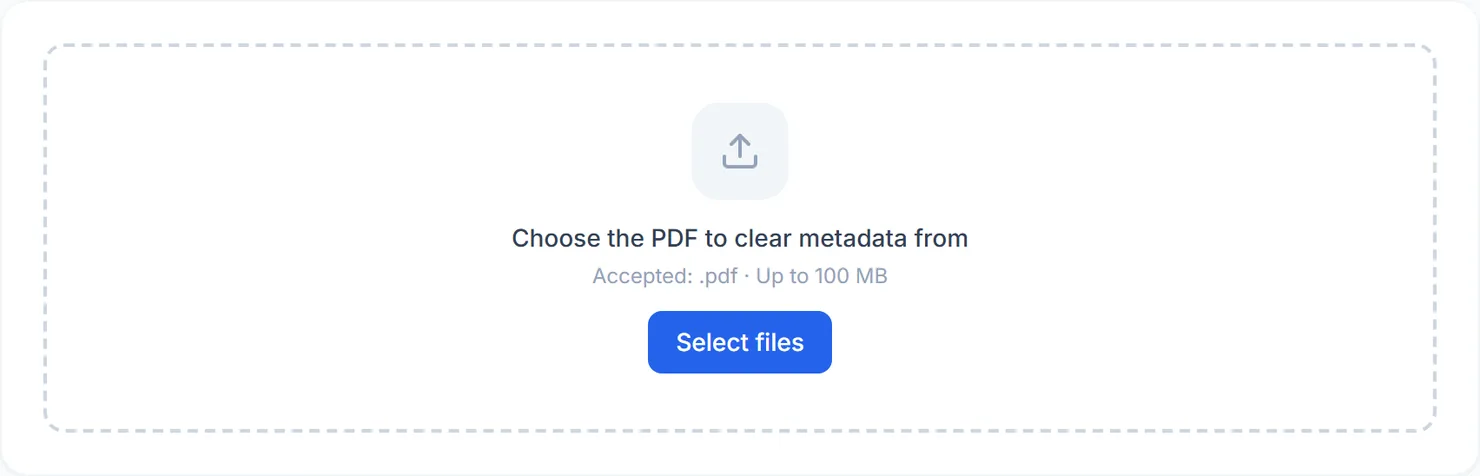
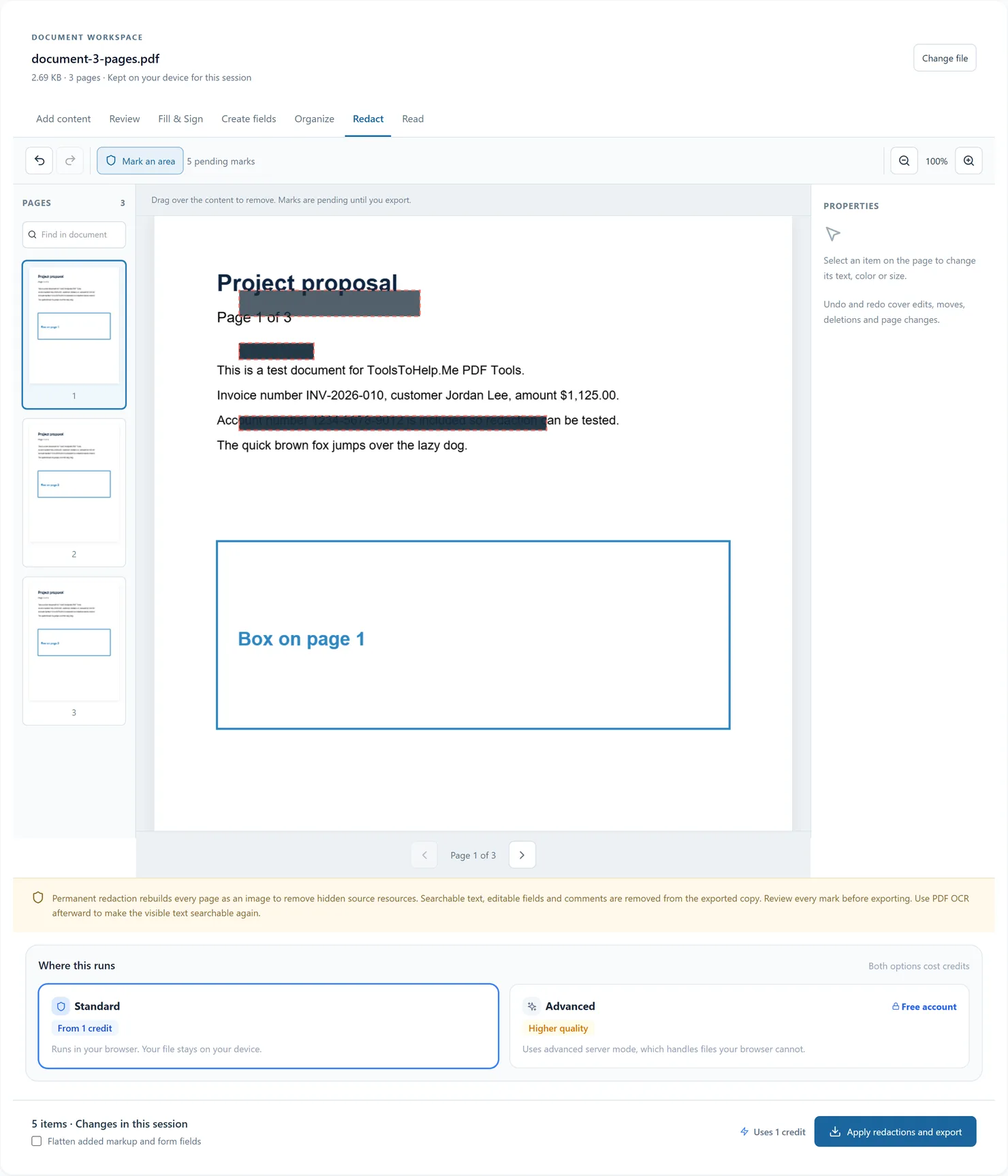
- Choose your PDF. The workspace opens in Redact mode.
- Choose Mark an area, then drag over the content to remove. Resize or move a pending mark in Properties when needed.
- Use the page thumbnails to review every mark. Undo, Redo and Remove let you correct marks before export.
- Choose Standard to run on your device, or Advanced server mode for a large job with a free account. Server processing refuses to export if its renderer is unavailable.
- Choose Apply redactions and export. This rebuilds every page as an image, with the blackouts burned into the marked areas. Original PDF resources are not carried into the exported copy.
Before you export
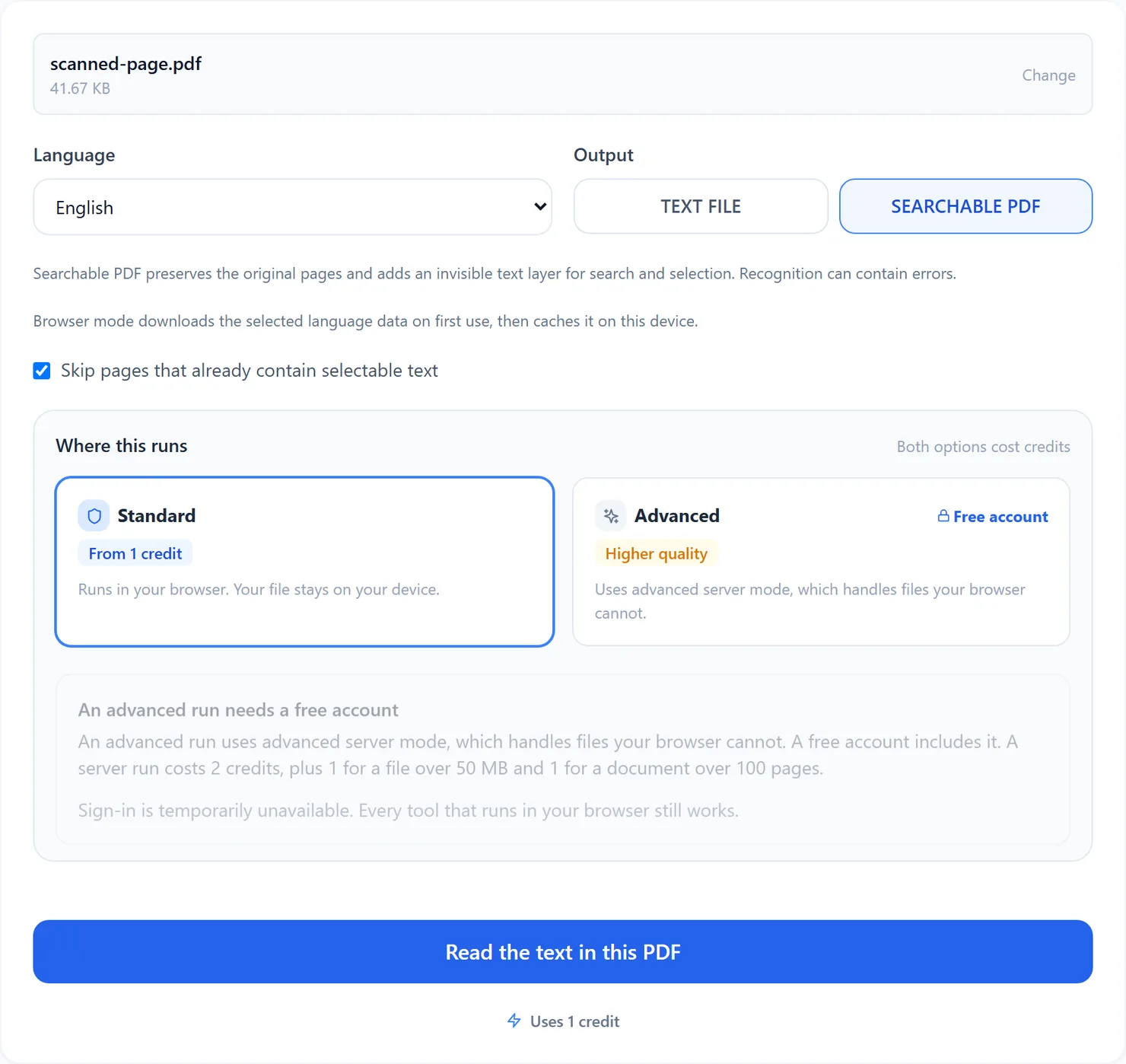
Permanent redaction exports a fresh image-only document. Every page loses selectable text, interactive fields and editable review annotations, including unmarked pages. This prevents shared source resources from retaining marked content. Review all visible pages and marks before sharing the copy. Continue into PDF OCR to restore search using only the visible, redacted pages.
The document stays in memory for this browser session. Export a copy before closing or reloading the tab. Pending marks remain editable before export. The exported redacted PDF does not contain the original objects, pending marks or undo history.