PDF Tools
How to use PDF OCR
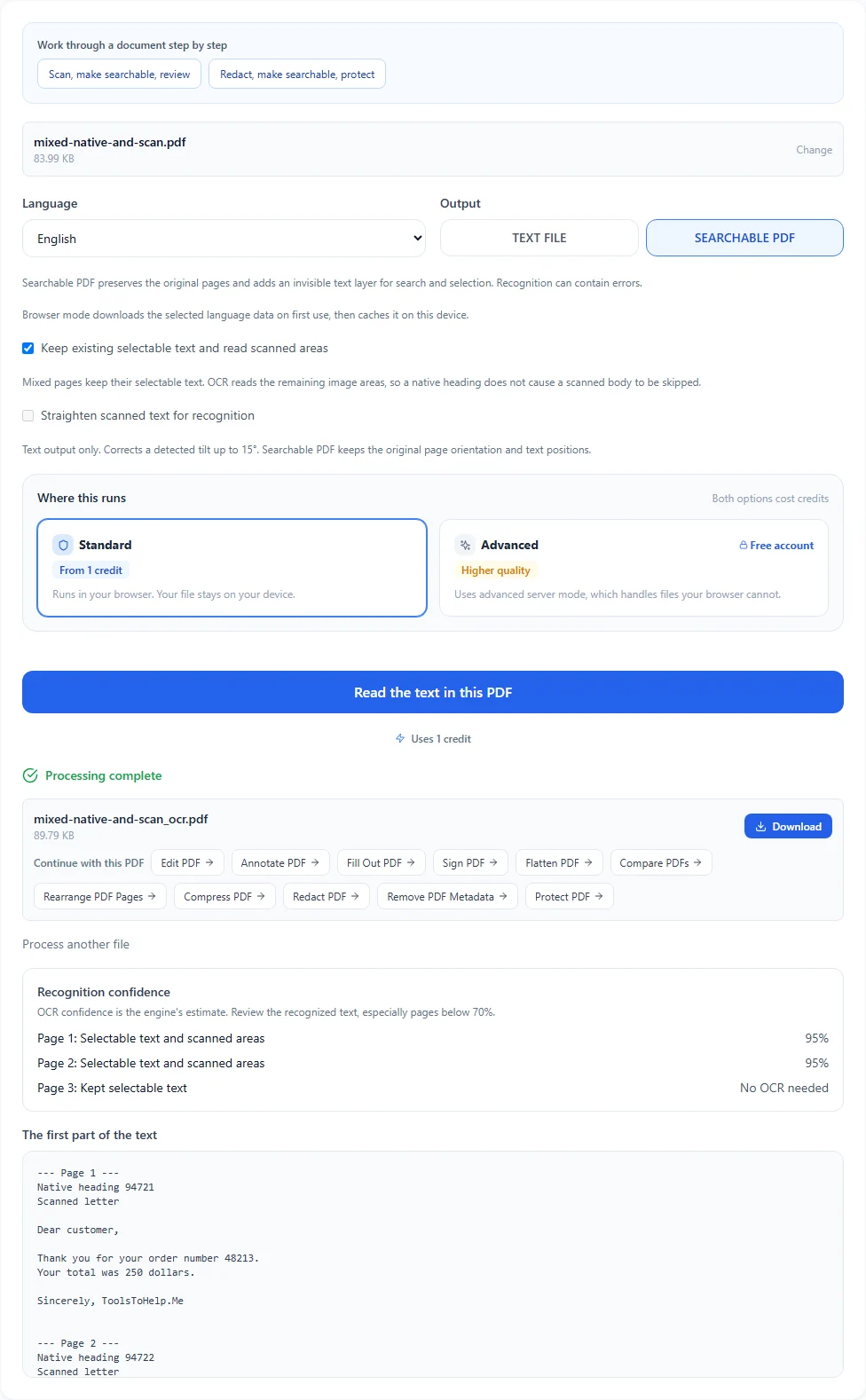
- Choose your scanned PDF, then select its language.
- Choose Searchable PDF to preserve the original pages with an invisible text layer, or Text file to save only the recognized wording.
- Choose Standard to run locally, or Advanced with a free account to run on the server. Browser OCR downloads the selected language data on first use and caches it on this device.
- In Standard mode, keep Keep existing selectable text and read scanned areas checked for mixed pages. For Text file output, optionally enable Straighten scanned text for recognition when the scanned wording is tilted.
- For Searchable PDF output in Advanced mode, Skip pages with selectable text in searchable PDF leaves those pages without a new OCR layer. Turn it off if a native label shares the page with a scanned body that still needs a searchable layer. Advanced Text file output recognizes every page.
- Select Read the text in this PDF. Review the wording and the browser mode Recognition confidence list, then download your result. A searchable PDF can continue into another PDF tool.
Before you export
Recognition can contain errors. Searchable output preserves page size, rotation and original pixels; it adds selection and search rather than changing the visible scan.
Recognition confidence is the engine's estimate, not a guarantee of accuracy. Browser mode flags pages below 70% for review and reports pages where it kept existing selectable text. Check names, numbers and important wording against the original, including pages with higher confidence.
Browser mode can be stopped with Cancel OCR. Advanced mode uses Stop waiting, which leaves the server job running. A canceled browser run can be started again with the same source file.
The workflow controls can guide you from a scan to searchable output and review, or from a redacted copy to searchable output and password protection. Export at each stage, then use Continue to the suggested next tool. Saving a workflow remembers its sequence on this device; it does not save the PDF or passwords.