PDF Tools
A PDF can balloon in size for a few reasons: high-resolution photos, scanned pages saved as pictures instead of text, embedded fonts, or leftover data from earlier edits. Standard redraws every page as a compressed image. Advanced uses Ghostscript pdfwrite to rewrite the PDF with image-resolution and font-compression settings. Savings depend on the original document.
What you need
- One PDF file, up to 100 MB.
- A sense of what the file is for. A document you will print or study closely deserves a lighter setting than one that only needs to fit under an email limit.
How to compress a PDF, step by step
- Open Compress PDF and choose the PDF you want to shrink.
The Compress PDF tool, ready for a file. - Pick how hard to compress it, and where it runs. Best quality, Balanced or Smallest file change the resolution and compression settings. Standard runs in your browser; Advanced uses advanced server mode and needs a free account.
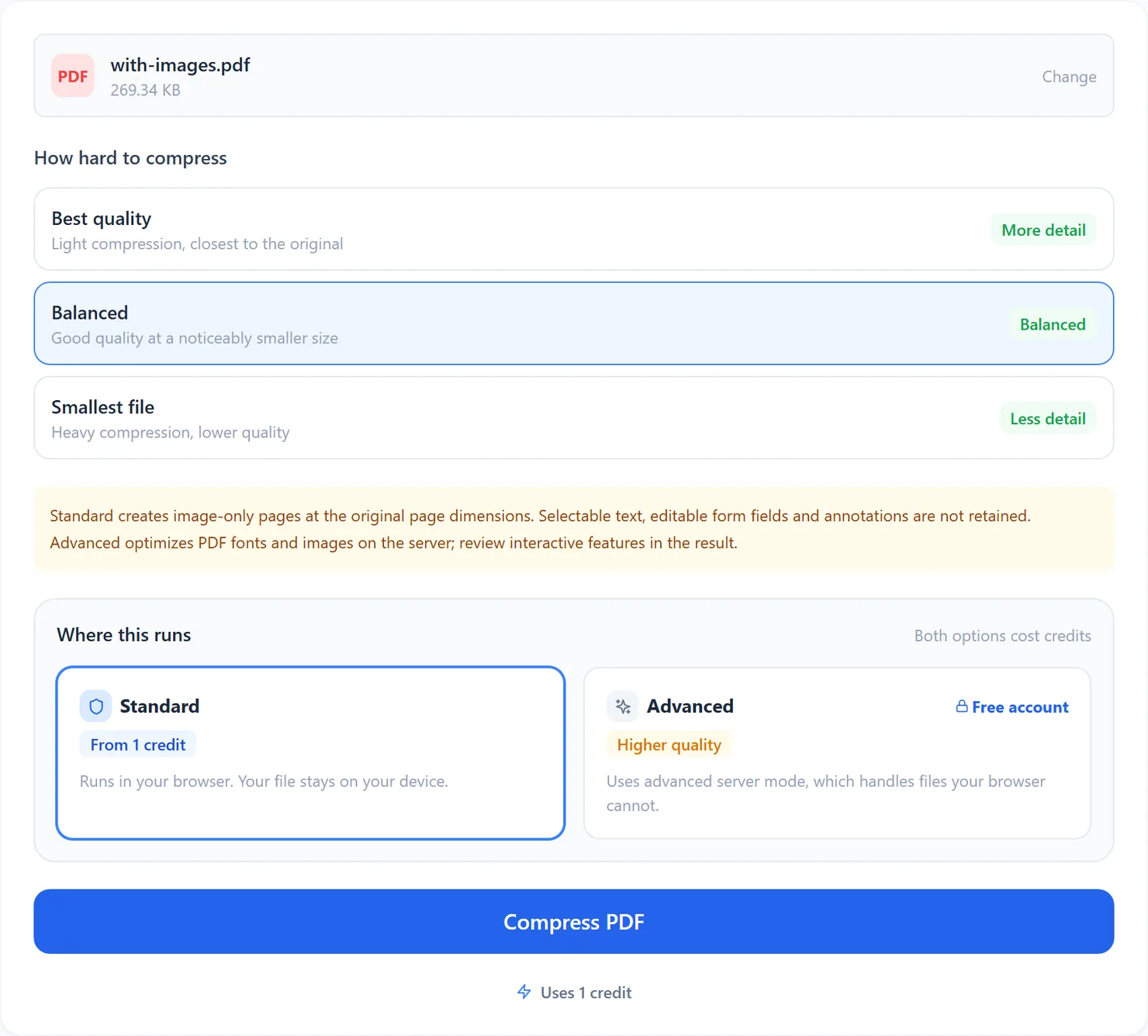
Three compression levels, and the choice between Standard and Advanced. - Select Compress PDF. When it finishes, the panel shows the size before and after.
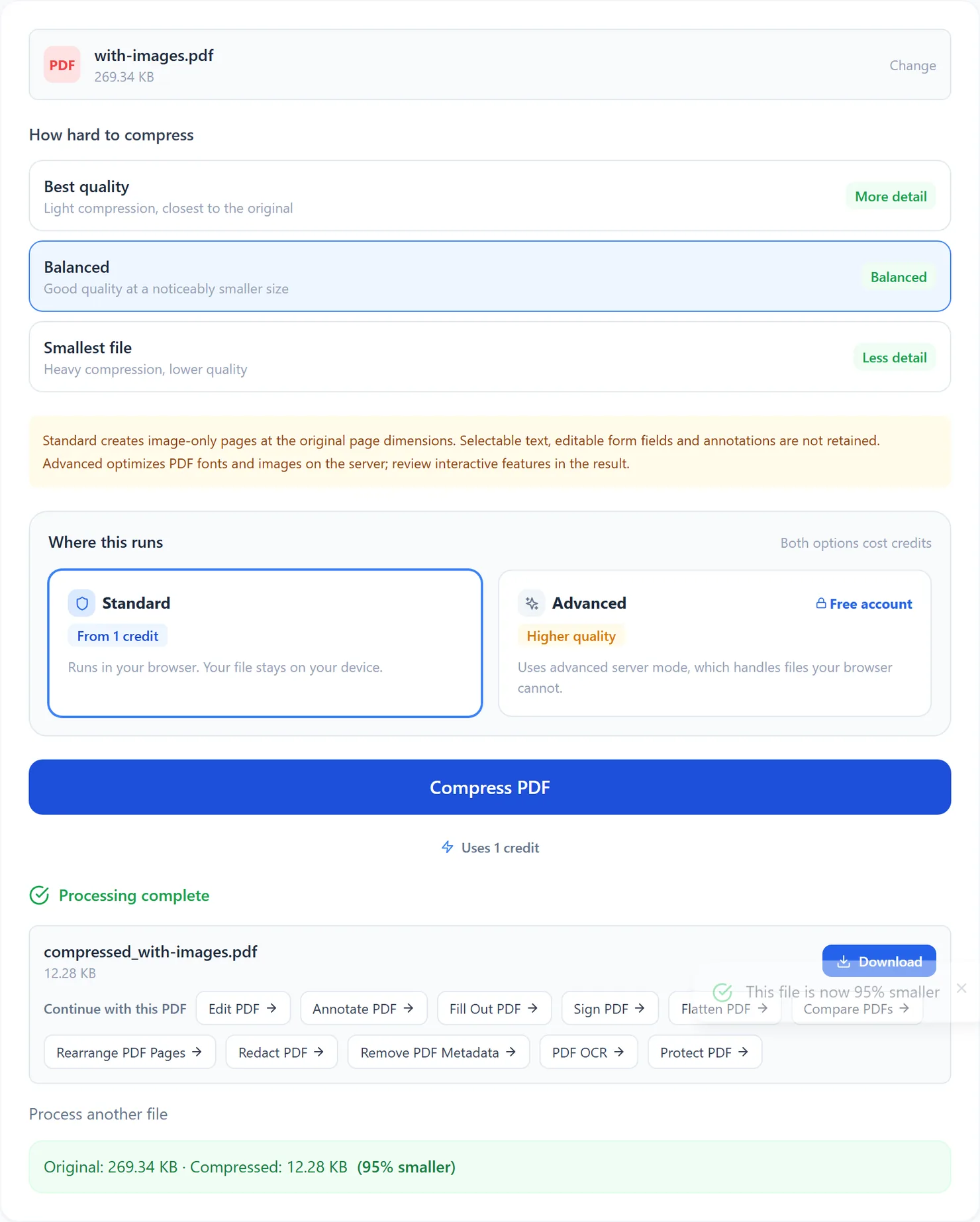
Standard compression finished. The line below the button shows how much smaller the file got. - Download the result and review fine print, selectable text and any interactive features before you send it on.
Credits: a Standard run uses 1 credit, which your free daily credits cover. Advanced server mode uses 2 credits and needs a free account. You get 10 free credits a day, or 25 with a free account.
Standard or advanced server mode
Standard works entirely in your browser: it renders each page and re-saves the file as a set of compressed images. It did well on a two-page PDF full of photos in testing, cutting a 269 KB file down to 12 KB. Choosing Advanced while signed out explains what it needs instead of sending your file anywhere.
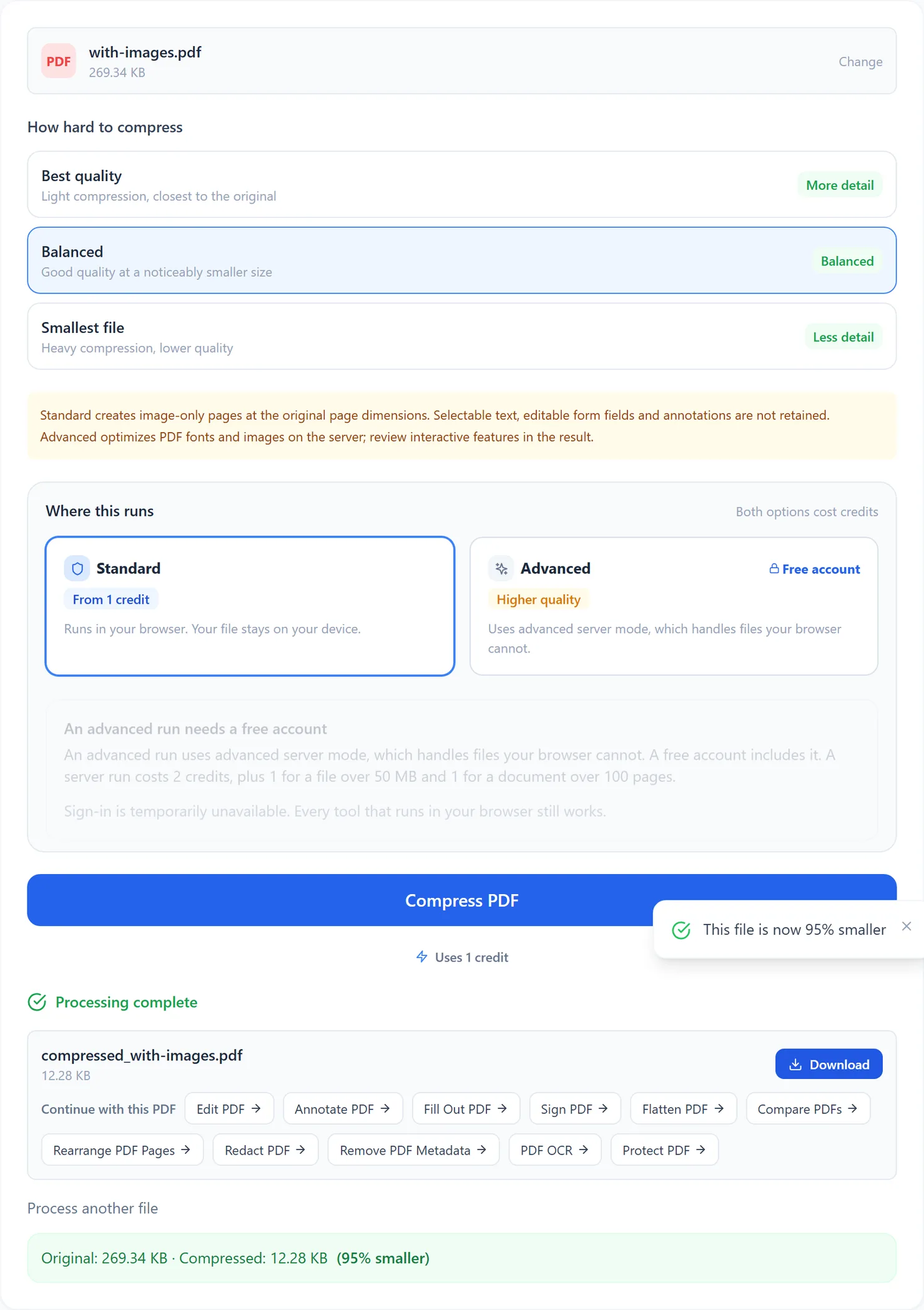
Standard creates image-only pages: text is no longer selectable or searchable, form controls no longer accept answers, links are no longer clickable and comments are no longer editable. Keep your original if you need those features.
Advanced server mode, included with a free account, uses Ghostscript pdfwrite with image-resolution and font-compression settings. It avoids the browser whole-page rasterization step. Review text, forms, links and comments in the downloaded output; their retention is not certified. Existing digital signatures become invalid when the PDF is rewritten.
A caution for text-only documents
Standard rasterizes the whole page, whatever is on it, so a document that is mostly typed text can come back bigger, not smaller, since a page of plain text is compact to begin with and an image of it is not. We saw this in testing on a small text document: the tool refused to hand back a larger file and explained why, instead of pretending the run had worked.
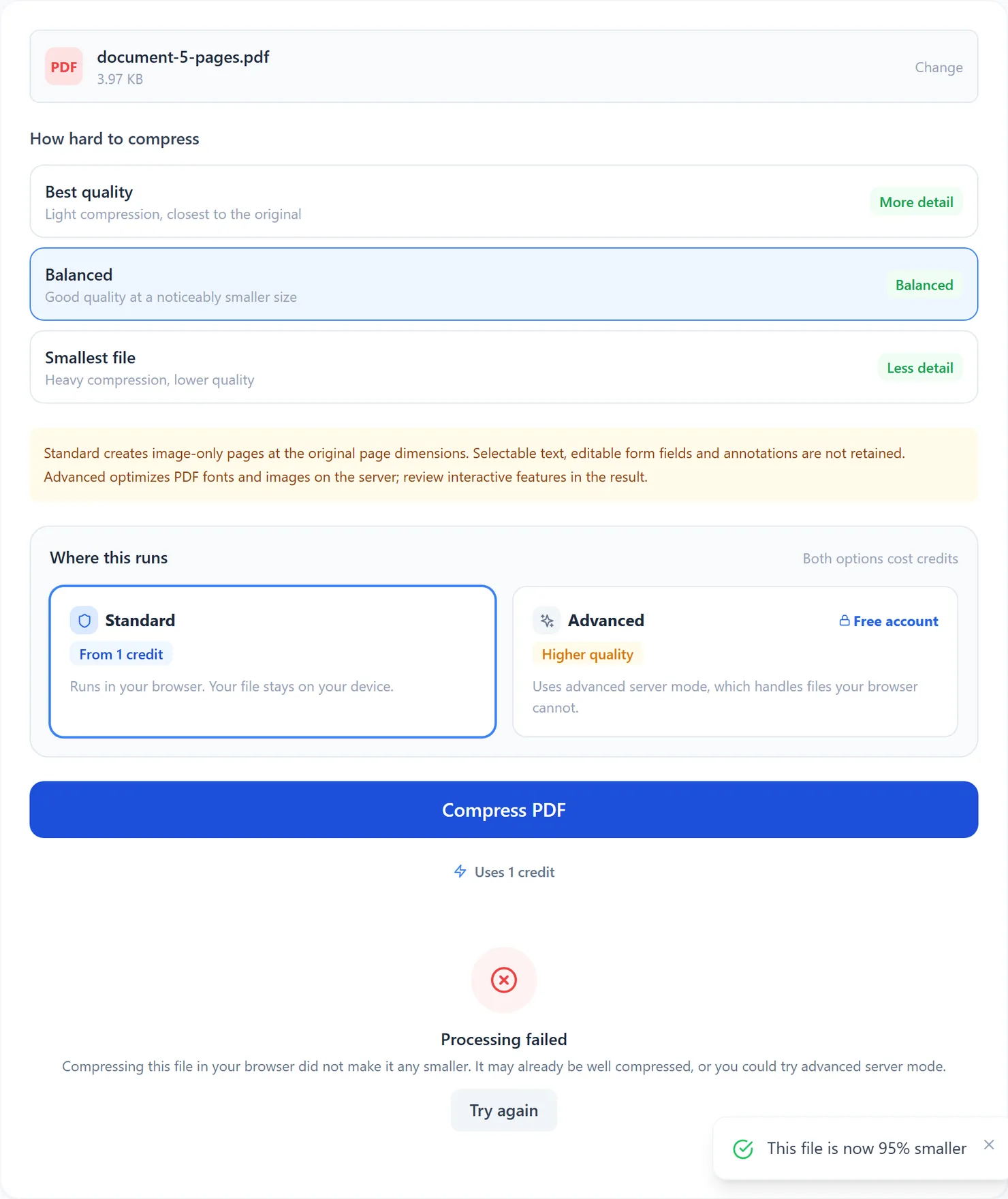
If that happens to you, the file was likely already small enough for email. Advanced avoids the browser whole-page rasterization step, but it may also return a larger file. Compare the input and result before deciding which to send.
Choosing a compression level
| Level | Typical result | Best for |
|---|---|---|
| Best quality | Higher resolution and lighter compression | Closer review of image detail; check fine print before printing |
| Balanced | Middle resolution and compression settings | First attempt for emailing or uploading; compare readability and size |
| Smallest file | Lower resolution and stronger compression | Strict size limits when reduced image detail is acceptable |
Tips for a smaller file
- Start with Balanced. Move to Smallest file only if the result is still too large.
- Compress after you merge, not before. If you are combining several PDFs, merge them first, then compress the combined file once.
- Check the result before you send it. Open the compressed file and confirm any fine print is still readable at the setting you chose.