PDF Tools
Merging PDF files combines several documents into one file, in the order you choose. It is the quickest way to send one attachment instead of several, to put a report together from separate sections, or to combine scanned pages into a single file.
What you need
- Two or more PDF files, up to 100 MB each. If you have images or Office files, convert them to PDF first with Images to PDF or Word to PDF.
- The order you want. You can also reorder the files after you add them.
How to merge PDF files, step by step
- Open Merge PDF and select Select files, or drag your PDF files onto the upload area.

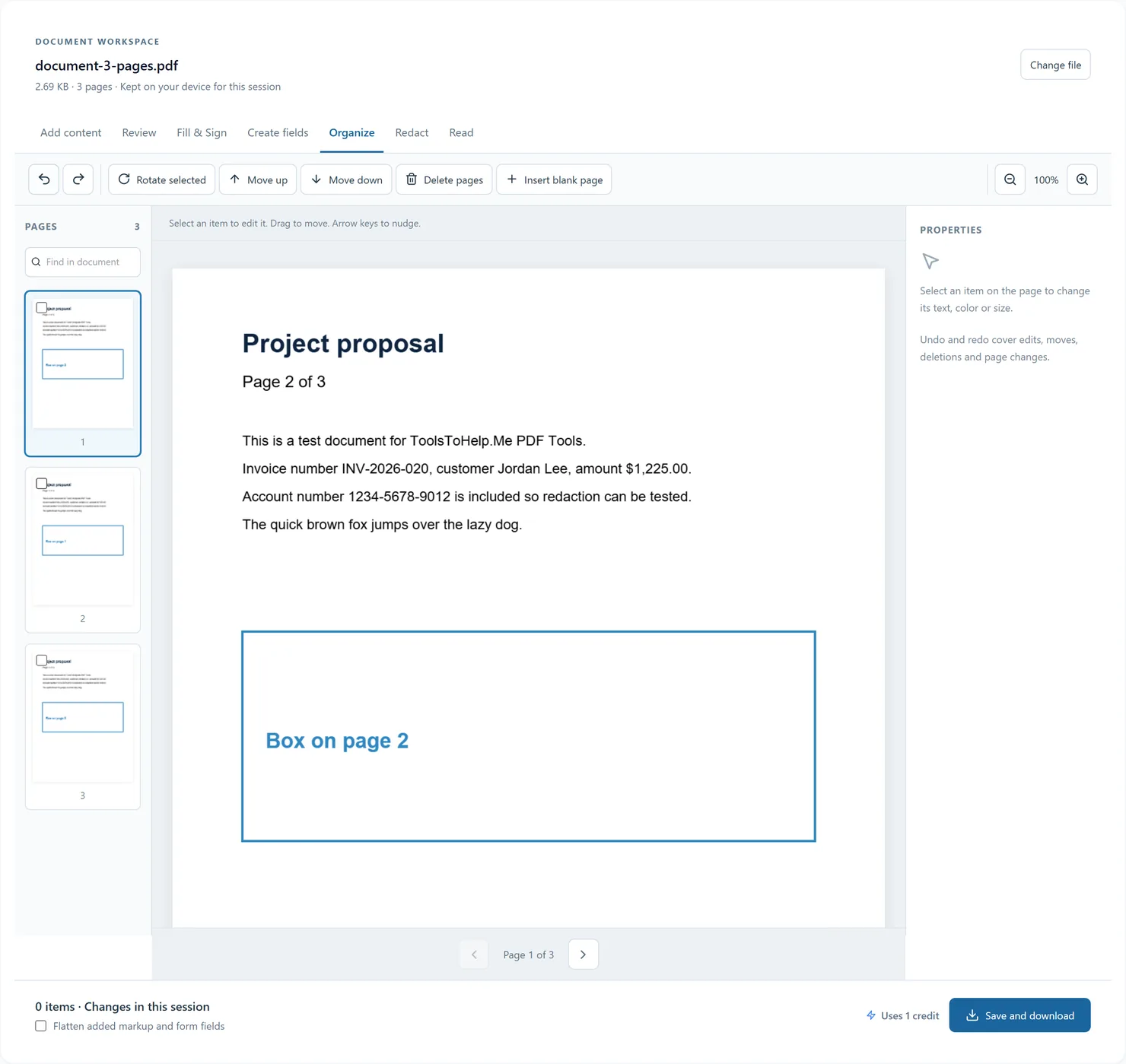
The Merge PDF tool, ready for your files. - Check the order. Each file is listed with a number that shows its position in the merged document. Use the up and down arrows to move a file, the X to remove one, and Add more to add another file.
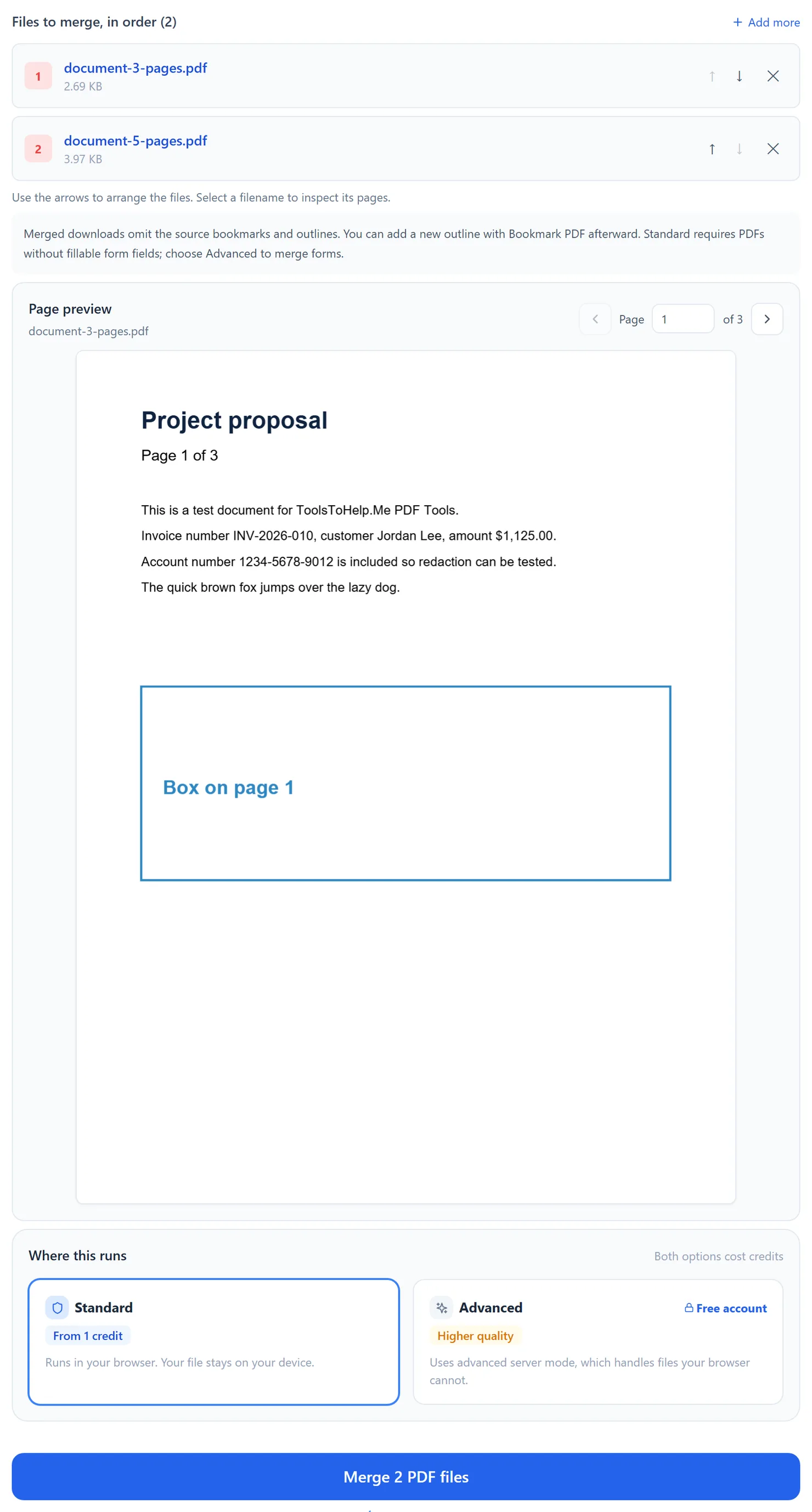
Two files added. The numbers show the order they will be merged in. - Choose where the merge runs. Standard merges in your browser, so your files stay on your device. Advanced uses the server and supports merging forms. Standard requires PDFs without fillable form fields. Both modes omit source bookmarks and outline trees. Advanced is included with a free account.
- Select Merge. The button shows how many files will be combined, for example Merge 2 PDF files, and the credit cost appears below it.
- Download the result. When you see Processing complete, select Download to save merged.pdf.
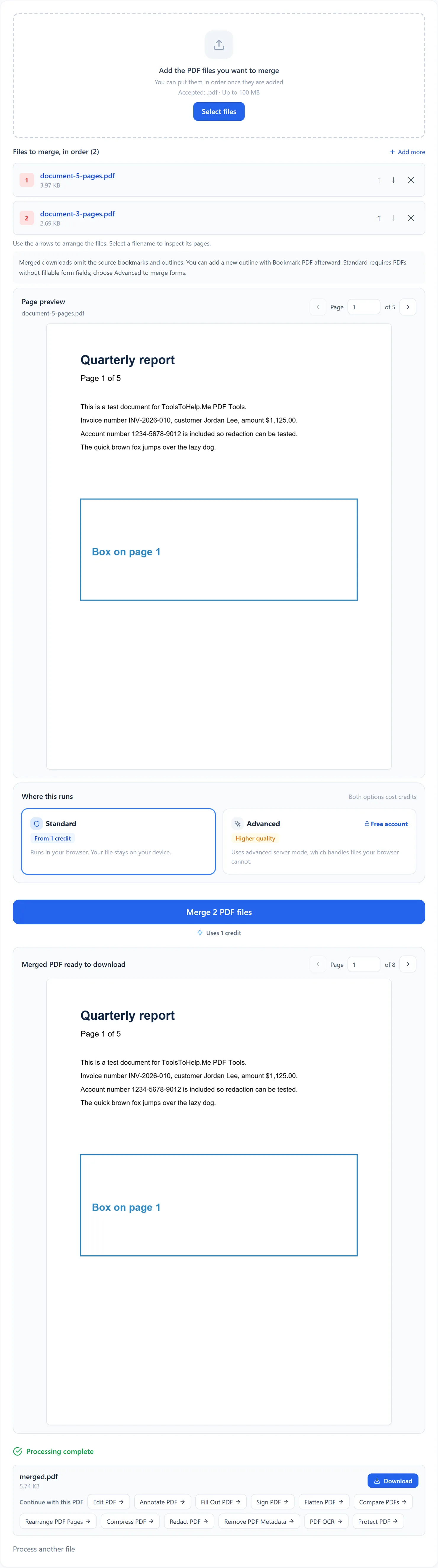
The merge is finished. Select Download to save merged.pdf.
Credits: a Standard merge uses 1 credit, which your free daily credits cover. You get 10 free credits a day, or 25 with a free account.
Standard or advanced server mode
Standard merges PDF pages on your device and refuses source files containing fillable AcroForm fields. Advanced uses qpdf on the server and supports merging forms. Both modes omit source bookmarks and outline trees; a printed table of contents remains as ordinary page content. Use Bookmark PDF to create a new outline after merging. Review internal links and merged form values before sharing.
Tips for a clean merge
- Remove unwanted pages first. Take out cover sheets or blank pages with Remove Pages before you merge.
- Name files in order. Names such as 01-cover.pdf and 02-report.pdf make the list easy to check.
- Add a new outline. Source bookmarks are omitted in both modes. Use Bookmark PDF to add navigation to the merged document.
- Check the result. Open merged.pdf and skim it before you send it. To change the order of pages inside the merged file, use Rearrange Pages.