PDF Tools
PDF guide

How to reorder the pages of a PDF

Organize PDF pages visually: reorder thumbnails, rotate or delete selected pages, insert a blank page, and undo page changes before exporting.

Updated . Tested step by step on this tool.

How to use Rearrange PDF Pages

  1. Choose your PDF. The workspace opens in Organize mode with a thumbnail for each page.
  2. Drag a thumbnail to its new position, or choose a page and use Move up or Move down.
  3. Tick page checkboxes to select several pages. Rotate selected and Delete pages act on the selection, or on the current page when none is selected.
  4. Use Insert blank page to add a page after the current one. Undo and Redo cover organization changes. Keep at least one page.
  5. Review the new page order and choose Save and download. Added workspace items move with their pages.
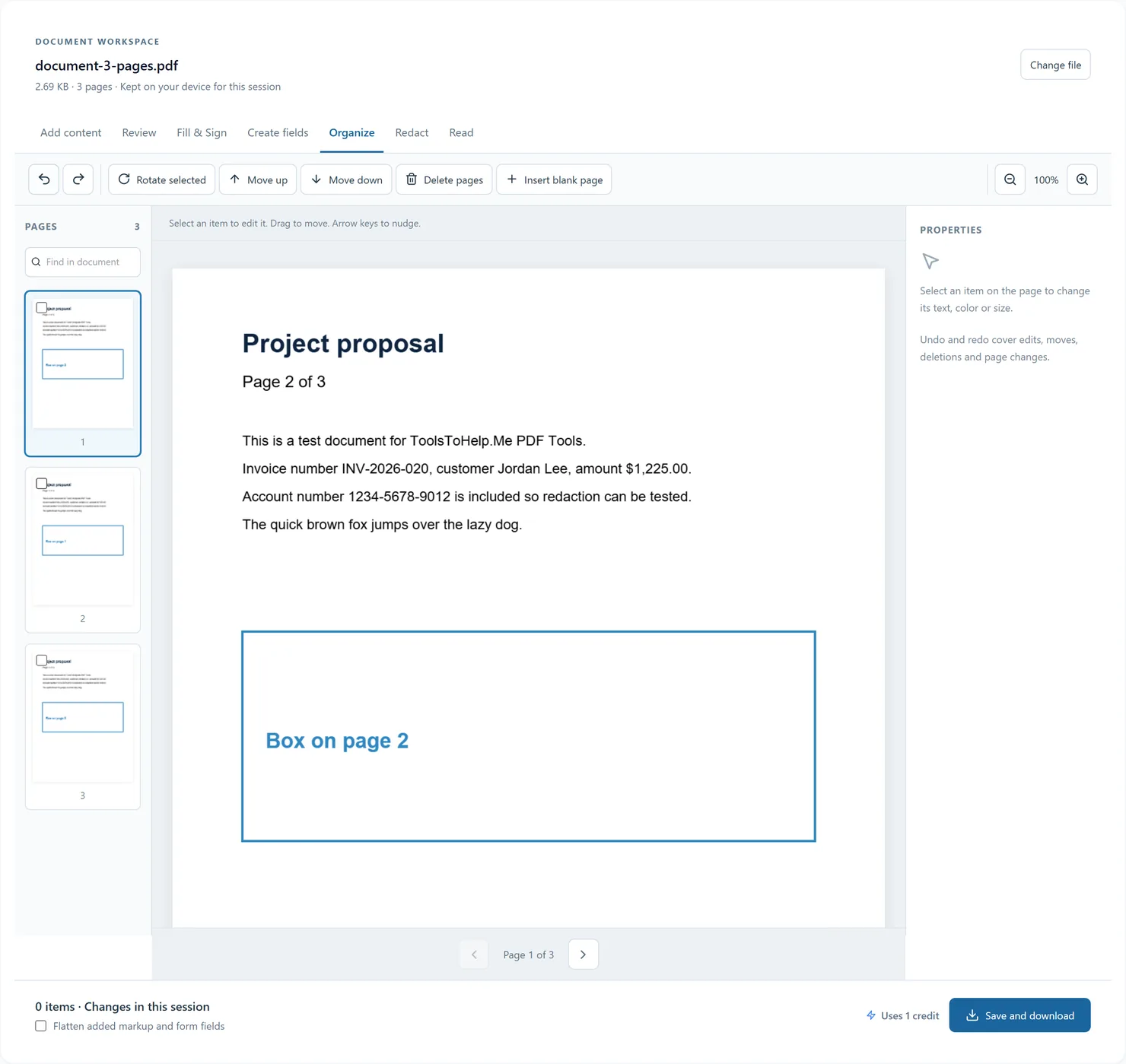
Organize PDF pages visually: reorder thumbnails, rotate or delete selected pages, insert a blank page, and undo page changes before exporting.

Before you export

Reordering reuses the original page objects. Controls on deleted pages are removed. Check document navigation after deleting pages that had bookmarks or links.

The document stays in memory for this browser session. Export a copy before closing or reloading the tab. Undo history is not saved in the PDF; added objects are saved for reopening unless flattened.
Frequently asked questions

Can I keep working without uploading the PDF again?

Yes. The workspace keeps one document open across its modes for this browser session. Exported results also offer Continue with this PDF to hand the file to another tool.

Can I undo a change?

Undo and redo include added items, text changes, movement, resizing, removal, form values and page changes. Keyboard shortcuts Ctrl+Z and Ctrl+Shift+Z work when a text input is not focused.

Will edits be here after I close the tab?

The browser session ends when you close or reload the tab. Save and download your edited PDF first. Added items and review markup can be edited again when you reopen that exported copy here, unless you flattened it.