PDF Tools
A rotated PDF usually comes from a scanner or a phone camera that captured a page sideways or upside down. Fixing it page by page, or across the whole document, makes it readable without reprinting or rescanning anything.
What you need
- One PDF file, up to 100 MB.
How to rotate a PDF, step by step
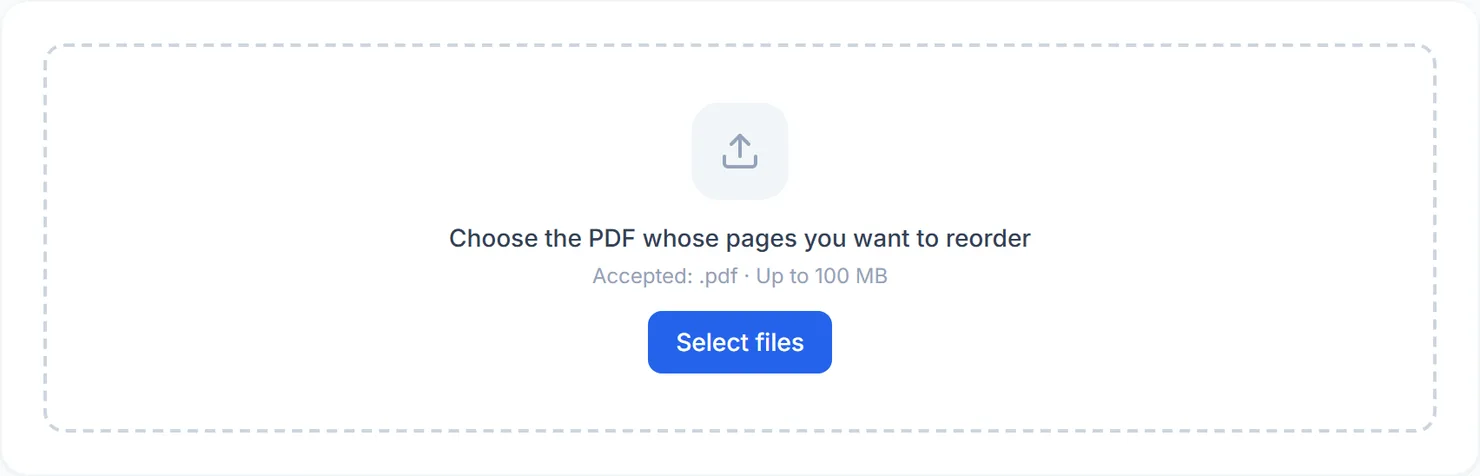
- Open Rotate PDF and select Select files, or drag your PDF onto the upload area.

The Rotate PDF tool, ready for your file. - Choose the angle and where it applies. Pick 90, 180 or 270 degrees, then choose Every page or Chosen pages. Naming pages uses the same format as other tools in this group, such as 1, 3, 5-8.

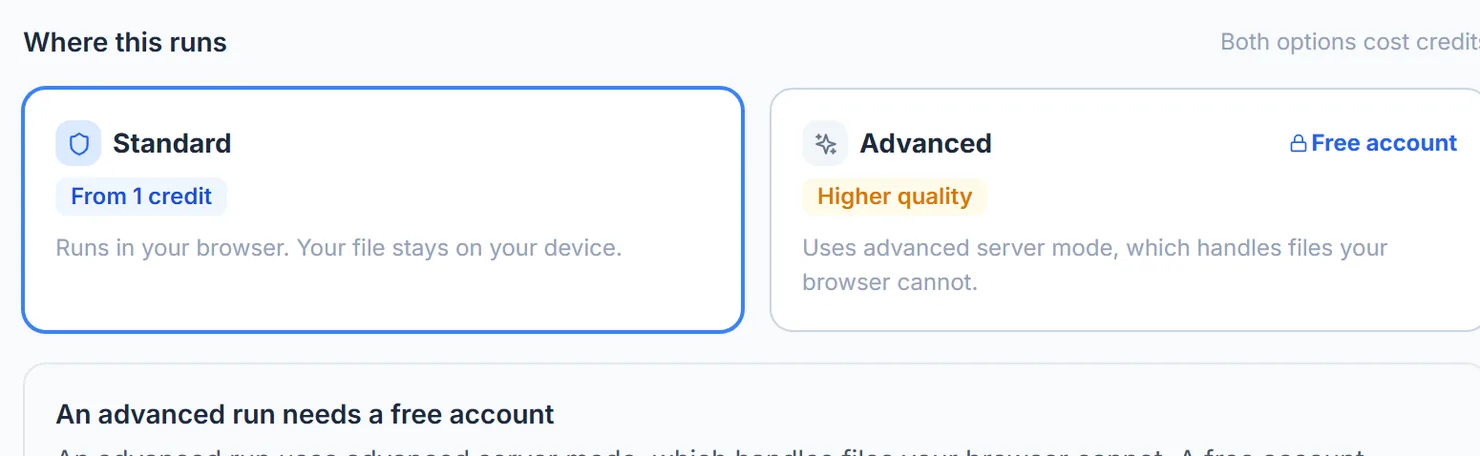
Choose the rotation angle and whether it applies to every page or only the ones you name. - Choose where it runs. Standard rotates in your browser. Advanced uses advanced server mode, included with a free account, and works directly on the file's structure with qpdf.
- Select Rotate PDF.
- Download the result. When you see Processing complete, select Download to save the rotated file.
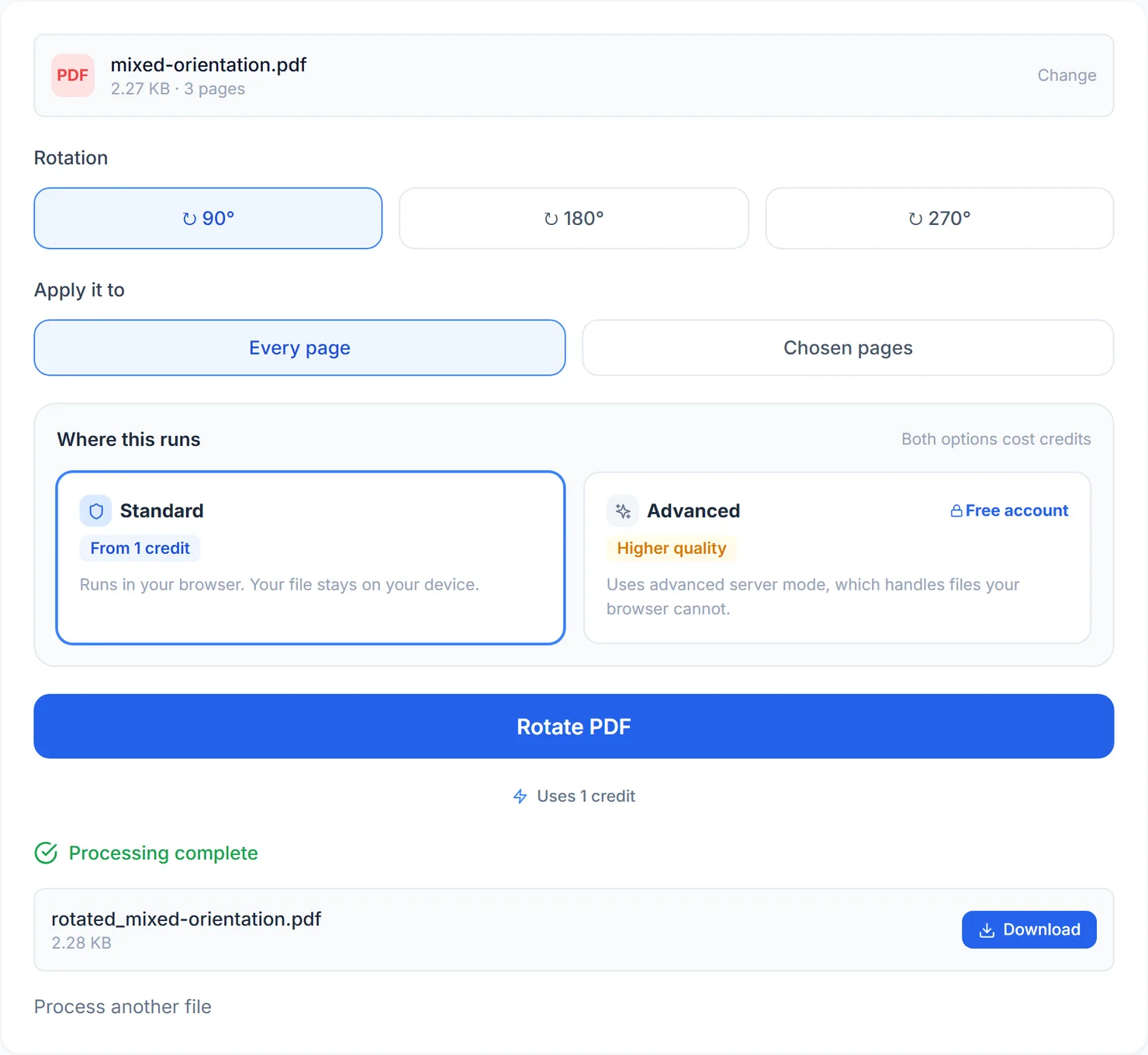
The rotated file is ready to download.
Credits: a Standard rotation uses 1 credit, which your free daily credits cover. You get 10 free credits a day, or 25 with a free account. Advanced server mode needs a free account.
Standard or advanced server mode
Standard covers rotating pages for most people, and your file never leaves your device. Choosing Advanced without a free account shows what it needs instead of running, since advanced server mode requires signing in.
Tips for a clean rotation
- Rotation adds up. If a page is already turned, the angle you choose is added on top of its current rotation, not set from scratch.
- Mixed orientations in one document? Use "Chosen pages" to fix only the pages that need it, leaving the rest as they are.
- Combining files with different orientations? Rotate each one first, then use Merge PDF to bring them together.
- Pages in the wrong order too? Rearrange Pages fixes sequence, not orientation.