PDF Tools
Cropping trims a fixed amount off the edges of every page in a PDF. It is the fix for a scan with too much border, a document with unusually wide margins, or a printed page that needs its edges tidied up before sharing.
What you need
- One PDF file, up to 100 MB.
- An idea of how much to trim, in points (72 points to an inch), for each side.
How to crop a PDF, step by step
- Open Crop PDF and select Select files, or drag your PDF onto the upload area.
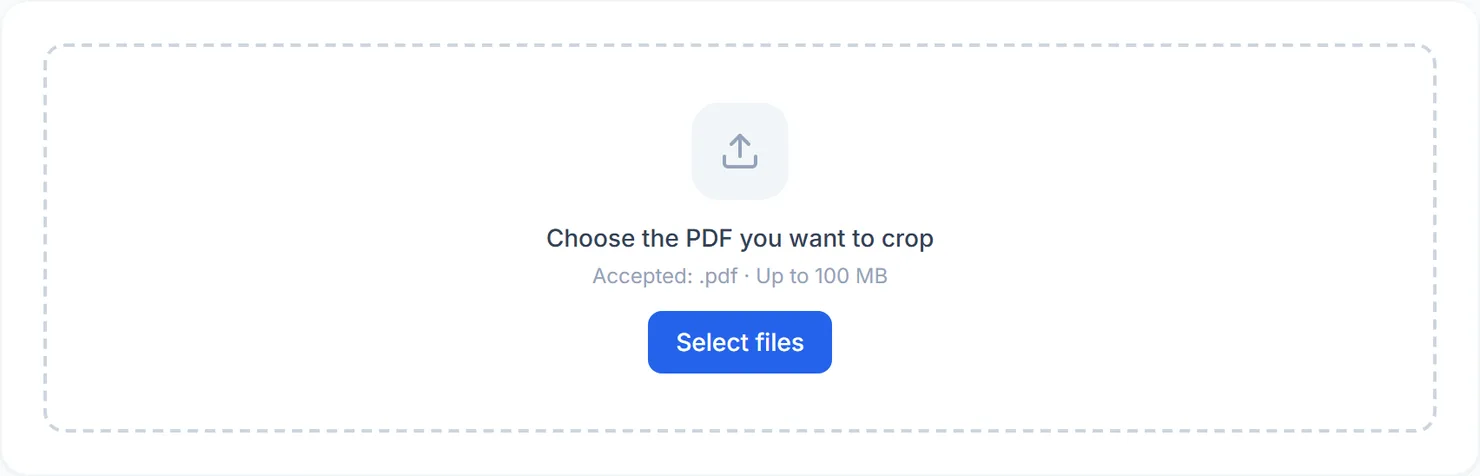
The Crop PDF tool, ready for your file. - Set how much to take off each side. Drag the Top, Right, Bottom and Left sliders. A line below them totals how much width and height will be removed. Select Reset to zero to start over.
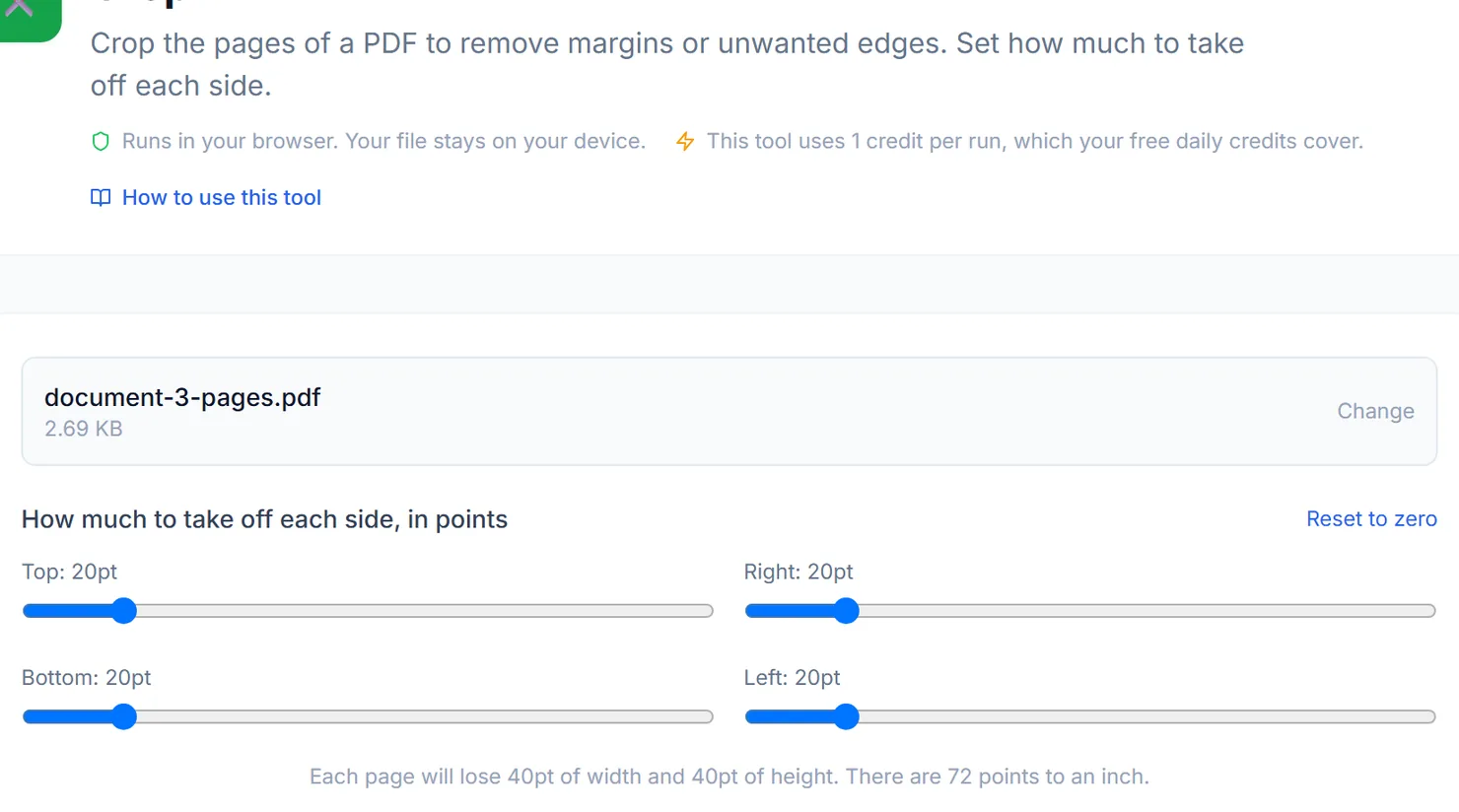
Drag each side's slider to set how many points to trim from that edge. - Select Crop PDF.
- Download the result. When you see Processing complete, select Download to save the cropped file.
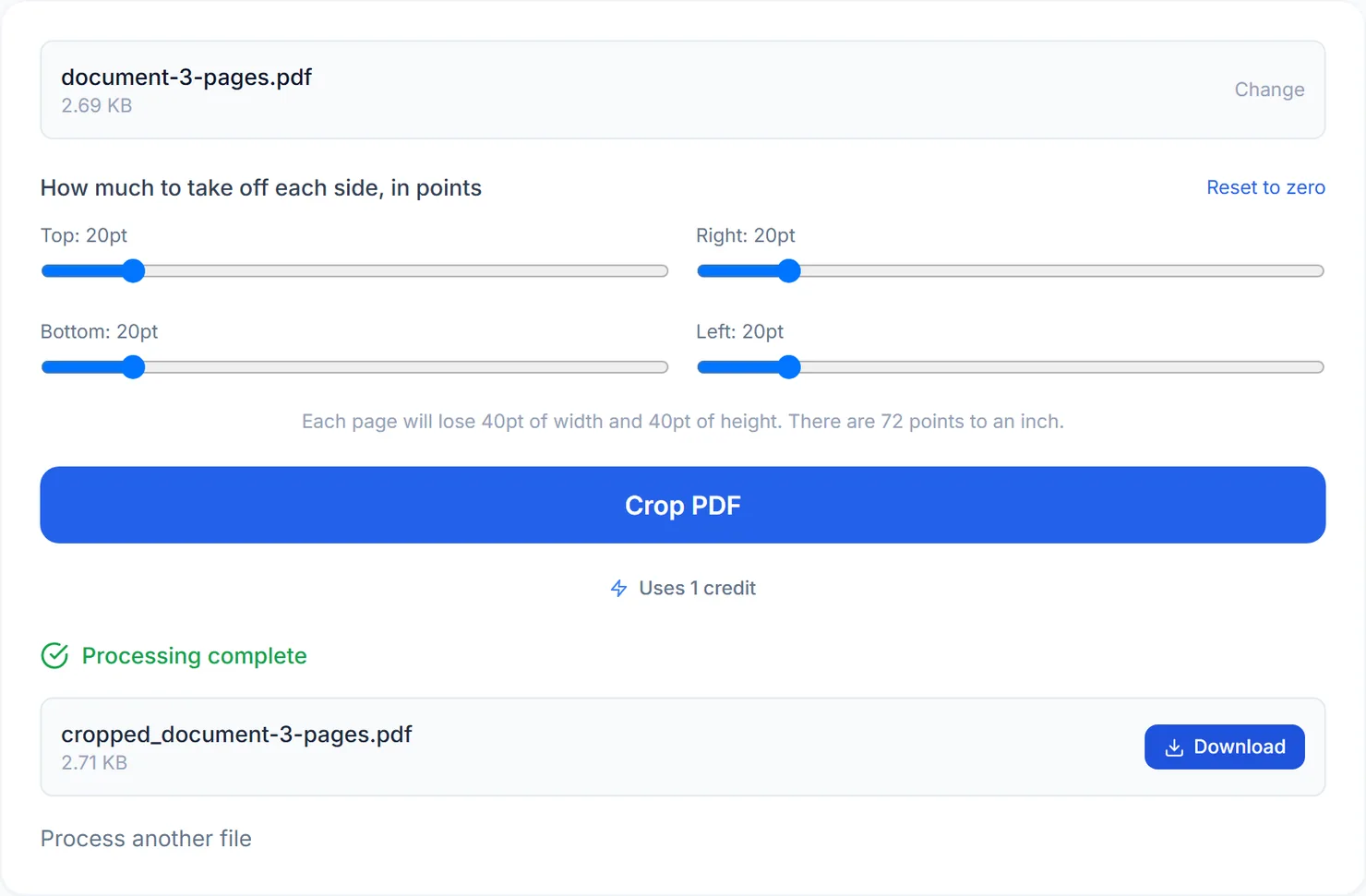
The cropped file, with the sliders' margins taken off every page.
Credits: cropping uses 1 credit, which your free daily credits cover. You get 10 free credits a day, or 25 with a free account.
What cropping actually does
Cropping sets the visible area of each page to a smaller rectangle inside the original page, rather than resizing the page itself or deleting content. Most PDF viewers and printers display and print only what is inside that area, so the result behaves like a smaller page. If you need the physical page dimensions themselves to change, use Resize PDF instead.
Tips for a clean crop
- Start small. Crop a modest amount, check the result, and run again if you need more, rather than guessing a large number up front.
- Uneven scan edges? Set a larger value on just the affected side rather than cropping all four sides equally.
- Cropped pages look small when printed? Pair this with Resize PDF to also set the page to a standard size afterward.
- Sideways content instead of wide margins? That is an orientation problem, not a margin problem; use Rotate PDF instead.