PDF Tools
Resizing a PDF changes the physical dimensions of every page. It solves a document printed at the wrong size, pages that need to match a specific paper size, or a PDF you want to shrink or enlarge as a whole before printing or sharing.
What you need
- One PDF file, up to 100 MB.
- A target size or scale. Know whether you want a named paper size, a specific width and height, or a percentage change.
How to resize a PDF, step by step
- Open Resize PDF and select Select files, or drag your PDF onto the upload area. The current page size is shown next to the file.
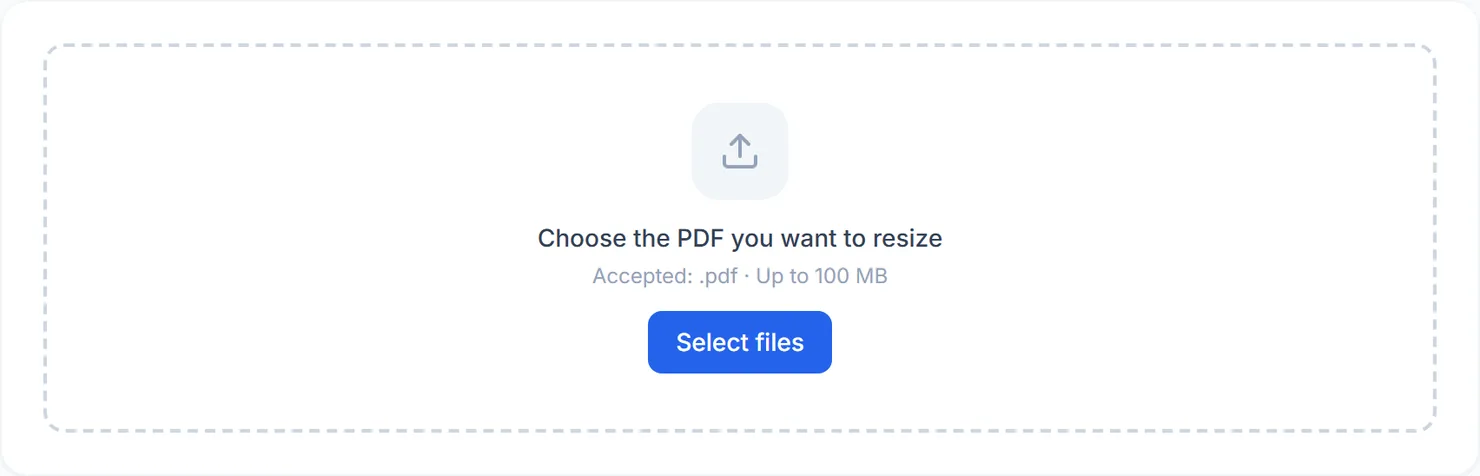
The Resize PDF tool, ready for your file. - Choose a mode. Standard size offers named paper sizes like Letter and A4, with an orientation choice. A live summary below the options describes exactly what the result will be.
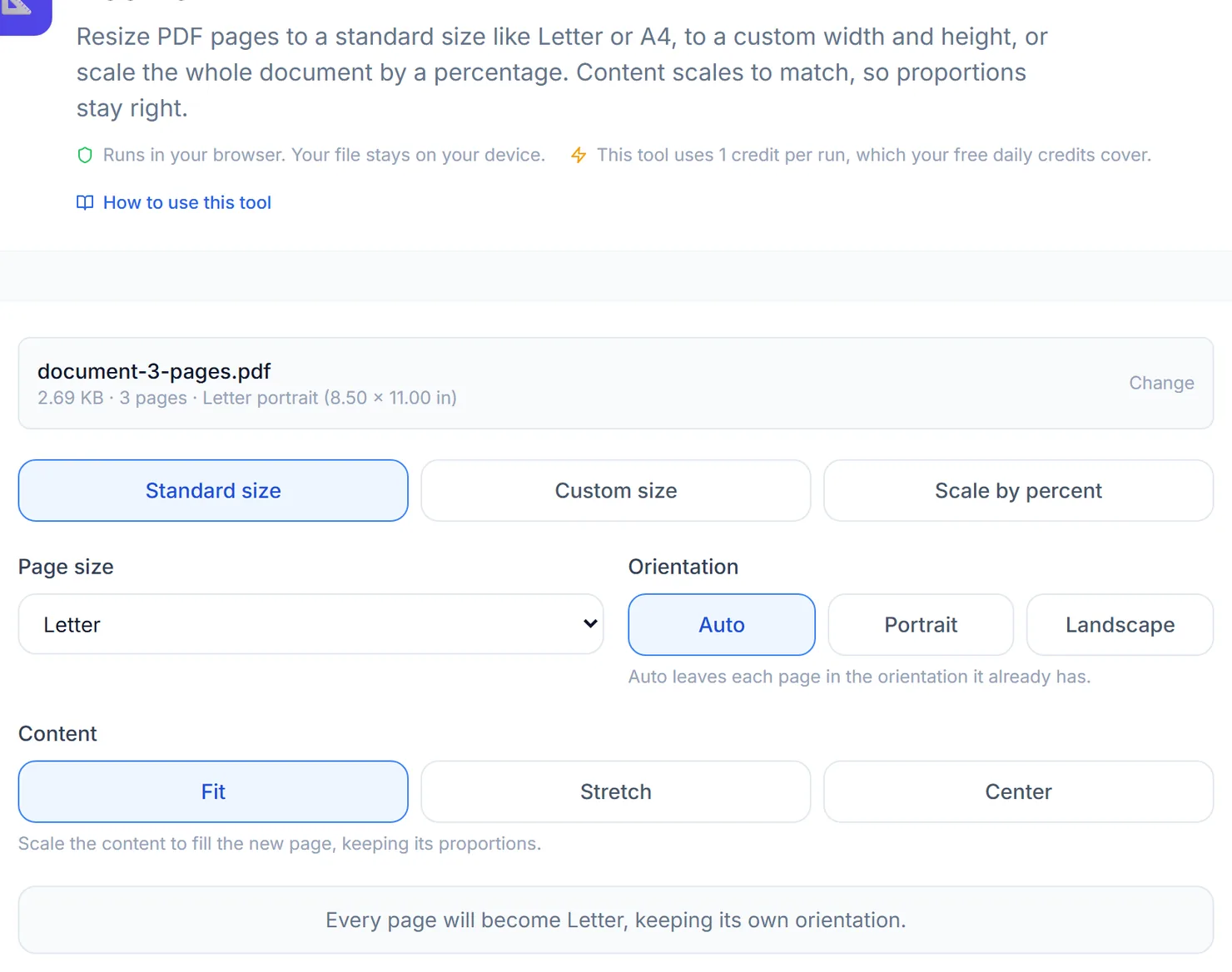
Standard size, a custom size, or a percentage scale, each with a live preview of the result. - For a custom size, type a width and height and pick a unit: inches, millimeters, centimeters or points.
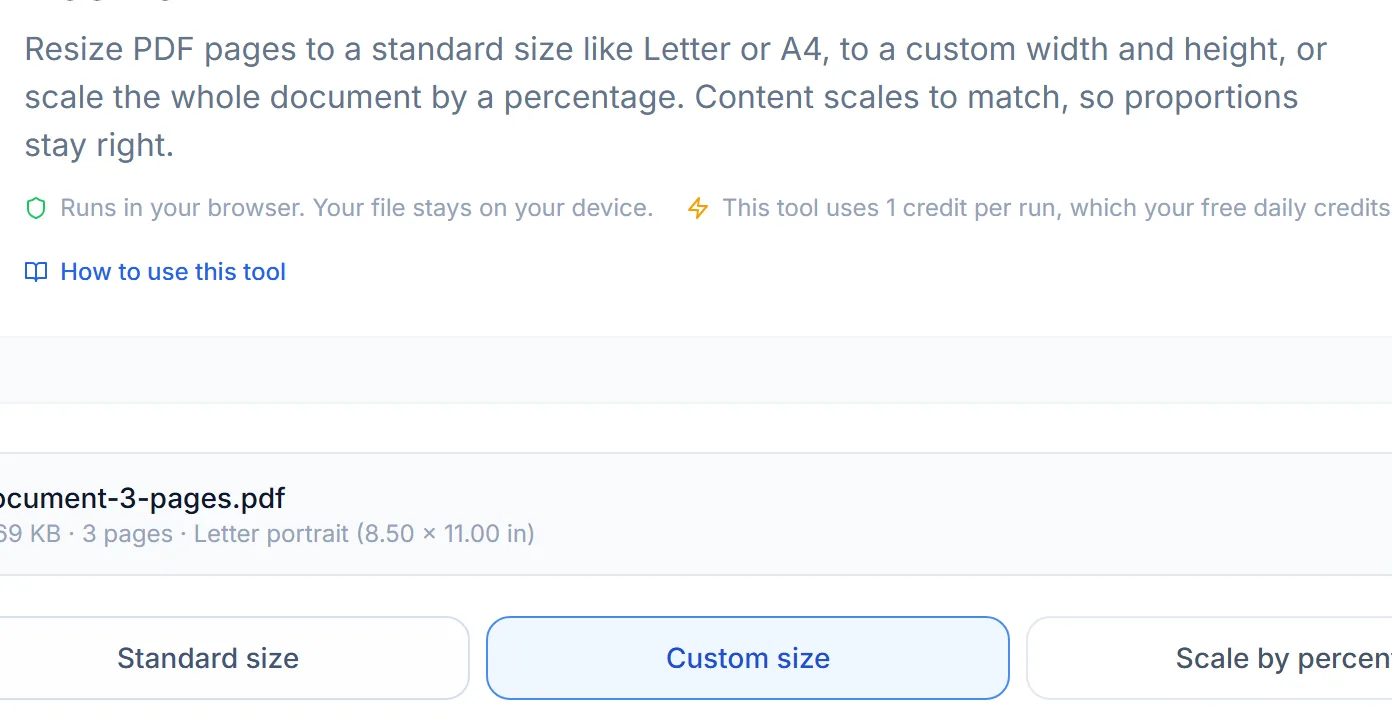
A custom width and height, in your choice of unit. - For scaling, pick a percentage or type your own between 1 and 1000. 50% halves the page and its content; 200% doubles them.
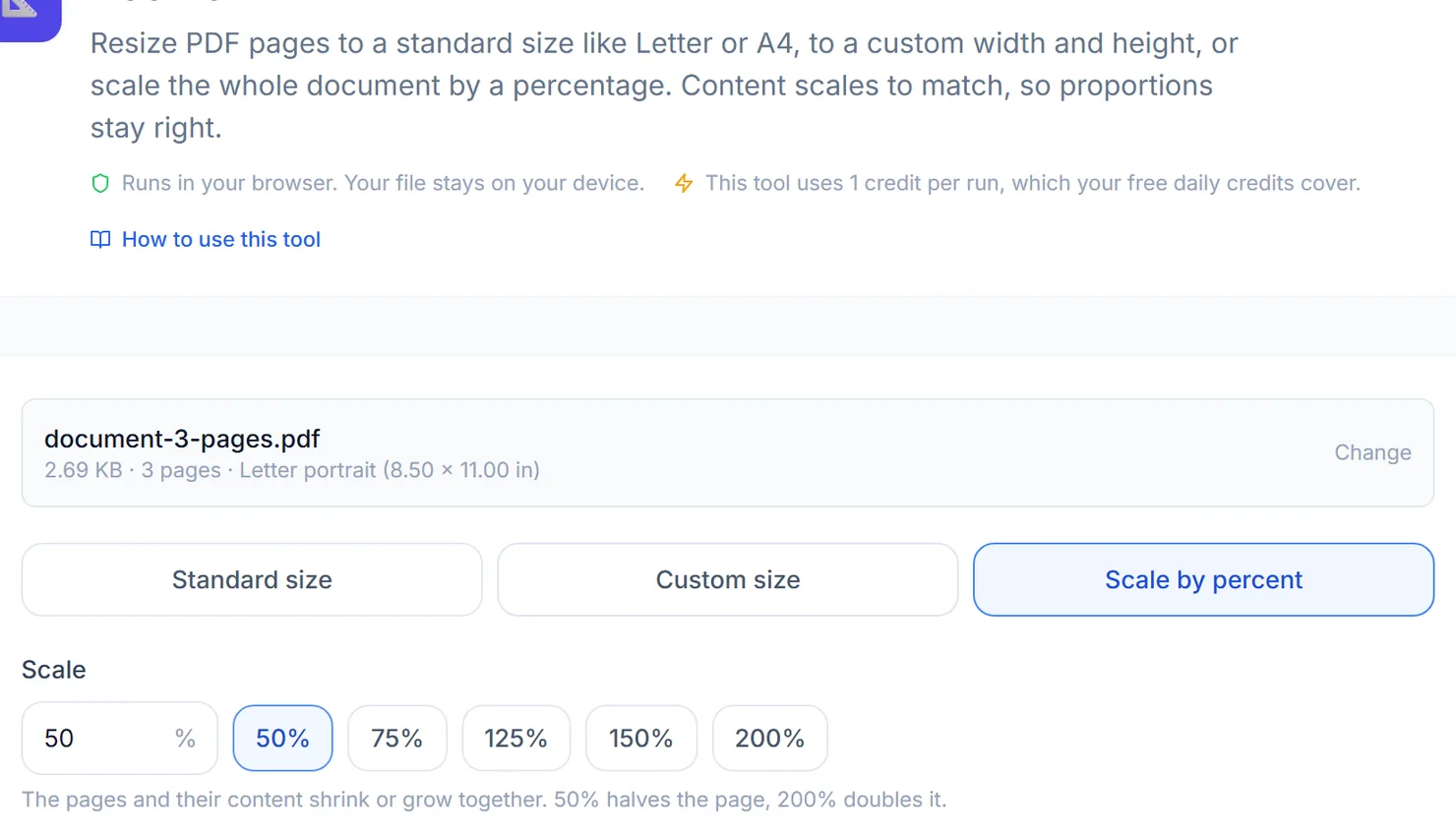
Scaling shrinks or grows the page and its content together. - Choose how content fits a new standard or custom size: Fit, Stretch or Center. Scaling always keeps proportions, so this choice does not apply there.
- Select Resize this PDF, then download the result when processing completes.
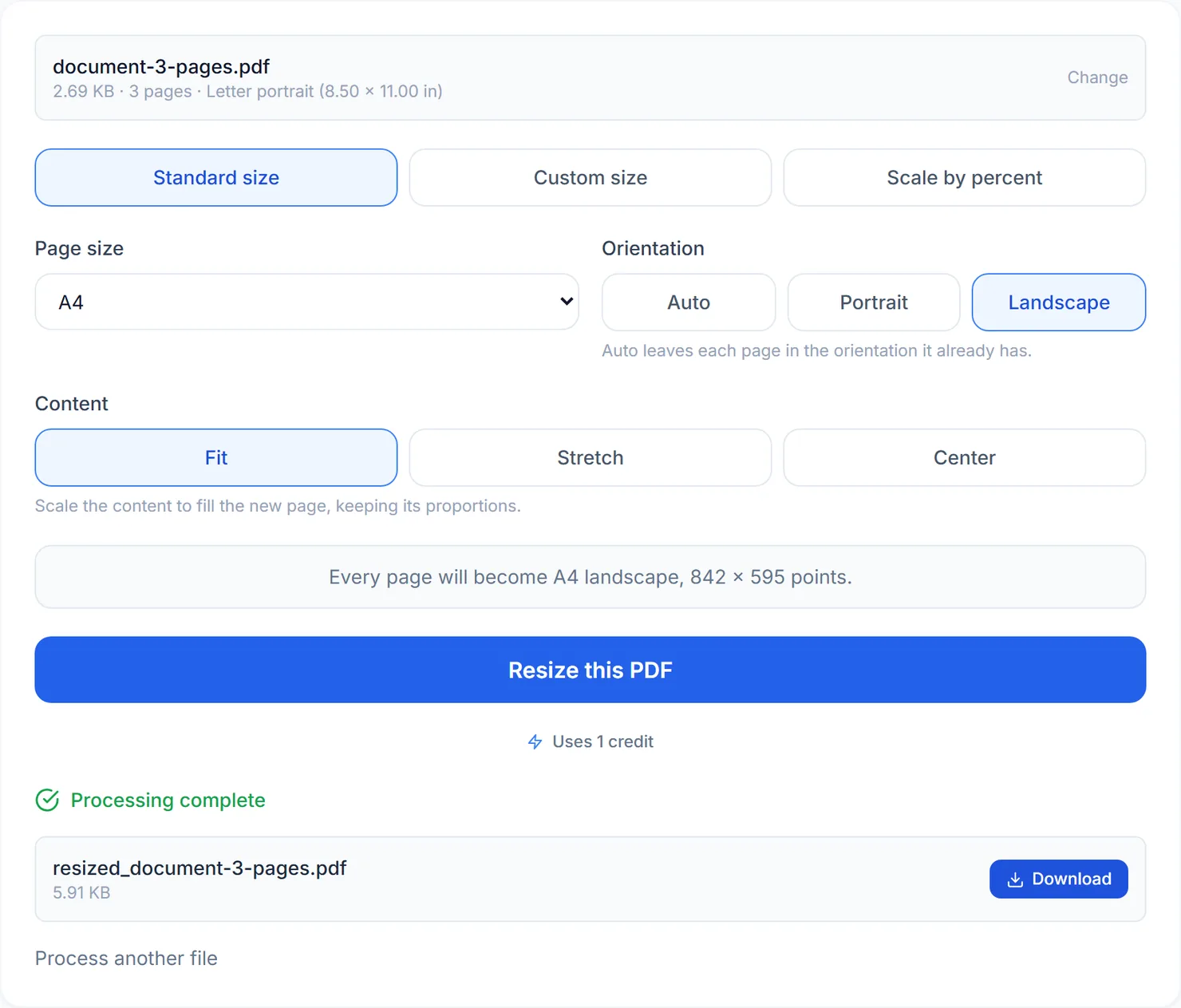
Resized to A4 landscape.
Credits: resizing uses 1 credit, which your free daily credits cover. You get 10 free credits a day, or 25 with a free account.
Fit, Stretch or Center
Fit is the safest default: your content shrinks or grows to fill the new page while keeping its original proportions, so nothing looks squashed or stretched. Stretch fills the page exactly, which can distort a page whose proportions are very different from the target size. Center keeps your content at its original size and places it in the middle of the new page, useful when you want extra margin rather than a resized layout.
Tips for a clean resize
- Start a new file fresh. Choosing a different file after setting a custom size or scale keeps those same values, so double-check them before running again.
- Match a printer's paper size with Standard size before sending a document out to be printed professionally.
- Only need to trim edges, not change the overall size? Use Crop PDF instead.
- Laying out several pages on one sheet? Resize to a consistent page size first if your document mixes sizes, then use Pages Per Sheet.