PDF Tools
Pages Per Sheet combines several pages of a PDF onto each printed page, in a grid. It cuts down the number of sheets you print for handouts, drafts, or booklets where full-size pages are not needed.
What you need
- One PDF file, up to 100 MB.
How to fit several pages per sheet, step by step
- Open Pages Per Sheet and select Select files, or drag your PDF onto the upload area.
The Pages Per Sheet tool, ready for your file. - Choose a layout. Pick 2, 4, 6 or 9 pages per sheet. 6-up turns the sheet to landscape automatically, since that grid is wider than it is tall; the others keep a portrait sheet.
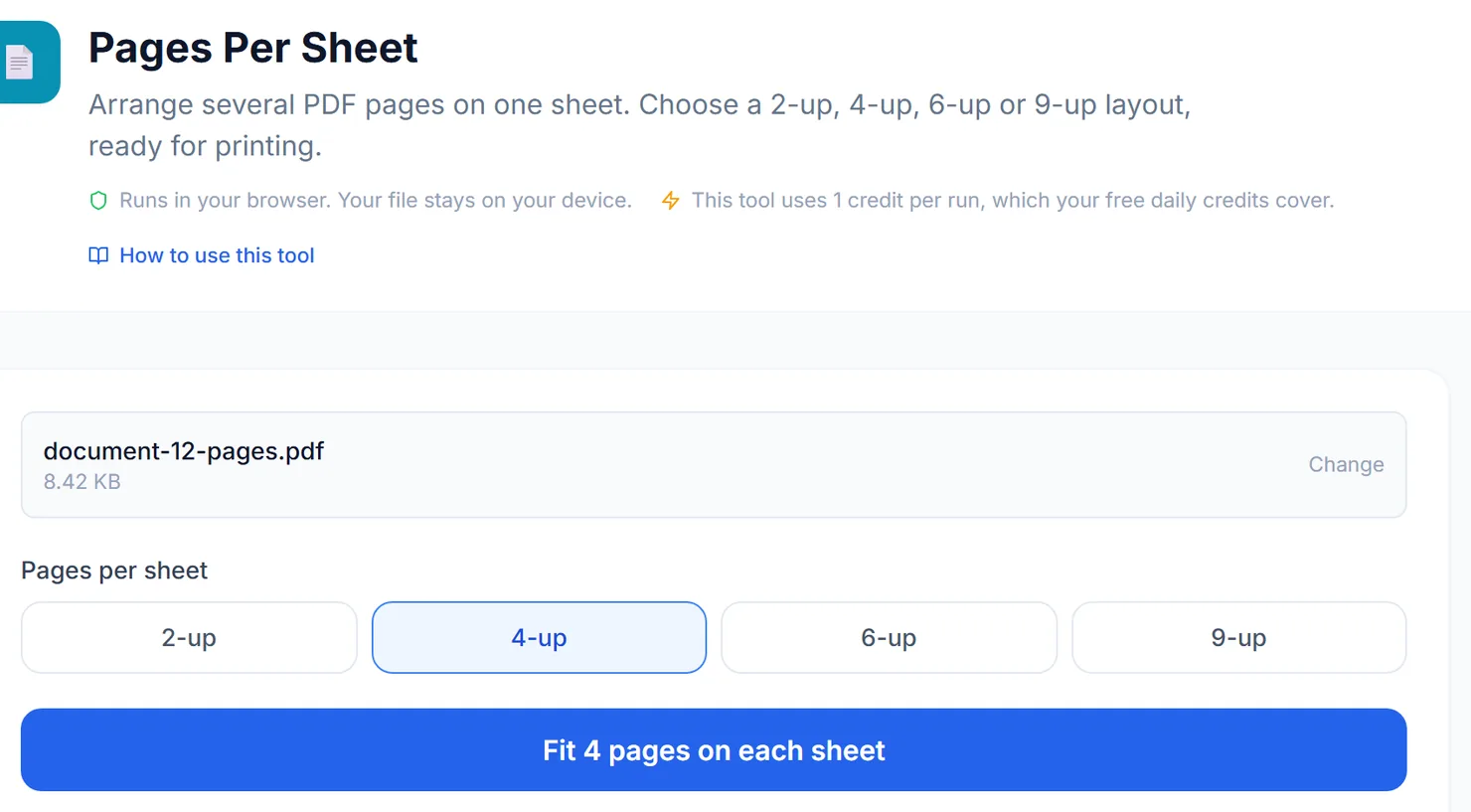
Choose how many pages to fit on each printed sheet. - Select Fit N pages on each sheet.
- Download the result. When you see Processing complete, select Download to save the new file, ready to print.
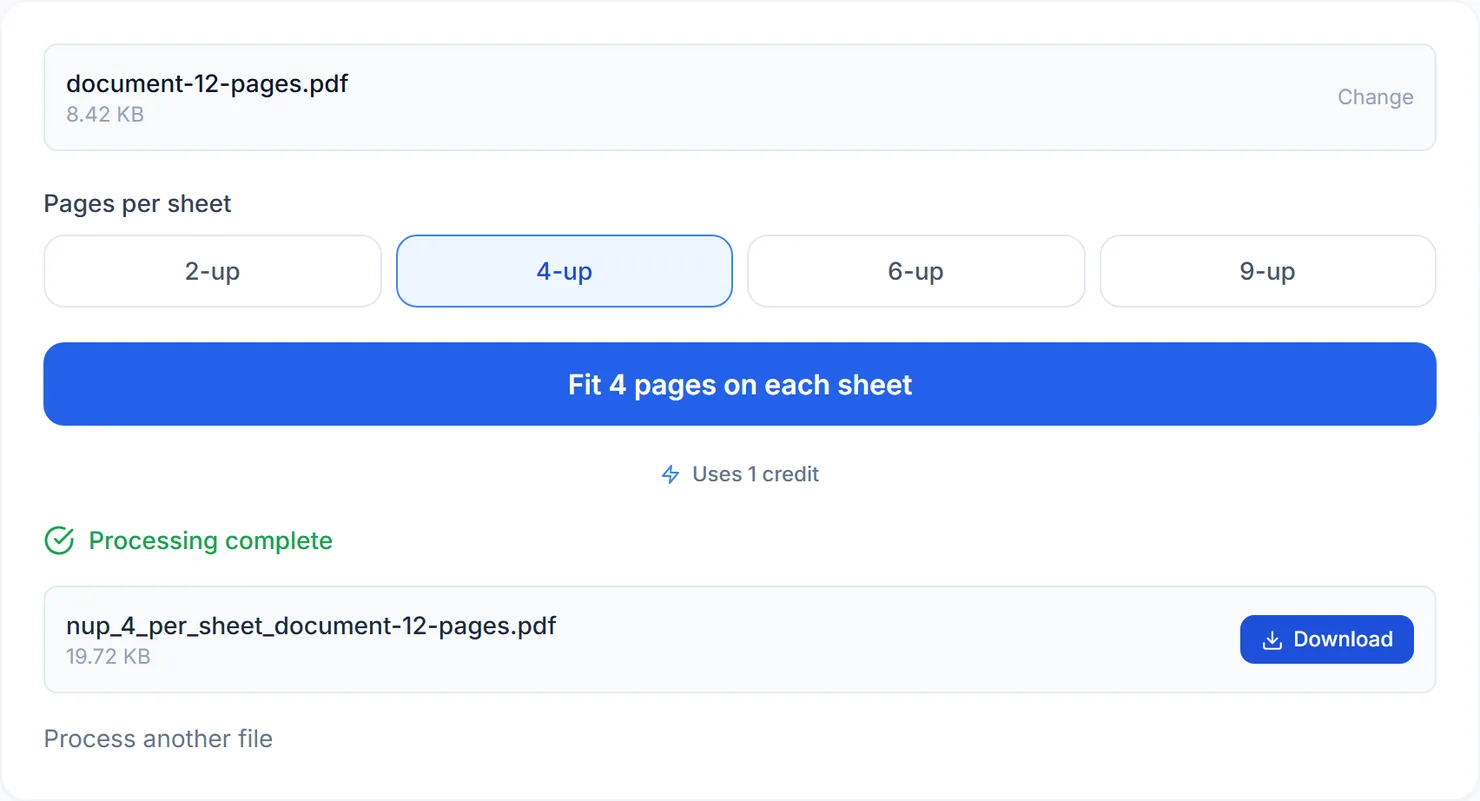
4-up combines the pages into fewer, printable sheets.
Credits: building a layout uses 1 credit, which your free daily credits cover. You get 10 free credits a day, or 25 with a free account.
Choosing a layout
2-up and 4-up are the most readable choices for handouts, since each page still gets a reasonable amount of space. 6-up and 9-up fit more onto a sheet but shrink each page enough that only larger text stays easy to read, which suits drafts, thumbnails or reference copies more than a document someone needs to study closely.
Tips for a clean layout
- Check the last sheet. If your page count does not divide evenly by the layout, the final sheet has empty space in its grid rather than repeating or cropping pages.
- Reduce the page count first with Remove PDF Pages if you only need part of a longer document laid out.
- Want a single, uniform page size before laying out? Use Resize PDF first on a document with mixed page sizes.
- Printing double-sided? Check your printer's duplex settings separately; this tool only builds the sheet layout, not the print job.