PDF Tools
Cutting pages in half turns one wide or tall page into two normal ones. It is the fix for a scanned book spread captured as a single landscape image, or any page that should really be read as two separate halves.
What you need
- One PDF file, up to 100 MB.
How to cut PDF pages in half, step by step
- Open Halve PDF Pages and select Select files, or drag your PDF onto the upload area.
The Halve PDF Pages tool, ready for your file. - Choose where to cut. "Across the page" makes a top half and a bottom half. "Down the page" makes a left half and a right half.
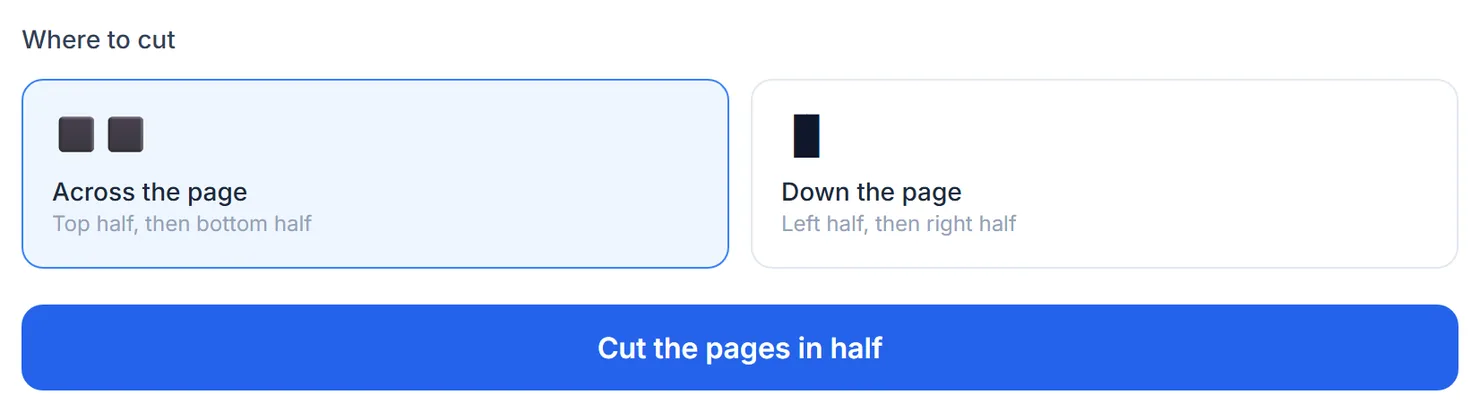
Choose whether to cut across the middle or down the middle. - Select Cut the pages in half.
- Download the result. When you see Processing complete, select Download to save the file. Every original page is now two.
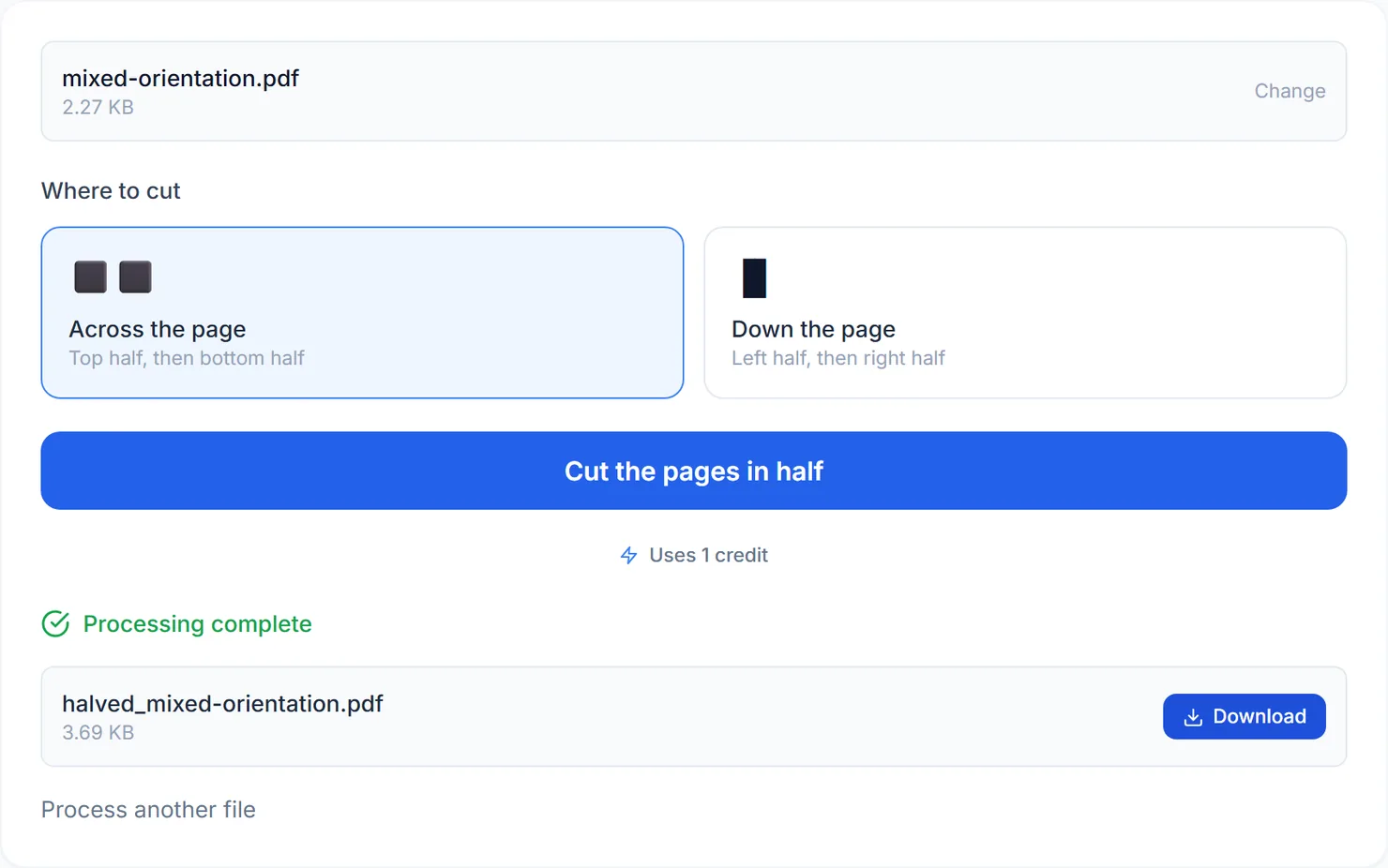
Cutting across the middle doubles the page count.
Credits: halving pages uses 1 credit, which your free daily credits cover. You get 10 free credits a day, or 25 with a free account.
Which direction to choose
Use "Across the page" for a page that is too tall, such as two stacked sections that should be separate pages. Use "Down the page" for a page that is too wide, such as a landscape scan of two side-by-side book pages. Either way, the original width and height of the page decide which halves come out portrait or landscape; the tool does not rotate anything, it only splits the page boundary.
Tips for a clean result
- Check a page's proportions before choosing a direction. A page cut the wrong way still produces two halves, just not the two halves you wanted.
- Pages come out sideways? Straighten them afterward with Rotate PDF.
- Want fewer, denser pages instead of more, smaller ones? Pages Per Sheet does the opposite job.
- Only need to trim an edge, not split the page? Use Crop PDF instead.