PDF Tools
Splitting a PDF breaks one document into several smaller files. It is useful when you need to send only part of a report, pull a chapter out of a longer document, or turn a scanned bundle into one file per page.
What you need
- One PDF file, up to 100 MB.
- A plan for the split. Know whether you want every page on its own, or specific ranges pulled out.
How to split a PDF, step by step
- Open Split PDF and select Select files, or drag your PDF onto the upload area.

The Split PDF tool, ready for your file. - Choose how to split it. Every page makes a separate PDF from each page. By range and Chosen pages both make one PDF per range or number you type, such as 1-3, 5, 7-9; they work the same way in this version of the tool.
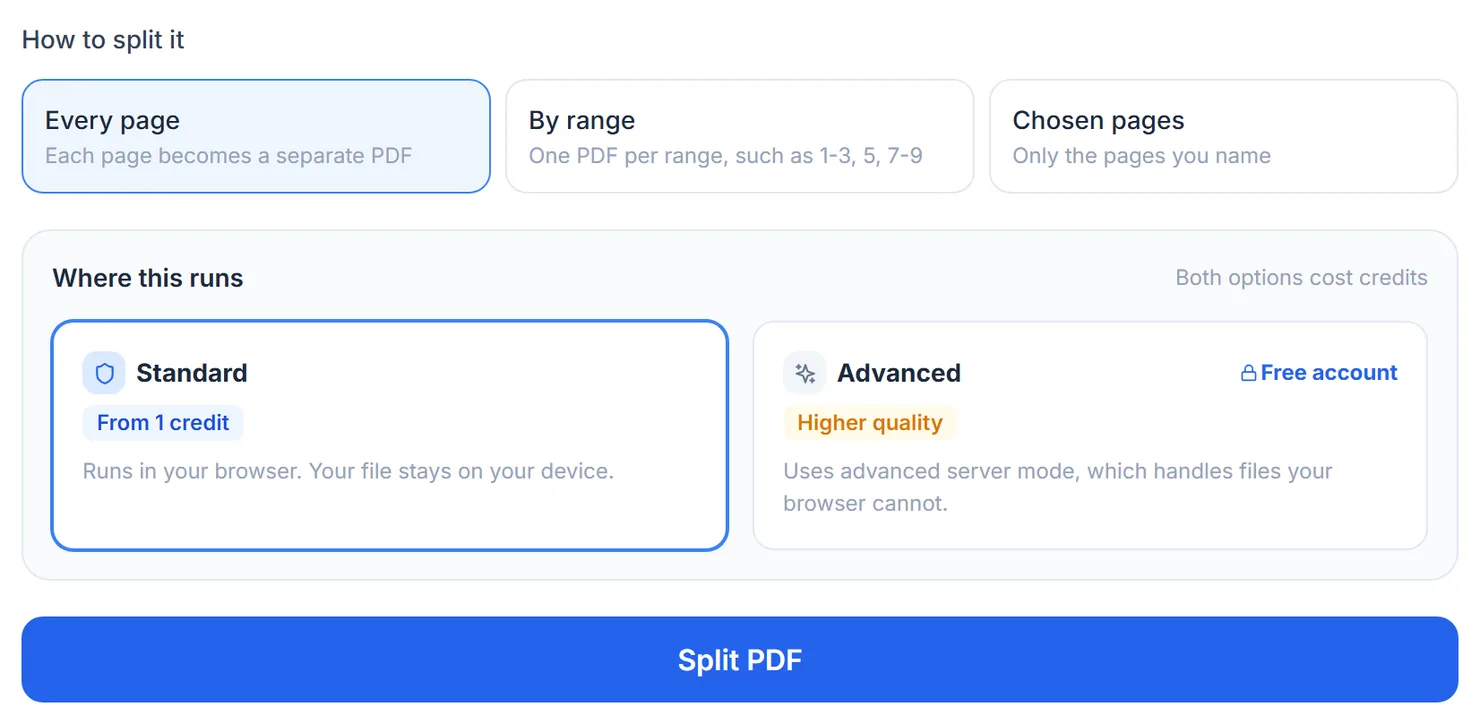
Choose every page, or type the ranges or pages you want split out. - Choose where the split runs. Standard runs in your browser. Advanced uses advanced server mode, included with a free account, for very large files.
- Select Split PDF. The credit cost appears below the button.
- Download the result. One file downloads on its own; more than one offers a ZIP of everything at once.
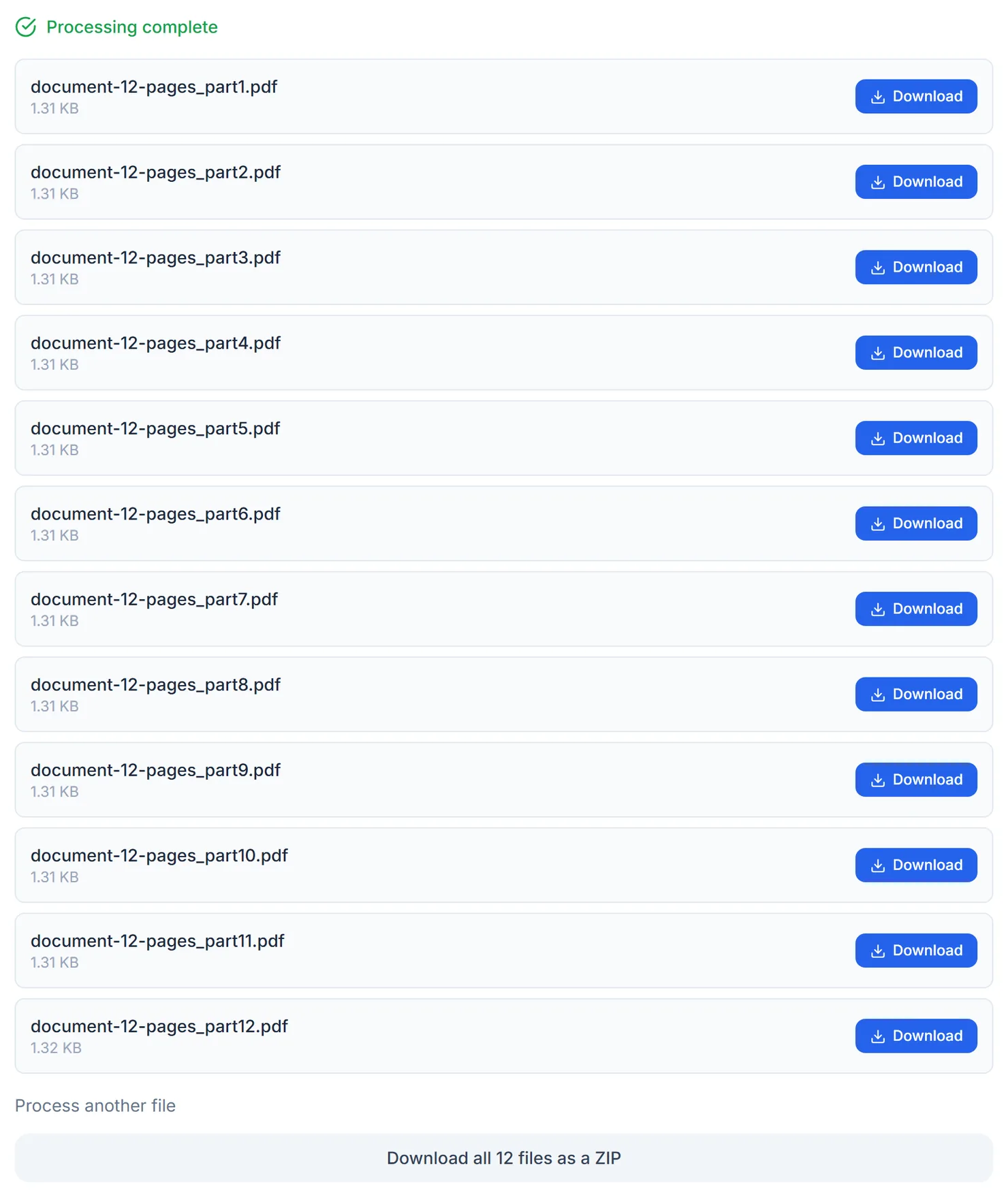
Every page mode makes one file per page, downloadable together as a ZIP.
Credits: a Standard split uses 1 credit, which your free daily credits cover. You get 10 free credits a day, or 25 with a free account. Advanced server mode needs a free account.
The three split modes, honestly
"Every page" is straightforward: each page of your document becomes its own PDF, and you get all of them together in a ZIP if there is more than one.
"By range" and "Chosen pages" look like different options, with different descriptions ("One PDF per range" against "Only the pages you name"). In this version of the tool, they run the same code and produce the same result: typing 2, 4, 6 under either one makes three separate one-page PDFs, not one file containing pages 2, 4 and 6 together. If you want those pages combined into a single document, use Extract PDF Pages instead, which is built for exactly that.
Tips for a clean split
- Check the page count first. The tool shows how many pages your document has as soon as you add it, so you can plan your ranges before typing them.
- Use commas and hyphens together. A range like 1-3, 5, 7-9 mixes single pages and spans in one entry.
- Want one combined file instead of several? Use Extract PDF Pages to copy a set of pages into a single new document.
- Reorder pages first. If the pages you want are out of sequence, straighten them out with Rearrange Pages before splitting.