PDF Tools
This tool is for a PDF you are allowed to open: one where you already know the password, or one you have permission to remove restrictions from. It does not break into a file that belongs to someone else. Because removing a password runs in advanced server mode, it needs a free account.
What you need
- A free ToolsToHelp.Me account, since this tool has no browser mode.
- The PDF file you have permission to unlock.
- The password, if the file needs one to open. Some files only restrict printing or copying and open without a password at all.
Signed out, here is what you see
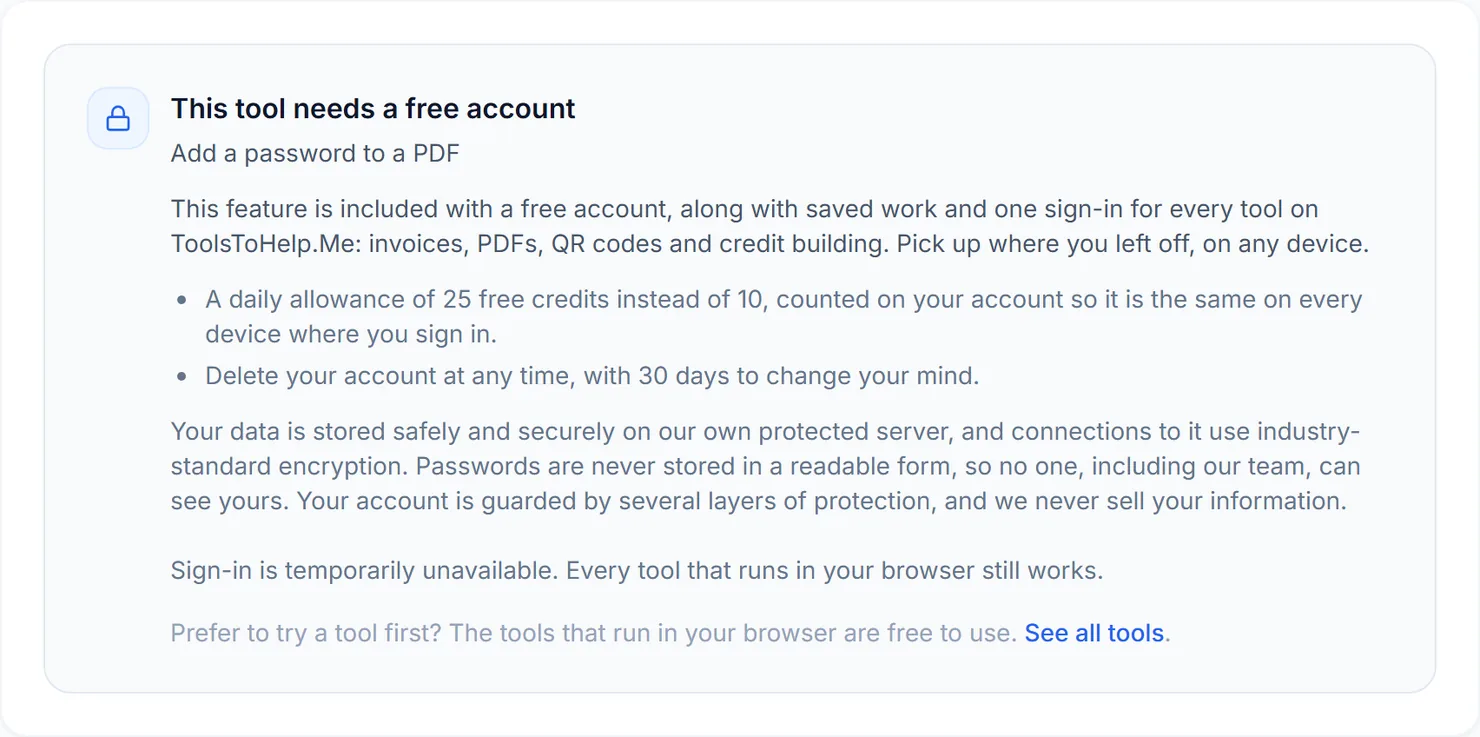
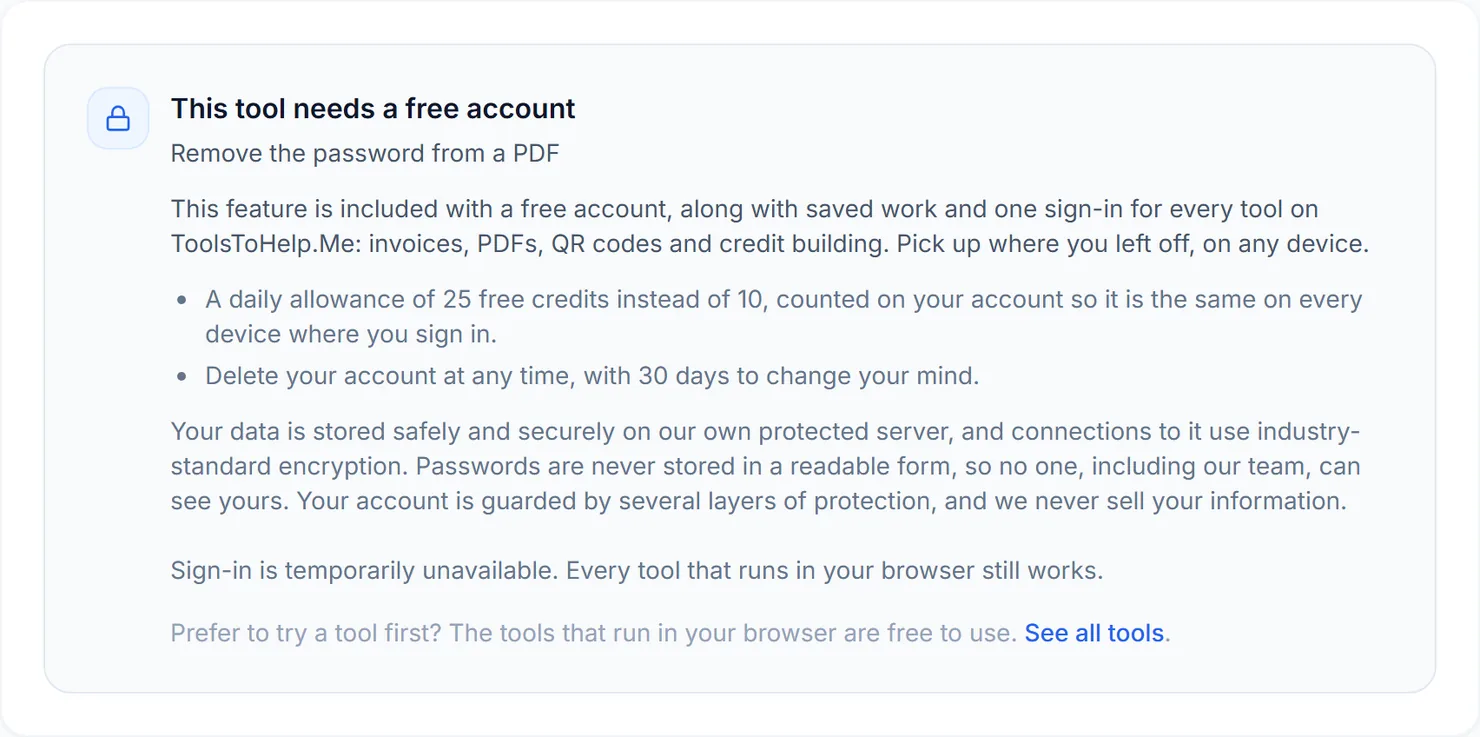
Open the tool without signing in and it does not show a broken upload form. It explains plainly that unlocking a file needs a free account, and offers to create one or sign in, right where the file picker would otherwise be.
How to unlock a PDF, step by step
- Sign in or create a free account, then open Unlock PDF.
- Choose the PDF you have permission to unlock.
- Enter the password, if the file needs one to open. Leave the field blank if the file already opens without a password and only its permissions are restricted.
- Select "Unlock this PDF." The file is processed using advanced server mode.
- Download the result. The copy you get back opens without a password and without the file's previous restrictions.
Credits: this tool always runs in advanced server mode, which uses 2 credits, plus 1 for a file over 50 MB and 1 for a document over 100 pages. It needs a free account. Free accounts get 25 free credits a day instead of 10.
Why remove a password from a PDF
- A file you protected yourself. If a password is no longer needed once a document is finalized or shared internally, removing it makes the file easier to work with.
- Permission-restricted files. Some PDFs open freely but block printing or copying. If you have permission to lift that, this removes it.
- Preparing a file for further editing. Other PDF Tools, such as Repair PDF or Compress PDF, work best on a file that is not password protected.
Tips
- Only unlock what you are allowed to. This tool assumes you already have permission to remove the password.
- Try without a password first if you are not sure. Leave the field blank; it only matters if the file truly needs one to open.
- Re-protect later if needed. Once you are done, Protect PDF can add a password back on.