PDF Tools
A password on a PDF means anyone who wants to open it needs to know that password first. Protect PDF adds one to a file you choose. Because encrypting a PDF this way runs in advanced server mode, this tool needs a free account, unlike most of the tools on this site.
What you need
- A free ToolsToHelp.Me account, since this tool has no browser mode.
- One PDF file you want to lock behind a password.
- A password you will remember, or store somewhere safe. If you lose it, use Generate Password to make and save a strong one before you start.
Signed out, here is what you see
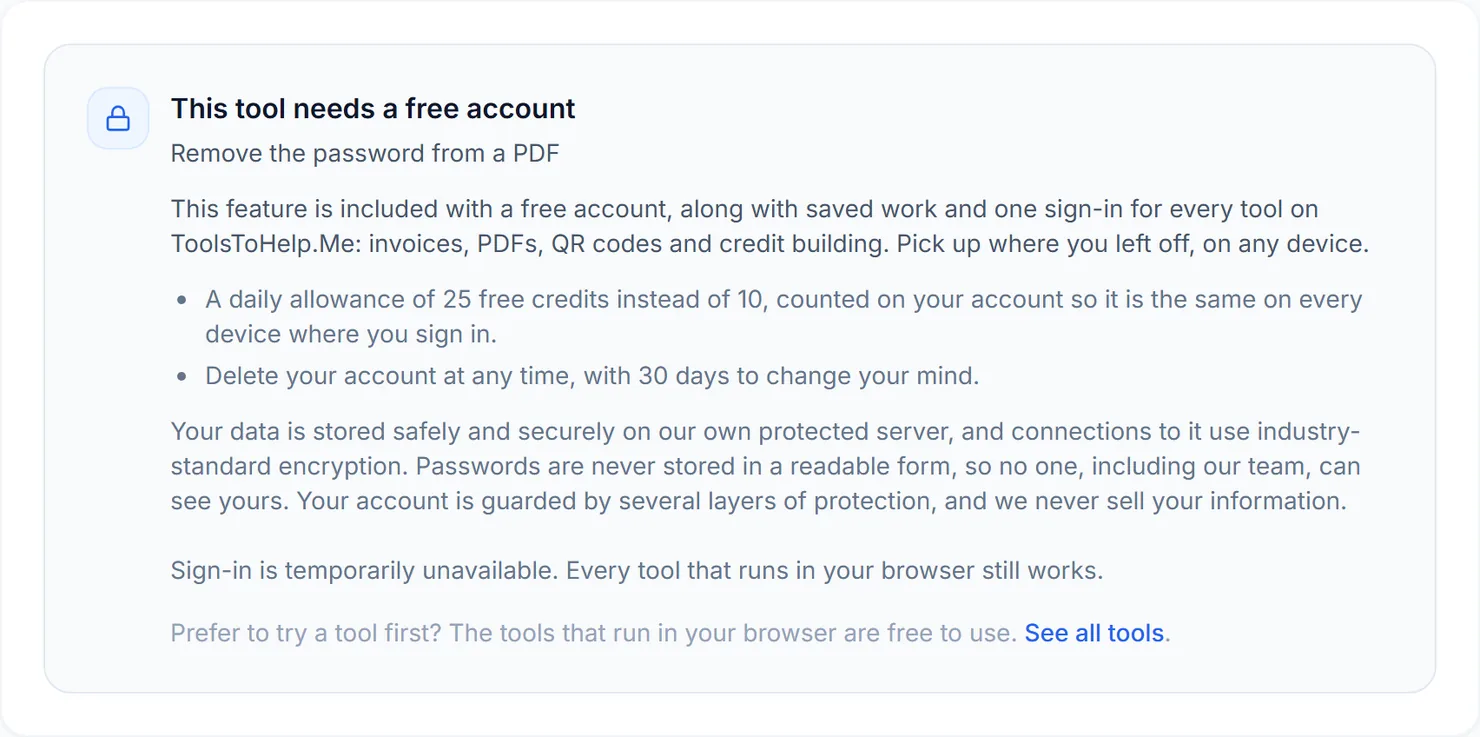
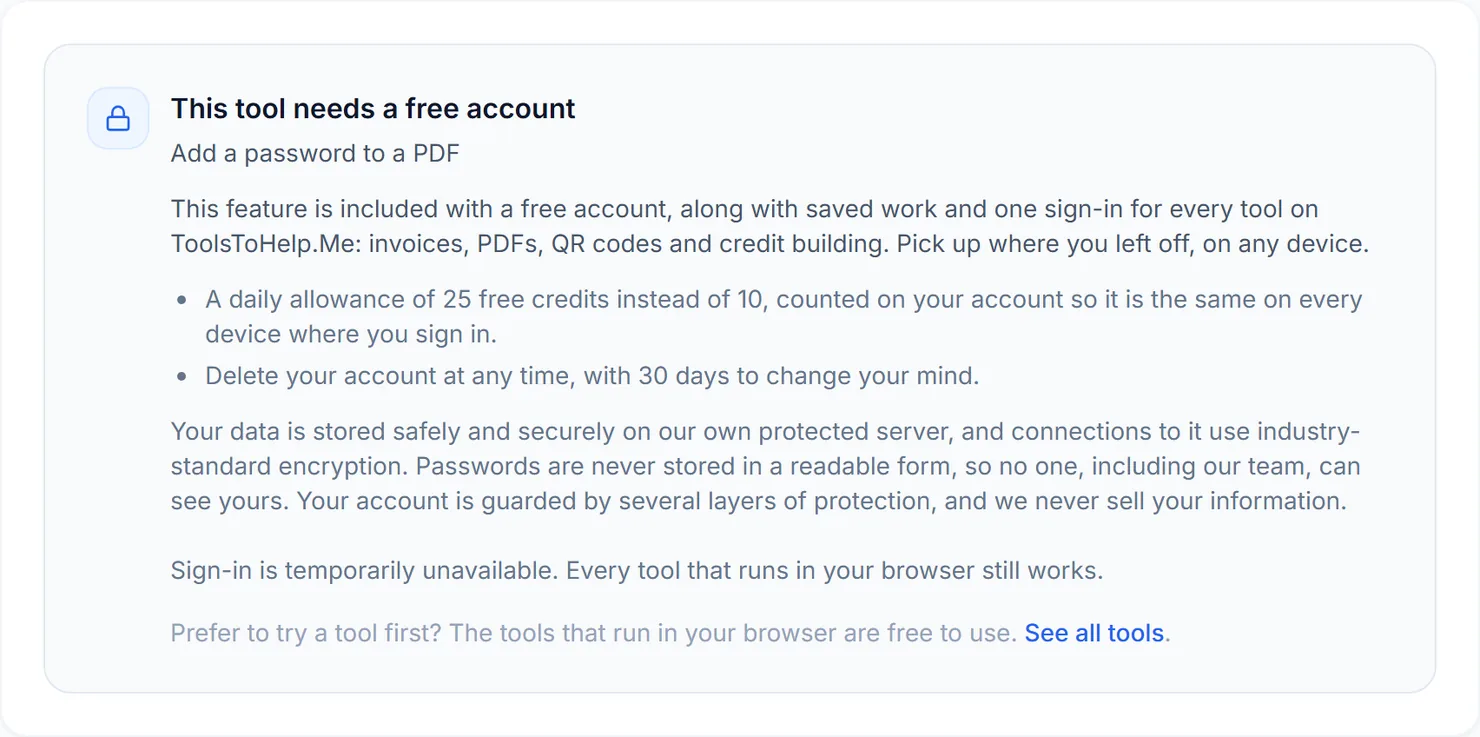
Open the tool without signing in and it does not show a broken upload form. It explains plainly that protecting a file needs a free account, and offers to create one or sign in, right where the file picker would otherwise be.
How to protect a PDF, step by step
- Sign in or create a free account, then open Protect PDF.
- Choose the PDF you want to add a password to.
- Type a password, then type it again to confirm. A strength indicator shows Weak, Fair, Good or Strong as you type, and the two entries must match before you can continue.
- Select "Protect this PDF." The file is encrypted using advanced server mode.
- Download the protected file. Anyone opening it will now be asked for the password you set.
Credits: this tool always runs in advanced server mode, which uses 2 credits, plus 1 for a file over 50 MB and 1 for a document over 100 pages. It needs a free account. Free accounts get 25 free credits a day instead of 10.
Why password protect a PDF
- Sending sensitive documents by email. A password adds a layer of protection if a message goes to the wrong address.
- Sharing a file with mixed audiences. A password limits a document to only the people you give it to.
- Records you need to keep, but not open casually. A password discourages anyone browsing a shared drive from opening a file they should not.
Tips
- Share the password separately from the file. Send it by text or a different email thread, not in the same message as the PDF.
- Aim for Strong on the meter. Ten or more characters with a mix of letters, a number and a symbol.
- Keep a copy of the password. If it is lost, use Unlock PDF only on files you can still access with a password you remember.