PDF Tools
Generate Password creates a strong, random password using your browser's own random number generator. Choose how long it should be, which character types to include, and how many to generate at once.
What you need
- An idea of the length and character rules the password needs to satisfy, if the site or account you are setting it up for has any.
How to generate a password, step by step
- Open Generate Password. By default it is set to 16 characters, using capital and small letters, numbers and symbols.
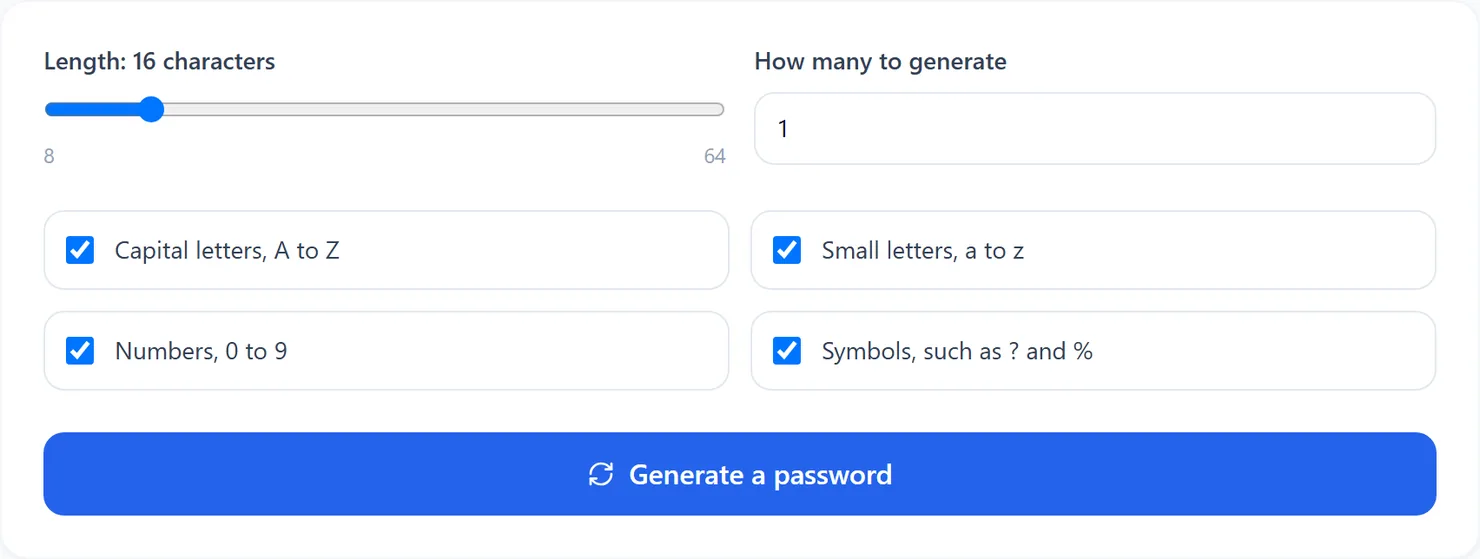
Generate Password with its default settings. - Set the length with the slider, from 8 to 64 characters, and choose which character types to include.
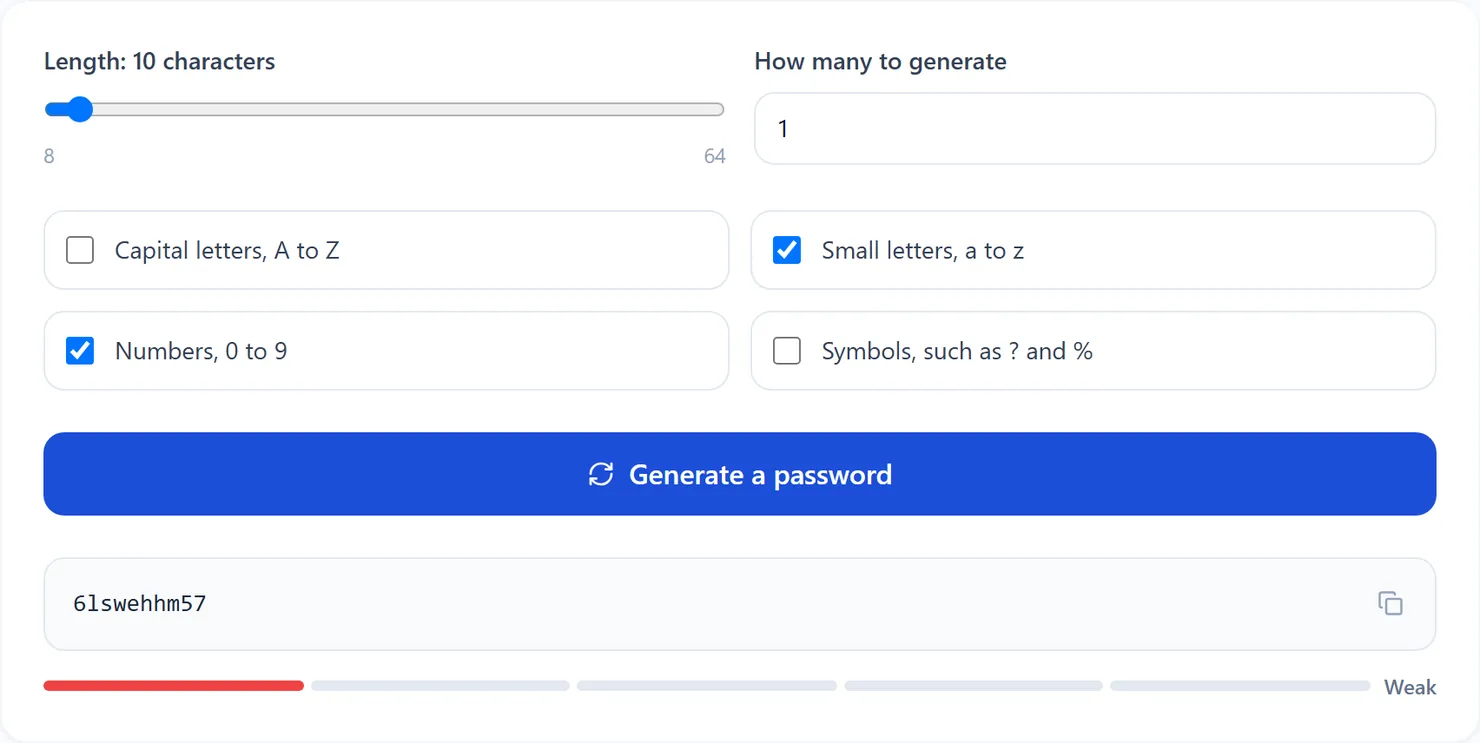
A 10-character password using only lowercase letters and numbers. - Choose how many to generate at once, up to 10, then select Generate.
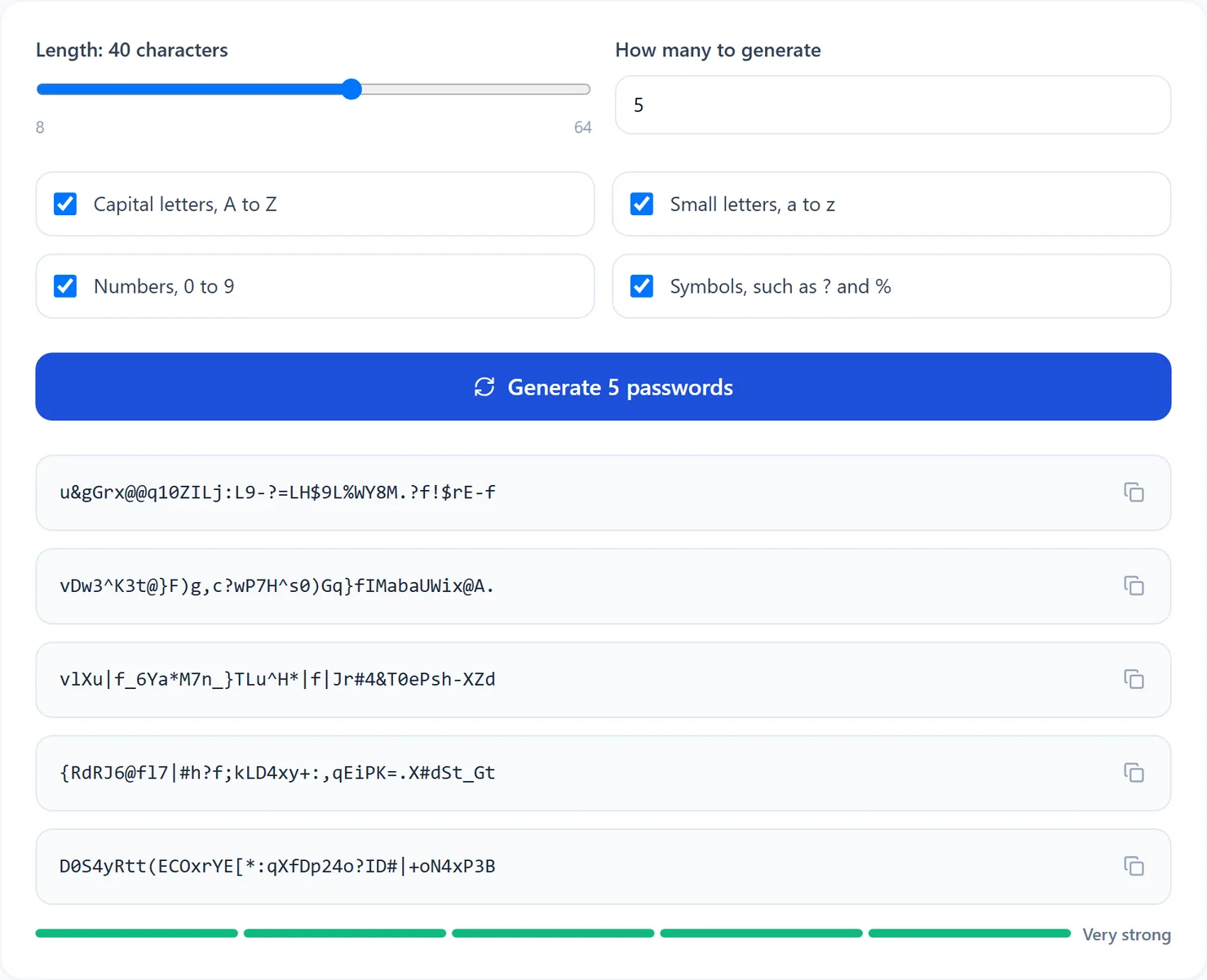
Five 40-character passwords using every character set. - Select the copy icon next to a password to put it on your clipboard.

Selecting the copy icon copies that password to the clipboard.
What the options do
- Length. From 8 to 64 characters. Longer passwords score higher on the strength meter.
- Character types. Capital letters, small letters, numbers and symbols, each a separate checkbox. With every type unchecked, Generate is disabled and a message explains how to continue.
- How many to generate. Up to 10 passwords in one selection, each shown with its own copy icon.
- Strength meter. Rates the first password shown, from Weak to Very strong, based on its length and character variety.
Tips for a strong password
- Use at least 16 characters with every character type turned on for the strongest rating.
- Do not reuse the same password across different accounts. Generate a new one for each.
- Check the site's own rules first. Some sites do not accept every symbol; turn off Symbols if a password is rejected.
- Sharing a WiFi password? Generate QR Code can turn the network details into a scannable code.