PDF Tools
Generate QR Code turns a link, some text, an email address, a phone number or a WiFi network into a QR code you can download or copy. Pick the type of content, adjust the size and colors, and the code updates as you type.
What you need
- What the code should point to: a link, some text, an email address, a phone number, or WiFi network details.
How to make a QR code, step by step
- Open Generate QR Code and choose what the code points to: Link, Text, Email address, Phone number or WiFi network.
- Type the content. The code appears automatically as you type, with no separate generate button.
- Adjust the size and colors. Move the size slider from 128 to 512 pixels, and use the two color pickers to set the code's own color and the color behind it.
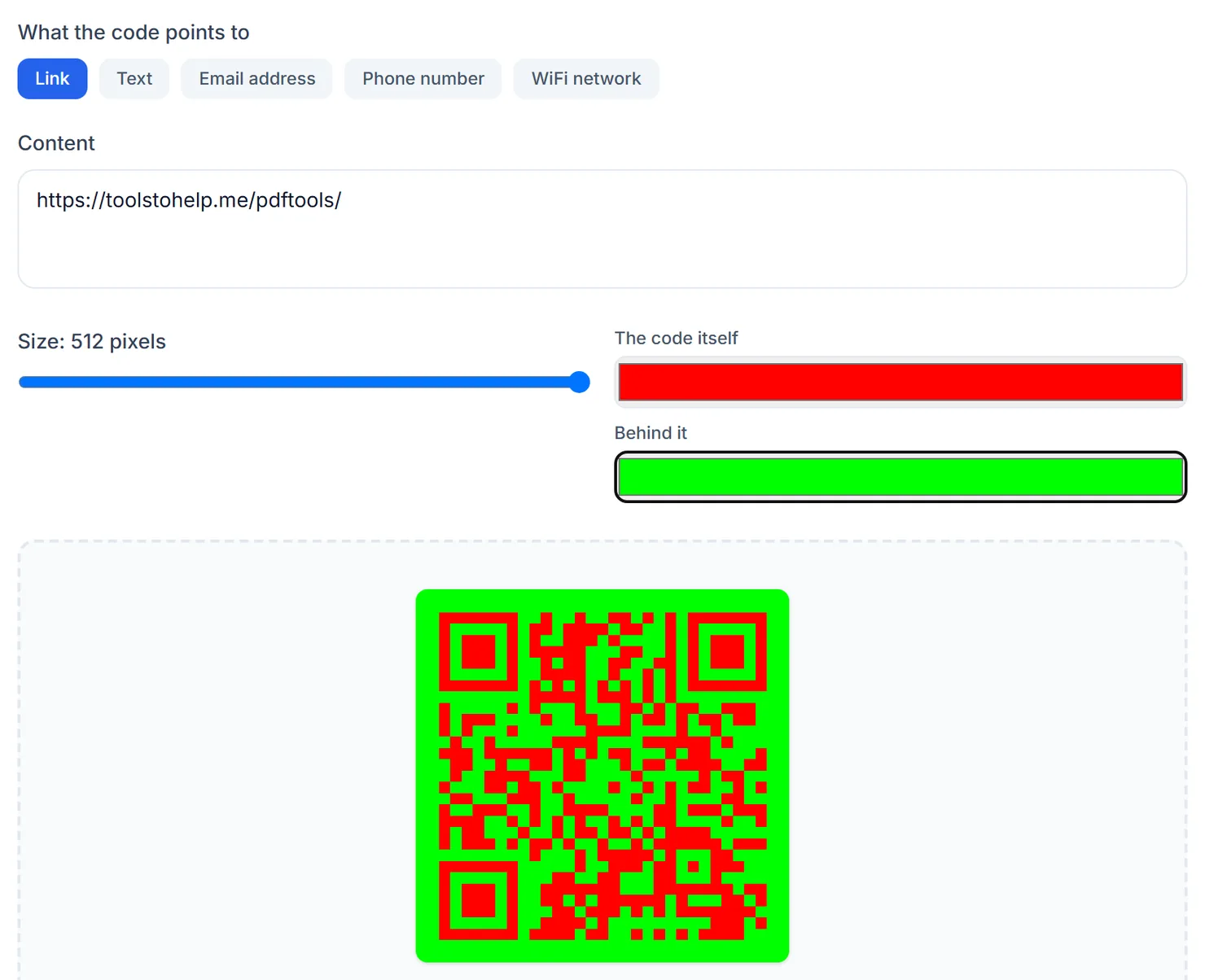
A 512px QR code with custom foreground and background colors. - Download or copy it. Choose Download PNG for an image, Download PDF for a one-page PDF, or the copy icon to place the image on your clipboard.

Download the code as a PNG image or as a one-page PDF.
Credits: generating a QR code uses 1 credit, which your free daily credits cover. You get 10 free credits a day, or 25 with a free account.
What the options do
- Content type. Switching type clears the content box, so a link and a WiFi string are never mixed together.
- Size. From 128 to 512 pixels, matched exactly by the downloaded PNG.
- Colors. One color for the code itself, one for the background behind it.
- Download PNG, Download PDF, and copy. Three ways to get the same code out of the tool.
Tips for a code that scans well
- Keep good contrast. A dark code on a light background is the most reliable choice for scanning.
- Test it before printing many copies. Scan the downloaded code with a phone camera first.
- For a WiFi network, use the exact format shown in the placeholder text, including the network name and password.
- Need a password to share alongside it? Generate Password is right next to this tool.