PDF Tools
Create PDF turns typed or pasted text into a finished PDF document, without opening a word processor first. It is a fast way to write a quick note, a short letter or plain instructions and hand someone a PDF instead of a block of email text.
What you need
- Your text, typed directly into the tool or pasted from somewhere else.
- A title, if you want one. It is optional, but it names the file and appears on the page.
How to create a PDF, step by step
- Open Create PDF. Type a document title if you want one, then type or paste your content into the Content box.
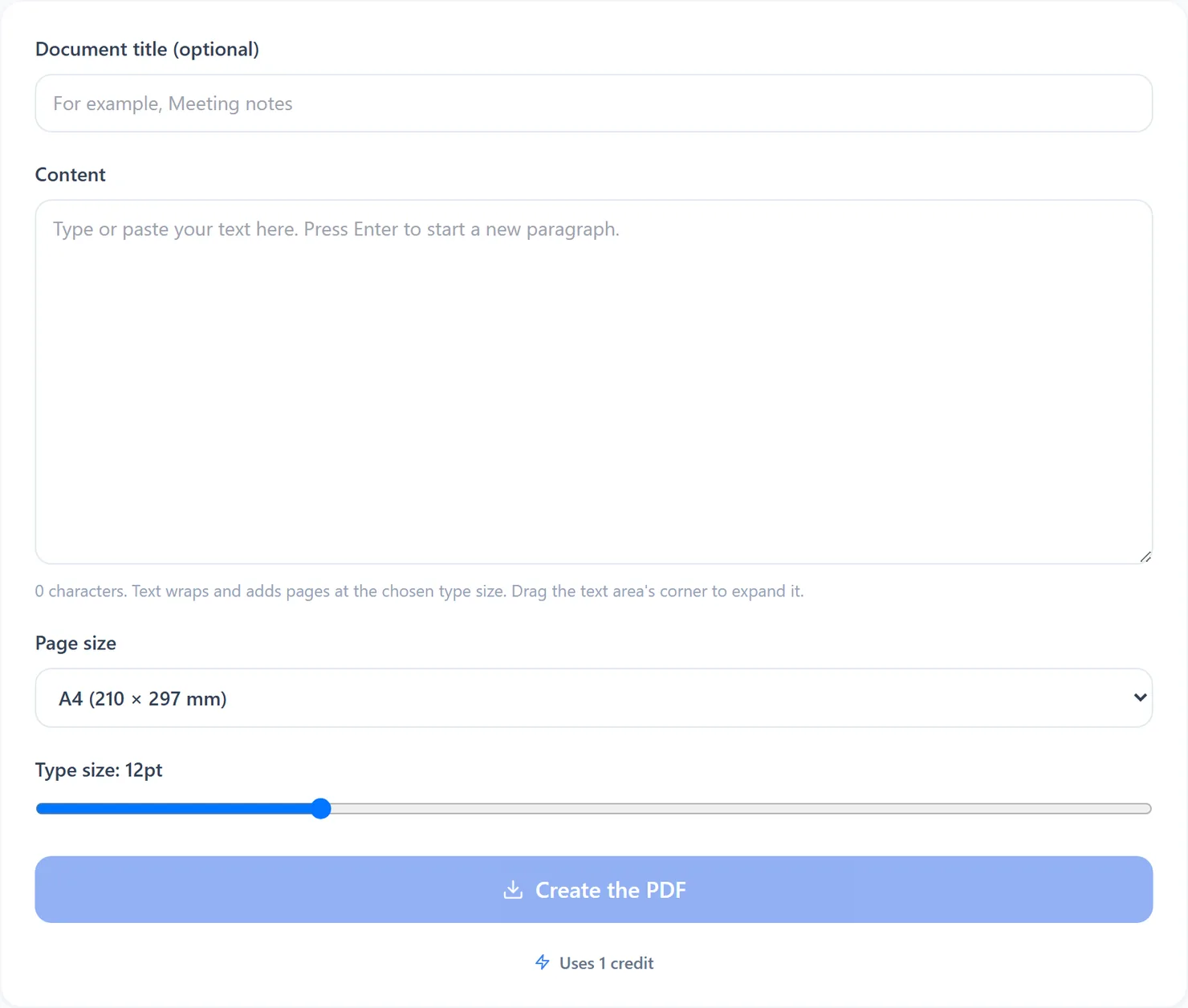
Create PDF, ready for a title and content. - Choose a type size with the slider, from 8pt up to 24pt. Choose A4 or US Letter for the page size. The native preview updates from your current text and settings.
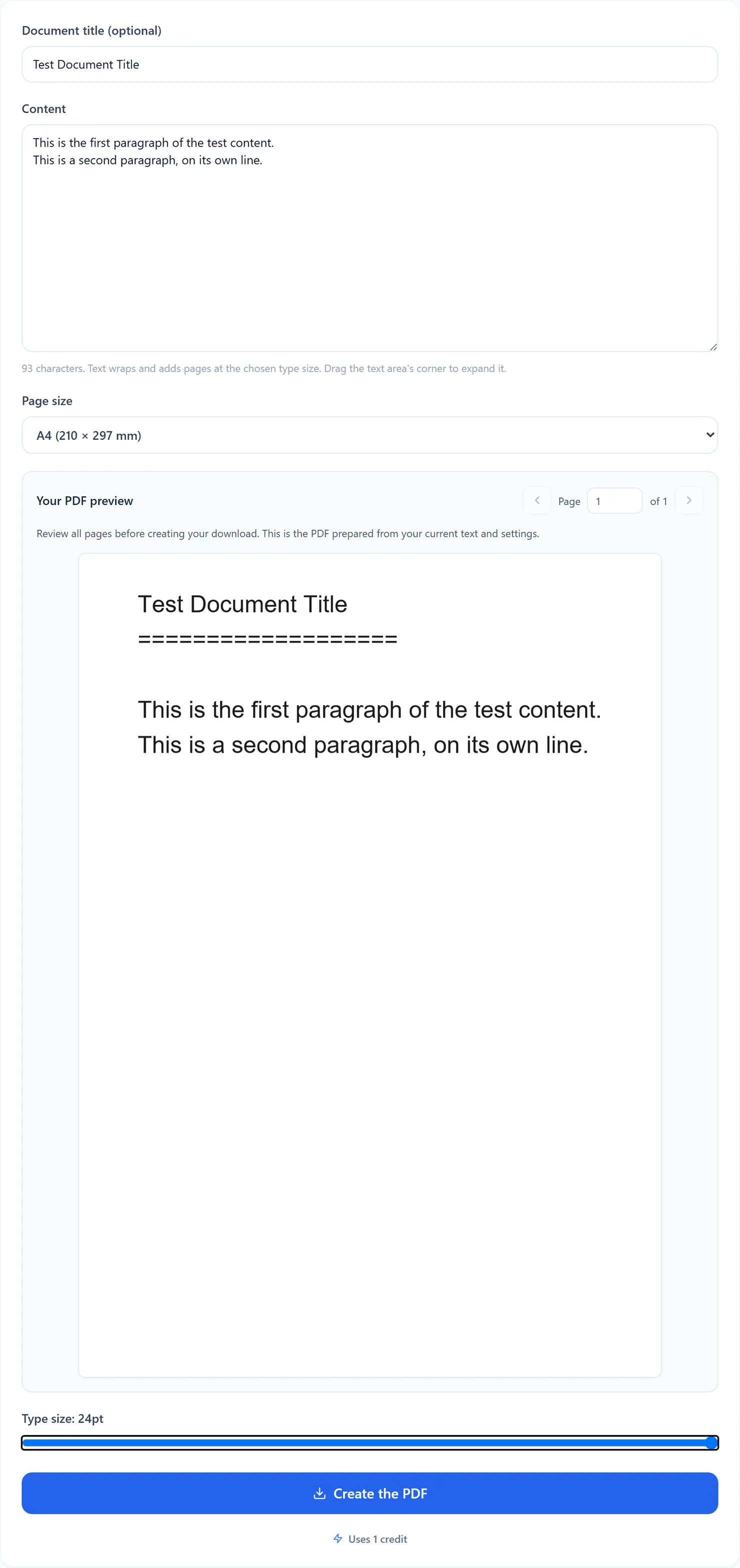
A title, some content and the type size slider moved up. - Review all pages in the preview, then select Create the PDF. Text wraps and adds pages at the chosen type size. The button becomes available once the current PDF is prepared, then downloads those same bytes.

Select Create the PDF to download the finished document.
Credits: creating a PDF uses 1 credit, which your free daily credits cover. You get 10 free credits a day, or 25 with a free account.
What the options do
- Document title. Optional. When set, it becomes the downloaded file's name, the PDF's Title property, and a heading line at the top of the page.
- Type size. From 8pt to 24pt. A larger size fills pages faster, so long content spreads across more pages.
- Page size. A4 or US Letter. Changing it updates the complete native preview before you download.
Tips for a clean result
- Use blank lines for paragraphs. Press Enter to start a new paragraph; the tool wraps long lines on its own.
- Keep a copy of your original text somewhere you can edit it. The PDF itself is not editable afterward, other than with tools such as Edit PDF.
- Combine several notes into one file afterward with Merge PDF.