PDF Tools
How to use Edit PDF
- Choose your PDF. The document workspace shows page thumbnails, the current page and a properties panel.
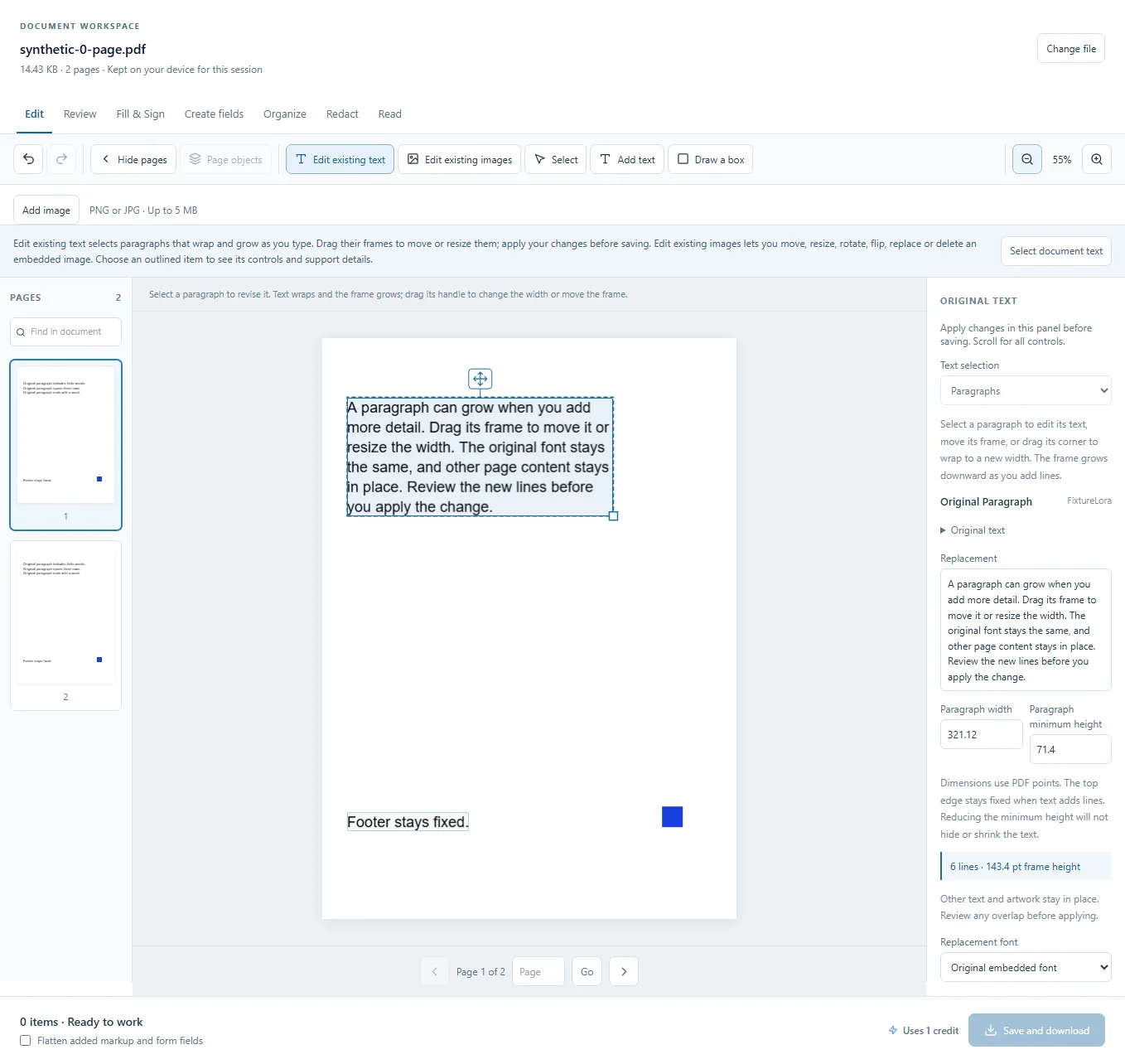
- Choose Edit existing text, then click an outlined paragraph. Edit Replacement text and watch it wrap and grow in the page preview. Drag the frame to move it or its corner to resize it. Choose Apply text replacement to keep the text and frame, or Cancel text changes to restore the applied version.
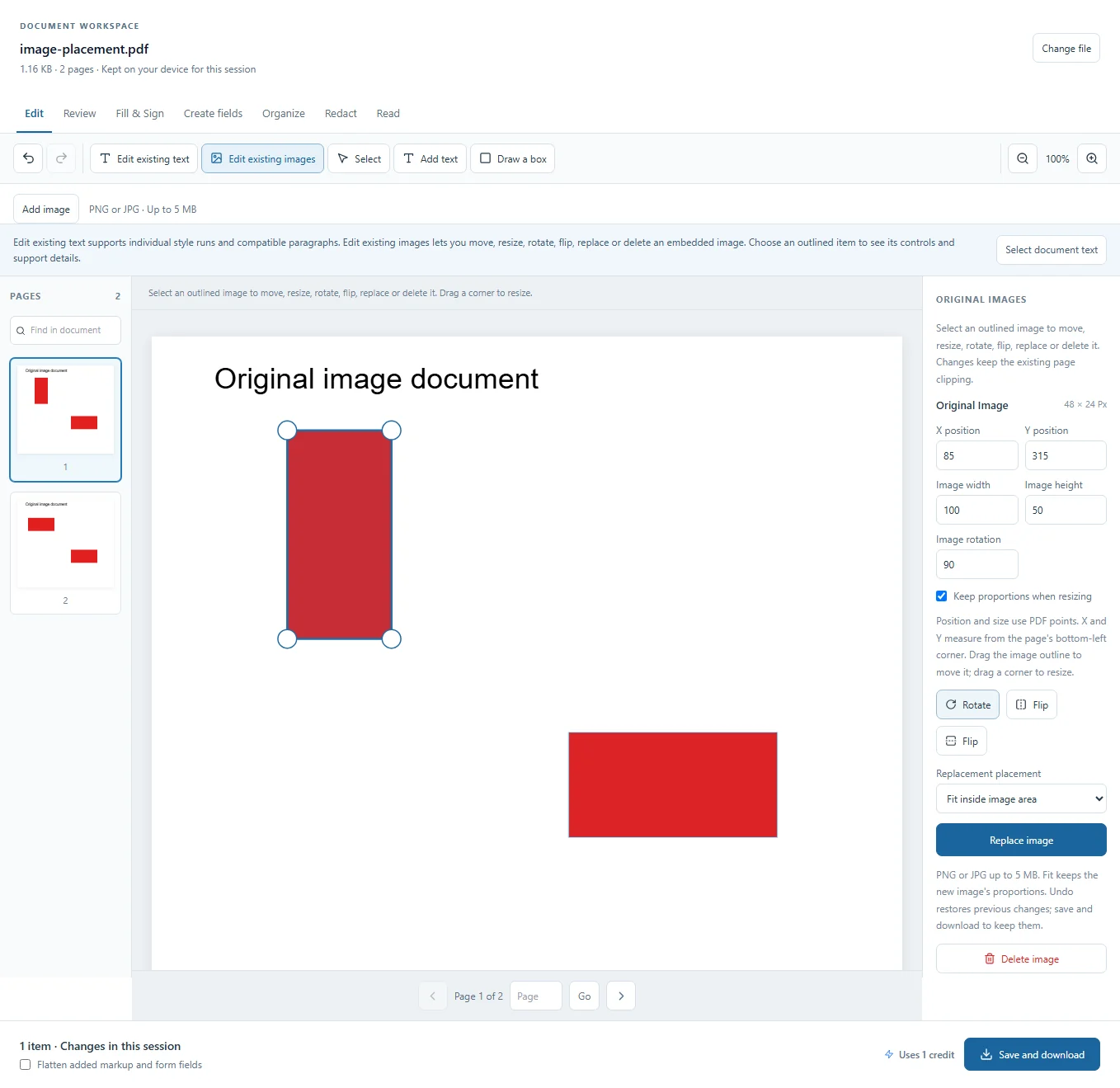
- Choose Edit existing images to select an embedded image. Drag its outline to move, a corner to resize or the round arrow handle to rotate. Properties offers exact placement, rotation, flips, replacement, supported lifting and deletion.
- To add content, choose Add text, Add image or Draw a box and place it on the page. Choose Select to edit an added item, or Select document text to copy original wording.
- Open Page objects to select overlapping items and arrange added content. Choose Edit selected item to return to its properties.
- Use Undo and Redo for mistakes. Hide pages collapses the thumbnail list to make more room for your document; Show pages brings it back. Zoom and page controls help you check the placement without changing its PDF coordinates.
- Choose Save and download. Keep the flatten option off to edit your added items again after reopening the exported PDF.
Choose the right text selection
Paragraphs is the default. Compatible text is grouped into a frame that wraps to its width and grows downward as you add lines, retaining the selected font size. You can add a word, a sentence or more paragraphs. Different styles may remain separate selections.
Drag the frame or its move handle to reposition the paragraph. Drag the bottom corner to change the width and minimum height, or enter Paragraph width and Paragraph minimum height in PDF points. With a handle focused, arrow keys move by one point and Shift plus an arrow by ten. On the resize handle, left and right change width; up and down change minimum height. Escape cancels a drag.
The top edge stays fixed as text adds lines. A smaller minimum height does not hide or shrink text. Other text, pictures and page breaks stay in place. Review overlap and clipping, especially when editing text inside PDF graphics; this is not automatic document-wide reflow.
The page previews the actual native text draft before you apply it. Wait for Updating preview... to finish. Invalid changes explain the problem and retain the last valid preview. Apply text replacement commits the text and frame as one Undo step. Apply or cancel a draft before saving or changing editing mode. Reopening the exported PDF retains a supported paragraph's frame for further edits.
Choose Lines and style runs in Text selection for a fixed-position edit that retains neighboring styles and positions. Fit to line width can fit a slightly longer line; a replacement that needs excessive compression is refused.
Keep Original embedded font when its character set supports your wording. Helvetica, Times and Courier are explicit alternatives for Western text. A font change alters the selected text's appearance. The editor explains unsupported characters and selections before applying a replacement. If a paragraph overlaps an earlier line edit, applying the paragraph replaces that earlier change; Undo restores it.
Adjust an existing image
Keep proportions when resizing controls the corner handles and numeric size changes. Properties uses PDF points for position and size, measured from the bottom-left of the page. The Rotate button turns an original image clockwise; the two Flip controls mirror it horizontally or vertically. A replacement PNG supplies its own transparency.
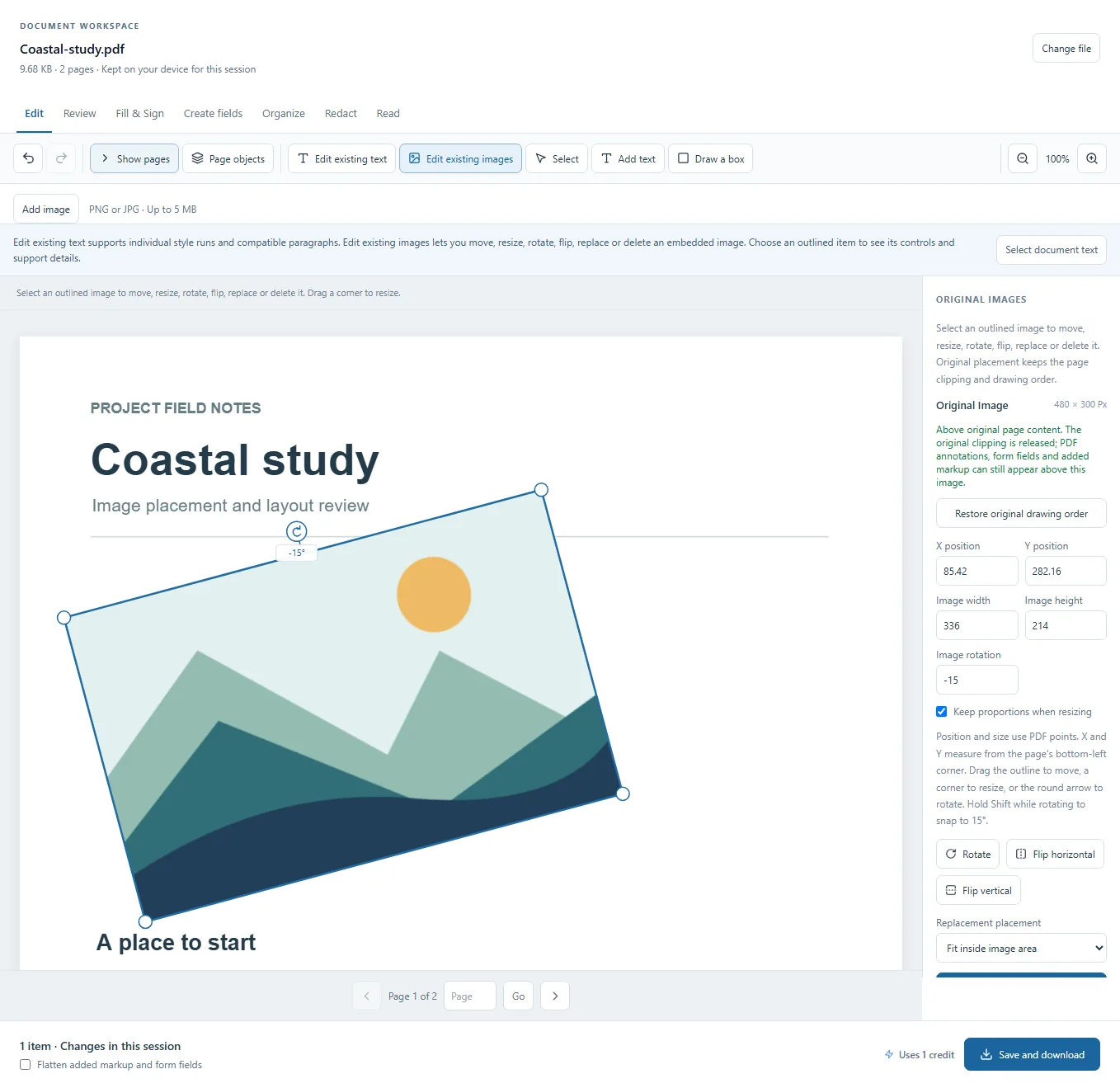
Both original and added images have a round rotation handle. Drag it around the image center and watch the angle readout. Hold Shift to snap the angle to 15-degree increments. With the handle focused, arrow keys rotate by one degree, Shift plus an arrow rotates by 15 degrees, and Home resets the angle to zero. Escape cancels a rotation drag. One completed drag creates one Undo step.
Existing page clipping stays in effect in the original placement, so moving an image beyond its clipped area can hide part of it. For a supported image, choose Lift above original page content to release that enclosing clip and place the occurrence above the original text and drawings. The original image quality and transparency are retained. Annotations, form fields and added content can still appear above it.
Restore original drawing order returns that occurrence to its original stacking and clipping while keeping its current position, size and rotation. Only the selected occurrence changes, including when the PDF reuses the same picture elsewhere. Some images depend on graphics settings that cannot be lifted safely; Properties explains those limits.
Select and arrange page objects
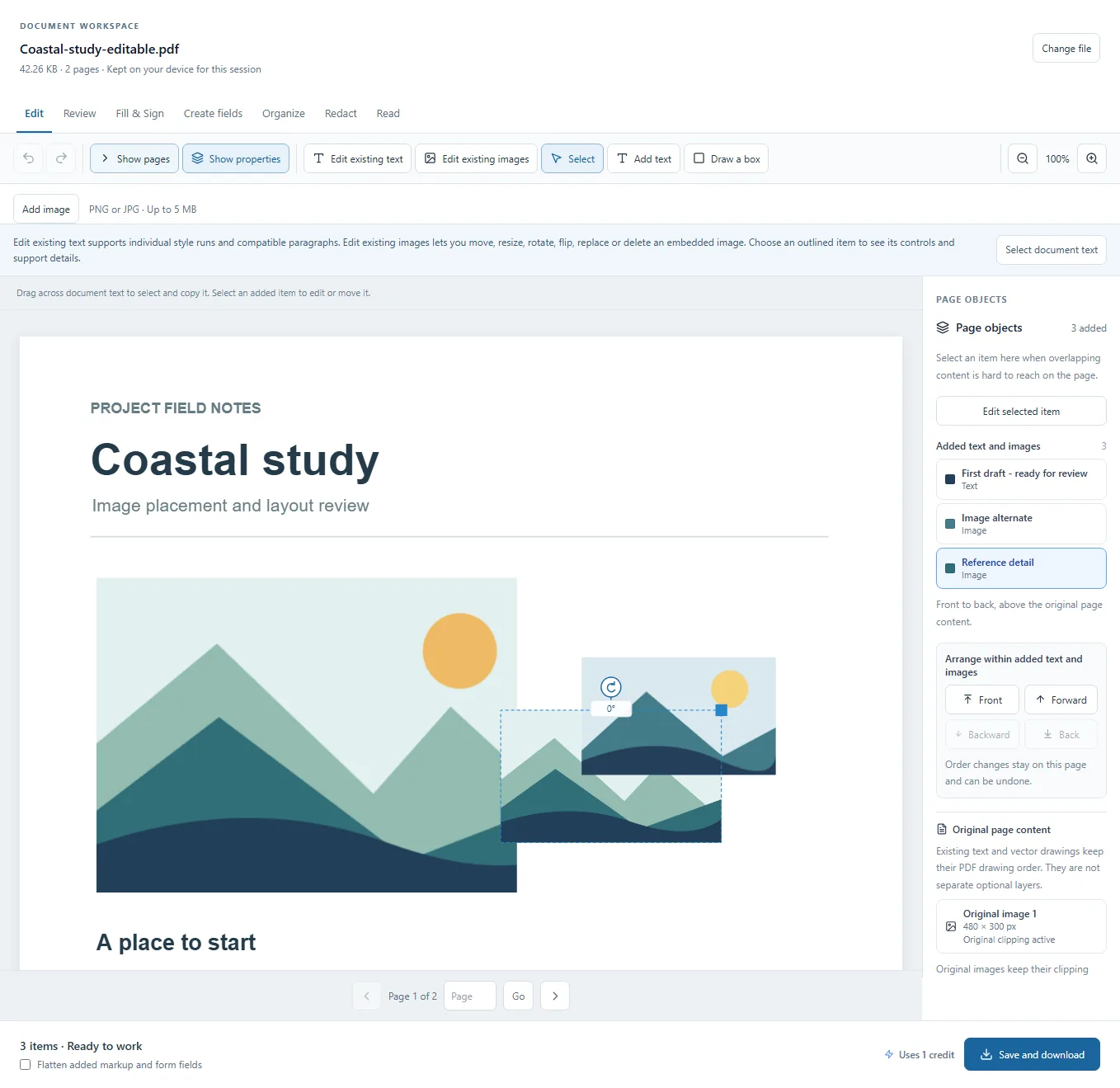
Open Page objects when an item is hidden behind another or difficult to select. The panel lists added text, images and markup on the current page, plus detected original images. Select an item by its label. Choose Edit selected item for its properties, or Show properties in the toolbar to close the list.
For added content, Forward and Backward move one step; Front and Back move to the end of the same group. Added text and images form one group. Added markup forms another and appears above page artwork. Order changes affect only that group on that page and can be undone. Form fields and pending redactions are separate and do not have these order controls.
Original text and vector drawings retain their PDF drawing order. Original-image rows identify the detected occurrences and show whether original clipping is active or the image has been lifted. This inventory does not expose every original PDF object or provide a complete optional-layer editor.
Before you export
Support depends on how the PDF stores its text and images. Scanned page pictures do not become editable paragraphs; use OCR to add search and selection. Some font mappings or graphics remain unsupported. Original text and image editing is unavailable on digitally signed documents. Image deletion and text or image replacement can leave unused source data in the file. Use Redact PDF to permanently remove sensitive content.
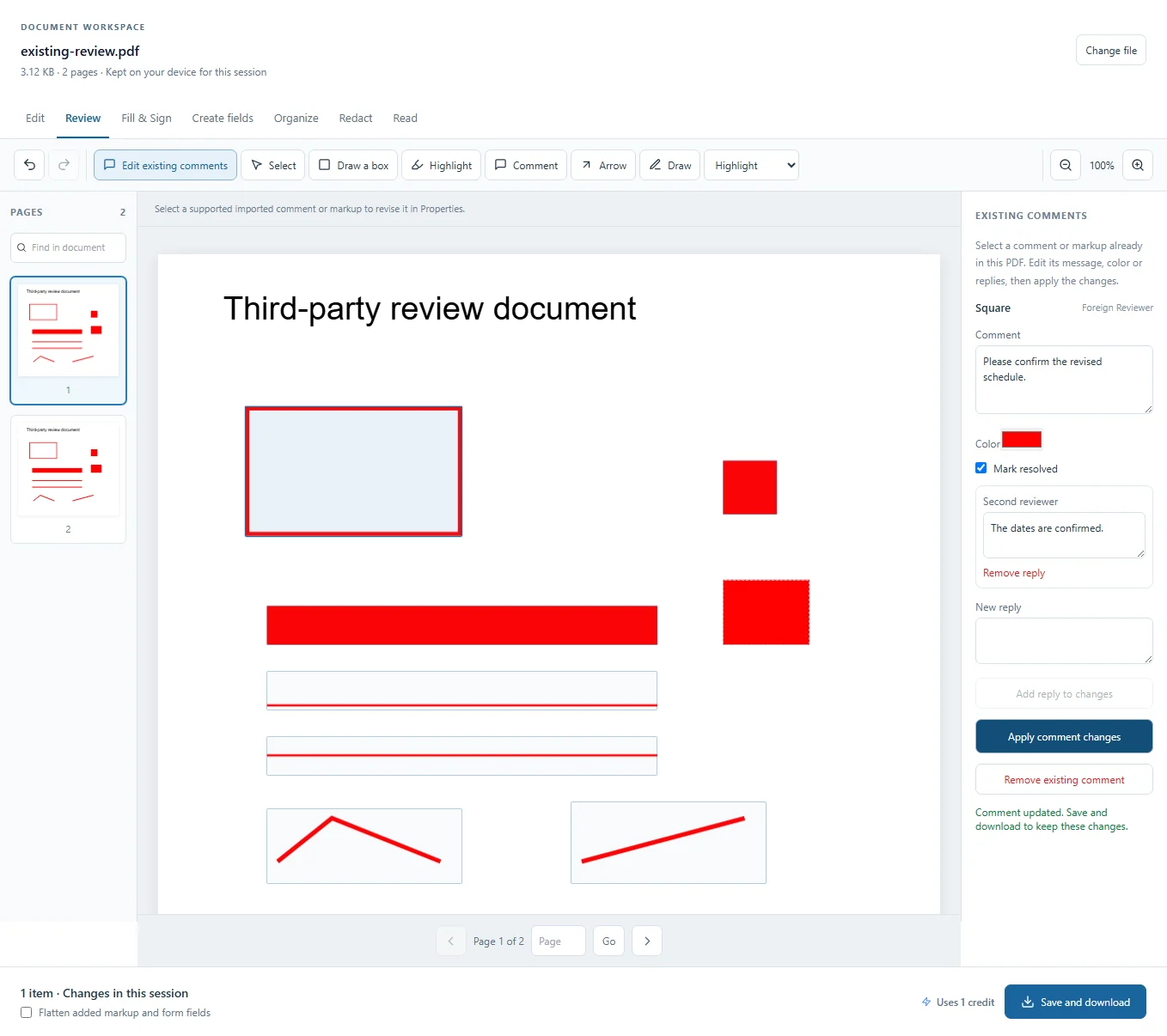
On pages with existing PDF annotations, the preview draws those annotations together with your added artwork so their order and blending are visible. Updating preview... keeps the last completed frame on the same page while a change renders. Selection outlines and handles remain available; wait for the update to finish before judging the new appearance. If the preview cannot update, the editor shows an error.
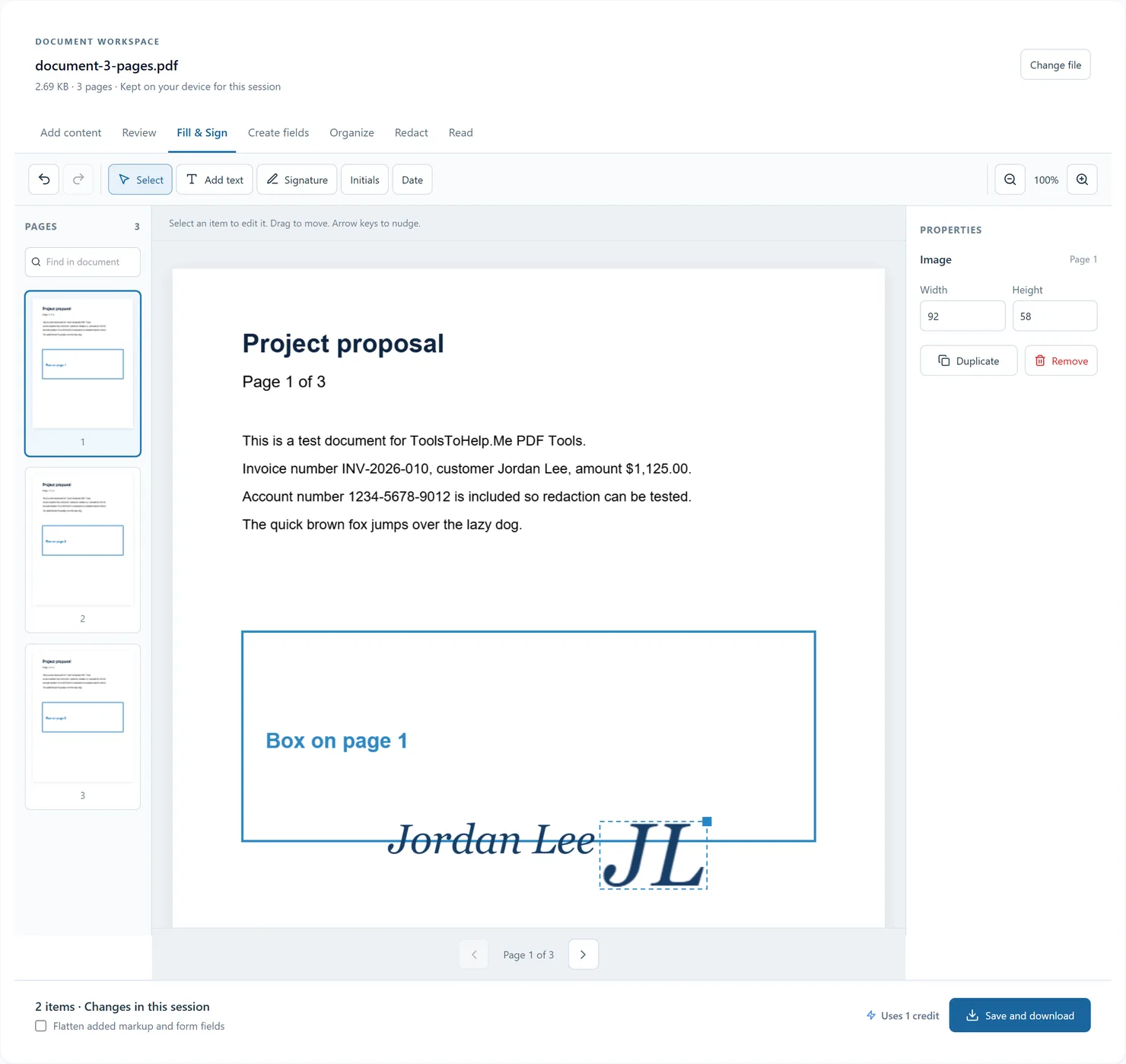
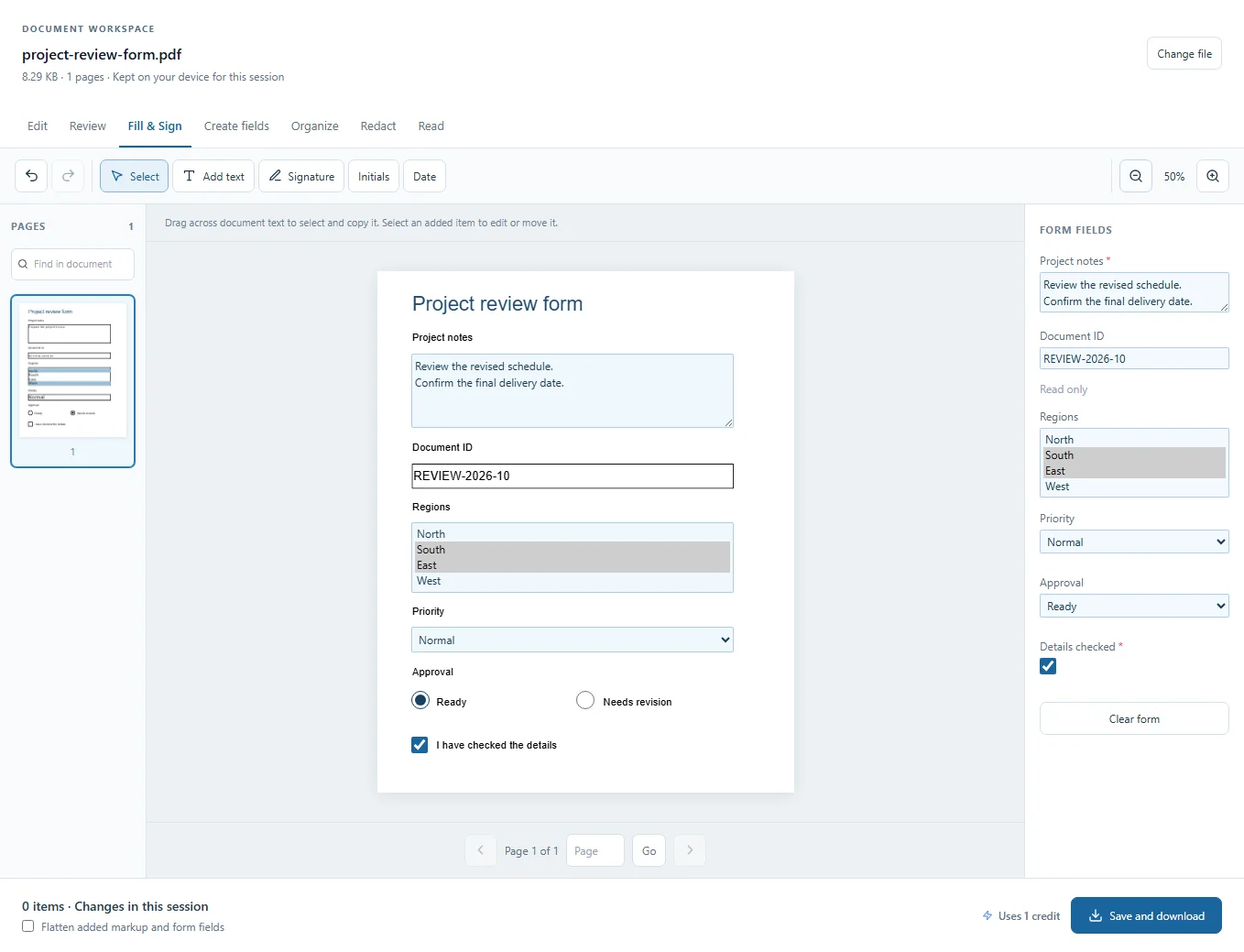
In Fill & Sign, editable fields remain interactive even when Flatten added markup and form fields is selected. Field flattening applies to the downloaded PDF. Read-only fields retain their native appearance in the preview.
Some complex transparency and sticky-note icons on rotated pages can differ between PDF readers or flattened output. Check the downloaded copy in the reader you plan to use.
The document stays in memory for this browser session. Export a copy before closing or reloading the tab. Undo history is not saved in the PDF; added objects are saved for reopening unless flattened.
For a guided check, choose Revise and compare above the workspace. After exporting, Continue to Compare PDFs loads the revision so you can add the original and review differences. Save this workflow on this device remembers the tool sequence only, not your document.