PDF Tools
PDF guide

How to annotate a PDF

Add comments, highlights, underlines, arrows and drawings. Edit supported annotations already in the file, reply to a discussion, and save the review in the PDF.

Updated . Tested step by step on this tool.

How to use Annotate PDF

  1. Choose your PDF to enter Review mode in the shared document workspace.
  2. Choose Highlight and select document text, or drag an area. The markup style menu also offers Underline and Strikethrough.
  3. Choose Comment to place a sticky note, or use Draw a box, Arrow or Draw. Select a mark and enter its comment in Properties.
  4. For markup added here, add replies and use Mark resolved in Properties. Choose another mark from the Comments list when no item is selected.
  5. To revise markup from another reader, choose Edit existing comments and select its outline. Update the message, color or resolved state. Use Add reply to changes for a new reply, then Apply comment changes.
  6. Choose Save and download to keep native PDF annotations and editable review threads. Keep the flatten option off to preserve comment threads.
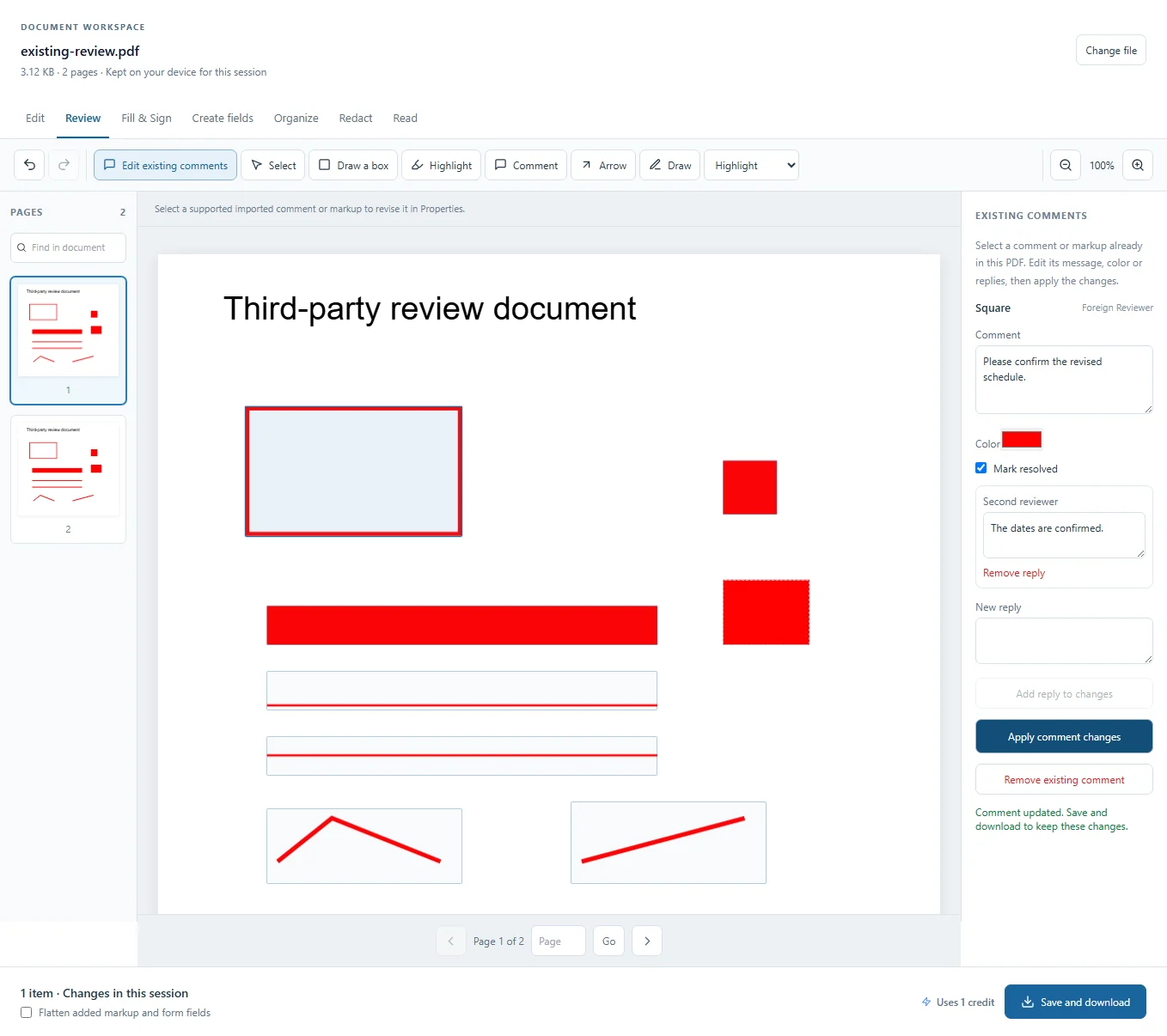
Select an imported annotation to edit its message and existing replies, add a reply, change its color or mark the discussion resolved.

Before you export

Remove existing comment removes the selected annotation and its discussion. Undo restores them. Editing an existing comment keeps its native PDF coordinates and preserves unrelated annotations. An unchanged appearance stays intact; supported color changes rebuild the appearance for that annotation.

Unsupported annotations remain in the PDF and explain why they cannot be edited. Existing-comment editing is unavailable on digitally signed documents. Annotation and review-state display varies between PDF readers. Flatten added markup and form fields applies to markup created here and form fields; it does not flatten imported annotations.

The document stays in memory for this browser session. Export a copy before closing or reloading the tab. Undo history is not saved in the PDF; added objects are saved for reopening unless flattened.
Frequently asked questions

Can I edit comments made in another PDF reader?

Choose Edit existing comments and select an outlined annotation. Supported notes, highlights, underlines, strikeouts, rectangles, ink and lines can have their message, color, replies and resolved state changed. Their original location stays fixed. Some complex appearance styles cannot be recolored, while stamps, locked annotations and unsupported types explain their limits.

Can another PDF reader see the review?

The export uses native PDF annotation objects for comments, highlights, lines and drawings. Annotation support varies between readers. The workspace also saves its own edit data so its added review can be reopened here.

Can I keep working without uploading the PDF again?

Yes. The workspace keeps one document open across its modes for this browser session. Exported results also offer Continue with this PDF to hand the file to another tool.

Can I undo a change?

Undo and redo include added items, text changes, movement, resizing, removal, form values and page changes. Keyboard shortcuts Ctrl+Z and Ctrl+Shift+Z work when a text input is not focused.

Will edits be here after I close the tab?

The browser session ends when you close or reload the tab. Save and download your edited PDF first. Added items and review markup can be edited again when you reopen that exported copy here, unless you flattened it.