PDF Tools
PDF guide

How to sign a PDF

Draw, type or upload a signature, place initials and dates, and fill existing form fields in one PDF workspace. Resize each placement and save your copy.

Updated . Tested step by step on this tool.

How to use Sign PDF

  1. Choose your PDF. Fill & Sign opens alongside the page thumbnails and form fields.
  2. Choose Signature, then Draw, Type or Upload. Add your signature and choose Use signature.
  3. Click where it belongs on the page. Drag the placed image to move it and resize it with its corner handle or the Properties dimensions.
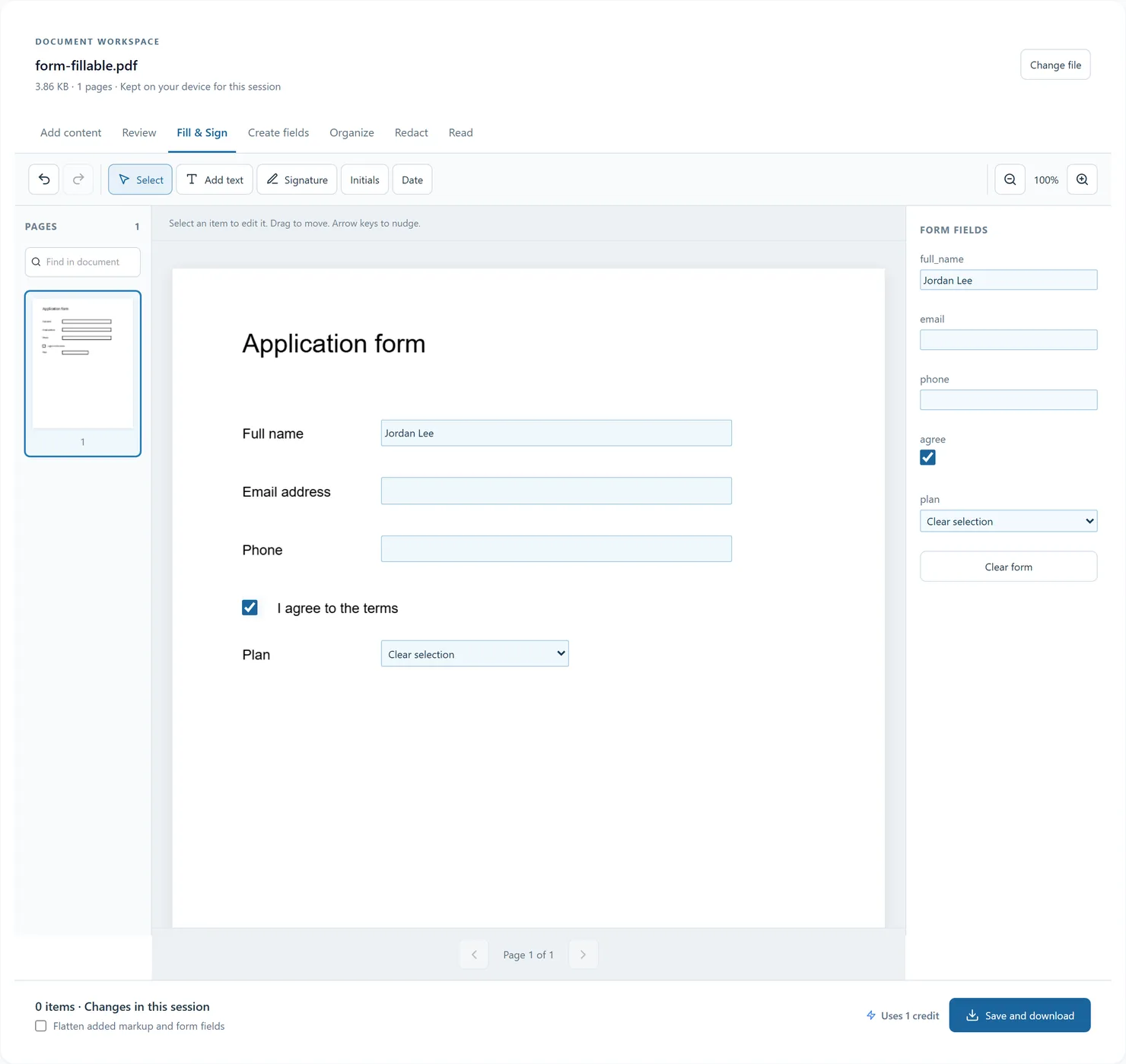
  4. Use Initials or Date when needed, or Add text for other wording. Existing form controls can be filled directly on the page or in the Form fields panel.
  5. Choose Save and download. Each signature placement keeps its own image, so creating a later signature does not change earlier ones.
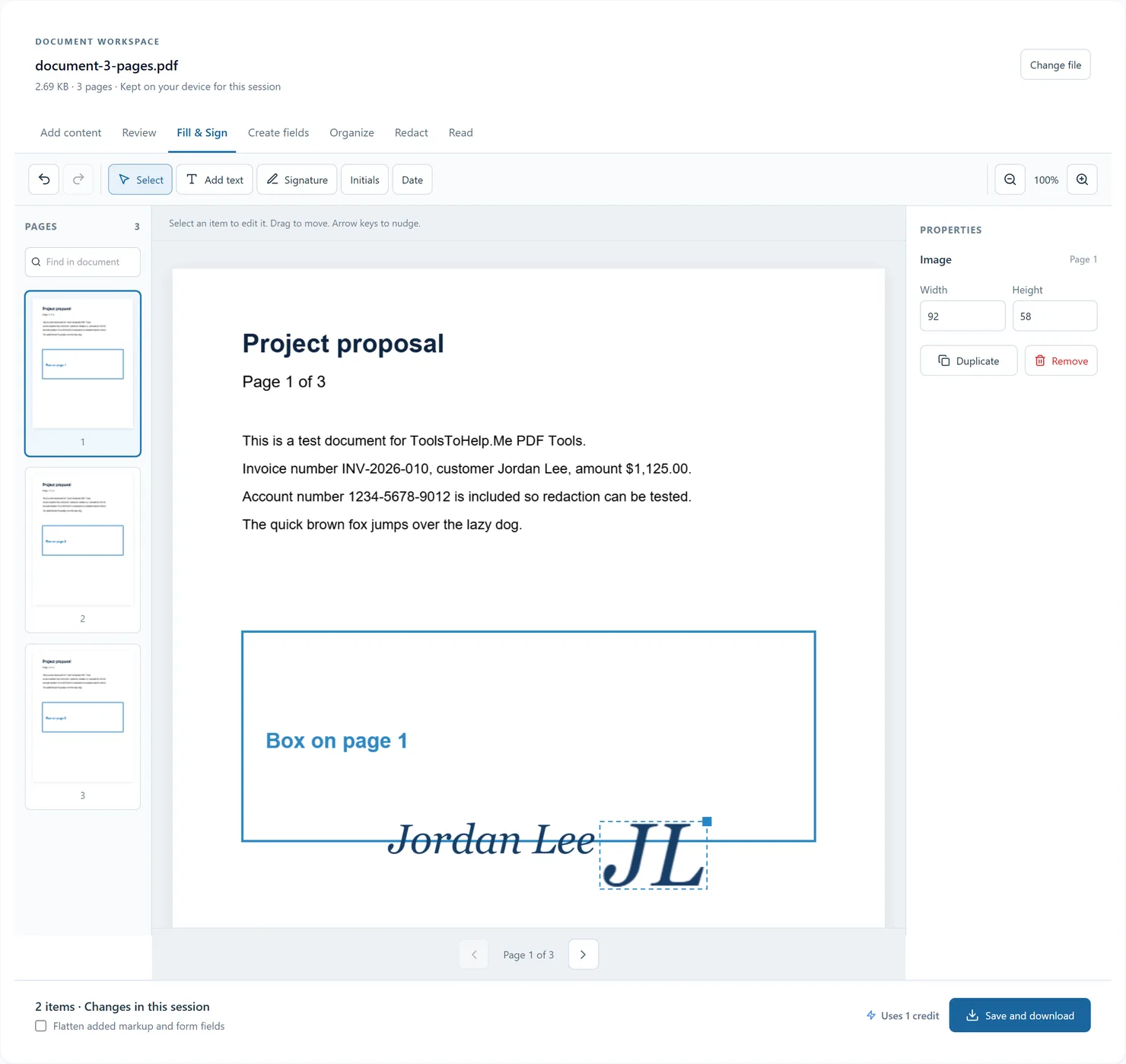
Draw, type or upload a signature, place initials and dates, and fill existing form fields in one PDF workspace. Resize each placement and save your copy.

Before you export

A placed signature is an image on the page. This tool does not create a certificate-based digital signature.

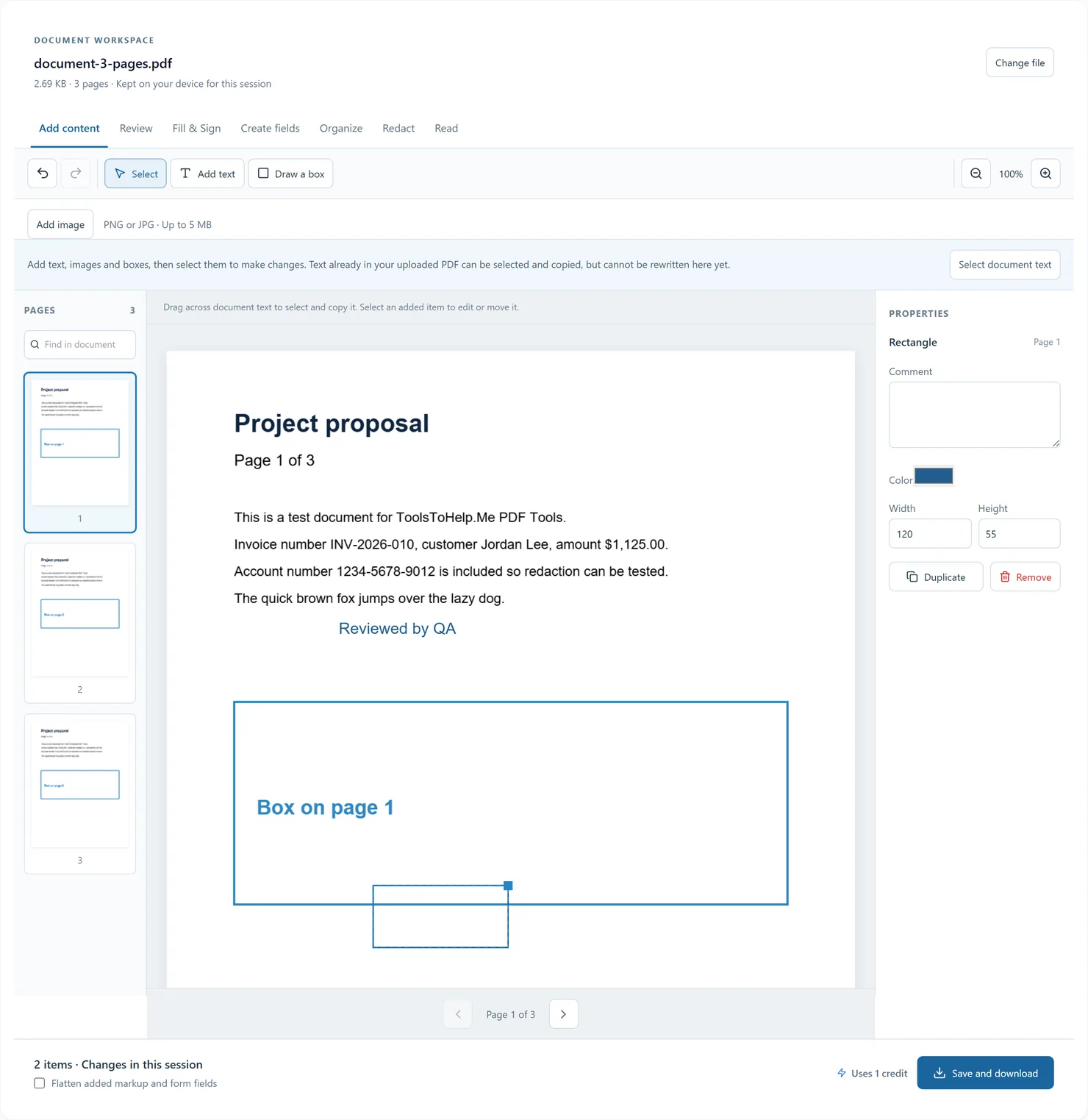
The document stays in memory for this browser session. Export a copy before closing or reloading the tab. Undo history is not saved in the PDF; added objects are saved for reopening unless flattened.
Frequently asked questions

Can I keep working without uploading the PDF again?

Yes. The workspace keeps one document open across its modes for this browser session. Exported results also offer Continue with this PDF to hand the file to another tool.

Can I undo a change?

Undo and redo include added items, text changes, movement, resizing, removal, form values and page changes. Keyboard shortcuts Ctrl+Z and Ctrl+Shift+Z work when a text input is not focused.

Will edits be here after I close the tab?

The browser session ends when you close or reload the tab. Save and download your edited PDF first. Added items and review markup can be edited again when you reopen that exported copy here, unless you flattened it.