PDF Tools
PDF guide

How to fill out a PDF form

Fill and clear existing text, multiline answers, checkboxes, radio groups and choice fields. Keep the fields editable or flatten a completed copy, with Undo and Redo while you work.

Updated . Tested step by step on this tool.

How to use Fill Out PDF

  1. Choose your fillable PDF. Existing text, selections and checkbox values appear in the workspace.
  2. Type into the on-page controls or use the Form fields panel. Multiline fields accept line breaks. Read-only fields remain disabled, and required fields have an asterisk in the panel.
  3. Tick checkboxes or choose dropdown, radio and list options. Fields that support multiple choices allow several selections. Blank text and Clear selection remove existing single values.
  4. Use Clear form to clear supported editable fields, and Undo to restore them if needed.
  5. Choose Save and download. Select Flatten added markup and form fields only when you want the saved fields to become part of the page.
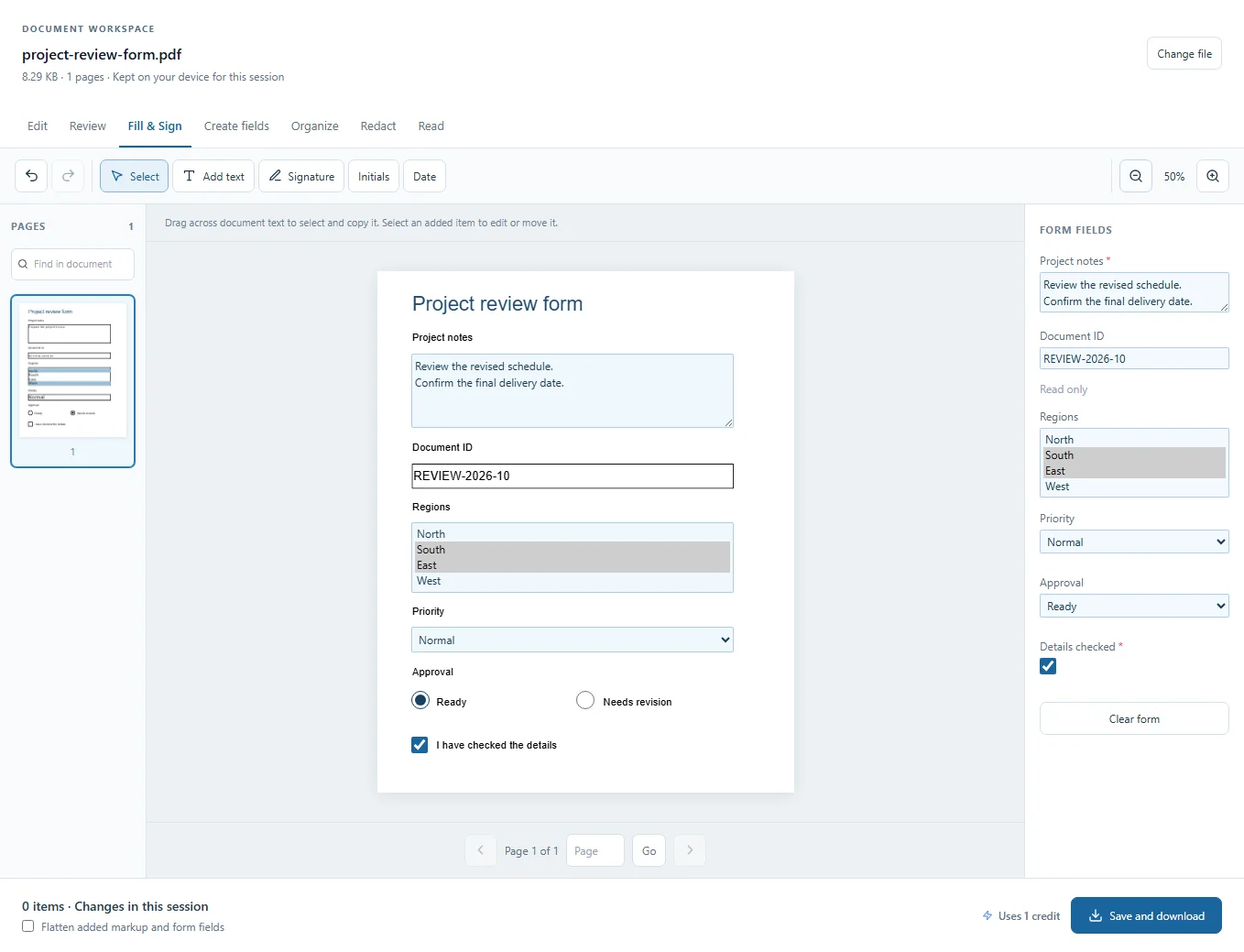
Use multiline text, single or multiple choices, radio groups and checkboxes. The Form fields panel also identifies required and read-only fields.

Before you export

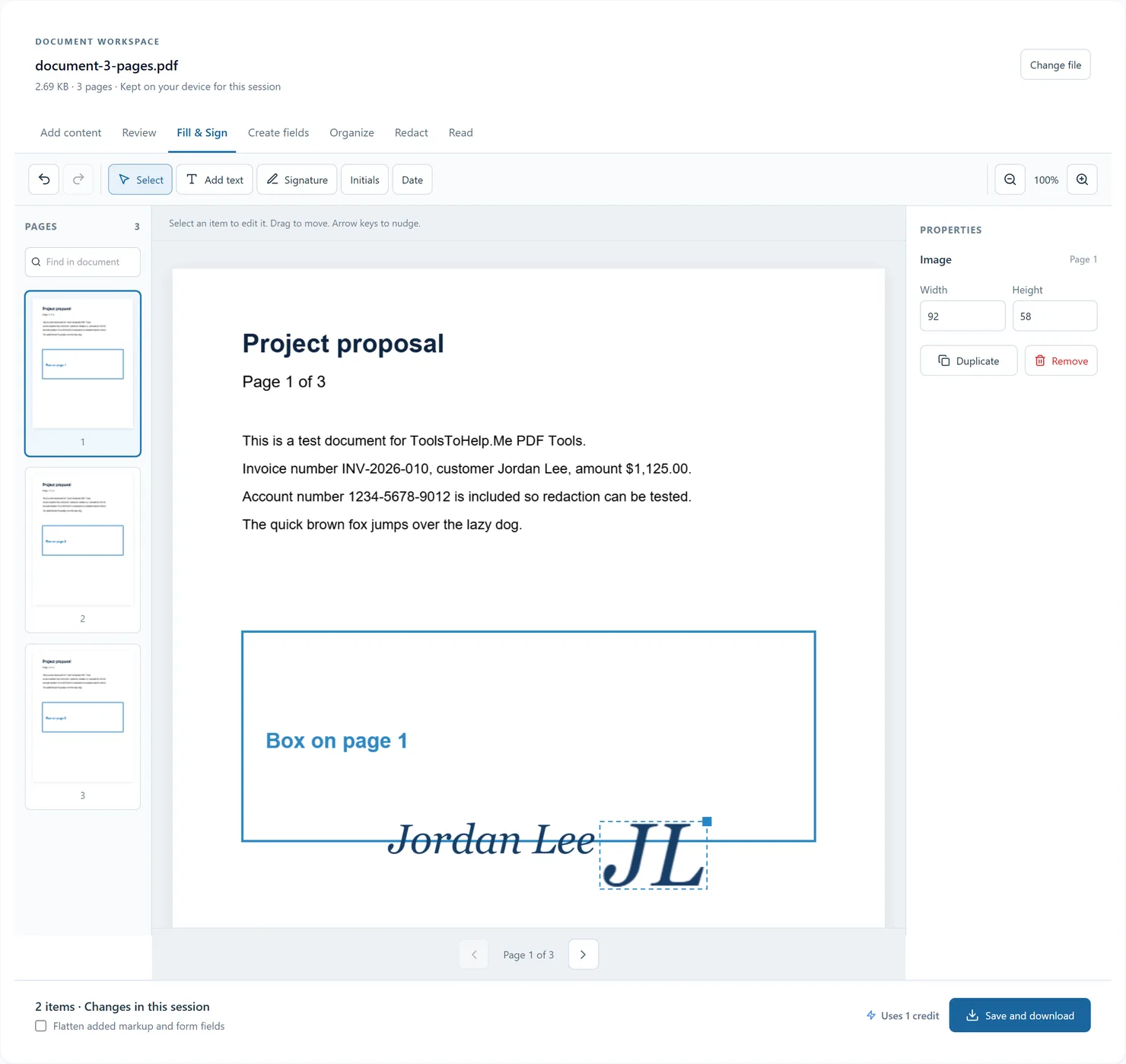
Unsupported controls are identified rather than silently changed. A PDF without form fields can still be completed with added text and a signature.

Leave Flatten added markup and form fields off when someone needs to keep filling the form. Turning it on keeps the answers visible as page content and removes their editable controls. Check the exported copy before sharing it.

Organize mode can reorder or remove pages in the same session. Reordering retains the field locations. Removing a page removes its controls; shared fields keep their controls on surviving pages. If the selected radio option was on a removed page, its answer clears.

The document stays in memory for this browser session. Export a copy before closing or reloading the tab. Undo history is not saved in the PDF; added objects are saved for reopening unless flattened.

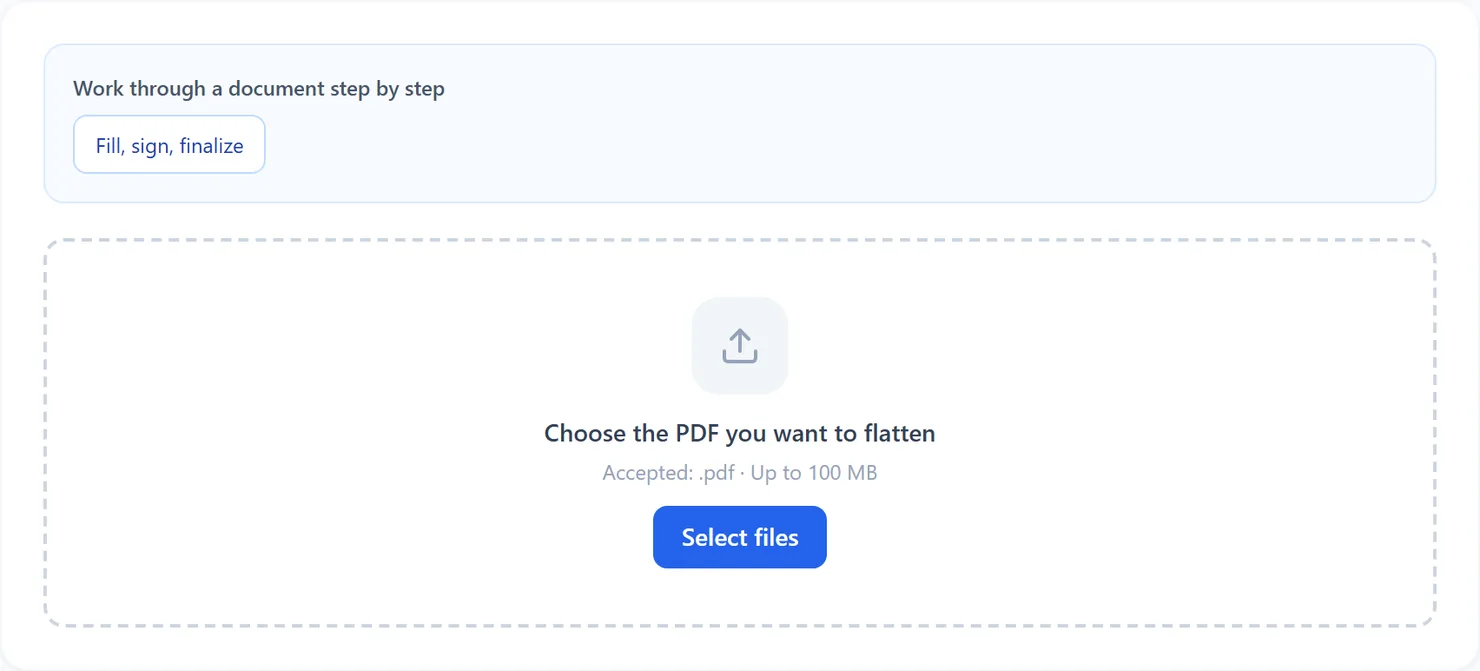
Choose Fill, sign, finalize above the workspace for a guided sequence. Save each stage, then use Continue to the suggested next tool below the result. Saving the workflow on this device remembers the sequence, not the form or its answers.
Frequently asked questions

Can I select several choices or enter more than one line?

Yes, when the original form field allows it. Multiline text fields accept line breaks. Dropdown and list fields with multiple selection enabled retain all selected options. Single-select fields stay single-select. Use your device's normal multi-select gesture, such as Ctrl or Command plus click on a desktop.

What do required and read-only fields mean?

Required fields have an asterisk in the Form fields panel, and that PDF flag is preserved when you save. You can save an unfinished form with required answers blank. Read-only fields remain disabled and their values are preserved.

Can I keep working without uploading the PDF again?

Yes. The workspace keeps one document open across its modes for this browser session. Exported results also offer Continue with this PDF to hand the file to another tool.

Can I undo a change?

Undo and redo include added items, text changes, movement, resizing, removal, form values and page changes. Keyboard shortcuts Ctrl+Z and Ctrl+Shift+Z work when a text input is not focused.

Will edits be here after I close the tab?

The browser session ends when you close or reload the tab. Save and download your edited PDF first. Added items and review markup can be edited again when you reopen that exported copy here, unless you flattened it.