PDF Tools
PDF guide

How to flatten a PDF form

Merge the form fields in a PDF into the page itself, so the answers stay visible but nobody can change them afterward.

Updated . Tested step by step on this tool.

Flattening a PDF merges its form fields into the page itself, so the answers become page content and the form controls are removed. Existing comments and other annotations remain editable.

What you need

  • A PDF with fillable form fields already filled in the way you want, up to 100 MB.

How to flatten a PDF, step by step

  1. Open Flatten PDF and choose your file.
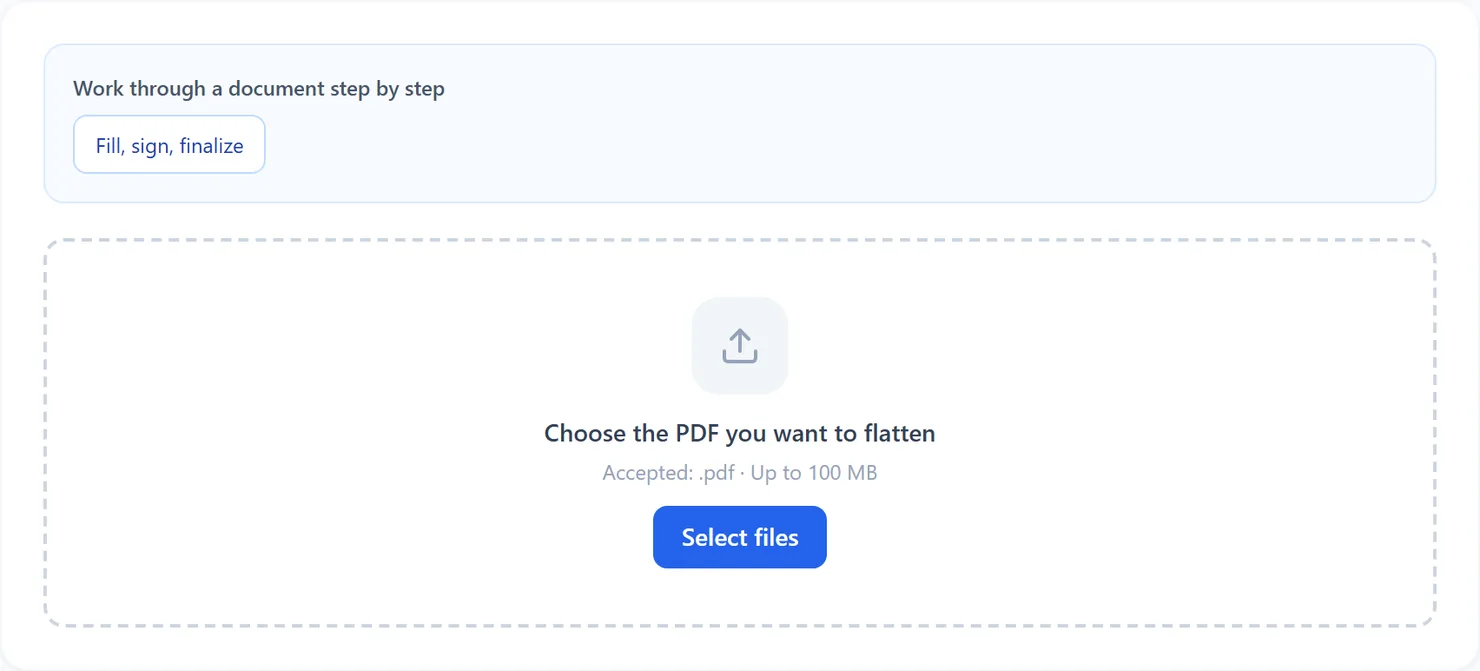
    The Flatten PDF tool before a file is added.
    The Flatten PDF tool before a file is added.
  2. Read what flattening does before you continue, since it cannot be undone from the result file.

    Flattening merges the form fields into the page. The values stay visible, but nobody can change them afterward.
    Flattening merges the form fields into the page. The values stay visible, but nobody can change them afterward.
  3. Select "Flatten PDF", then download the result.
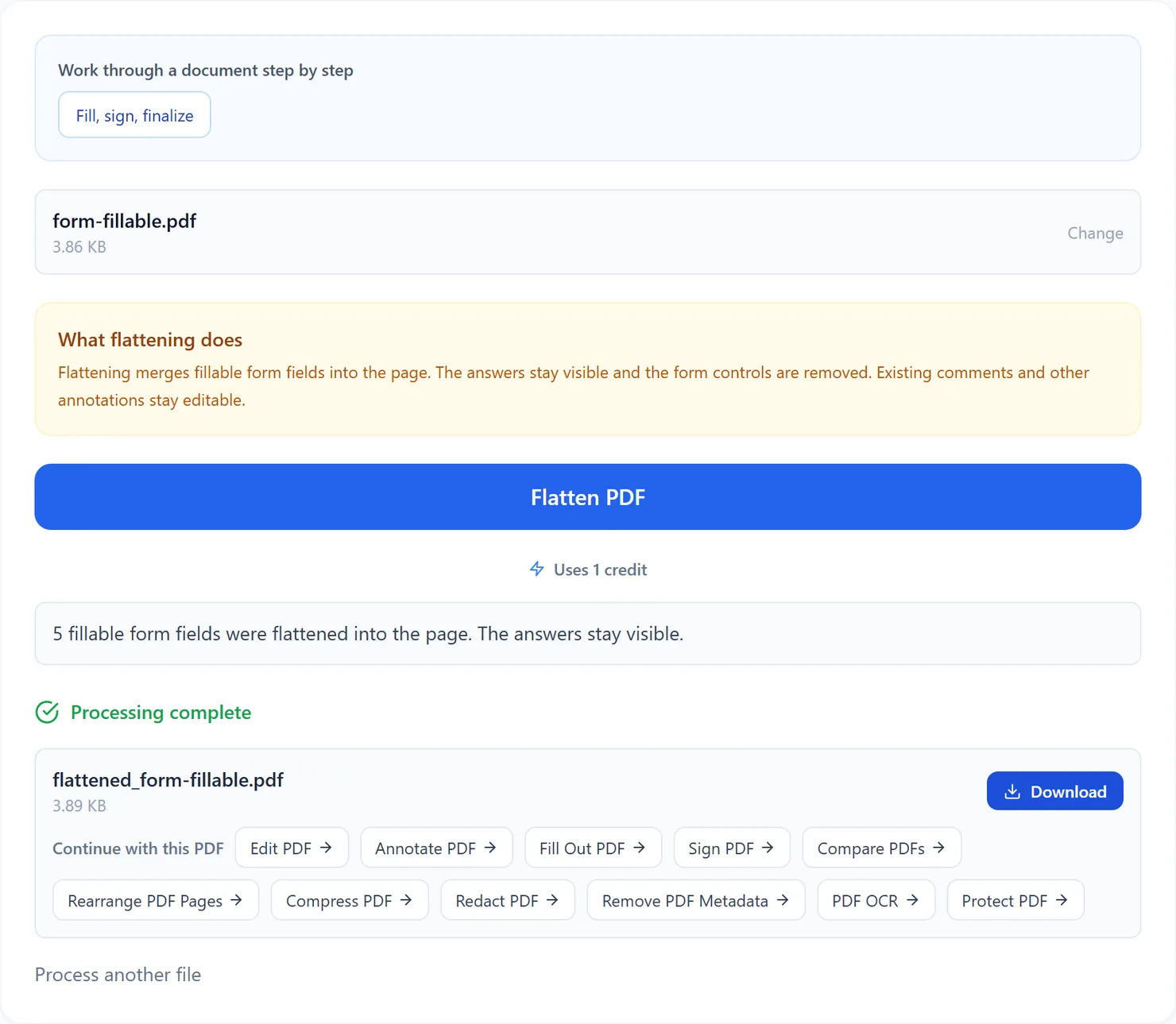
    Select Download once the form is flattened.
    Select Download once the form is flattened.

Credits: flattening a PDF with fillable fields uses 1 credit, which your free daily credits cover. A PDF with no fields is returned unchanged without consuming credits. You get 10 free credits a day, or 25 with a free account.

Tips before you flatten

  • Fill in every field first. Once flattened, a field's value cannot be changed as a form field again, so check the document with Fill Out PDF before you run this tool.
  • Keep a copy of the filled-in form. If you might need to correct an answer later, save the version with live fields before you flatten it.
  • Want the file locked further? Flattening stops the fields from being edited, but not the file from being opened or printed. Add a password with Protect PDF for that.
Frequently asked questions

What does flattening actually do?

It merges each form field's current value into the page itself and removes the interactive field, so what you see is now part of the page rather than an editable form control.

Can I undo a flatten?

No. Once a field is merged into the page, the answer cannot be edited again as a form field. Keep your original filled-in copy if you might need to change an answer later.

What if my PDF has no form fields?

The tool explicitly tells you that no fillable form fields were found. It offers your original PDF unchanged and does not consume credits for that no-op.

Does flattening affect anything other than form fields?

Only fillable form fields are flattened. Existing comments and other annotations remain editable. The tool does not claim to flatten every kind of PDF object or securely redact content.

Is this the same as adding a password?

No. Flattening stops the form fields from being edited, but it does not restrict opening, printing or copying the file. Use Protect PDF if you also want to add a password.