PDF Tools
How to use Create Fillable PDF Form
- Choose the PDF that needs controls. The workspace opens in Create fields mode.
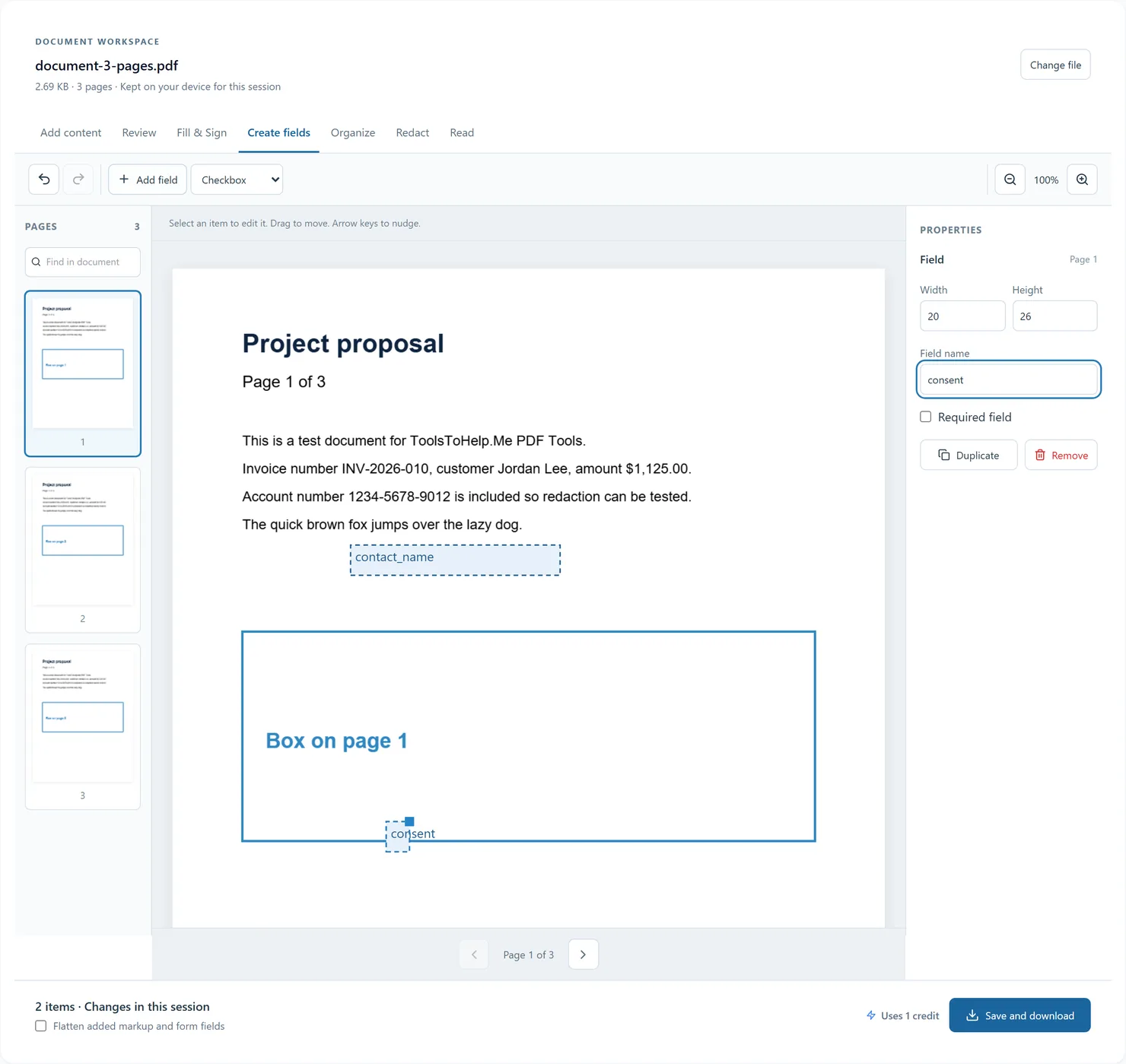
- Choose the New field type, select Add field, then click or drag on the page to place it.
- Use Properties to give the field a name, resize it and mark it required. Dropdowns and radio buttons also need options.
- For a radio group, use the same field name for each radio button and make the first option on each button its distinct choice. Other fields need unique names.
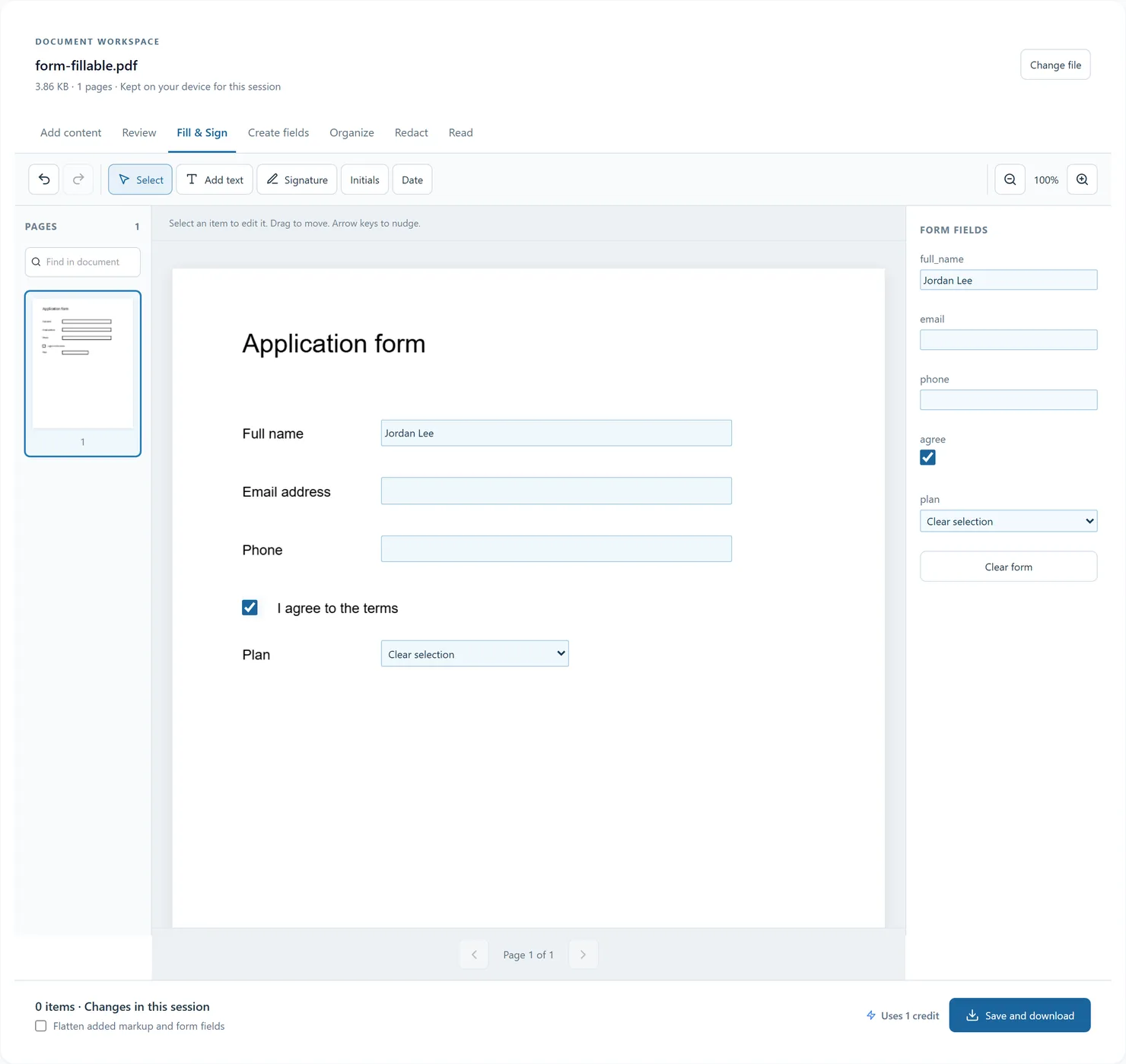
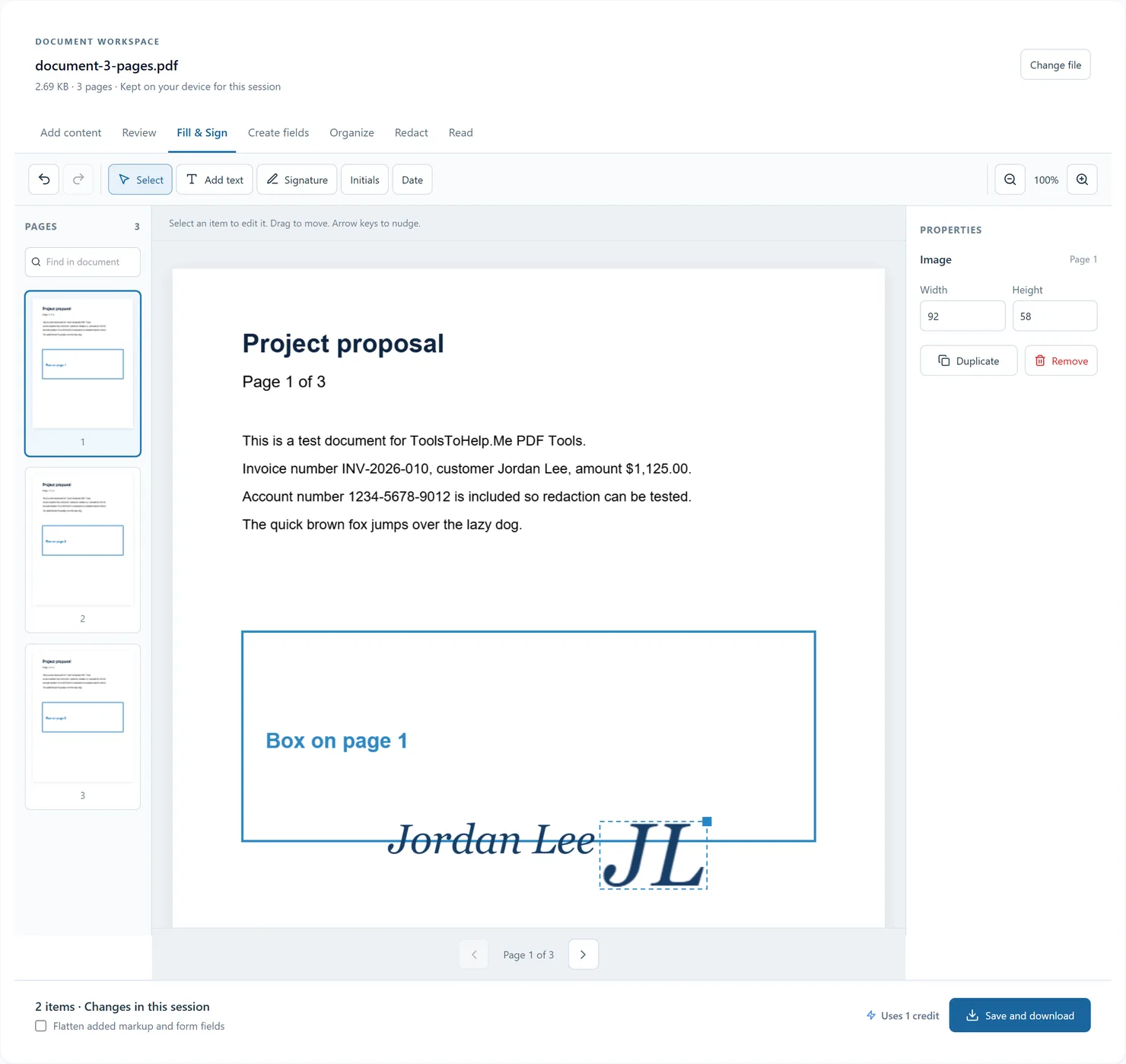
- Switch to Fill & Sign to test values. Save and download with flatten turned off to keep the fields interactive.
Before you export
Fields use native AcroForm controls. Required flags are exported for readers that enforce them. This tool does not author XFA forms.
The document stays in memory for this browser session. Export a copy before closing or reloading the tab. Undo history is not saved in the PDF; added objects are saved for reopening unless flattened.