PDF Tools
Word to PDF turns a DOC or DOCX file into a PDF you can send, print or archive without anyone needing Word to open it. It runs in advanced server mode, so the layout, fonts and images come across closer to the original than a browser alone could manage.
What you need
- A free ToolsToHelp.Me account. Word to PDF always uses advanced server mode, which is included with a free account.
- Your Word document, DOC or DOCX, up to 100 MB.
How to convert Word to PDF, step by step
- Open Word to PDF. If you are not signed in, you will see a panel explaining that this feature needs a free account, with buttons to create one or sign in.
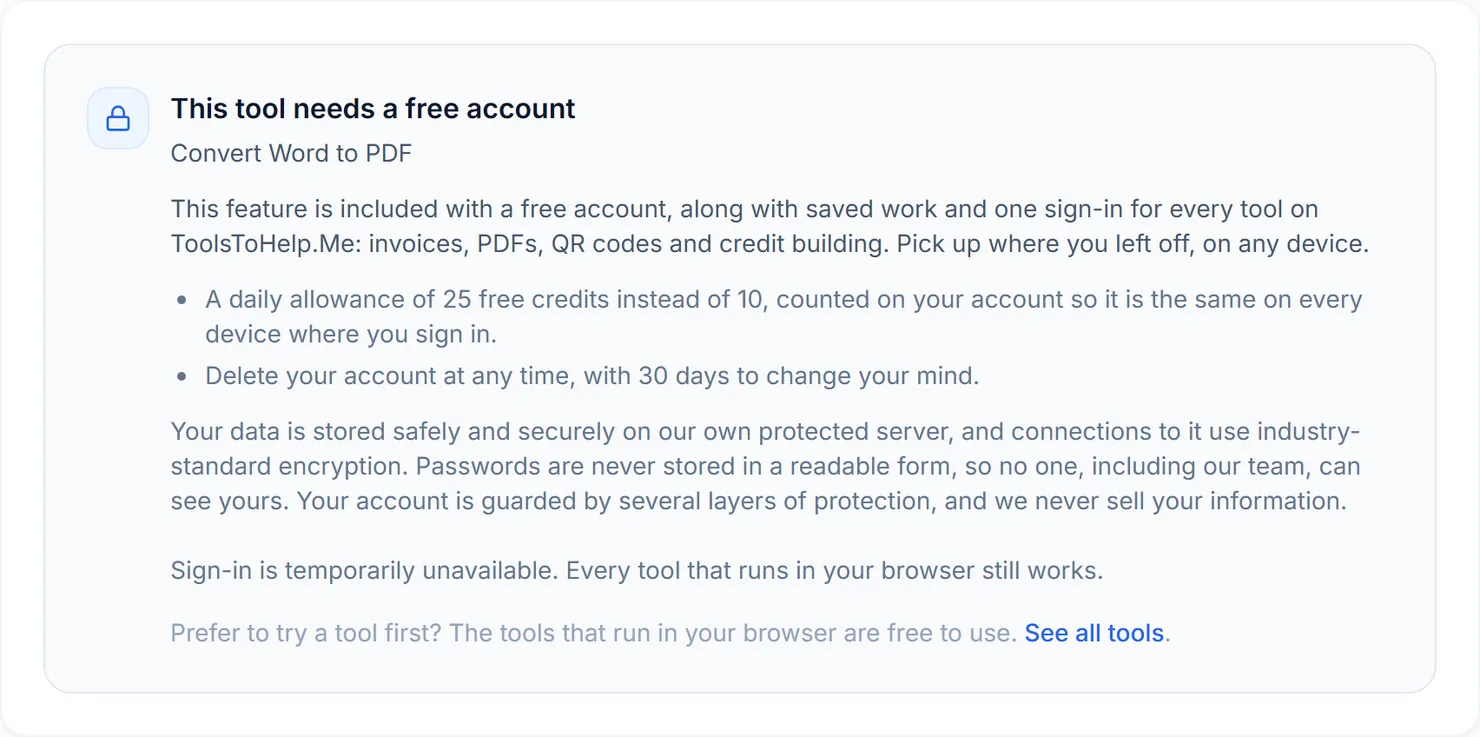
Signed out, Word to PDF explains that this feature needs a free account. - Sign in or create your free account, then return to Word to PDF. The upload area now appears in place of that panel.
- Choose your Word file, or files. You can add more than one DOC or DOCX file to convert them together.
- Select Convert. The button shows how many files will be converted, for example "Convert 2 files to a PDF", with the credit cost below it.
- Download the result. Each converted file gets its own Download button. With more than one file, a "Download all as a ZIP" button also appears.
Credits: Word to PDF always uses advanced server mode, which costs 2 credits per file, plus 1 for a file over 50 MB. You get 10 free credits a day, or 25 with a free account.
Why this needs a free account
Some PDF Tools run entirely in your browser and cost 1 credit. Word to PDF is not one of them: turning a DOC or DOCX file into a PDF with its layout intact needs advanced server mode, which is included with a free account along with the rest of ToolsToHelp.Me: PDFs, invoices, QR codes and credit building, all under one sign-in.
Tips for a clean conversion
- Save as DOCX first if your document is an older DOC file with complex formatting; DOCX tends to convert more predictably.
- Check page breaks and headers in the PDF, since a change in page size can shift where a page ends.
- Need to go the other way? Use PDF to Word to turn a PDF back into an editable document.