PDF Tools
PowerPoint to PDF turns a PPT or PPTX presentation into a PDF, one page per slide, so anyone can view it without PowerPoint and without worrying that fonts or layouts will shift on a different computer. It runs in advanced server mode.
What you need
- A free ToolsToHelp.Me account. PowerPoint to PDF always uses advanced server mode, which is included with a free account.
- Your presentation, PPT or PPTX, up to 100 MB.
How to convert PowerPoint to PDF, step by step
- Open PowerPoint to PDF. Signed out, a panel explains that this feature needs a free account, in place of the upload area.
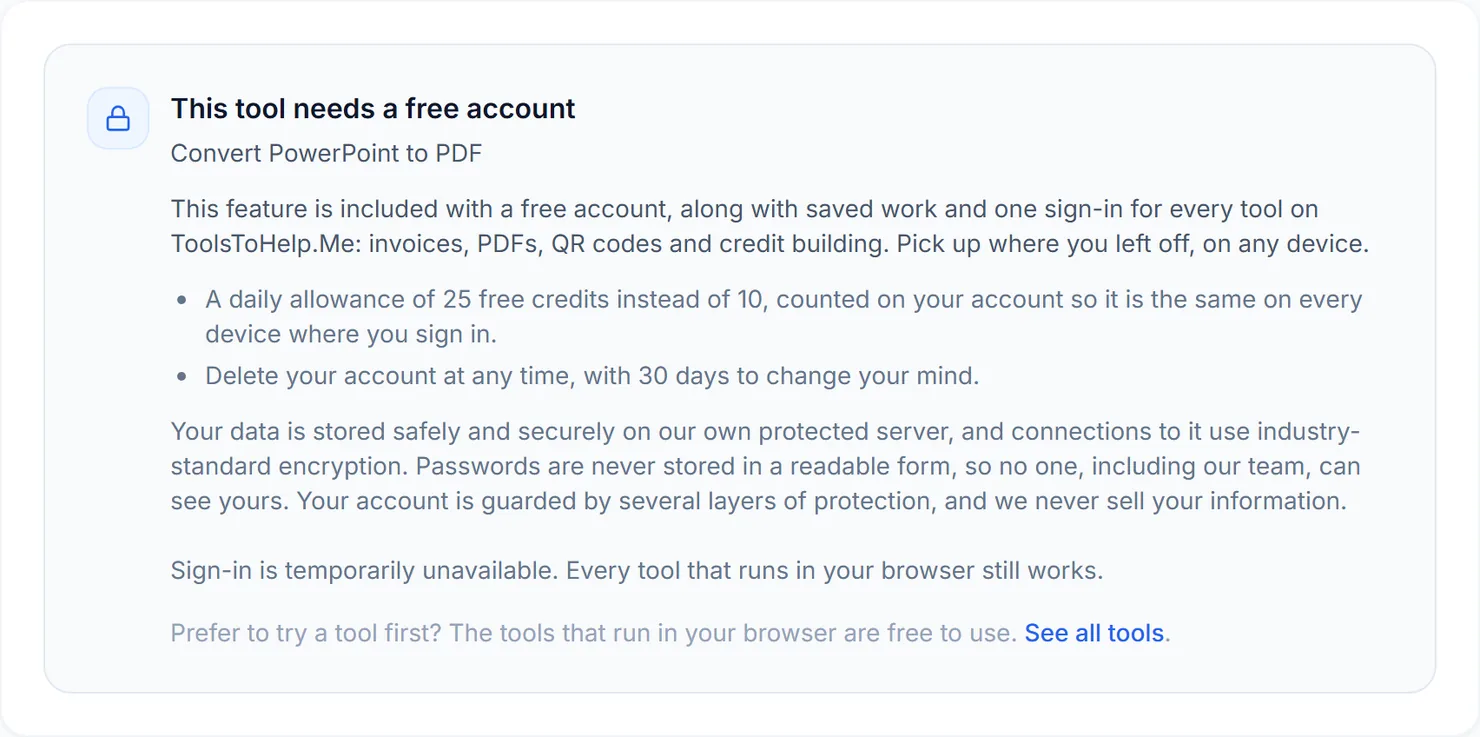
Signed out, PowerPoint to PDF explains that this feature needs a free account. - Sign in or create your free account, then return to PowerPoint to PDF to see the upload area.
- Choose your presentation, or presentations. You can add more than one PPT or PPTX file at once.
- Select Convert. The button names how many files will be converted, with the credit cost shown below it.
- Download the result. Each file gets its own Download button, and a ZIP option appears when you convert more than one.
Credits: PowerPoint to PDF always uses advanced server mode, which costs 2 credits per file, plus 1 for a file over 50 MB. You get 10 free credits a day, or 25 with a free account.
Why this needs a free account
Laying out slides the way PowerPoint would print them, with fonts and images kept in place, takes more than a browser can reliably do alone. PowerPoint to PDF uses advanced server mode for that reason, and it comes with a free account, alongside the rest of ToolsToHelp.Me under one sign-in.
Tips for a clean conversion
- Embed your fonts in PowerPoint first, if you used anything unusual, so the PDF does not fall back to a substitute font.
- Check speaker notes. They do not appear in the PDF; only the slide itself is converted.
- Review animated builds. A slide with several animated steps becomes one static page showing its final state, so confirm that state is the one you actually want to show a reader.
- Need the other direction? Use PDF to PowerPoint to turn a PDF into an editable deck.