PDF Tools
PDF to PowerPoint extracts selectable PDF text into editable PPTX slides. Dense pages continue onto additional slides at 12pt so later text stays visible. Original artwork, images and page layout are not reconstructed. Slide notes identify the source PDF page and part.
What you need
- A free ToolsToHelp.Me account. PDF to PowerPoint always uses advanced server mode, which is included with a free account.
- The PDF you want as a presentation, up to 100 MB.
How to convert PDF to PowerPoint, step by step
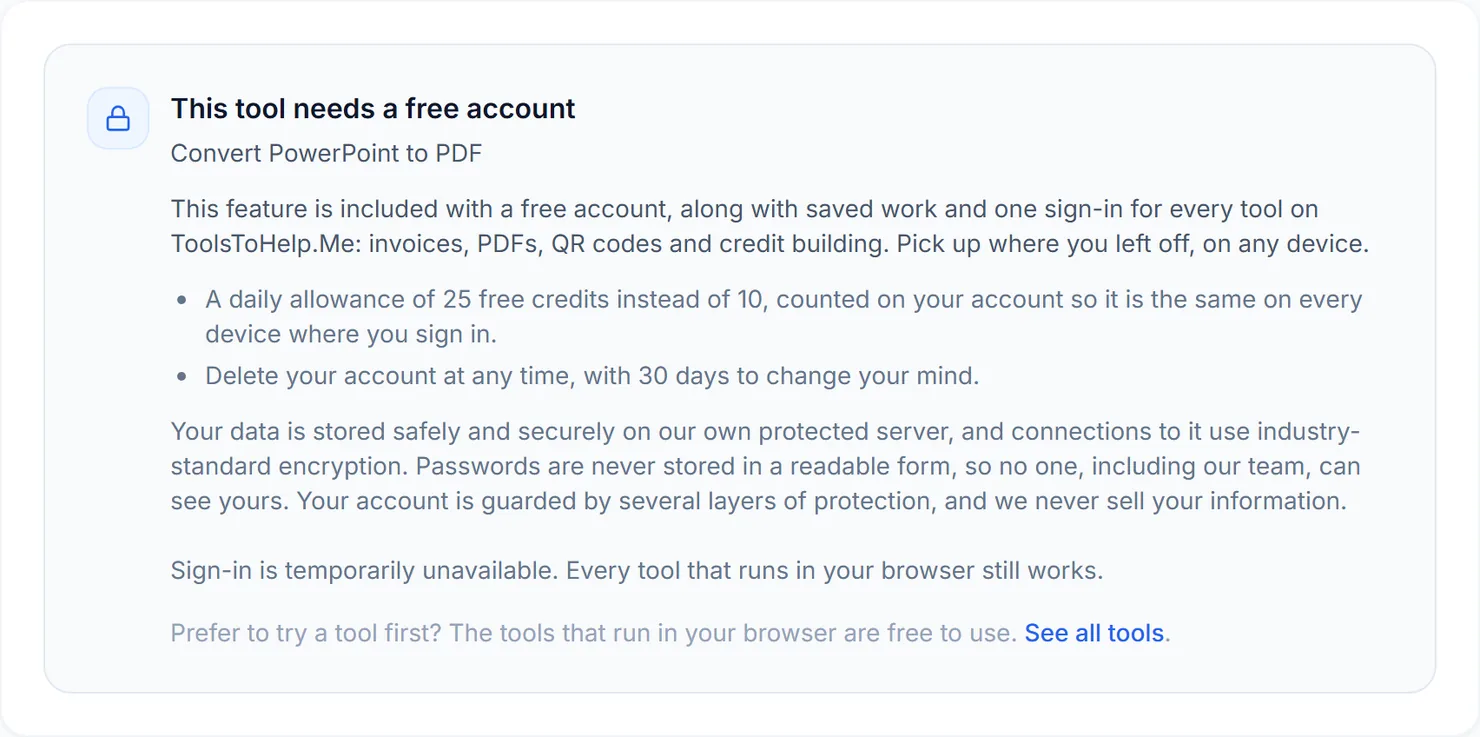
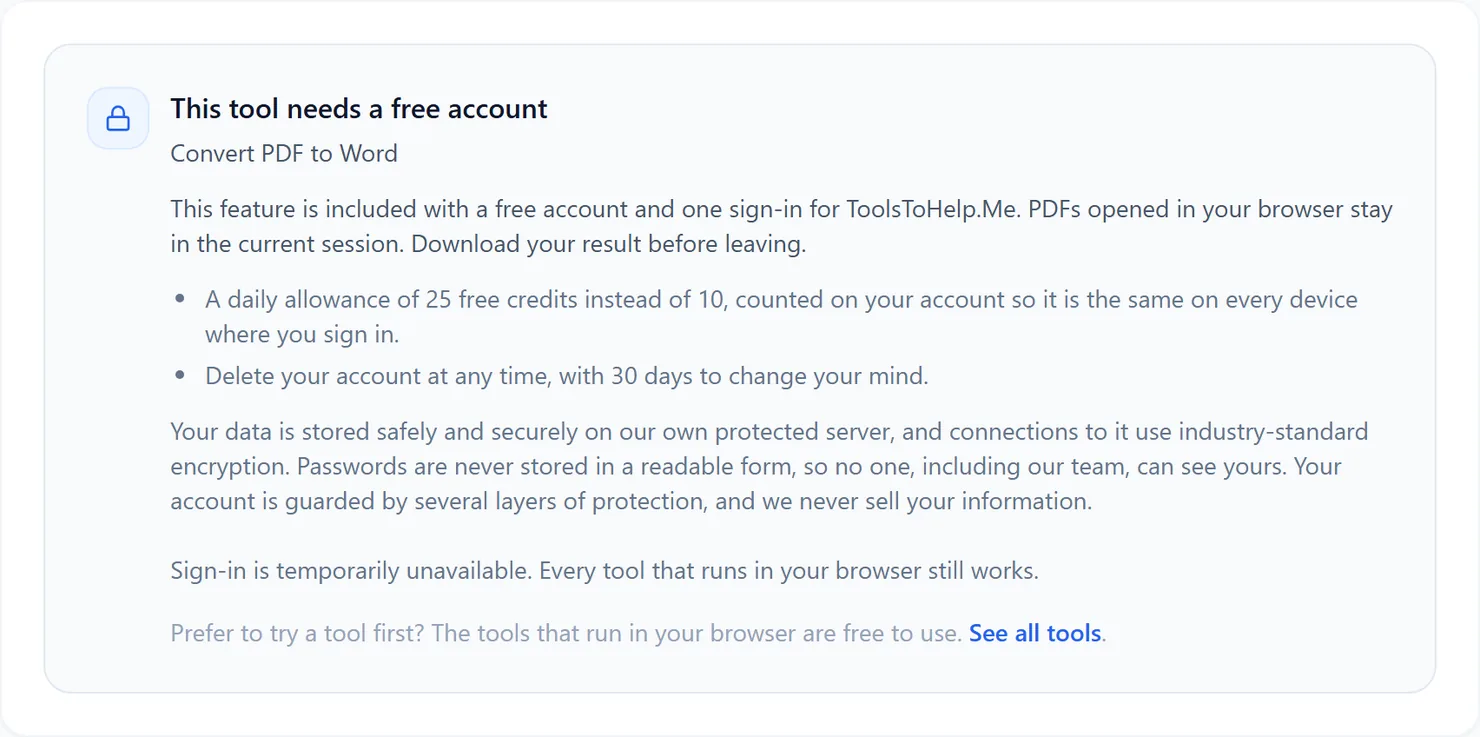
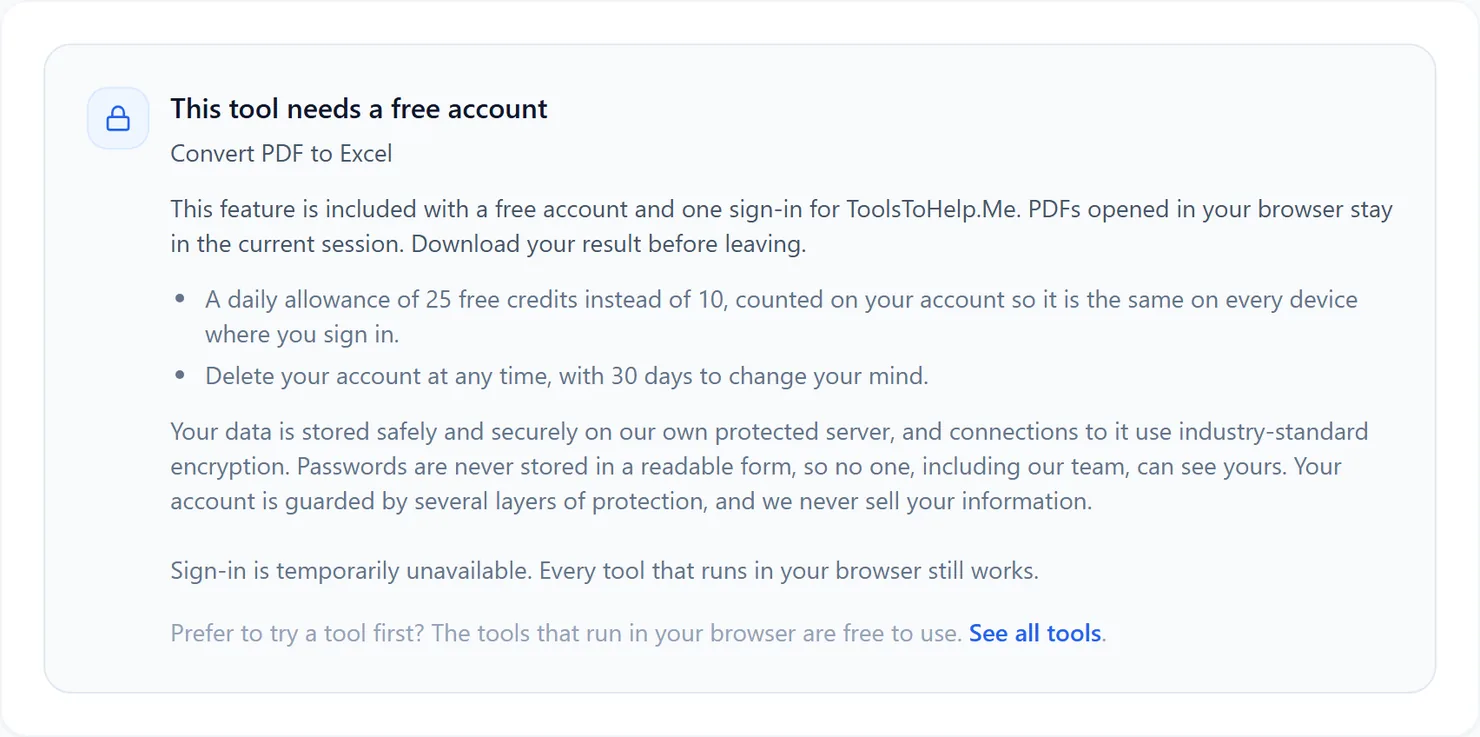
- Open PDF to PowerPoint. Signed out, a panel explains that this feature needs a free account, in place of the upload area.
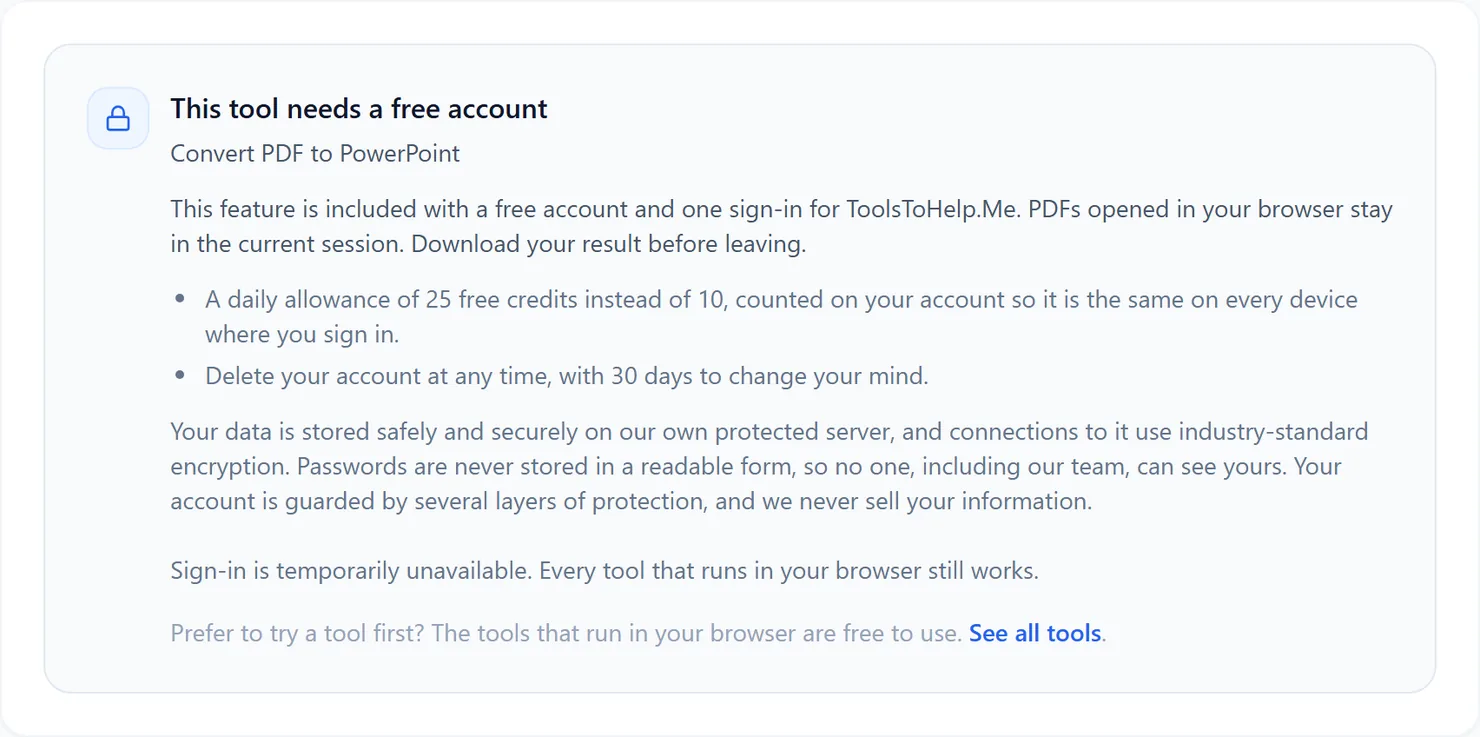
Signed out, PDF to PowerPoint explains that this feature needs a free account. - Sign in or create your free account, then return to PDF to PowerPoint to see the upload area.
- Choose the PDF you want to convert. PDF to PowerPoint works on one file at a time.
- Select Convert to PPTX. The credit cost for that file is shown below the button.
- Download the result. Select Download to save the presentation, then open it to check the complete extracted text and any continuation slides.
Credits: PDF to PowerPoint always uses advanced server mode, which costs 2 credits, plus 1 for a file over 50 MB and 1 for a document over 100 pages. You get 10 free credits a day, or 25 with a free account.
Why this needs a free account
The server extracts PDF text and writes it into editable slides, continuing dense pages onto extra slides. PDF to PowerPoint uses advanced server mode, and it comes with a free account, alongside the rest of ToolsToHelp.Me under one sign-in.
Tips for a clean conversion
- Start from a text-based PDF, not a scan. A scanned page has no text to extract; run it through PDF OCR first.
- Plan to restyle the deck. Original images, backgrounds and positioning are not reconstructed. Treat the extracted text as a content draft to design from.
- Going the other way? Use PowerPoint to PDF to turn a finished deck into a PDF for sharing.