PDF Tools
Images to PDF turns your photos and graphics into a single PDF document, in the order you choose. It is useful for sending a set of photos as one file, building a simple photo document, or preparing scanned pages that were saved as images.
What you need
- One or more images, in JPG, PNG, WEBP, GIF, BMP or TIFF, up to 100 MB each.
- An idea of the order you want them to appear in the finished PDF. You can also reorder them after you add them.
How to convert images to PDF, step by step
- Open Images to PDF and select Select files, or drag your images onto the upload area.
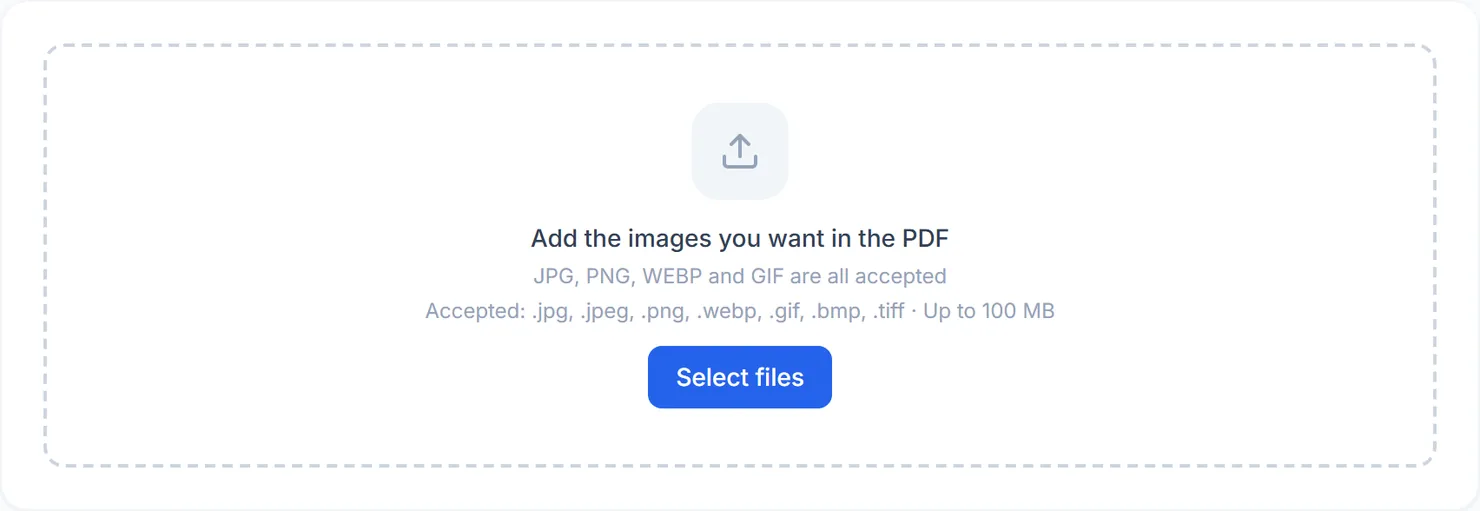
The Images to PDF tool, ready for your images. - Check the order. Each image is listed with a thumbnail and its position. Use the up and down arrows to move an image, and the X to remove one.
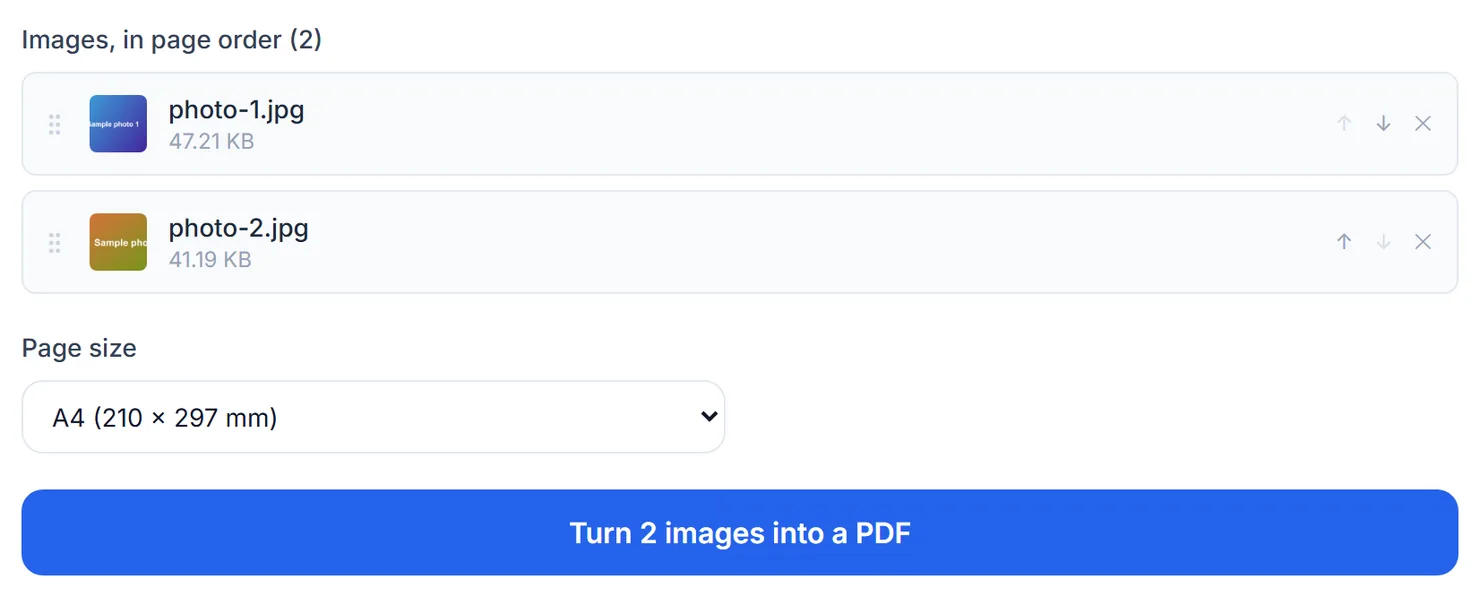
Two images added, in the order they will appear in the PDF. - Choose a page size. Pick A4, US Letter, or Match each image so every page takes the shape of its own picture instead of a fixed portrait page.
- Select the convert button. It shows how many images will be combined, for example Turn 2 images into a PDF.
- Download the result. When you see Processing complete, select Download to save images.pdf.
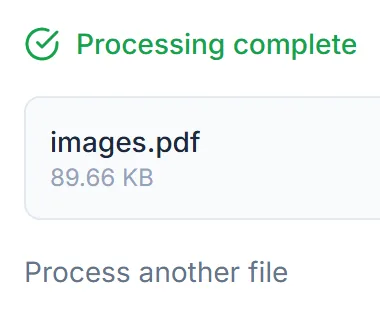
The PDF is ready. Select Download to save images.pdf.
Credits: converting images to a PDF in your browser uses 1 credit, which your free daily credits cover. You get 10 free credits a day, or 25 with a free account.
Reordering and page size
Each image row shows a grip icon next to the thumbnail. It is not draggable yet, so use the arrow buttons to move an image up or down the list. The page size choice applies to every page in the document: A4 and US Letter always make a portrait page with the image centered inside it, while Match each image gives each page the same shape as its own picture, which avoids empty margins around a landscape photo.
Images to PDF, JPG to PDF or PNG to PDF
All three tools build a PDF from pictures using the same conversion underneath, but they are not identical. Images to PDF is the one built for mixed batches: it accepts every supported format, shows a page size choice, and lets you reorder images before converting. JPG to PDF and PNG to PDF are narrower: each only accepts its one format, and neither offers a page size choice or reordering, so files are combined in the order you added them. If you only ever work with one format and do not need to reorder, either of those is quicker to reach for. If you want control over layout or you are mixing formats, use Images to PDF.

Tips for a clean result
- Name your files in order. Names like 01-front.jpg and 02-back.jpg make the upload order match the page order, so you need fewer arrow clicks.
- Use Match each image for mixed orientations. If some photos are landscape and others portrait, a fixed page size leaves more empty space around one or the other.
- Combine with other tools afterward. Once you have a PDF, Merge PDF can add it to other documents, and Compress PDF can shrink it before you email it.