PDF Tools
JPG to PDF turns your JPG photos into a PDF document, one photo per page. It is a quick way to send a single photo as a PDF, or to combine several JPGs, such as scanned receipts or ID photos, into one file.
What you need
- One or more JPG or JPEG files, up to 100 MB each.
- The page dimensions you want: A4, US Letter or Match each image. You can arrange the images after uploading.
How to convert JPG to PDF, step by step
- Open JPG to PDF and select Select files, or drag your JPG files onto the upload area.
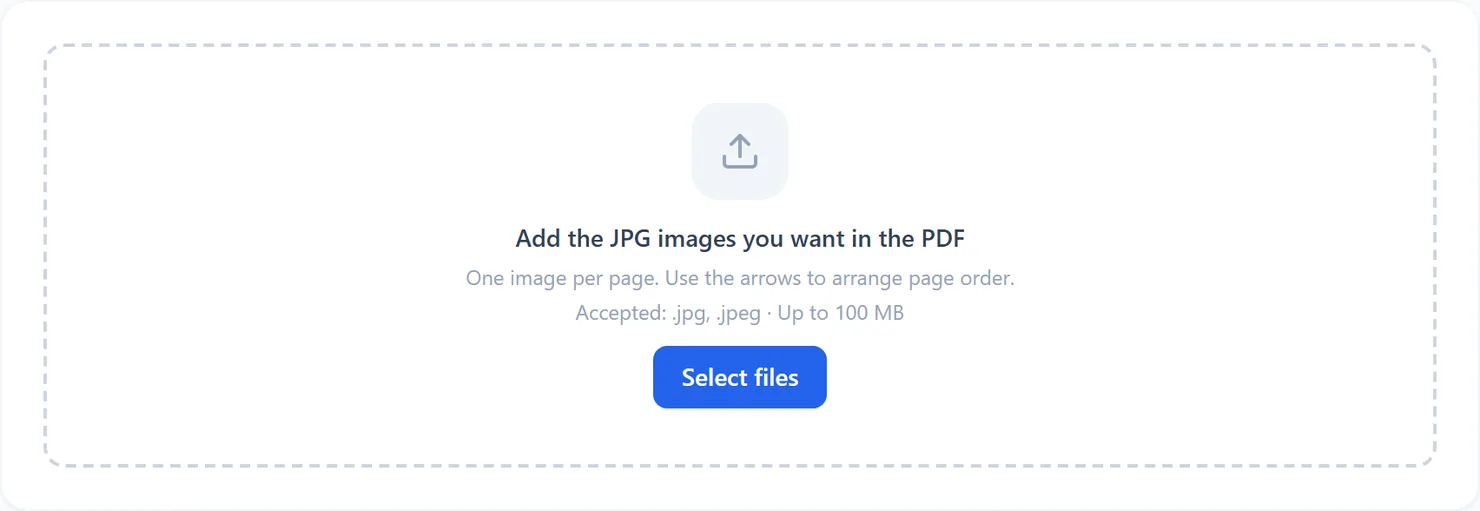
The JPG to PDF tool, ready for your files. - Arrange the images and choose Page size. Use the up and down arrows to change the order, add more images or remove an image.
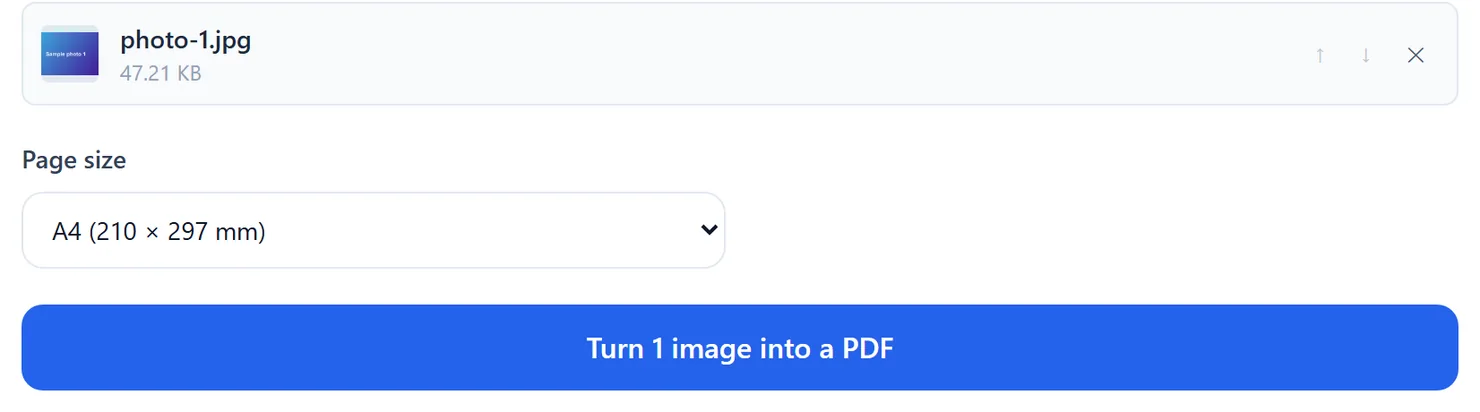
A JPG file added and ready to convert. - Select Turn images into a PDF. The button shows how many images will become pages in your document.
- Review the finished PDF preview, then download. Check the page order and dimensions before selecting Download.
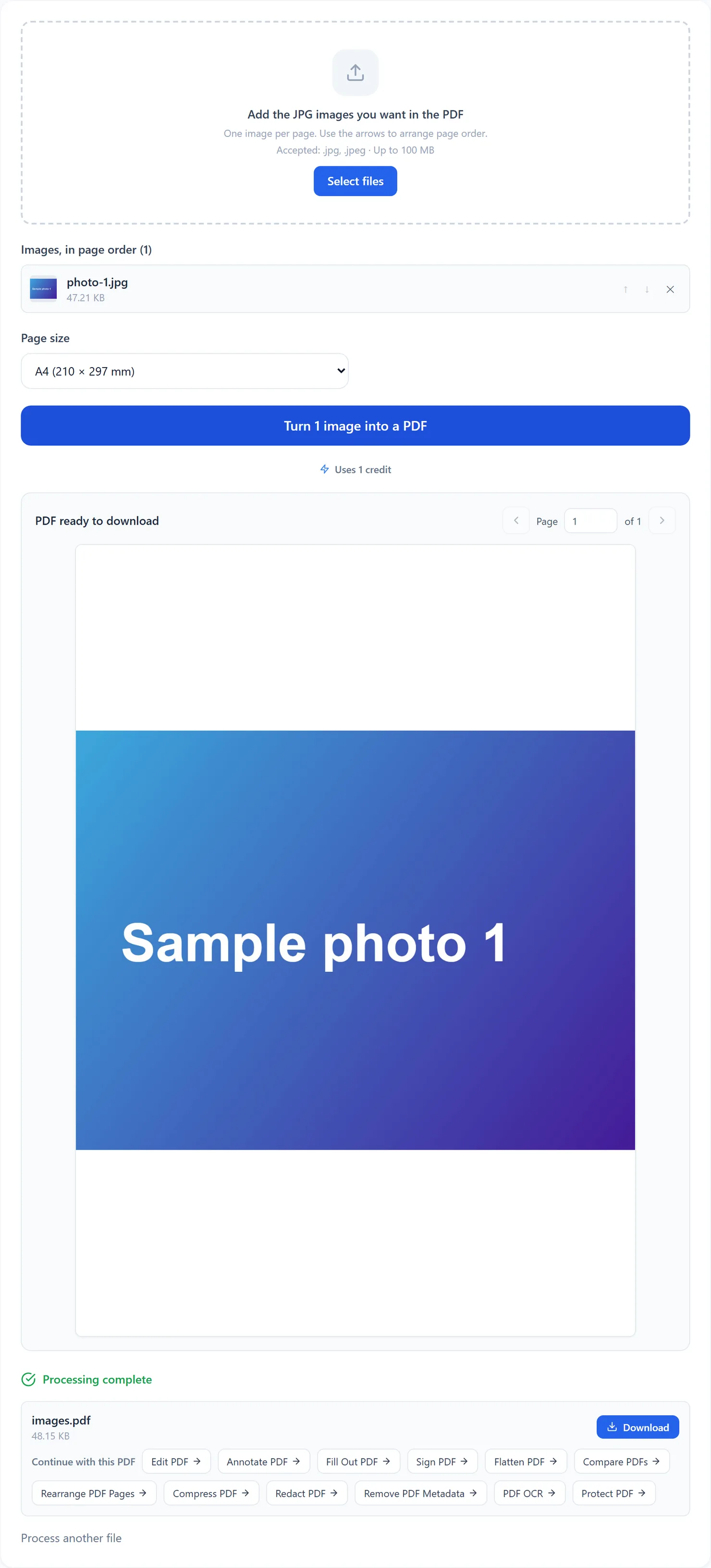
The PDF is ready to download.
Credits: converting JPG to PDF in your browser uses 1 credit, which your free daily credits cover. You get 10 free credits a day, or 25 with a free account.
One combined document named images.pdf
Each uploaded image becomes one page, in the order shown on screen. The download is named images.pdf. Convert one image at a time if you need separate PDF files.
JPG to PDF or Images to PDF
Both tools share page size, ordering and result-preview controls. JPG to PDF accepts only JPG images. Use Images to PDF when you want to combine different image formats.
Tips
- Review the page order. Use the arrows to arrange images before converting.
- Check the page count after converting a large batch. Each JPG becomes one page, so the page count should match the number of files you added.
- Shrink the result if needed. Large or many photos can make a big PDF; Compress PDF reduces the file size afterward.