PDF Tools
PNG to PDF turns your PNG images, such as screenshots, diagrams or graphics, into a PDF document, one image per page. It is a quick way to send a single screenshot as a PDF, or to combine several PNGs into one file.
What you need
- One or more PNG files, up to 100 MB each.
- The page dimensions you want: A4, US Letter or Match each image. You can arrange the images after uploading.
How to convert PNG to PDF, step by step
- Open PNG to PDF and select Select files, or drag your PNG files onto the upload area.
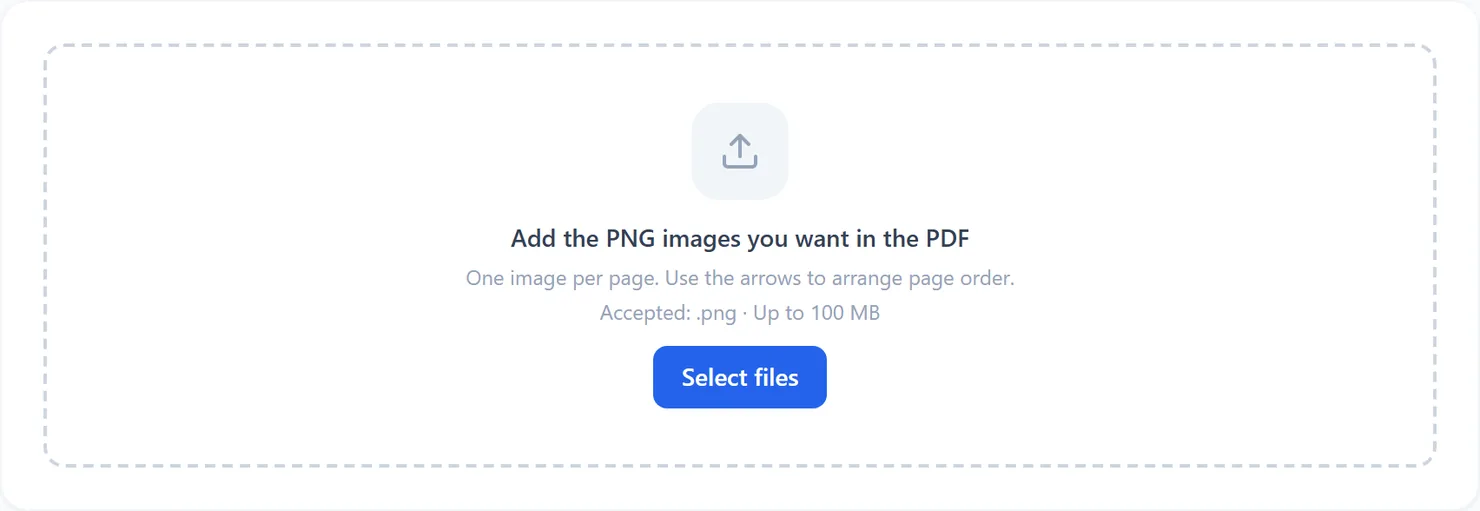
The PNG to PDF tool, ready for your files. - Arrange the images and choose Page size. Use the up and down arrows to change the order, add more images or remove an image.
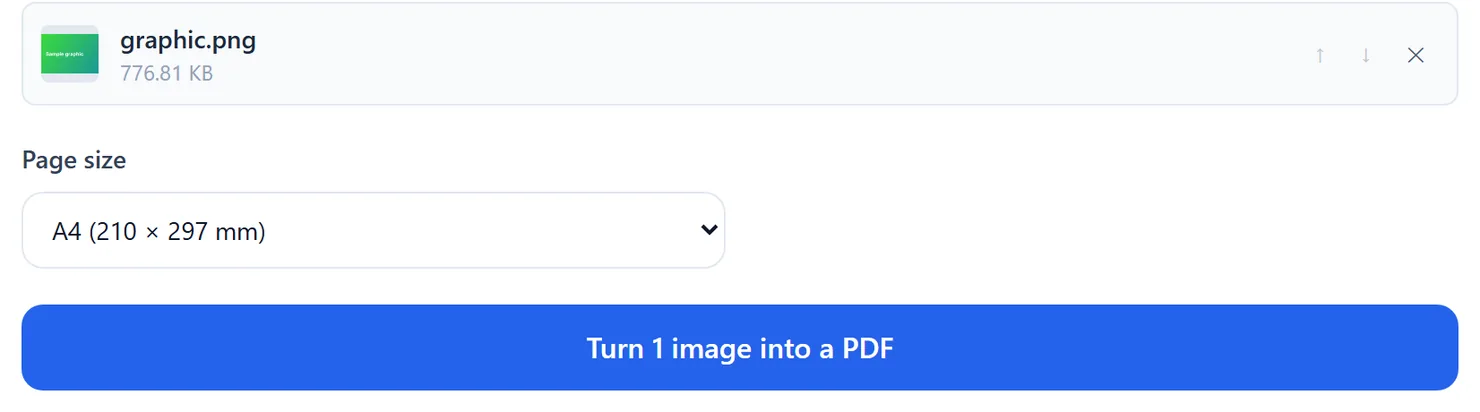
A PNG file added and ready to convert. - Select Turn images into a PDF. The button shows how many images will become pages in your document.
- Review the finished PDF preview, then download. Check the page order and dimensions before selecting Download.
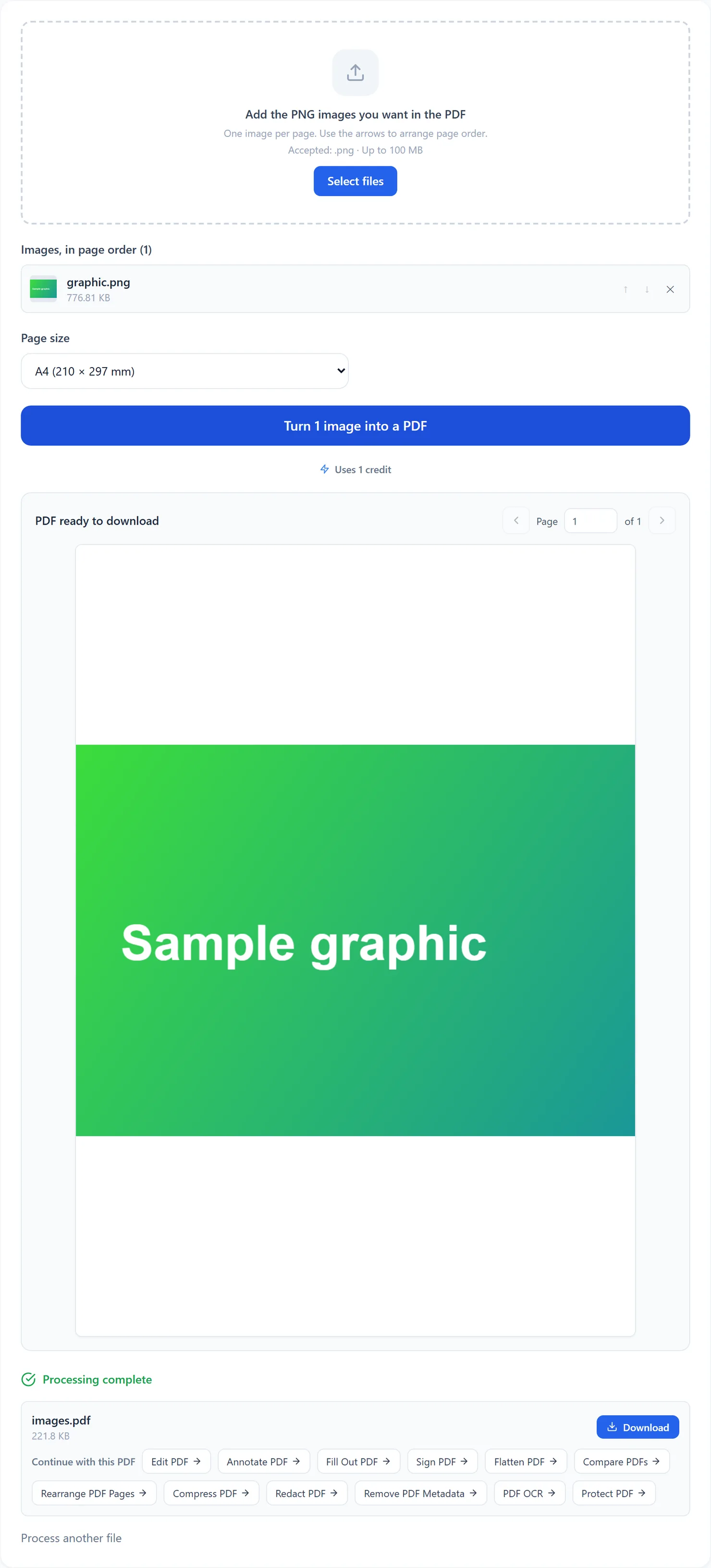
The PDF is ready to download.
Credits: converting PNG to PDF in your browser uses 1 credit, which your free daily credits cover. You get 10 free credits a day, or 25 with a free account.
What happens to transparent areas
The finished PDF page is white. A transparent or partly transparent area in your PNG will look the same as it does when you view the PNG file on a plain white background: it is not cut out or highlighted, it simply shows white. This matters most for logos or graphics designed to sit on a colored background: check the result and, if needed, place the PNG on its intended background color before converting.
One combined document named images.pdf
Each uploaded image becomes one page, in the order shown on screen. The download is named images.pdf. Convert one image at a time if you need separate PDF files.
PNG to PDF or Images to PDF
Both tools share page size, ordering and result-preview controls. PNG to PDF accepts only PNG images. Use Images to PDF when you want to combine different image formats.
Tips
- Review the page order. Use the arrows to arrange images before converting.
- Flatten transparent PNGs first if the transparent area needs to match a background other than white.
- Compress large batches. Screenshots and graphics can add up in file size; Compress PDF shrinks the result afterward.