PDF Tools
PDF to Images turns each page of a PDF into its own picture file, so you can drop a page into a slide deck, a chat message, or anywhere else that only accepts images. Choose JPG or PNG and a resolution, then download the pages one at a time or together as a ZIP.
What you need
- One PDF file, up to 100 MB.
- A choice of format: JPG for smaller files and photos, PNG for sharper text and graphics.
How to convert a PDF to images, step by step
- Open PDF to Images and select the PDF you want to convert.
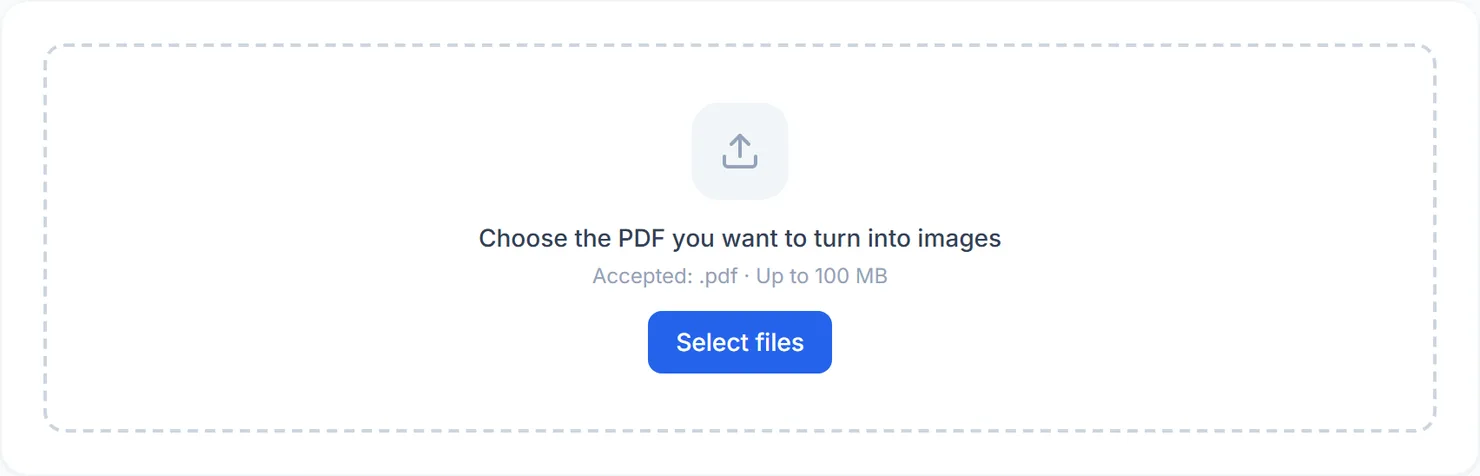
The PDF to Images tool, ready for a file. - Choose the format and resolution. Pick JPG or PNG, and a resolution from 96 DPI (smallest) up to 220 DPI (sharpest).
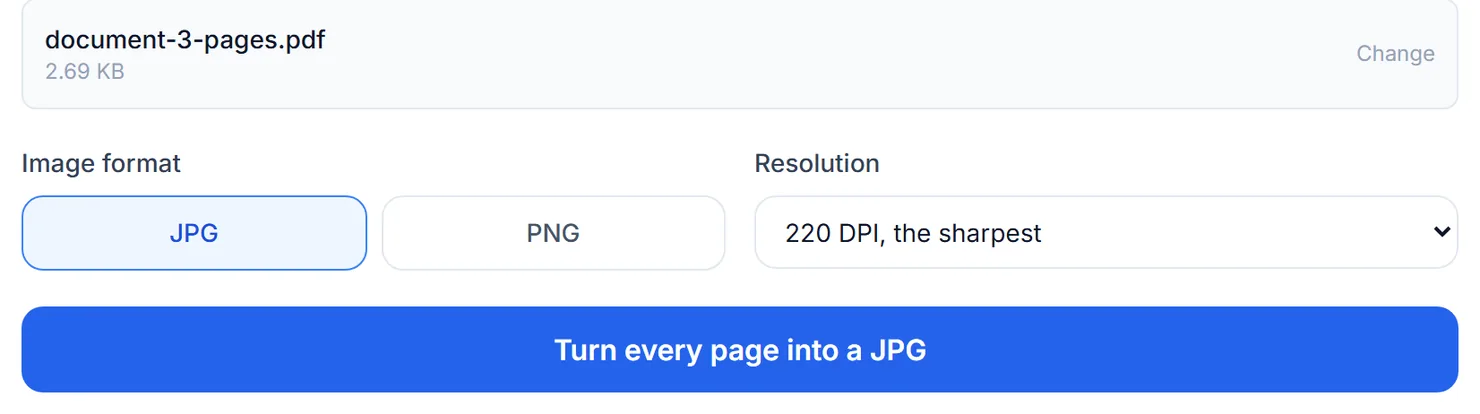
A PDF added, with the format and resolution choices below it. - Select the convert button. It reads Turn every page into a JPG or Turn every page into a PNG, depending on your format choice.
- Download the pages. Each page appears with its own Download button, and a Download all as a ZIP button appears if there is more than one page.
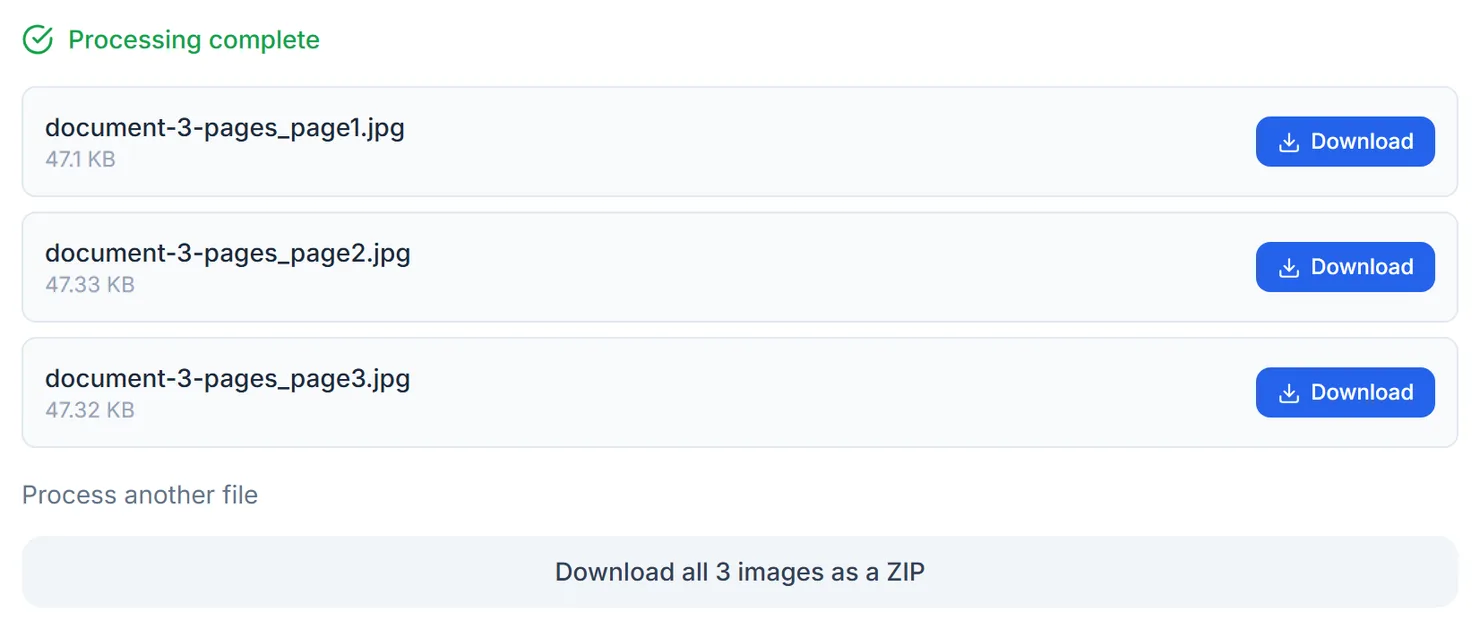
Every page is ready to download, one at a time or as a ZIP.
Credits: converting a PDF to images in your browser uses 1 credit, which your free daily credits cover. You get 10 free credits a day, or 25 with a free account. Signing in adds advanced server mode for this tool, which is worth using for a very large PDF.
About the resolution setting
The Resolution setting is exact: 96, 150 or 220 DPI is what you get. A US Letter page (8.5 by 11 inches) comes out at 816 by 1056 pixels at 96 DPI, 1275 by 1650 at 150 DPI, and 1870 by 2420 at 220 DPI. Use 96 DPI for the screen, 150 DPI for most everyday uses, and 220 DPI when you need sharp detail or plan to print.
PDF to Images, PDF to JPG and PDF to PNG
These three tools are the same page rendering feature with a different starting format. Open PDF to JPG and JPG is preselected; open PDF to PNG and PNG is preselected. Either way, the format buttons on the page still let you pick the other format before you convert, so use whichever address is easier to remember and switch the format if you change your mind.
Tips
- Use PNG for screenshots of text or diagrams, where sharp edges matter more than file size.
- Use JPG for photos scanned or embedded in the PDF, where a smaller file matters more than pixel-perfect edges.
- Need the embedded pictures instead of whole pages? Extract PDF Images pulls out the images that are inside the PDF, rather than rendering the pages themselves.