PDF Tools
Extract PDF Images pulls the pictures embedded inside a PDF, such as photos, logos or scanned figures placed on a page, out into their own files. It is the tool to reach for when you need the actual picture, not a screenshot of the page it sits on.
What you need
- One PDF file, up to 100 MB, with at least one picture embedded on a page.
How to extract images from a PDF, step by step
- Open Extract PDF Images and select the PDF you want to pull images from.
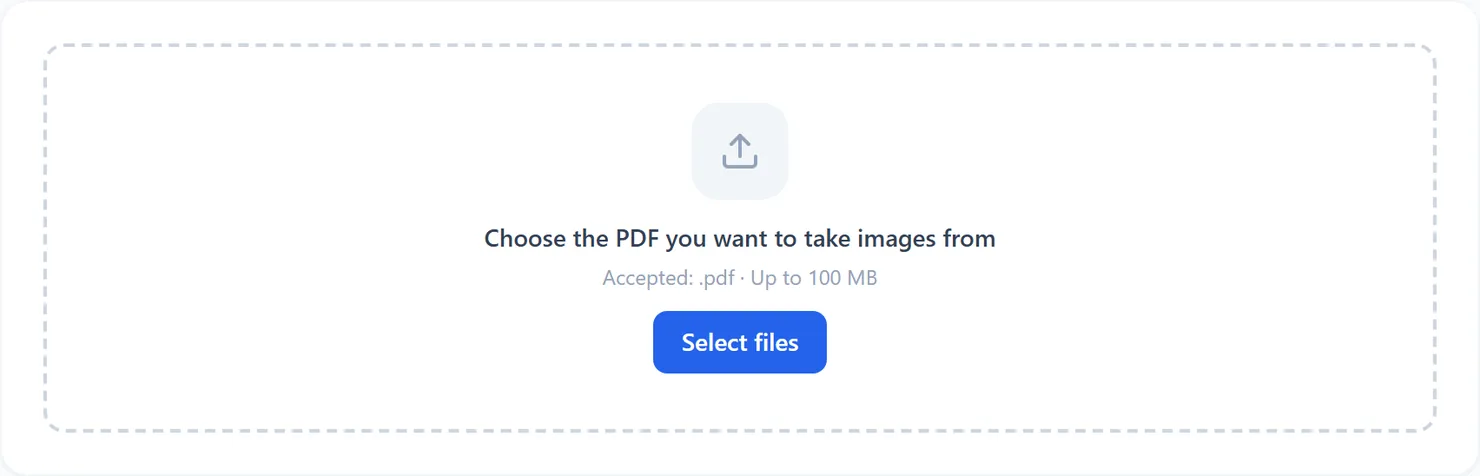
The Extract PDF Images tool, ready for a file. - Choose where this runs. Standard extracts the images in your browser. Advanced uses advanced server mode, which is included with a free account.
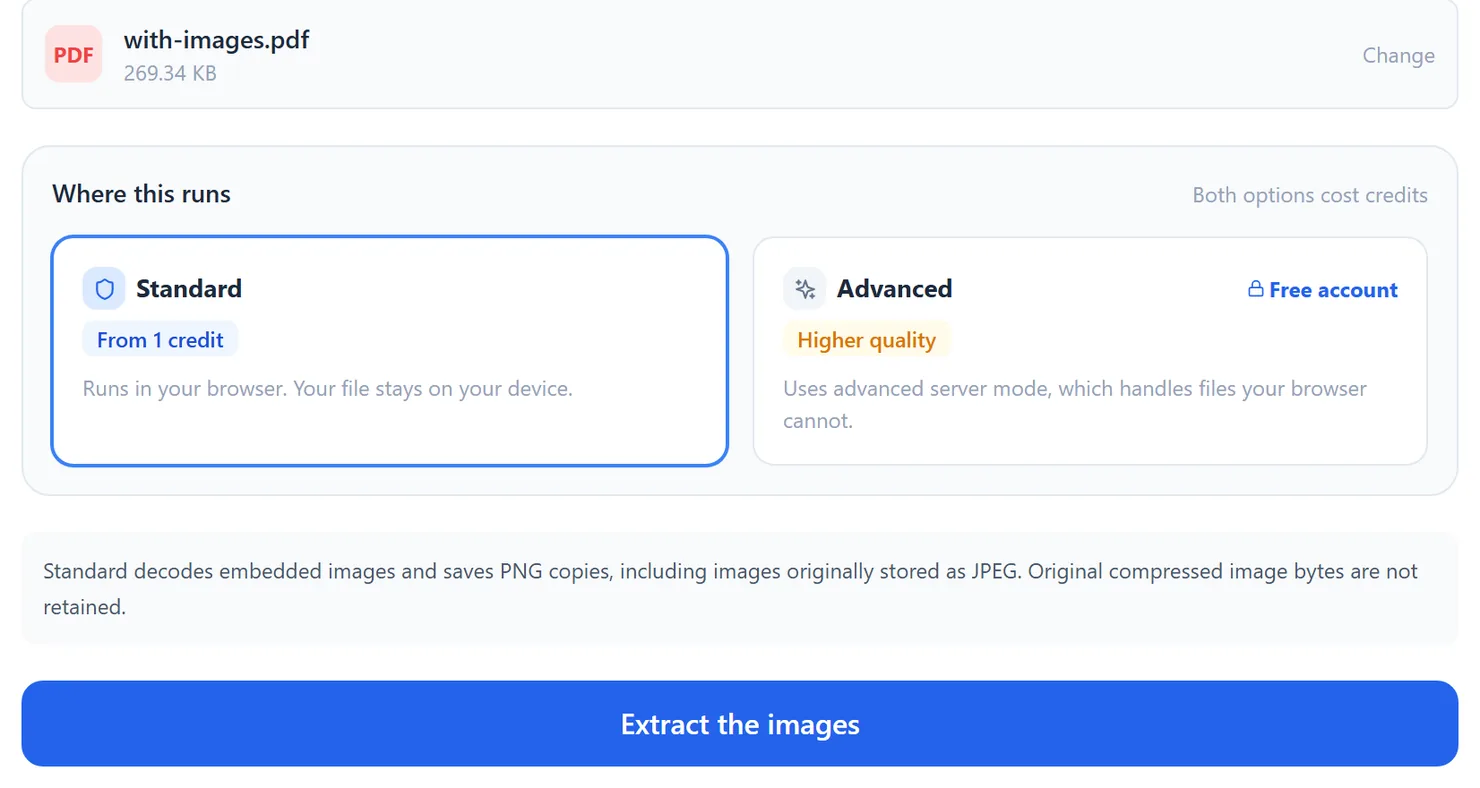
A PDF added, with the Standard or Advanced choice below it. - Select Extract the images.
- Download the images. Each one gets its own Download button, and a ZIP option appears when there is more than one.
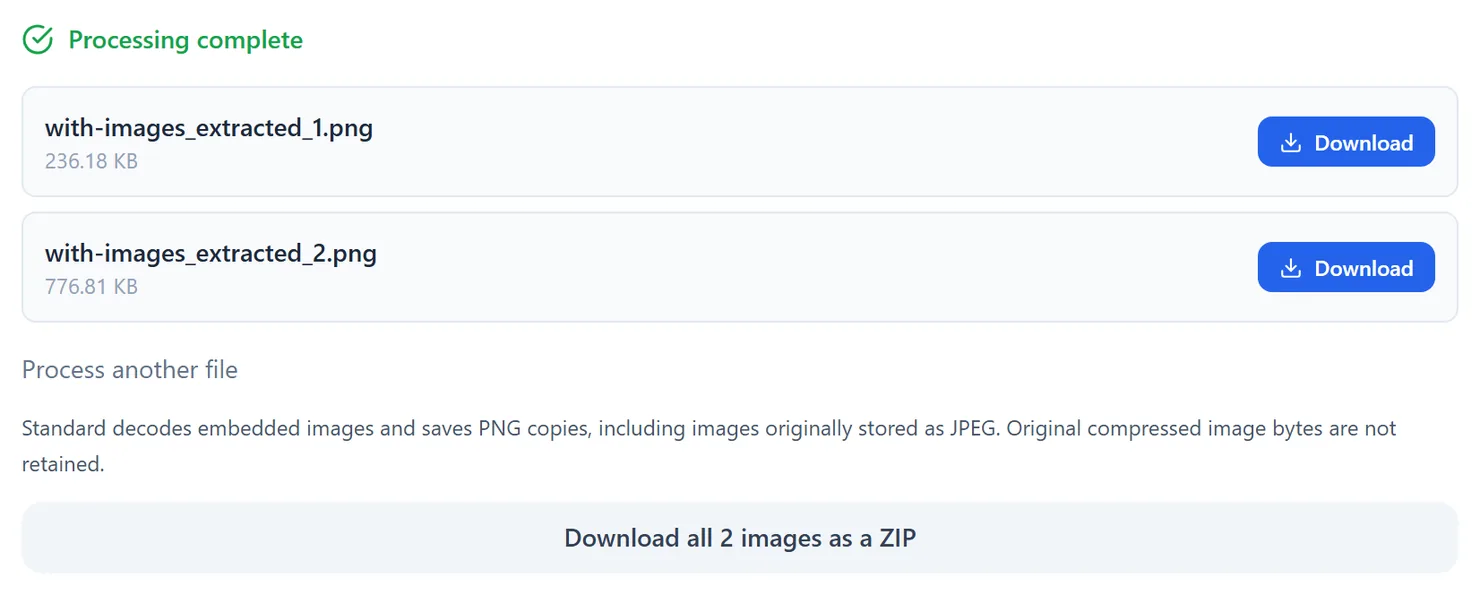
The extracted images are ready to download, one at a time or as a ZIP.
Credits: extracting images in Standard mode uses 1 credit, which your free daily credits cover. Advanced server mode uses 2 credits and needs a free account. You get 10 free credits a day, or 25 with a free account.
Standard or advanced server mode
Choosing Advanced while you are signed out does not switch the mode; it explains that advanced server mode needs a free account and offers to create one, so you never upload a file for a run you cannot finish.
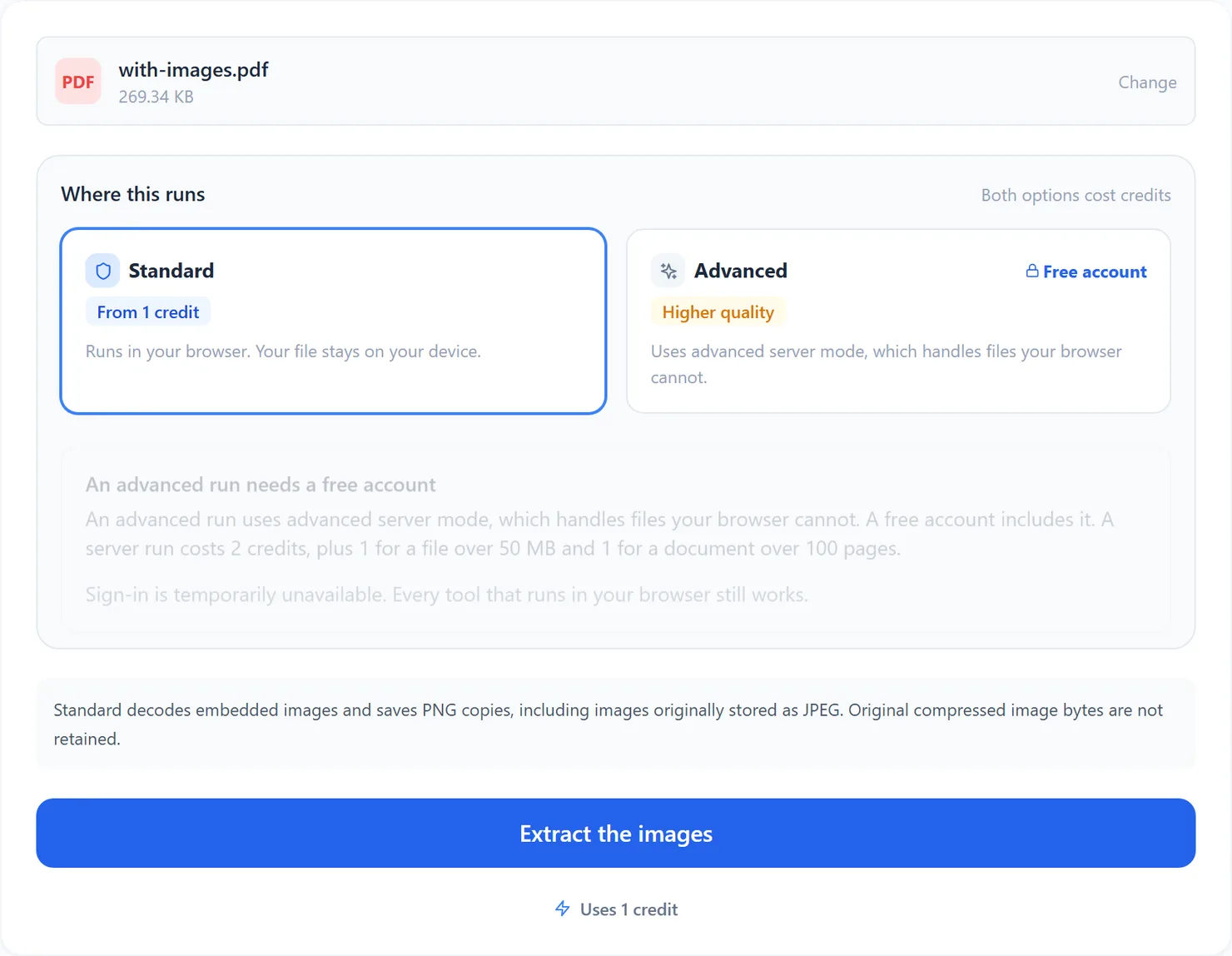
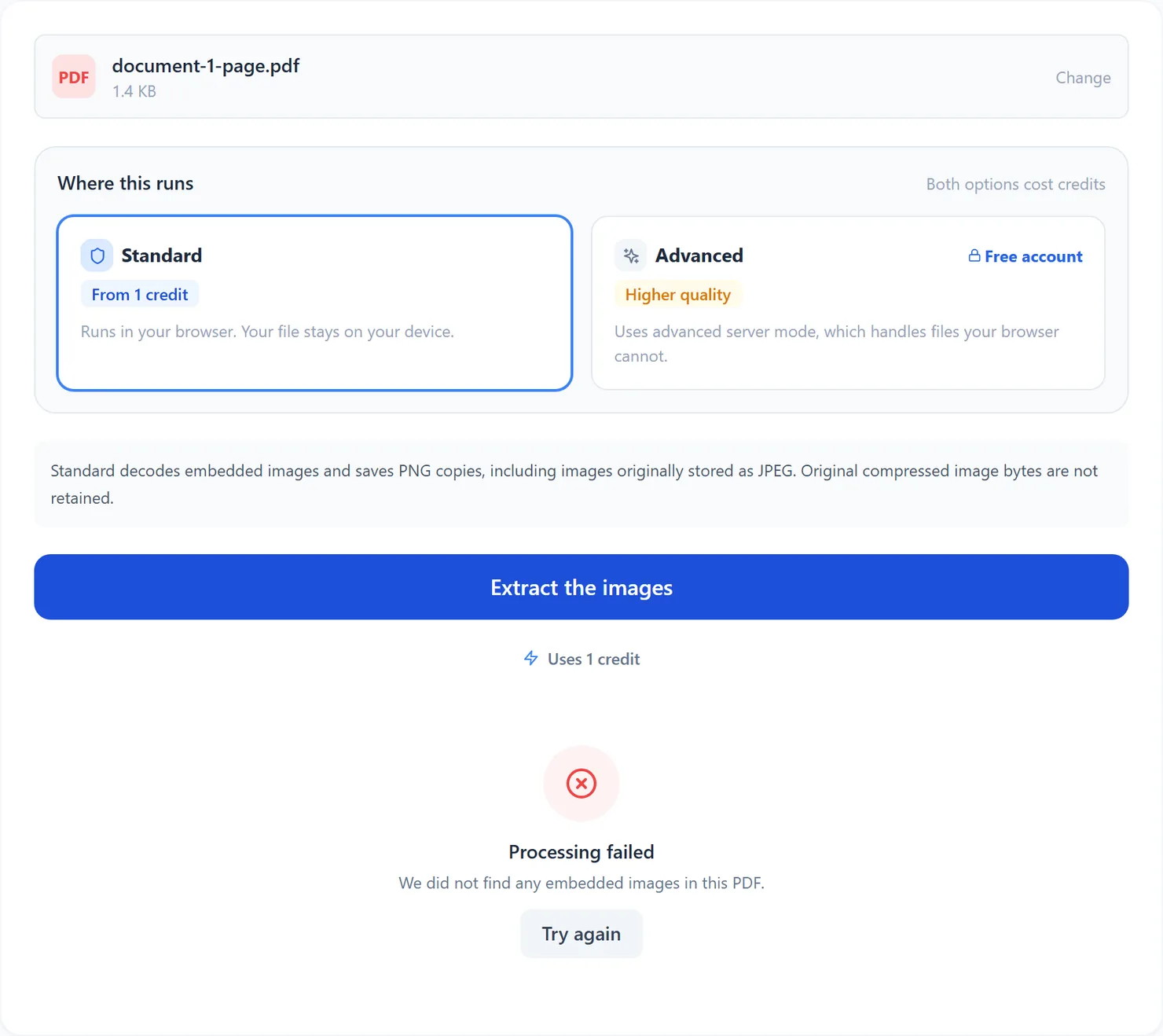
When there is nothing to extract
Not every PDF has embedded pictures. A document made only of typed text has none, and the tool says so directly instead of returning an empty result.
Tips
- Use advanced server mode if you need the original JPEG. Standard mode always hands back PNG files.
- Check the count. If a PDF has fewer extracted images than you expected, some pictures may be flattened into the page rather than embedded separately.
- Shrink a photo-heavy PDF instead of extracting everything? Try Compress PDF.