PDF Tools
PDF Converter brings together the most common file conversions in one place, so you do not have to remember the name of the exact tool you need. Open it, pick the conversion, and it takes you straight to that tool's page.
What you need
- The file you are converting from, up to 100 MB.
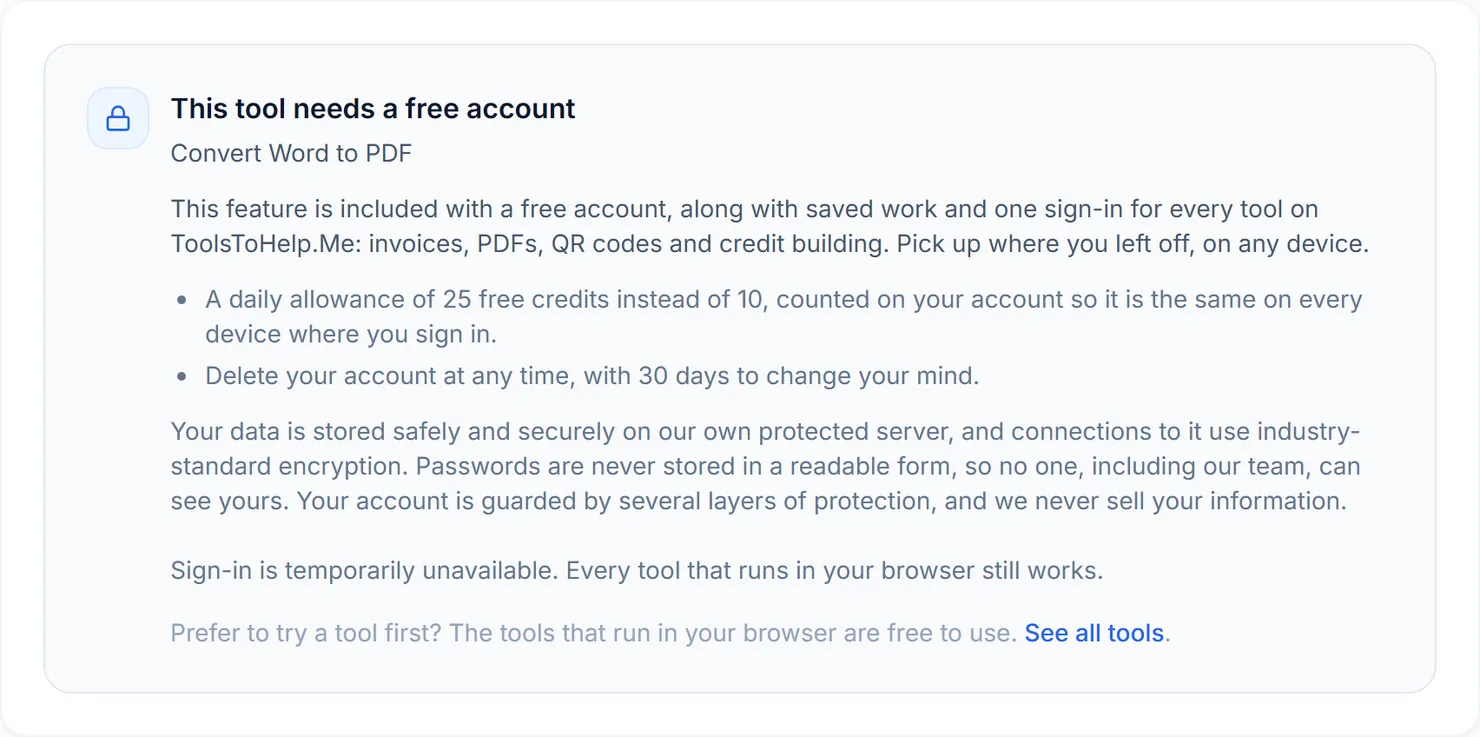
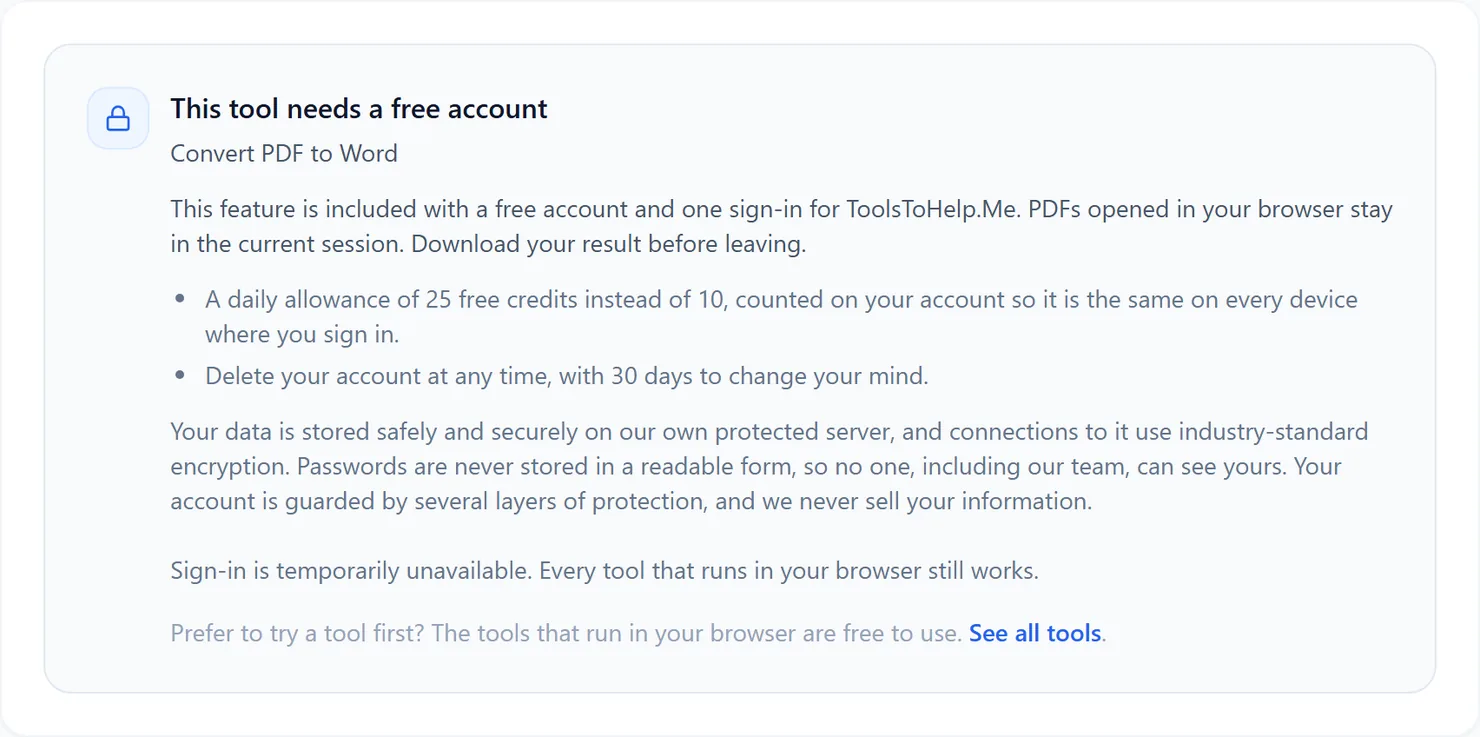
- A free account, if your conversion involves a Word, Excel or PowerPoint file. Converting between PDF and JPG or PNG, or images into a PDF, needs nothing beyond the file itself.
How to use PDF Converter, step by step
- Open PDF Converter. You will see eight tiles: PDF to Word, PDF to JPG, PDF to Excel, PDF to PNG, Word to PDF, Excel to PDF, Images to PDF and PowerPoint to PDF.
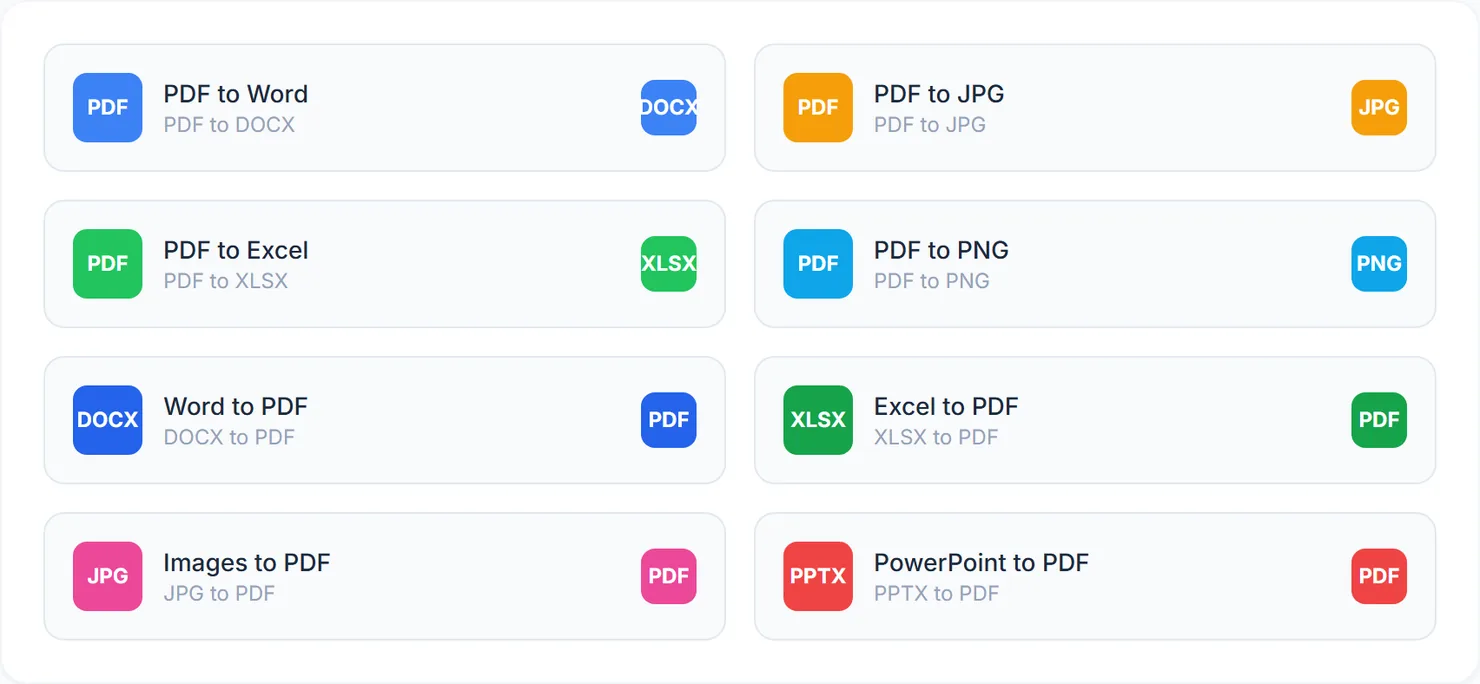
The eight conversions PDF Converter links to. - Select the tile for your conversion. It opens that tool's own page with its own upload area and options.
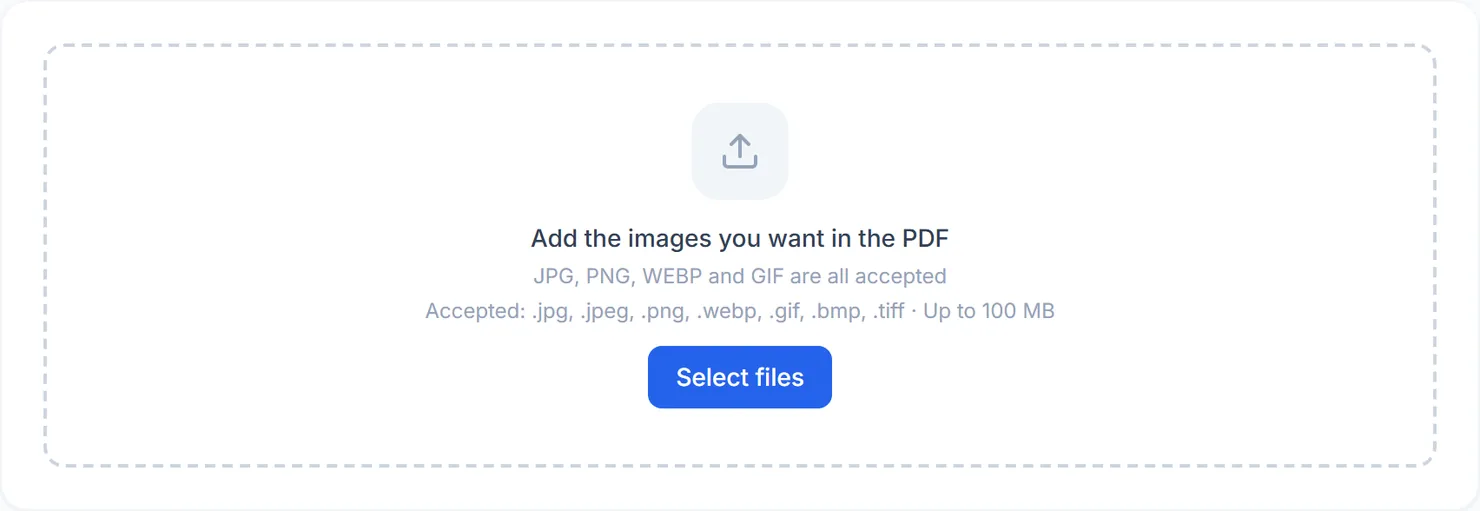
- For PDF to JPG, PDF to PNG or Images to PDF, add your file and convert it right in your browser. No account is needed for these three.
- For PDF to Word, PDF to Excel, PDF to PowerPoint, Word to PDF, Excel to PDF or PowerPoint to PDF, sign in or create a free account first. These five always run in advanced server mode, because they read or write real Office file formats.
- Convert and download. Each tool shows its own Processing complete message with a Download button when the file is ready.
Credits: the three browser conversions use 1 credit, which your free daily credits cover. The five Office conversions use advanced server mode, which costs 2 credits and needs a free account. You get 10 free credits a day, or 25 with a free account.
Which conversion do you need
If you already know the exact conversion, it is often quicker to go straight to that tool's own guide: Word to PDF, Excel to PDF, PowerPoint to PDF, PDF to Word, PDF to Excel, PDF to PowerPoint or Images to PDF. PDF Converter is there for the times you are not sure which one to pick.
Tips
- Check the format first. A .doc or .docx file needs Word to PDF, not PDF Converter's image tiles; the tile names tell you the exact formats each one takes.
- Bookmark the tool you use most. If you convert the same file type every week, the direct tool page saves a click over coming back through PDF Converter.
- Keep the original. Conversion between formats, especially into or out of Word, Excel or PowerPoint, can simplify complex layouts. Keep your source file until you have checked the result.