PDF Tools
PDF to JPG turns each page of a PDF into its own JPG photo, ready to drop into a chat, a slide, or anywhere that only takes an image file. It runs in your browser and opens with JPG already chosen.
What you need
- One PDF file, up to 100 MB.
How to convert a PDF to JPG, step by step
- Open PDF to JPG and select the PDF you want to convert.
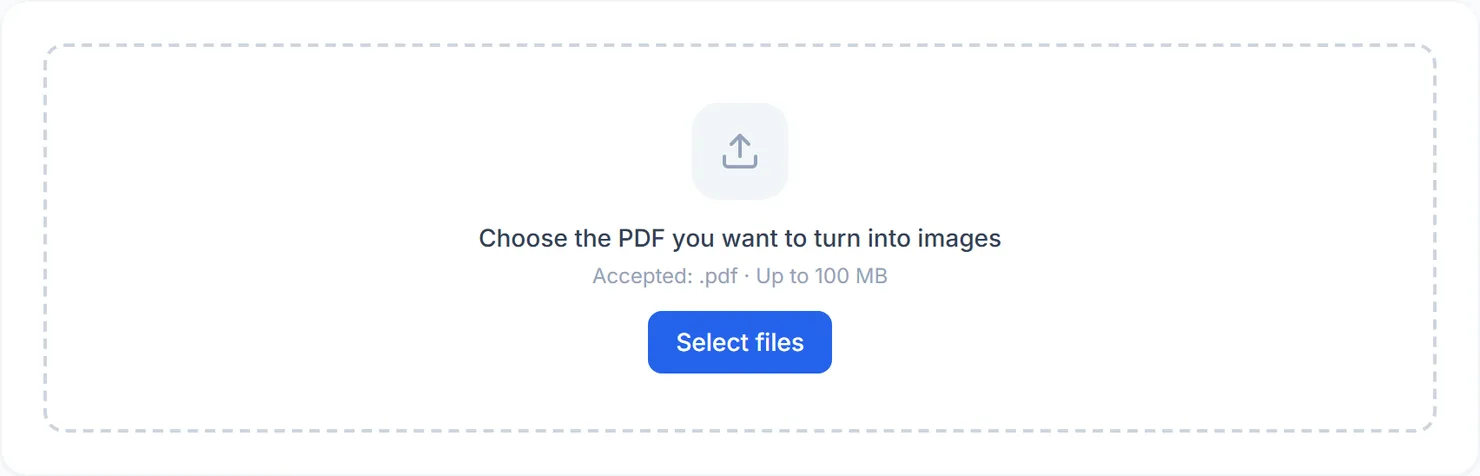
The PDF to JPG tool, ready for a file. - Check the format and resolution. JPG is already selected; choose a resolution from 96 DPI up to 220 DPI.
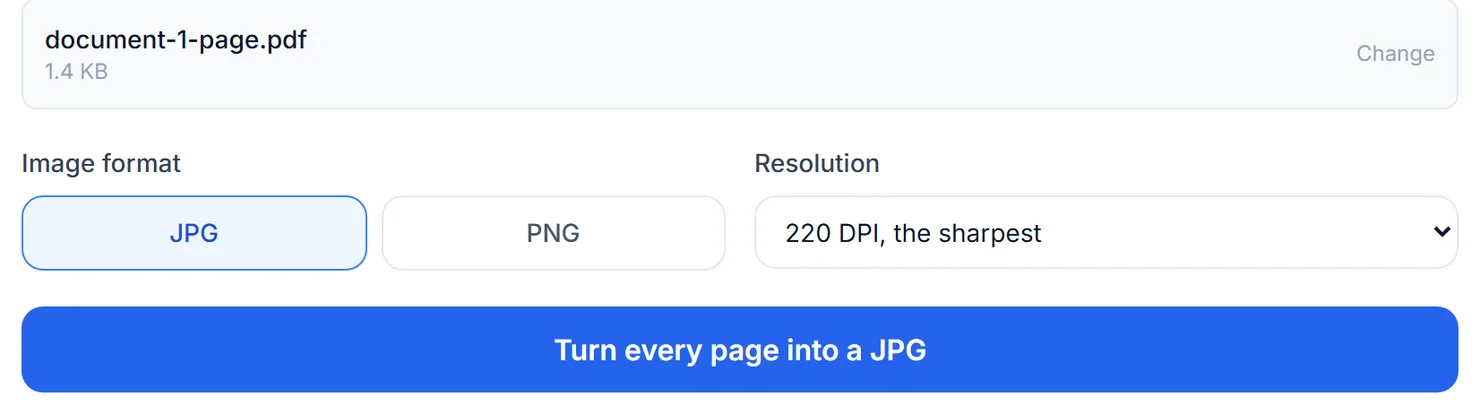
A PDF added. JPG is preselected, and PNG is still one click away if you change your mind. - Select Turn every page into a JPG.
- Download the pages. Each page has its own Download button, and a ZIP option appears when there is more than one page.

Every page is ready as a JPG.
Credits: converting a PDF to JPG in your browser uses 1 credit, which your free daily credits cover. You get 10 free credits a day, or 25 with a free account.
PDF to JPG is the same tool as PDF to Images
PDF to JPG, PDF to PNG and PDF to Images share one page rendering feature. Opening this page just starts you with JPG selected; the PNG button is still there if you want it. Use whichever address you remember, and switch the format on screen if you need the other one.
About the resolution setting
The resolution you pick is the resolution you get. At 96 DPI a US Letter page is 816 by 1056 pixels, at 150 DPI it is 1275 by 1650, and at 220 DPI it is 1870 by 2420. Choose 96 DPI for the screen, 150 DPI for most uses, and 220 DPI for print or fine detail.
Tips
- Use a higher resolution for text-heavy pages you plan to zoom into.
- Use a lower resolution for quick previews you are attaching to an email or a message.
- Need the pictures inside the PDF, not the whole page? Use Extract PDF Images instead.