PDF Tools
Create Job Application builds a formatted resume or CV as a PDF: your details, a summary, your work experience, your education and your skills, laid out and ready to send. It downloads straight away, with no account required.
What you need
- Your contact details: name, job title, email address, phone, location and a website or profile link.
- Your work history, most recent first.
- Your education and a list of your skills.
How to create a resume, step by step
- Open Create Job Application and fill in your name and contact details, then a short professional summary. The download button stays disabled until you enter a name.
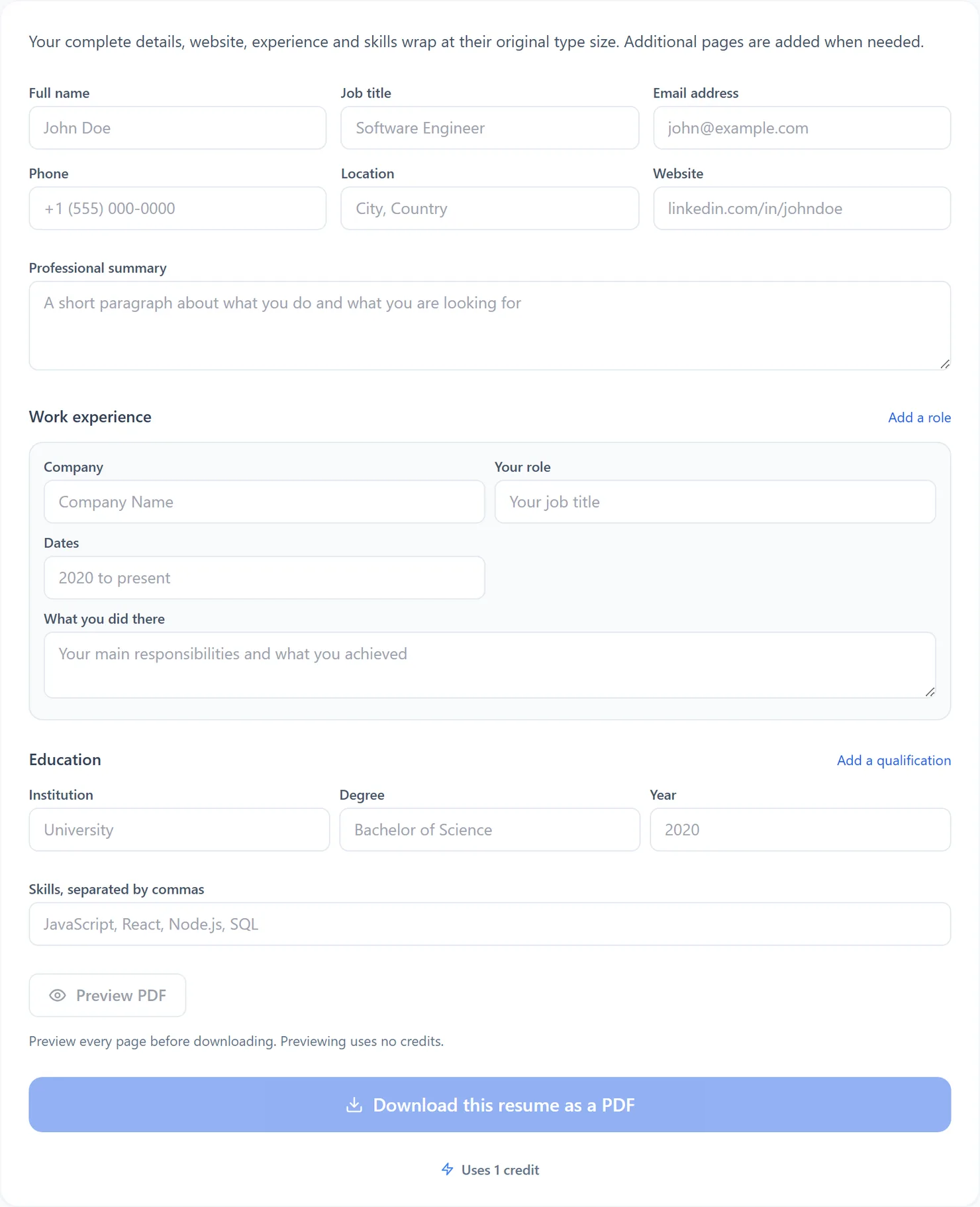
Create Job Application with its default, empty fields. - Add your work experience and education. Select Add a role or Add a qualification for each entry beyond the first, and list your skills separated by commas.
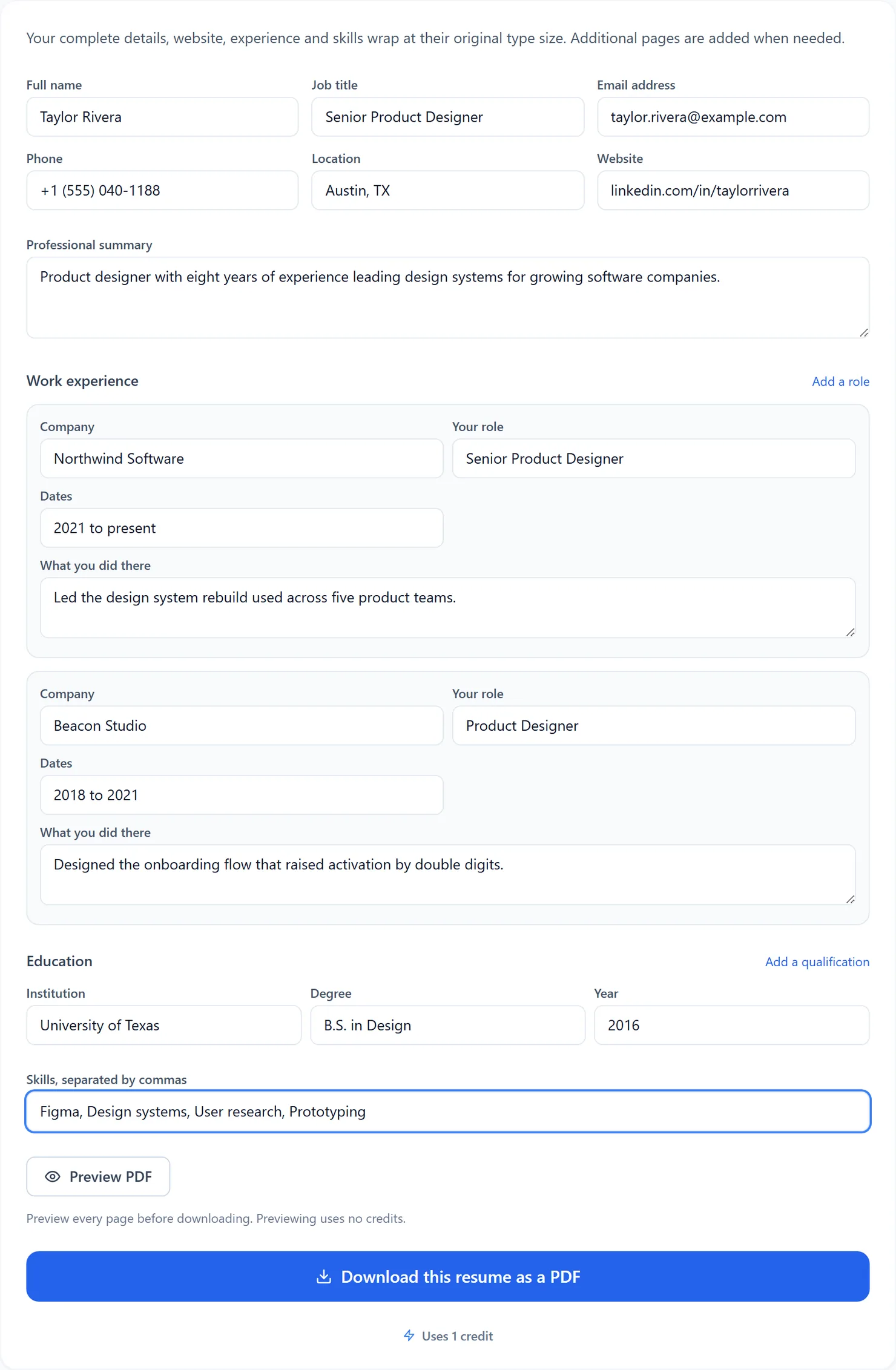
Two work experience entries, ready to download. - Select Preview PDF to review every page without using credits. Changing a field clears the current preview; select Preview PDF again to check the new version.
- Select Download this resume as a PDF to save the finished document. When a current preview is open, the download uses that same prepared PDF.

Select Download to save the finished resume as a PDF.
Credits: downloading a resume uses 1 credit, which your free daily credits cover. You get 10 free credits a day, or 25 with a free account.
What the fields do
- Name, title and contact details. Printed in the header, including the entered website. Long details wrap without losing their final words.
- Summary. A short paragraph, wrapped automatically onto as many lines as it needs.
- Work experience and education. Add entries as needed. Any row containing entered details is printed, including a role without an employer or a degree without an institution.
- Skills. A comma-separated list under its own heading, wrapping across as many lines and pages as needed.
Tips for a clean resume
- Keep each description focused. Long text wraps and nothing is cut off, but one or two clear sentences per role read best.
- Put your strongest role first. Entries print in the order you add them, so add your most relevant experience first.
- Sending this alongside an invoice or application form? Create Invoice builds a complete invoice PDF with the same preview and continuation approach.
- Need a signature on a form instead? Use Sign PDF.