PDF Tools
Webpage to PDF turns a public web address into a PDF, so you can save an article, a receipt page or a piece of documentation exactly as it read on a given day, without it changing or disappearing later.
What you need
- A free ToolsToHelp.Me account. Webpage to PDF always uses advanced server mode, which is included with a free account.
- The address of a public webpage. Pages that need you to sign in will not convert correctly, since the tool opens them as a visitor with no account.
How to turn a webpage into a PDF, step by step
- Open Webpage to PDF. Signed out, a panel explains that this feature needs a free account, in place of the address field.
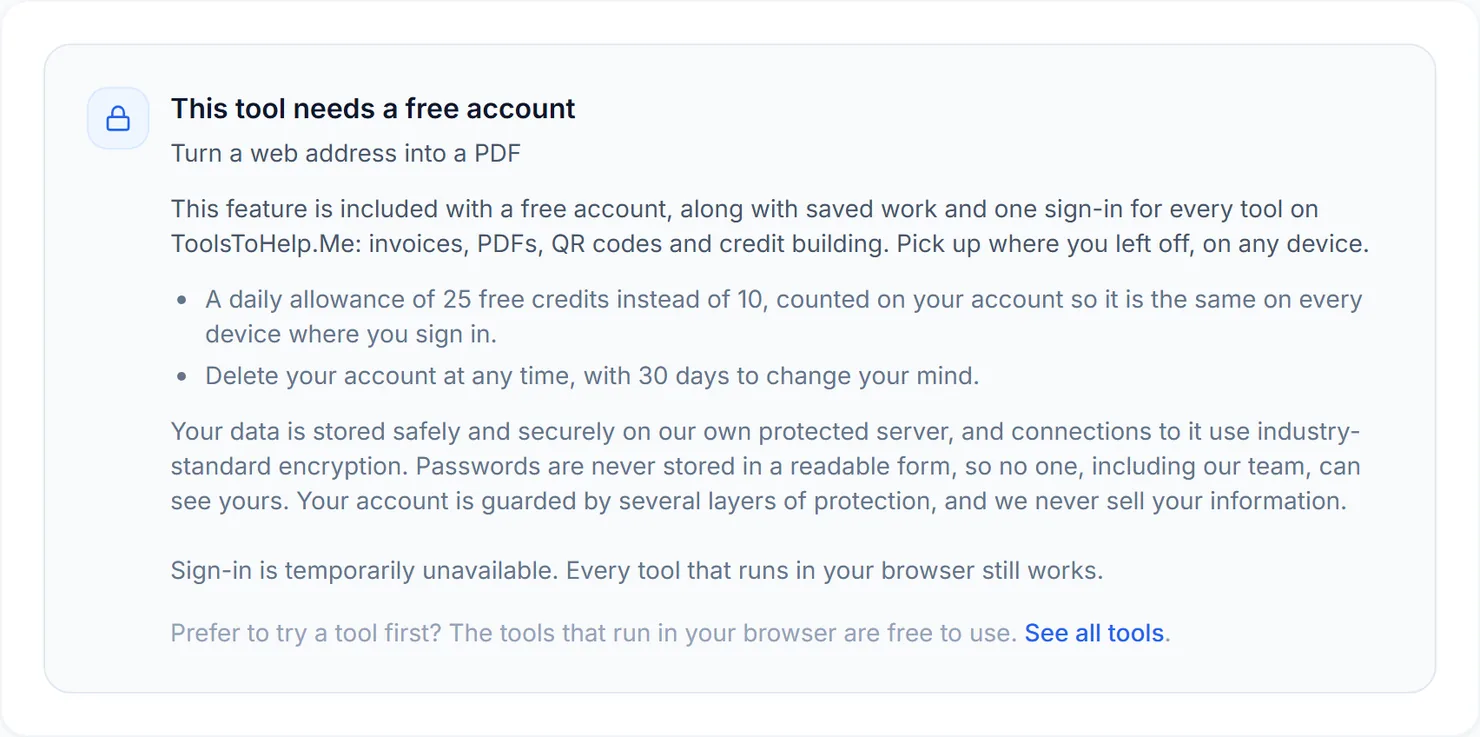
Signed out, Webpage to PDF explains that this feature needs a free account. - Sign in or create your free account, then return to Webpage to PDF to see the address field.
- Enter the web address. You can type it with or without "https://".
- Choose a page size (A4, US Letter or Legal) and an orientation (portrait or landscape).
- Select "Turn this page into a PDF". The credit cost is shown below the button.
- Download the result. Select Download once the PDF is ready.
Credits: Webpage to PDF always uses advanced server mode, which costs 2 credits. You get 10 free credits a day, or 25 with a free account.
Why this needs a free account
Opening a live webpage and laying it out for print is a server job, not something a browser can safely do to another site on your behalf. Webpage to PDF uses advanced server mode for that reason, and it comes with a free account, alongside the rest of ToolsToHelp.Me under one sign-in.
Tips for a clean result
- Use the page's own print view if it has one. Many sites offer a "print" or "reader" version that converts more cleanly than the full page with its navigation and ads.
- Try landscape for wide content, such as a table-heavy page or a page designed for a wide screen.
- Keep the PDF small enough to attach. If it converts larger than expected, run it through Compress PDF.