PDF Tools
A PDF can stop opening properly for a few reasons: an interrupted download, a crash partway through saving, or a bug in whatever created it. Repair PDF tries to rebuild the file's structure so a normal PDF reader can open it again.
What you need
- One PDF file, up to 100 MB, that will not open properly or looks broken.
How to repair a PDF, step by step
- Open Repair PDF and choose the damaged file.

The Repair PDF tool, ready for a file. - Read how the repair works, then choose Standard or Advanced.
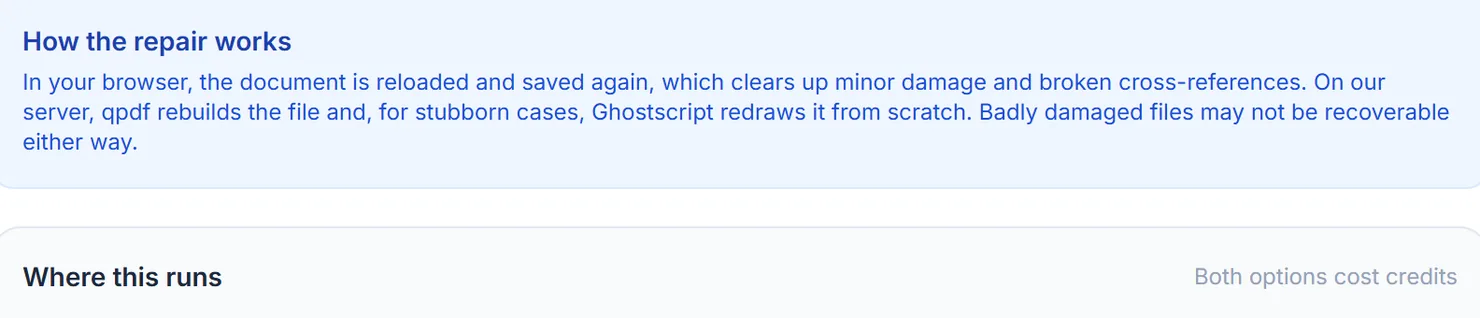
Standard reloads and re-saves the file in your browser. Advanced rebuilds files a browser cannot even open. - Select Repair PDF. On an ordinary file this finishes quickly.
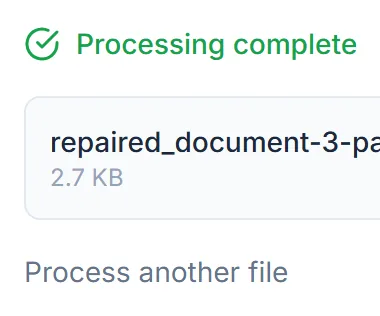
The repair finished on an undamaged file. Select Download to save the result. - If Standard cannot open the file, it says so plainly and points you to advanced server mode instead of leaving you guessing.

A badly damaged file: Standard cannot open it and explains that, rather than hanging.
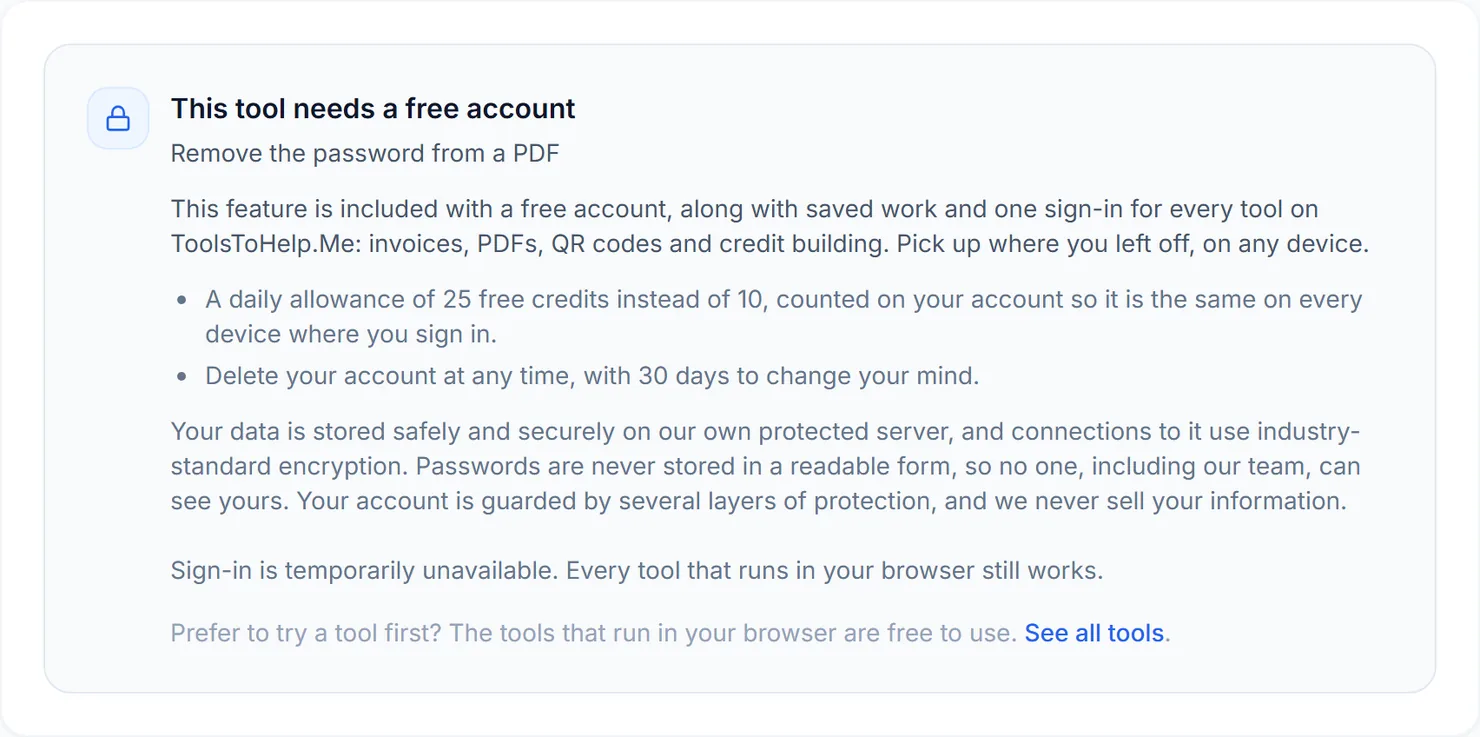
Credits: a Standard run uses 1 credit, which your free daily credits cover. Advanced server mode uses 2 credits and needs a free account. You get 10 free credits a day, or 25 with a free account.
Standard or advanced server mode
Standard reloads the file in your browser and saves it again, which clears up minor damage, such as small inconsistencies in how pages are cross-referenced. In testing, this worked correctly on an ordinary file and, just as importantly, failed clearly rather than hanging when we gave it a file truncated to about a quarter of its original bytes; the error pointed straight to advanced server mode as the next step.
Advanced server mode, included with a free account, rebuilds damaged cross-reference tables with qpdf, and for the most stubborn cases falls back to redrawing the file from scratch with Ghostscript. It can recover files a browser cannot even open, and it handles very large documents.
Tips for a stubborn file
- Try Standard first. It is free of any wait for an upload and handles ordinary damage well.
- Move to Advanced if Standard cannot open the file. A clear error rather than a silent failure is the sign to try it.
- Keep the original. If a repair does not fully recover the content you expected, hold on to the damaged file rather than deleting it. A different tool or a later attempt might do better.