PDF Tools
Advanced mode uses qpdf to linearize a PDF for Fast Web View, allowing supporting readers and web servers to load the first page before the full download finishes. Standard re-saves PDF structure with object streams. Standard does not create Fast Web View or purge unused content.
What you need
- One PDF file, up to 100 MB.
- A file meant for the web. This tool is most useful for a PDF you will link to or embed on a page, rather than one you only ever email or print.
How to optimize a PDF for the web, step by step
- Open Web Optimize PDF and choose the file you want to prepare.
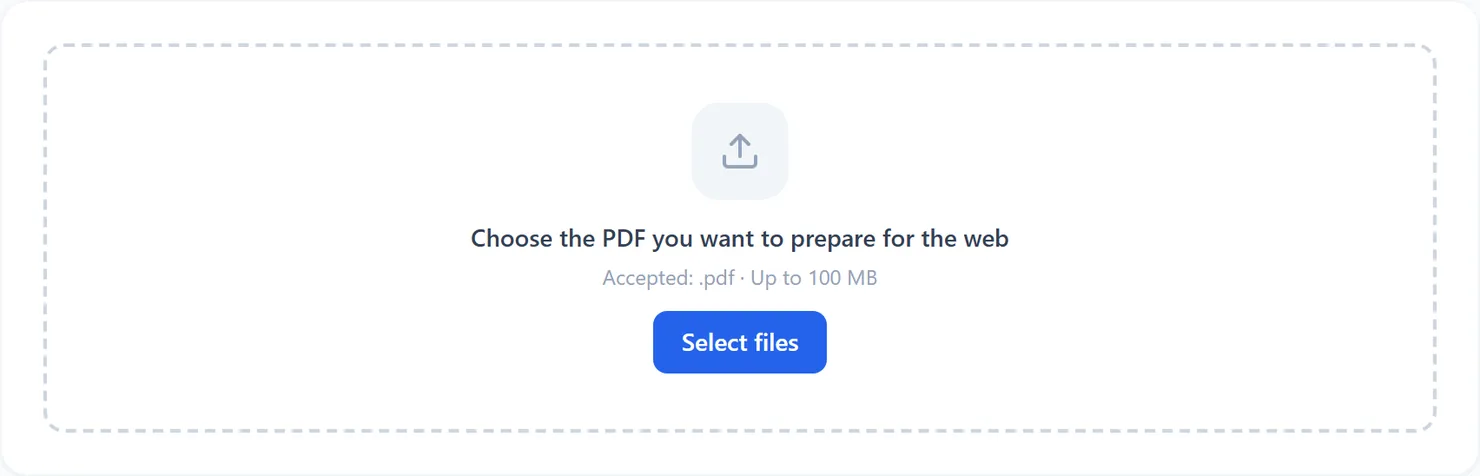
The Web Optimize PDF tool, ready for a file. - Read what each option does, then choose Standard or Advanced.
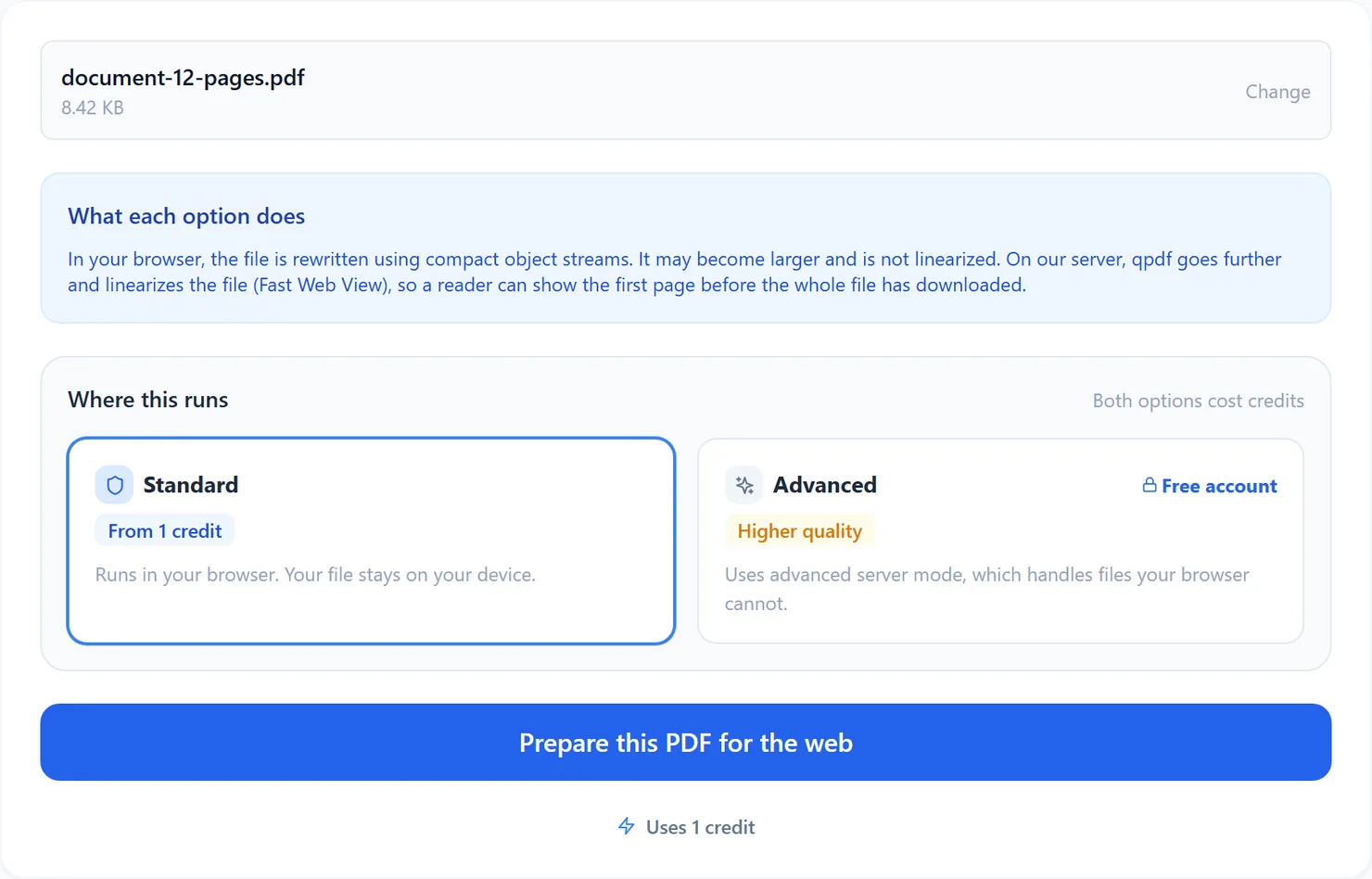
Standard compacts the file in your browser. Advanced uses advanced server mode for true linearization. - Select "Prepare this PDF for the web." The tool compacts the file and shows Processing complete.
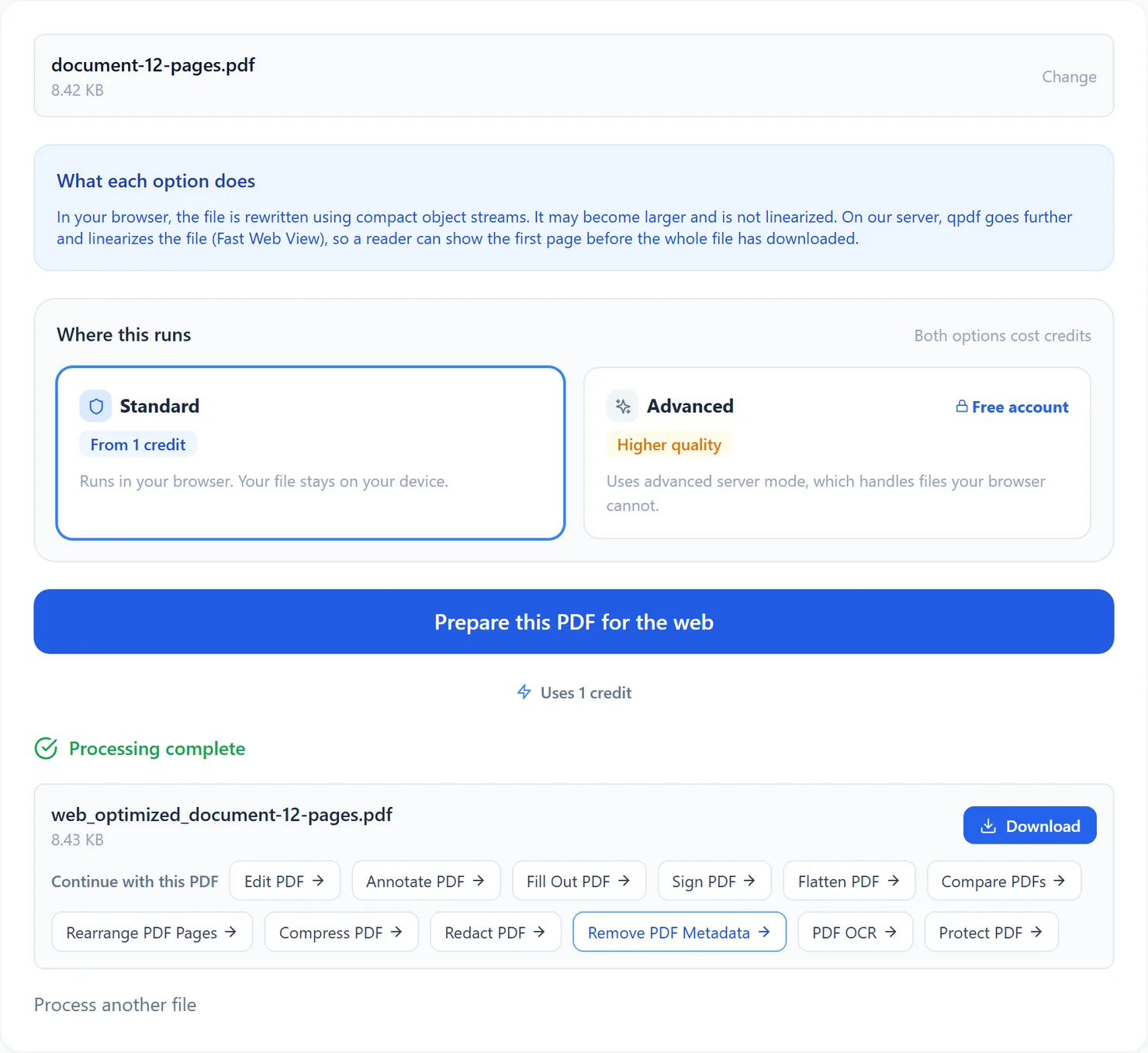
Standard optimizing finished. Select Download to save the file. - Download the result. Review the pages and interactive features before replacing your original file.
Credits: a Standard run uses 1 credit, which your free daily credits cover. Advanced server mode uses 2 credits and needs a free account. You get 10 free credits a day, or 25 with a free account.
Standard or advanced server mode
Standard re-saves the file using object streams, which group small internal objects together. This can make a file smaller or larger. It does not create Fast Web View, purge unused resources or securely remove document history. Compare file sizes and review the downloaded PDF before replacing your original.
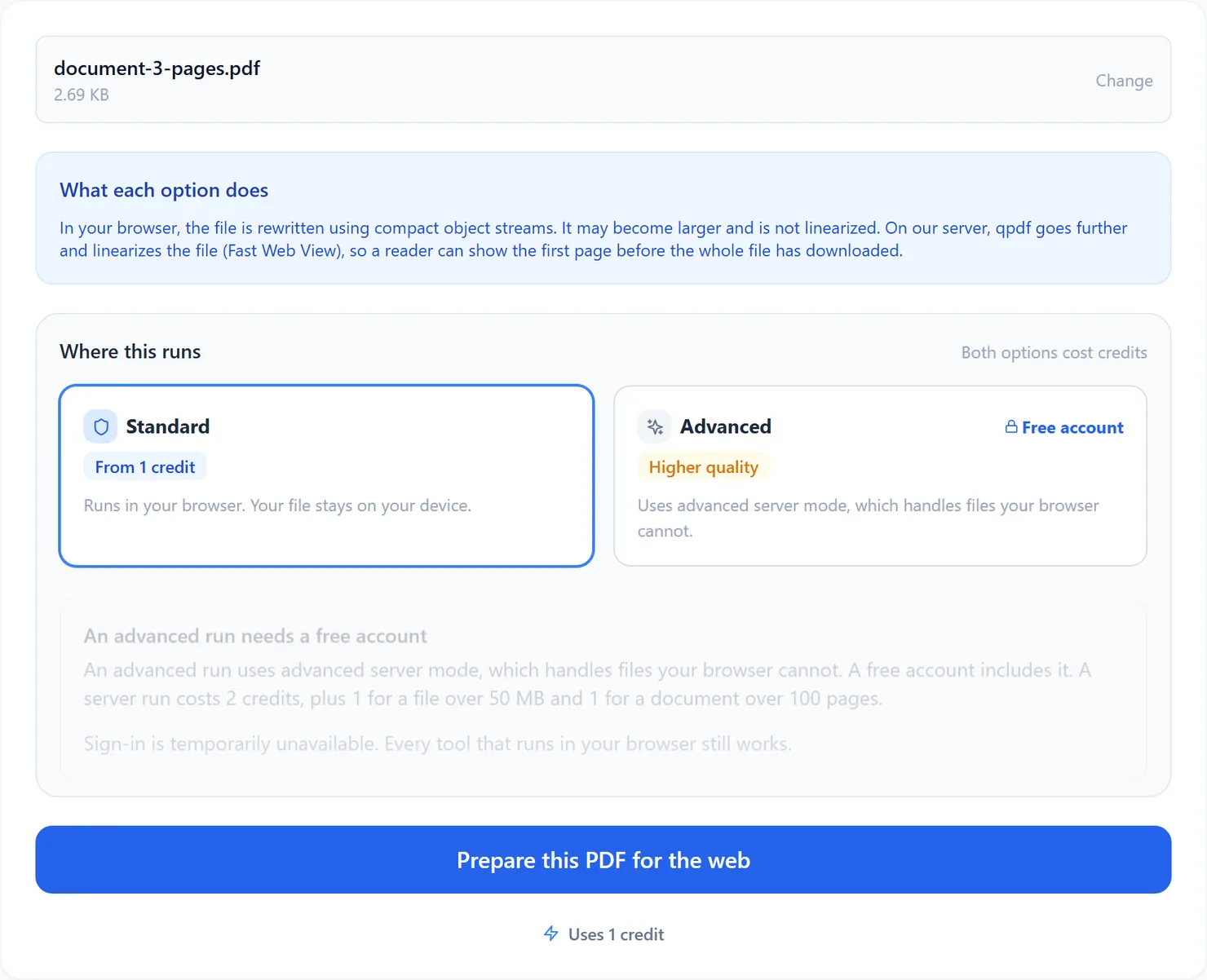
Advanced server mode, included with a free account, uses qpdf to truly linearize the file, also called Fast Web View: the pages and cross-reference tables are laid out so a reader can request just the part it needs, rather than the whole file. It is best suited to large PDFs that live on a website. Choosing Advanced while signed out explains that it needs an account, rather than starting a run.
Tips
- Compress first if size matters too. If the file is also large because of high-resolution images, run Compress PDF before optimizing it for the web.
- Check the file still opens normally. Review the downloaded pages and any forms, links or annotations you depend on.
- Use Advanced for anything you will host at scale. Linearization helps supporting PDF readers and web servers start displaying a page before the whole file is downloaded.