PDF Tools
A long PDF without bookmarks means scrolling to find anything. Bookmark PDF adds a navigation outline, the panel most readers show on the left, so a reader can jump straight to the section they need.
What you need
- One PDF file, up to 100 MB.
- The page number for each bookmark you want to add, and a short title for it.
How to add bookmarks to a PDF, step by step
- Open Bookmark PDF and choose your file.

The Bookmark PDF tool, ready for a file. - Fill in a title and a page for each bookmark. Trying to save with no title filled in shows a clear warning instead of doing nothing.

Trying to save with no bookmark title filled in shows a warning instead of a blank result. - Add as many as you need. Use "Add another" for each extra row, and the trash icon to remove one.
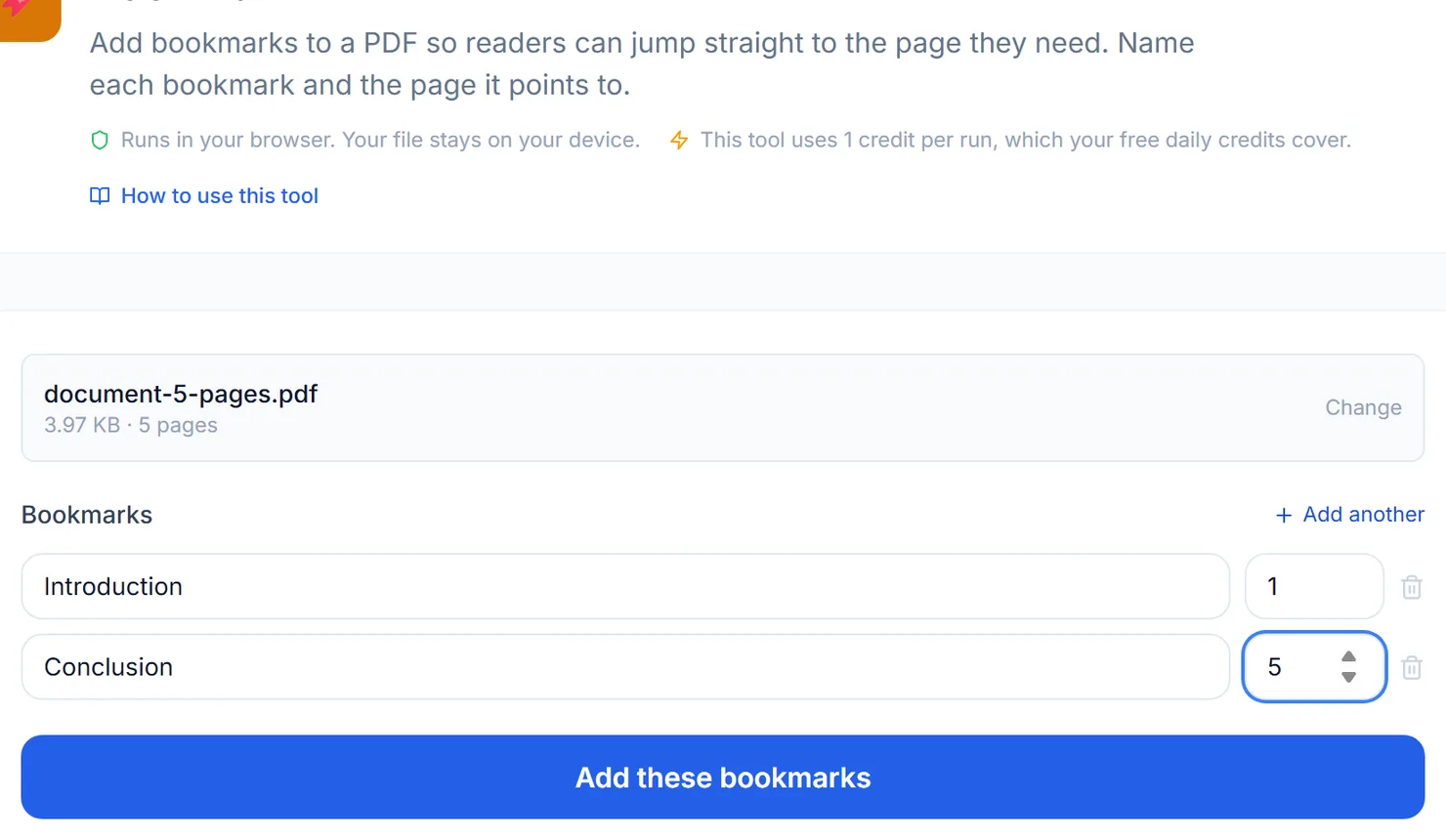
Two bookmarks, each pointing at a page in the document. - Select "Add these bookmarks" and download the result.
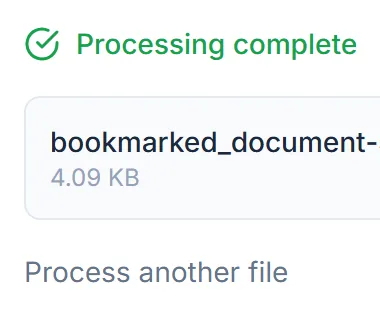
The bookmarks are added. Select Download to save the file.
Credits: this tool runs in your browser and uses 1 credit per run, which your free daily credits cover. You get 10 free credits a day, or 25 with a free account.
What we checked
In testing, two bookmarks pointing at real pages saved correctly: the file gained a proper navigation outline and was set to open with the bookmarks sidebar showing. Trying to save with no bookmark title at all produced a clear warning rather than a silent, empty result. Choosing a different file starts a fresh bookmark list, so bookmarks from one document never carry into the next.
Why bookmark a PDF
- Long reports and manuals. Bookmarks for each section let a reader skip straight to the part they need.
- Contracts and agreements. A bookmark for each clause or signature page saves a reader from scrolling through pages of boilerplate.
- Anything you will reference repeatedly. A bookmarked reference document is far easier to use than one you have to search through each time.
Tips
- Count your pages first. Know the page number for each section before you start filling in rows.
- Pair with viewer preferences. Use Set PDF Viewer Preferences if you want to control the sidebar setting separately.