PDF Tools
A PDF can carry instructions for how it should look the moment it opens: what zoom level, whether pages sit side by side, and whether a panel like bookmarks or thumbnails appears automatically. Set PDF Viewer Preferences lets you choose all of that.
What you need
- One PDF file, up to 100 MB.
- An idea of how you want it to open, for example zoomed to fit the page, or at its actual size with the bookmarks panel showing.
How to set a PDF's viewer preferences, step by step
- Open Set PDF Viewer Preferences and choose your file.
The Set PDF Viewer Preferences tool, ready for a file. - Choose the zoom, page layout and sidebar, and any of the three window checkboxes you want on.
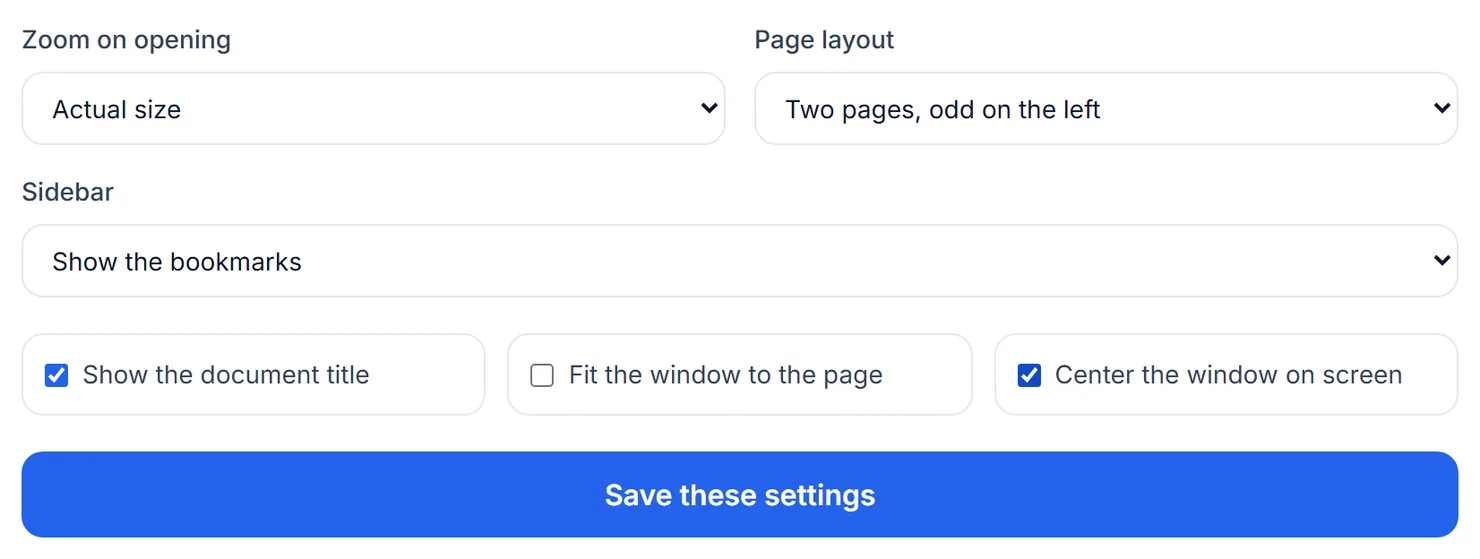
Choose the zoom, page layout, sidebar and window behavior a reader sees on opening. - Select "Save these settings" and download the result.
The settings are saved. Select Download to save the file.
Credits: this tool runs in your browser and uses 1 credit per run, which your free daily credits cover. You get 10 free credits a day, or 25 with a free account.
The options, one by one
- Zoom on opening: "Fit the whole page" or "Actual size."
- Page layout: one page at a time, continuous scroll, or two pages side by side with the odd page on the left or the right.
- Sidebar: no sidebar, show the bookmarks, show page thumbnails, or open full screen.
- Show the document title in the reader's window or tab, instead of the file name.
- Fit the window to the page, and center the window on screen, two window behaviors some readers support.
In testing, choosing actual-size zoom, a two-column layout, the bookmarks sidebar and a centered window all saved correctly and were confirmed by inspecting the resulting file directly, and every page of the document survived the run.
Why set viewer preferences
- A form or a fixed layout. Actual-size zoom keeps a form or a design document from being rescaled when it opens.
- A long report. Opening straight to the bookmarks sidebar, once the file has bookmarks, helps a reader jump to the section they need.
- A polished handoff. Showing the document title instead of a file name like "scan0043.pdf" looks more deliberate when you send a file to someone else.
Tips
- Add bookmarks first. The bookmarks sidebar option is only useful once the file has an outline; see Bookmark PDF.
- Give it a clear title too. Turn on "Show the document title" and set one with Change PDF Info.
- Test in the reader your audience uses. Desktop readers generally honor every setting here; browser viewers can vary.