PDF Tools
Overlaying two PDFs lays every page of one document on top of every corresponding page of another, at the opacity you choose. It is a quick way to add a letterhead, a background template or a stamp to a document that does not already have one built in.
What you need
- The base PDF, the one that goes underneath, up to 100 MB.
- The PDF to lay on top, such as a letterhead or template.
How to overlay one PDF on another, step by step
- Open PDF Overlay and choose the PDF that goes underneath, then the PDF that goes on top.
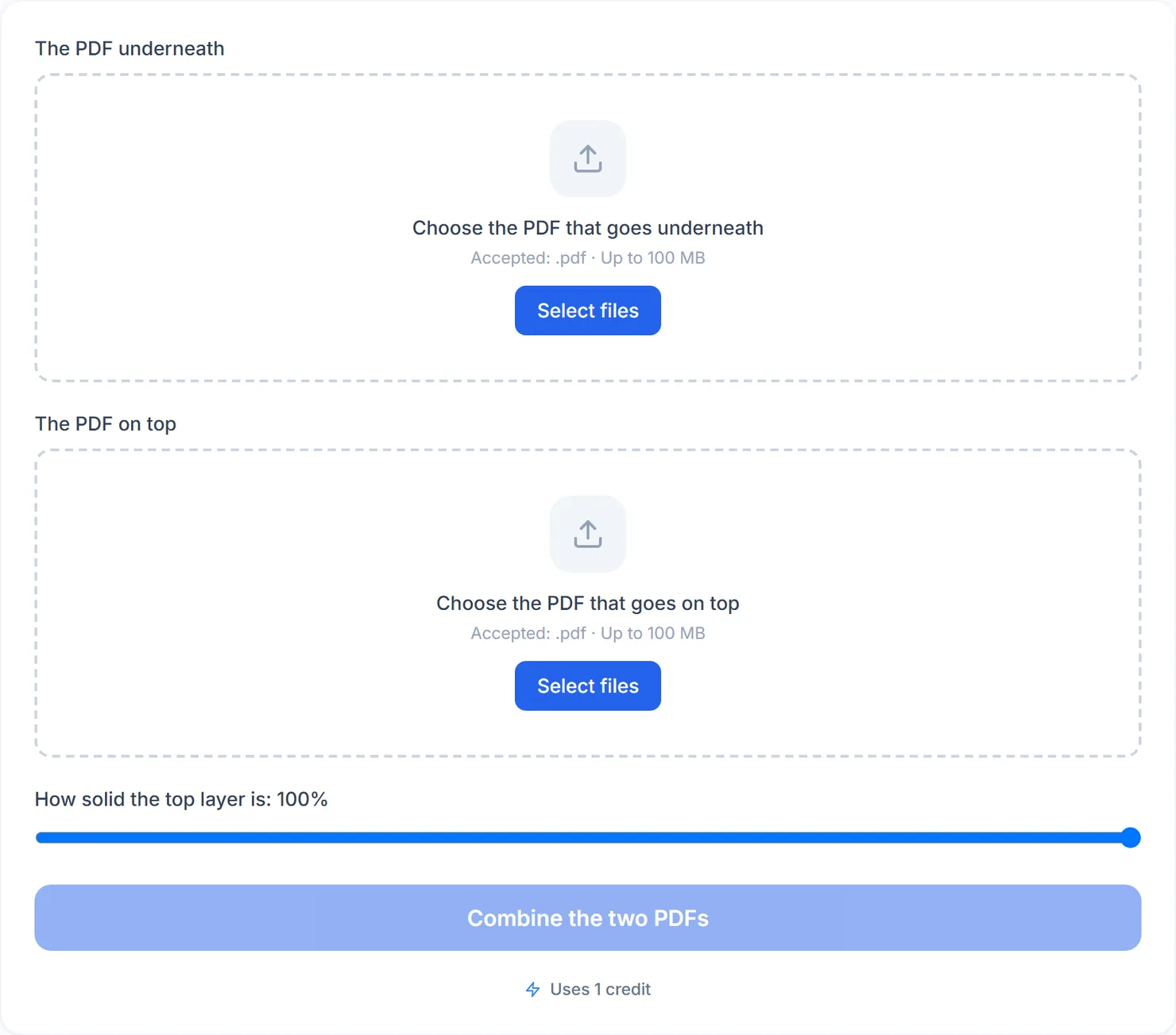
PDF Overlay before either file is added. - Set how solid the top layer is. Lower it for a faint background, or keep it high for a solid stamp.
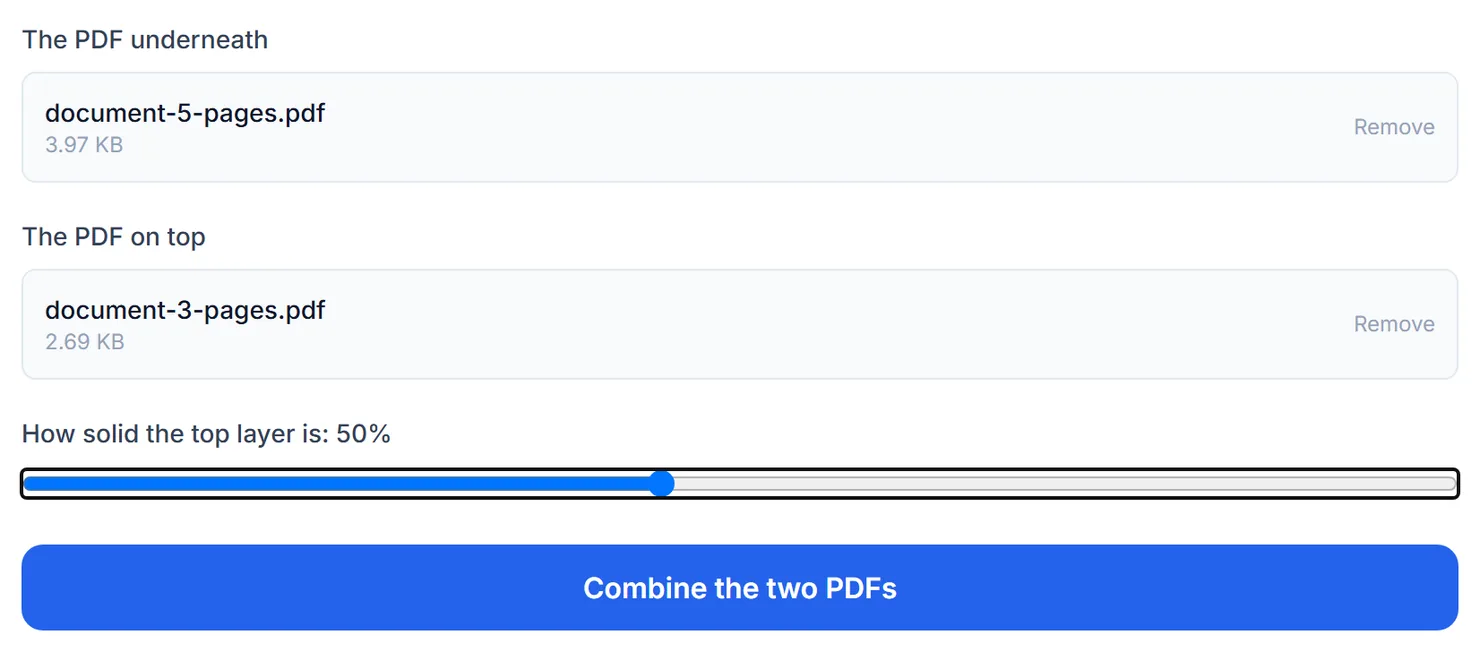
Add the base PDF, the PDF to lay on top, and how solid the top layer should be. - Select "Combine the two PDFs", then download the result.
Select Download to save the combined PDF.
Credits: combining two PDFs uses 1 credit, which your free daily credits cover. You get 10 free credits a day, or 25 with a free account.
Tips for a clean overlay
- Match page sizes where you can. The overlay is stretched to fit each base page's own size, so a very different aspect ratio between the two files can distort it.
- Give the overlay the same number of pages as the base document when you want a different design on each page. If it has fewer, its pages repeat from the start once they run out.
- Test with a low opacity first if you are not sure how the two documents will look together, then raise it once you are happy with the position.
- Want to add pages instead of laying them on top? Use Merge PDF to combine documents one after another instead.