PDF Tools
Adding a watermark stamps text, such as DRAFT, CONFIDENTIAL or a company name, across every page of a PDF. It is a quick way to mark a document as unfinished, restricted, or belonging to someone, without editing every page by hand.
What you need
- The PDF you want to watermark, up to 100 MB.
- The wording you want stamped, such as DRAFT or CONFIDENTIAL.
How to add a watermark, step by step
- Open Add Watermark and choose your file.
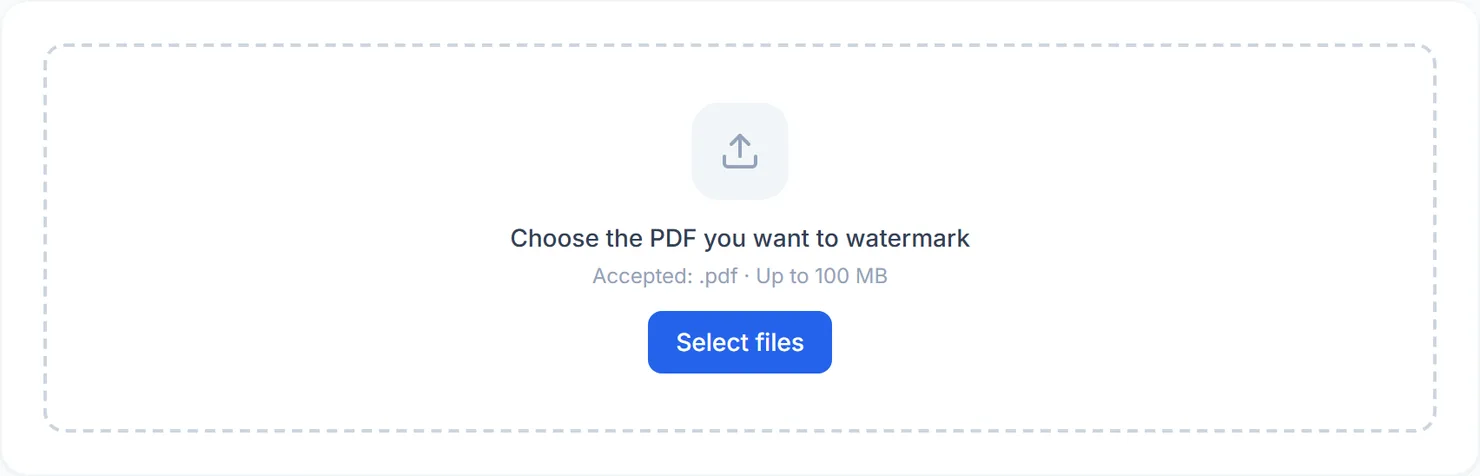
The Add Watermark tool before a file is added. - Set the text, color, opacity, type size, rotation and position. The box below the settings previews roughly how the watermark will look.
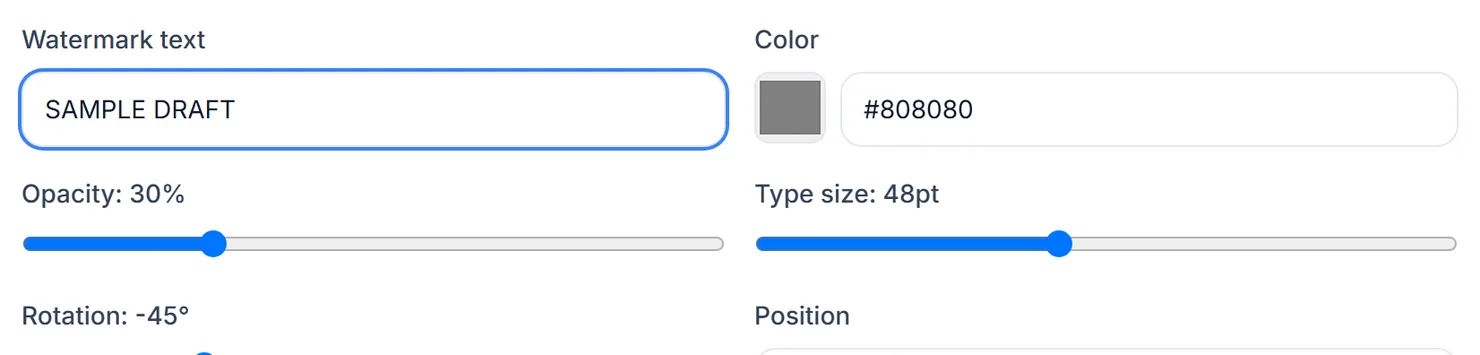
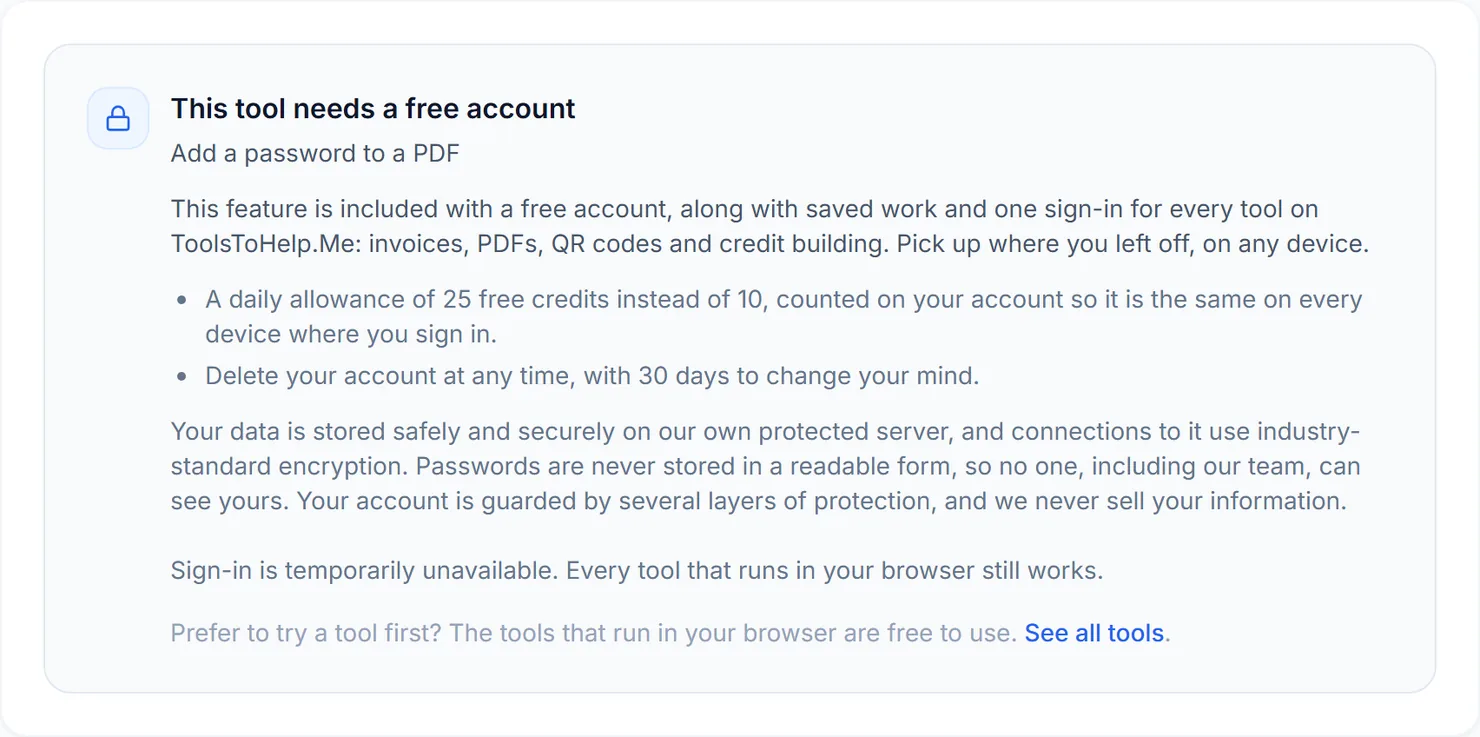
Set the watermark text, its color, opacity, type size, rotation and position. - Choose where it runs. Standard stamps the watermark in your browser. Advanced uses our server and needs a free account; choosing it while signed out explains this instead of switching modes.

Advanced server mode is included with a free account. Signed out, choosing it explains this instead of running. - Select "Add the watermark", then download the result.
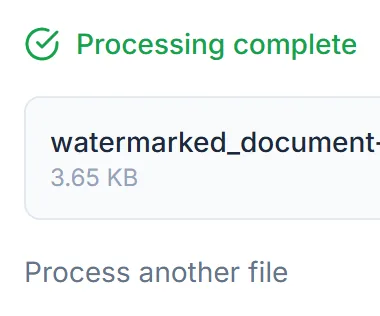
When the watermark is applied, select Download to save the result.
Credits: a Standard watermark uses 1 credit, plus 1 for a file over 50 MB and 1 for a document over 100 pages, which your free daily credits cover. Advanced uses 2 credits with the same surcharges, and needs a free account. You get 10 free credits a day, or 25 with a free account.
Standard or advanced server mode
Standard is free to try and keeps your file on your device, which is enough for most everyday documents. Choose Advanced for a very large file, or when you want the work done on our hardware instead of your own browser.
Tips for a watermark that looks right
- Keep opacity low for a background watermark. Around 20 to 30 percent keeps text underneath readable while still being visible.
- Corners work with any rotation. The tool fits the rotated text inside the page margins, and it shrinks the text if it would not fit, so the whole word or phrase always shows.
- Shorter text reads more reliably at a large type size. A single word like DRAFT stays inside the page at more angles and positions than a long phrase.
- Need page numbers as well? Run the watermarked file through Add Page Numbers afterward.