PDF Tools
Adding page numbers stamps a number on every page of a PDF, in the position, starting point and style you choose, which is useful for a printed handout, a long report, or any document people might refer to by page.
What you need
- The PDF you want to number, up to 100 MB.
How to add page numbers, step by step
- Open Add Page Numbers and choose your file.

The Add Page Numbers tool before a file is added. - Choose the position, the starting number, an optional prefix and suffix, and the type size. The line below the settings previews exactly how page 1 will read.
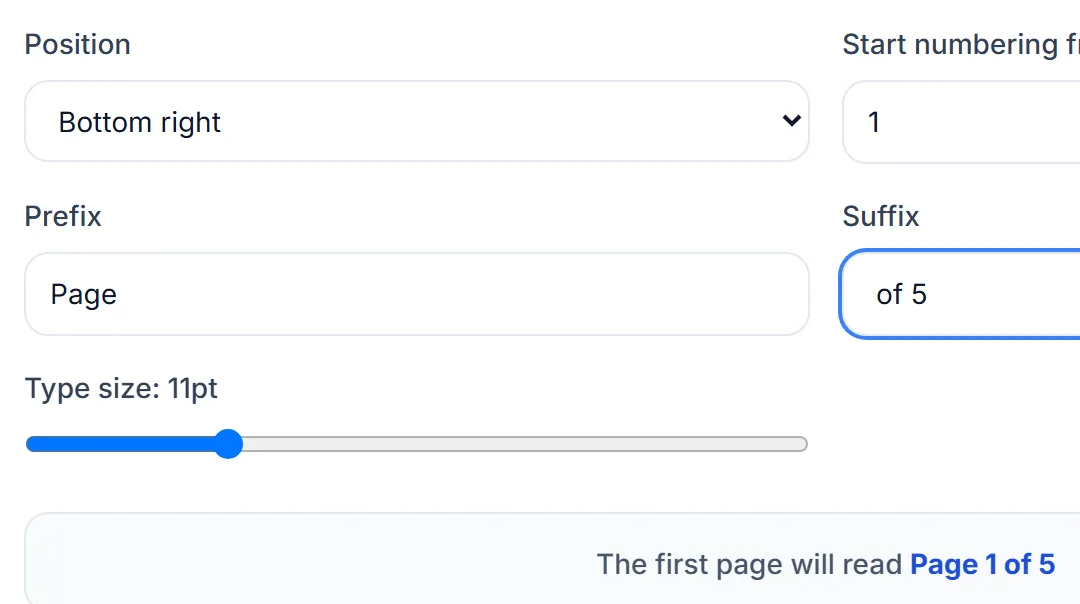
Choose the position, a starting number, and an optional prefix and suffix. The preview shows how page 1 will read. - Select "Add page numbers", then download the result.
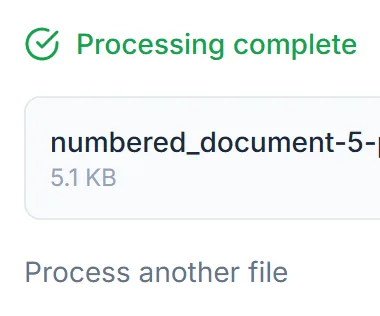
Select Download once the page numbers are added.
Credits: adding page numbers uses 1 credit, which your free daily credits cover. You get 10 free credits a day, or 25 with a free account.
Tips for numbering that reads cleanly
- Check the preview line before you run it. It shows exactly what page 1 will read, including your prefix and suffix, so a typo is easy to catch first.
- A suffix like "of 10" is fixed text, not a live count. If you add or remove pages afterward, update the suffix yourself to match.
- Keep Start numbering from at 1 or higher unless you have a specific reason to start lower; the tool accepts any number you type, including 0, without checking whether it makes sense for your document.
- Want a watermark too? Run the file through Add Watermark either before or after numbering it.