PDF Tools
HEIC to JPG converts the HEIC and HEIF photos an iPhone saves by default into JPG, a format almost every app, website and photo editor can open. Because no browser can decode HEIC on its own, this conversion always runs in advanced server mode, which needs a free ToolsToHelp.Me account.
What you need
- A free ToolsToHelp.Me account. This tool has no browser-only mode, since browsers cannot read HEIC files.
- One or more HEIC or HEIF photos, up to 100 MB each.
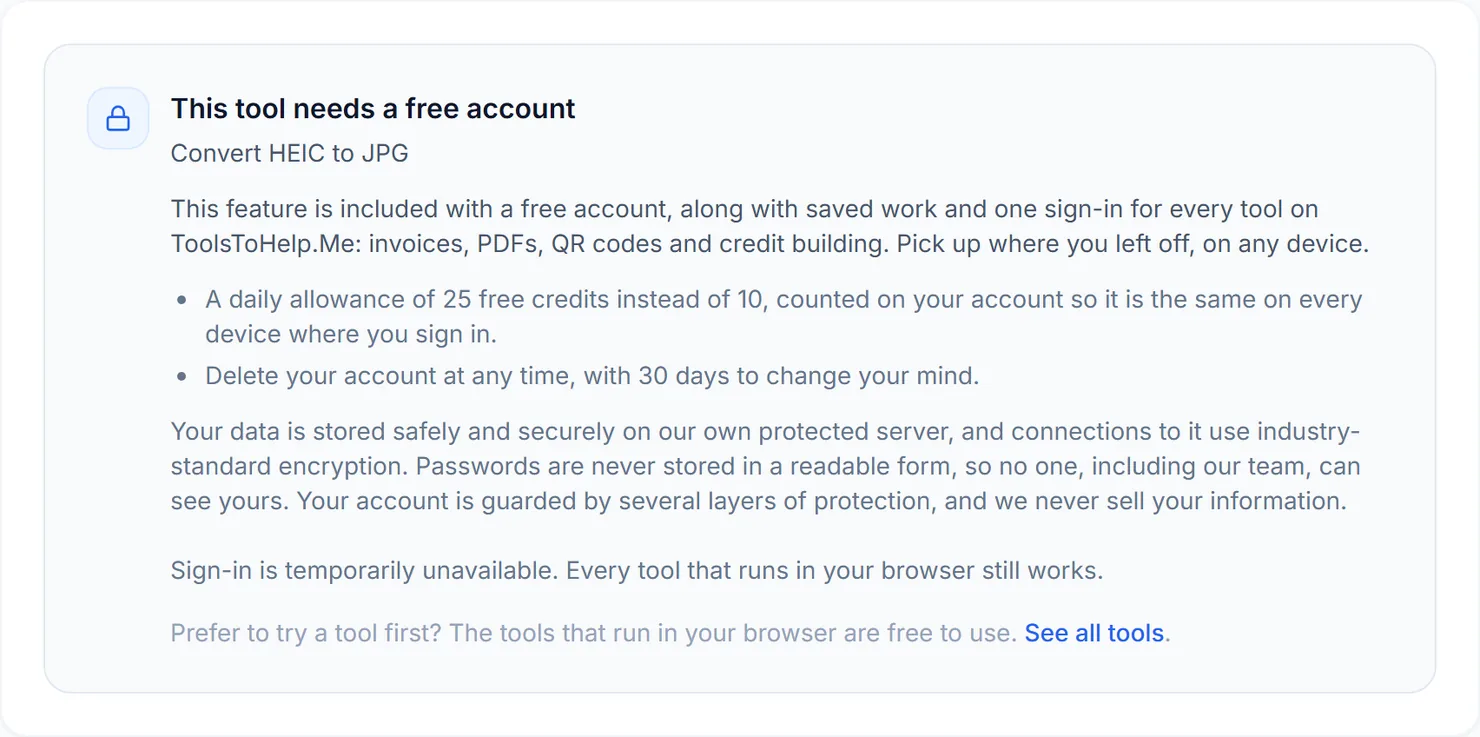
Signed out, this is what you see
Open HEIC to JPG without signing in and the converter itself does not load. In its place is a panel explaining that the tool needs a free account, what the free account adds, and a way to create one.
Once you are signed in
- Open HEIC to JPG and select the HEIC or HEIF photos you want to convert.
- Set the JPEG quality, from 60 to 100 percent, the same slider used on WEBP to JPG.
- Select Convert. Each photo is sent to advanced server mode and converted to JPG.
- Download the result. Each JPG has its own Download button, and a ZIP option appears when you convert more than one photo.
Credits: HEIC to JPG uses advanced server mode for every run, which costs 2 credits per photo. A free account raises your daily credits from 10 to 25.
Why this needs a free account
Most of the image tools on this site, including WEBP to JPG and WEBP to PNG, convert files entirely on your device using your browser's own image support. Browsers can display and re-save WEBP, JPG and PNG, but not HEIC. Converting a HEIC file has to happen somewhere that can decode it, which is why this tool always uses advanced server mode rather than offering a browser option like most of the other converters here.
Tips
- Converting a lot of photos from a trip? Add them all in one batch and download the ZIP rather than one at a time.
- Want new photos saved as JPG automatically? Change your iPhone's Camera settings to Formats, then Most Compatible.
- Building a PDF from the converted photos? Use Images to PDF once you have your JPGs.