PDF Tools
Create PDF with Camera turns your webcam or phone camera into a simple scanner. Capture a document page by page, check the thumbnails, then combine everything into one PDF, without a separate scanning app.
What you need
- A webcam or phone camera, with permission for this page to use it.
- The document, laid out somewhere your camera can see it clearly.
How to scan with your camera, step by step
- Open Create PDF with Camera and select Turn on the camera. Allow the permission prompt your browser shows.
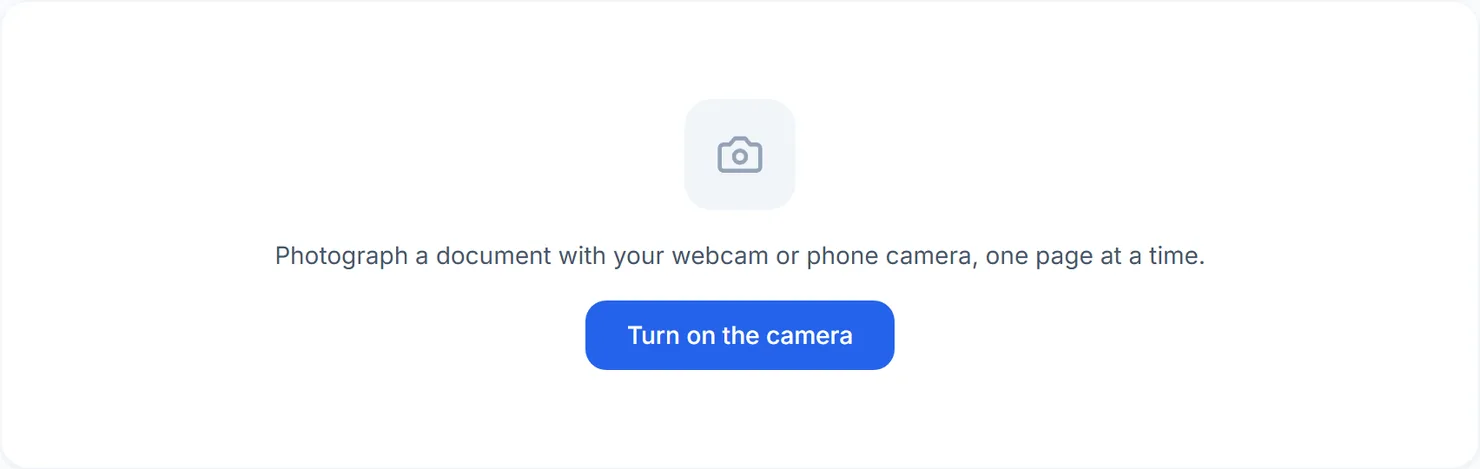
Create PDF with Camera before the camera is turned on. - Frame the page inside the corner guides, then select Capture this page. Repeat for each page of your document.
- Check the thumbnails. Each capture is numbered and shown as a thumbnail, with an X to remove one you do not want.
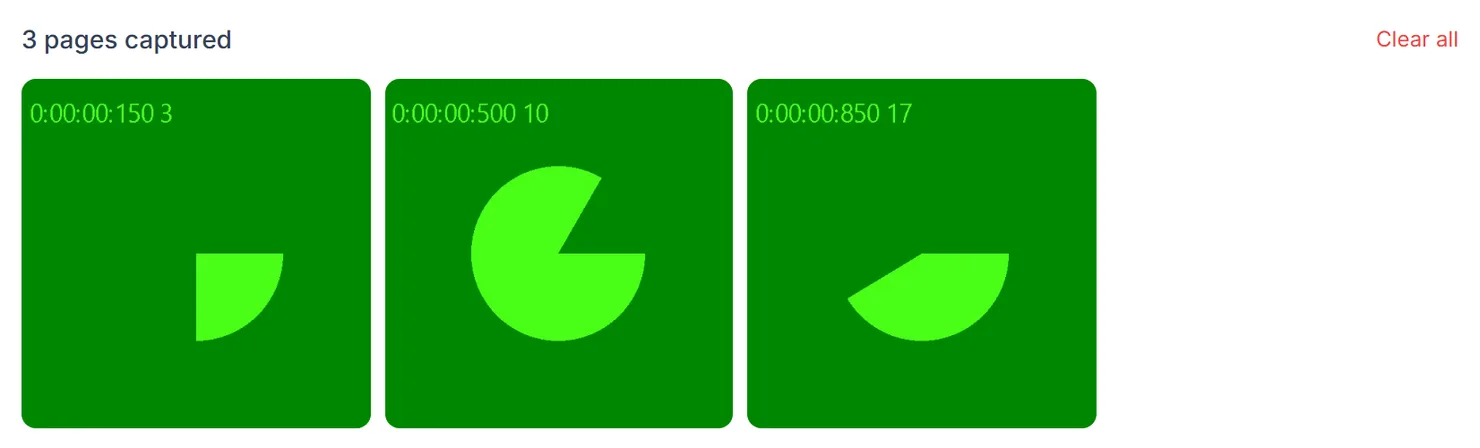
Three pages captured, shown as thumbnails. - Select Create a PDF from N pages to download a PDF with one page per capture.

Create a PDF from the pages you captured.
Credits: creating the PDF uses 1 credit, which your free daily credits cover. You get 10 free credits a day, or 25 with a free account.
What the controls do
- Capture this page. Saves the current camera frame as one page.
- The X on a thumbnail. Removes that one capture from the set.
- Clear all. Removes every capture, so you can start over.
- Turn the camera off. Stops the camera without losing the pages you already captured.
Tips for a readable scan
- Use good, even light. A camera scan reads better in daylight or bright, even room light than in a dim room.
- Fill the frame. Line the page up with the corner guides so as little background as possible is captured.
- Need text you can search or copy from a scan? Run the finished PDF through PDF OCR afterward.
- Already have image files instead of a live camera? Use Images to PDF instead.