The Invoice Generator builds and saves your invoice, but it does not send email on your behalf. Once your invoice is ready, you send it the way you would send anything else: from your own email address, with either the invoice's link or a downloaded PDF.
That extra step is not a downside. Sending from your own address means the message looks like it came from you, not from a tool, and it lands in your sent folder alongside the rest of your client correspondence.
Sending the link or the PDF
You have two options, and both work well:
- The invoice link. Once you save an invoice with a free account, it gets a link your client can open in their browser, without needing an account of their own. They can view it, comment on it, and for an estimate, sign it directly from that page.
- A downloaded PDF. Download the invoice as a PDF and attach it to your email. This suits clients whose accounts payable process expects a file rather than a link, or who prefer to save the invoice locally.
The link has one advantage a PDF cannot match: you can see when your client has actually opened it, which tells you whether a follow-up is really needed later.
Writing the subject line
Keep the subject line plain and specific, so it is easy to spot and easy to find again with a search:
- "Invoice INV-2026-014 from Jordan Lee Writing"
- "Invoice for [project name], due [date]"
- "[Your business name]: invoice for [month]"
Avoid a vague subject like "Following up" or "Documents" for the first email. Save those for a reminder later in the thread.
Sample email wording
Sending the link:
"Hi [name], thanks again for the opportunity to work on [project]. Please find your invoice here: [invoice link]. The total due is [amount], and payment is due by [date]. Let me know if you have any questions."
Attaching a PDF:
"Hi [name], attached is invoice [number] for [project], totaling [amount] and due by [date]. Please let me know if you need anything else for your records. Thank you."
Add a line about how you accept payment if it is not already clear on the invoice itself, such as bank transfer details or a Pay now link if you have one set up.
If your work involves a signed document too
If the job also involves a signed agreement or scope of work, you can sign a PDF and attach it alongside the invoice, or point your client to the invoice link if you sent an estimate they can sign there directly.
Sending your invoice, step by step
 Inside Invoice Generator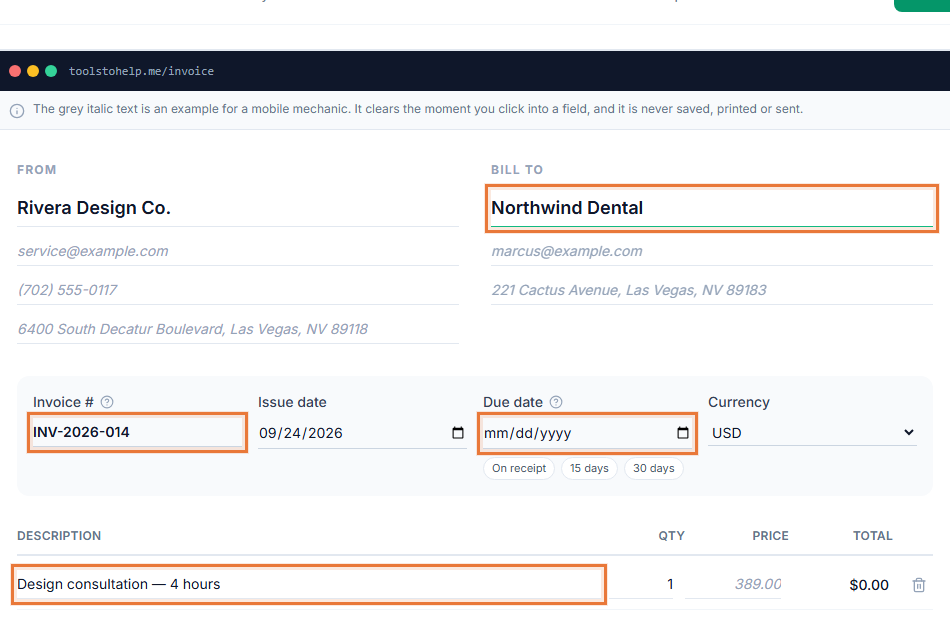
- Finish and save the invoice. Create a free account if you have not already, so the invoice is saved and has a shareable link.
- Choose link or PDF. Copy the invoice link, or download the PDF, depending on what suits your client.
- Open a new email from your own address. Use a specific subject line that names your business and the invoice.
- Paste the link or attach the PDF, along with a short note stating the amount and due date.
- Send it, and check back for views. Once your client opens the link, you can see that it was viewed.
Following up if you do not hear back
If a few days pass with no response and the due date is approaching, a brief, friendly reminder is normal and expected, not pushy. Reply in the same email thread rather than starting a new one, so the history stays together. See what to do when a client is not paying for a full reminder schedule with wording for each stage.
Copying in someone else
If your client works with a separate accounts payable contact or a bookkeeper, ask early on who should receive the invoice, and copy that person directly rather than relying on your main contact to forward it. A copied invoice that is meant to be paid can otherwise sit unread in an inbox that nobody checks for billing, which delays payment without either side realizing why.