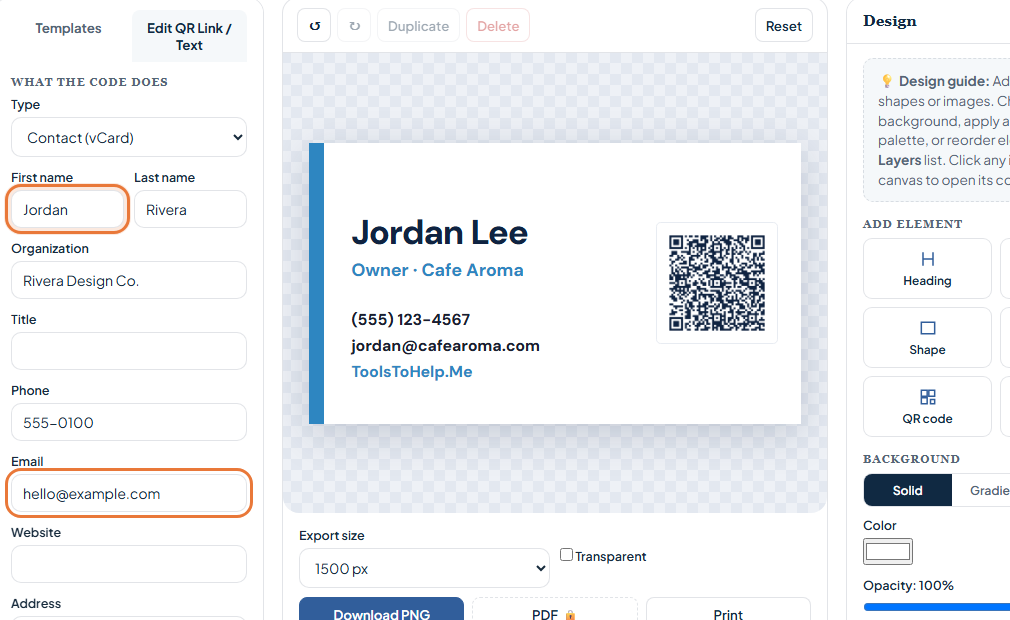
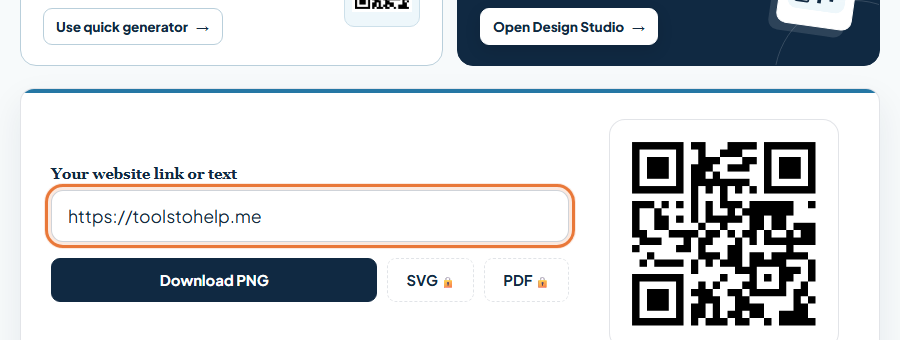
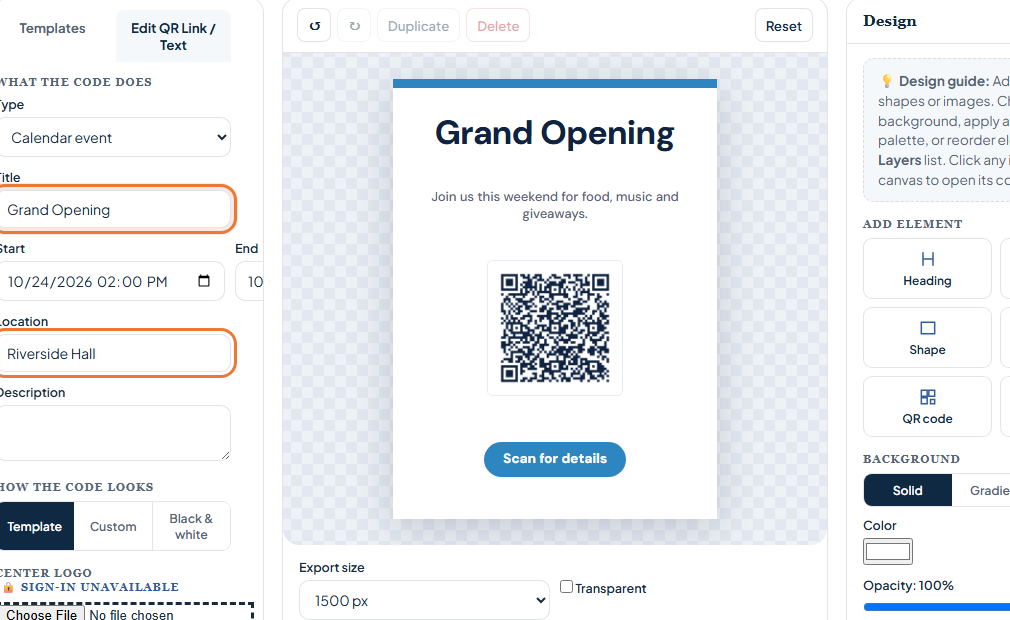
An email QR code stores a mailto link. Scanning it starts an email draft addressed to you. The visitor still chooses whether to send it, which makes the code useful for contact cards, feedback signs, service requests, and event questions.
Decide what the draft should say
Use an address you monitor. A short subject such as “Question about my order” can give you context. Keep any prefilled message brief so the visitor can write their own details. Put the email address in readable text near the code as a fallback.
Create the email QR code
 Inside QR Code Generator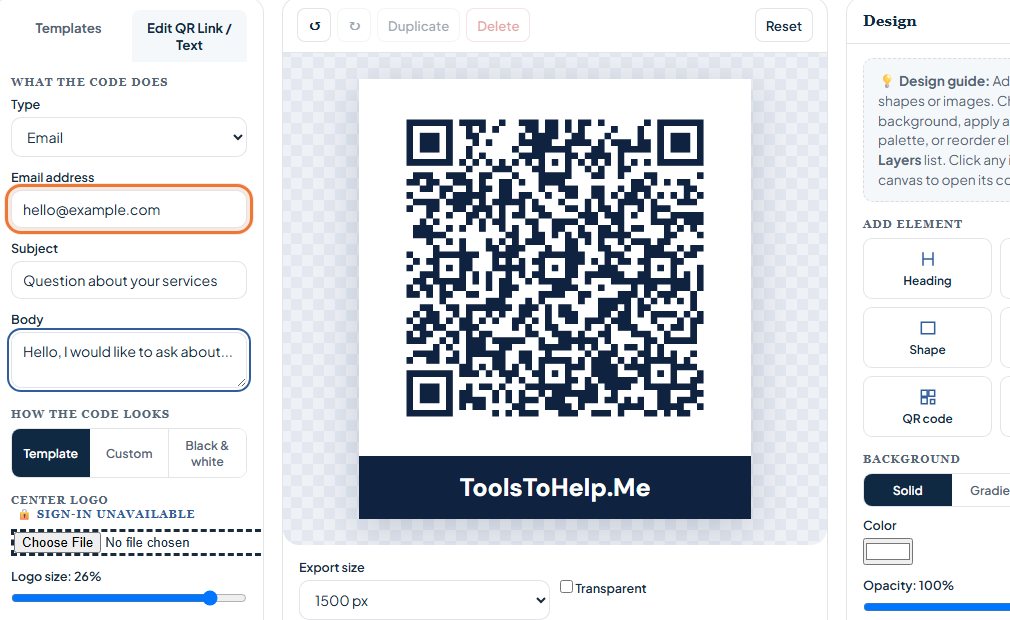
- Open Design Studio with Email selected. The button below loads a simple printable design.
- Choose Edit QR Link / Text. Enter the destination email address. Add a subject and body only if they help the person scanning.
- Edit the visible text. Tell people what scanning will do, such as “Scan to email us.” Keep the printed address visible too.
- Scan the preview. Check that your email app opens a draft with the right recipient, subject, and message. No email should send automatically.
- Download or print. Keep a light margin around the code and test it on the finished material.
Keep private details out of the code
Anyone can scan a publicly printed QR code and read the address, subject, and prefilled message. Do not put a password, private customer information, or a confidential note into those fields.
When a form link works better
If you need structured information such as an order number, use a URL QR code that opens a form you control. An email QR code depends on the visitor having an email app configured.